How to Upgrade Ram And Ssd in Laptop
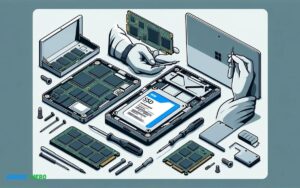
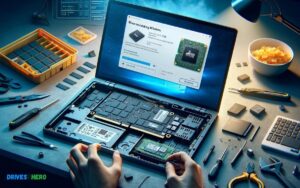
To upgrade RAM and SSD in a laptop, first confirm the laptop’s compatibility and purchase the appropriate hardware. Then, safely install the new components following the manufacturer’s instructions or a trusted guide.
Check out this helpful video on the topic:
Upgrading RAM and an SSD in a laptop can significantly boost performance, allowing for quicker boot times, faster data access, and smoother multitasking. These upgrades are some of the most cost-effective ways to extend the life of your laptop and improve its functionality.
Before starting, you should gather the necessary tools, typically a small Phillips-head screwdriver, and ensure you have an anti-static wrist strap to prevent damaging the internal components. It’s essential to perform the upgrade in a clean, static-free environment. Most laptops will have dedicated access panels for the RAM and SSD, which you can open, usually located on the bottom of the laptop. Remember to backup any important data before you begin the upgrade process to ensure you don’t lose any critical files.
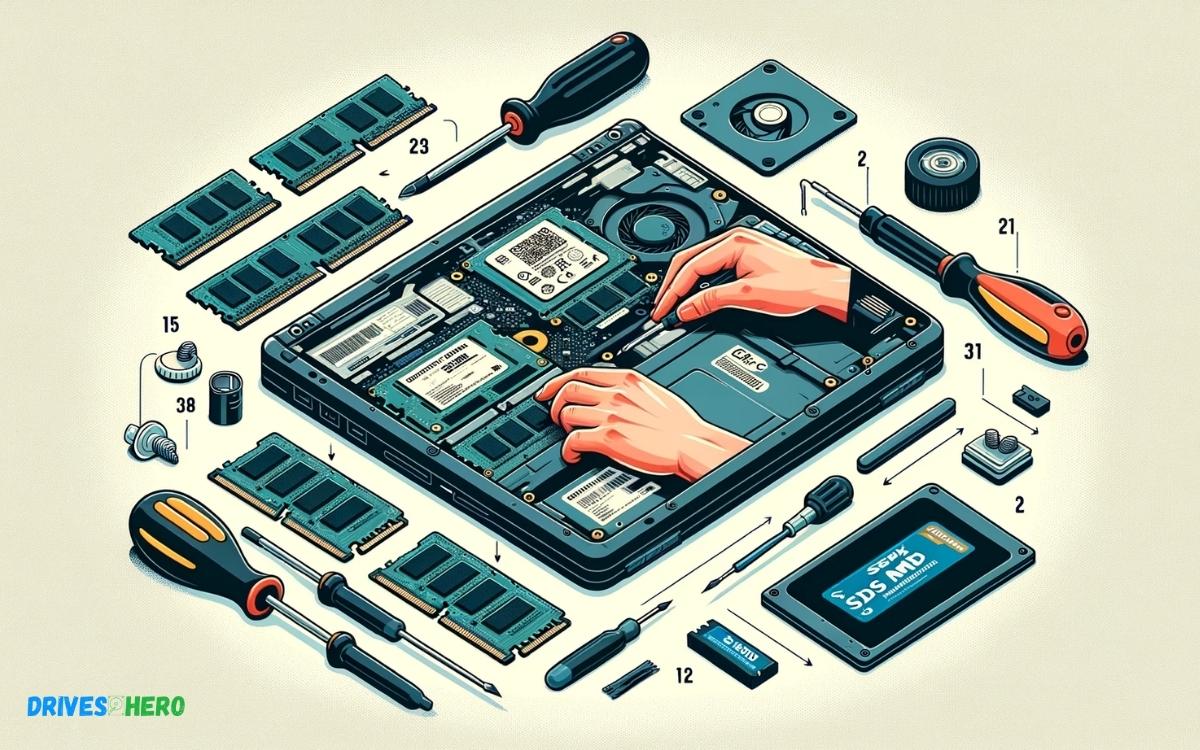
Key Takeaway
Introduction To Laptop Upgrades
As laptops have become essential tools for both work and play, ensuring they run efficiently is paramount. An effective way to boost a laptop’s performance is through hardware upgrades. Specifically, upgrading the Random Access Memory (RAM) and Solid State Drive (SSD) can lead to noticeable improvements. This blog post delves into why these components are vital, the advantages of enhancing them, and how to ensure compatibility and capacity for such upgrades.
Understanding Ram And Ssd Functions
The power of a laptop lies in its ability to quickly access and process data. RAM is a critical component that serves as the laptop’s short-term memory. It temporarily stores data that the processor needs to access quickly, enabling seamless multitasking and fast application performance. SSD, on the other hand, is a storage device that permanently keeps your data. Unlike Hard Disk Drives (HDDs), SSDs have no moving parts, which translates to faster data retrieval, boot times, and overall system responsiveness.
Benefits Of Upgrading Ram And Ssd
- Faster System Performance: Higher RAM allows more applications to run simultaneously without bogging down the system, while SSDs speed up boot and load times.
- Enhanced Multitasking: Upgrade to a larger RAM capacity and witness seamless switching between intensive applications or numerous browser tabs.
- Extended Lifespan: Revitalize an aging laptop with upgraded components to extend its serviceable life.
- Improved Reliability: SSDs are more durable and less prone to failure compared to HDDs due to their lack of mechanical parts.
Determining Compatibility And Maximum Capacity
To ensure a successful upgrade, you must determine two crucial factors: if your laptop supports upgrades, and the maximum capacity it can handle. Begin by consulting your laptop’s manual or manufacturer’s website for the specifications and limitations. Next, consider conducting a system scan with online tools provided by reputable memory and storage manufacturers to find compatible SSDs and RAM types. Always keep in mind the laptop’s form factor, as some ultra-thin models do not accommodate user upgrades.
Preparing For The Upgrade
When it’s time to boost your laptop’s performance, installing additional RAM and upgrading to a faster SSD are some of the most cost-effective ways to do so. Prior to initiating the process, it’s essential to prepare your system for a smooth and safe hardware upgrade. This preparation involves taking safety precautions, backing up your data, and purchasing the correct components for your specific laptop model.
Safety Precautions And Necessary Tools
Upgrading laptop components can be safe and straightforward when approached with caution. Below, find key steps and tools that will safeguard both you and your device:
- Turn off your laptop and disconnect all cables.
- Possess the appropriate screwdrivers – a Philips #0 or #00 for most laptops.
- Ground yourself to prevent static discharge that can damage electronic components; consider an anti-static wrist strap or mat.
- Organize your workspace to ensure a clean, uncluttered area for storing screws and parts.
- Keep track of the screws and where they came from using a compartmentalized storage box.
Backing Up Important Data
Preserve your valuable information before starting with these steps:
- Perform a full system backup using Windows Backup or Time Machine on macOS.
- Upload critical files to a cloud service like Google Drive or Dropbox for an additional layer of security.
- Clone your current drive to the new SSD if you’re aiming for a direct migration.
- Verify the integrity of your backup by ensuring files can be restored.
Utilizing reliable backup software will save you time and protect against data loss.
Purchasing The Right Ram And Ssd
Choosing compatible upgrades for your laptop is crucial:
- Identify your laptop’s model and search for its maximum supported RAM and the type of SSD interface (SATA or PCIe/NVMe).
- Consult the laptop’s manual or manufacturer’s website for specific upgrade options.
Component Specification RAM Size, Type (DDR3, DDR4, etc.), Speed, Voltage SSD Form Factor (2.5-inch, M.2), Interface (SATA, NVMe) - Match the specifications of your existing components to ensure compatibility.
- Read reviews and choose reliable brands to guarantee quality and durability.
Purchasing suitable components ensures a successful upgrade and the longevity of your laptop.
Step-by-step Guide To Upgrading Ram
Upgrading the RAM in your laptop can significantly boost performance, allowing for smoother multitasking and improved speed. Whether you’re a hardcore gamer, a professional video editor, or simply looking to enhance your device’s overall responsiveness, this guide is tailored to help you through the process. Follow this step-by-step tutorial to increase your laptop’s memory capacity with ease.
Accessing the laptop’s memory slots
Accessing The Laptop’s Memory Slots
Before starting, ensure you have the correct type of RAM and have consulted your laptop’s manual for specifications and maximum capacity. Begin by turning off your laptop, unplugging all cables, and removing the battery if possible. On the backside of your laptop, locate the memory compartment. This may require unscrewing a small panel or sliding it open.
- Turn off the laptop and unplug all cables
- Remove the battery if detachable
- Use a screwdriver to open the compartment panel
- Locate the memory slots
Removing existing RAM (if necessary)
Removing Existing Ram (if Necessary)
If the slots are occupied by existing RAM modules that you need to replace, gently unclip the side fasteners and the RAM module will pop up at an angle. Carefully pull out the module in a straight motion without touching the gold connectors. Handle with caution to prevent static damage to the RAM.
- Release side fasteners on the memory module
- Allow the module to pop up gently
- Withdraw the RAM module in a steady motion
Installing the new RAM modules
Installing The New Ram Modules
To install the new RAM, align the module with the slot, ensuring the notches match up. Insert the module at the same angle as removal, and press down until the side clamps click, securing the module. If inserting multiple modules, refer to your manual for the recommended configuration.
- Ensure you match the notches on the RAM to the slot
- Insert the RAM module at an appropriate angle
- Press down until the module is firmly clamped by the side fasteners
- Repeat for additional modules if necessary
Step-by-step Guide To Upgrading Ssd
Revitalizing your laptop with a Solid State Drive (SSD) upgrade can lead to faster boot times, quicker file transfers, and overall improved performance. This process may seem technical, but with the right tools and a bit of patience, you can upgrade your laptop’s SSD yourself. Follow this step-by-step guide to breathe new life into your laptop by upgrading its SSD.
Locating The Ssd Compartment Or Bay
Before beginning, power down your laptop, unplug all cables, and remove the battery if possible. You’ll need to find the compartment that houses the SSD. This is typically located on the underside of your laptop, but the exact location can vary based on the model. Look for a small cover held in place by screws; this is likely the SSD compartment.
- Consult your laptop’s user manual for specific instructions on opening the compartment.
- Use the appropriate screwdriver to remove the screws securing the compartment cover.
- Gently lift the cover to expose the SSD.
Removing The Old Ssd
With the SSD compartment open, you will see the old SSD in place. Most SSDs are secured with small screws or might have a caddy around them, depending on your laptop model.
- Ground yourself to avoid static electricity damage by touching a metal part of the laptop’s frame.
- Remove any screws holding the SSD in place using a screwdriver.
- Carefully slide out the old SSD. If necessary, lift it away gently from any clips or caddies holding it.
Installing The New Ssd And Securing It
Now that the old SSD is removed, you can proceed with the installation of your new SSD. Make sure your new SSD is compatible with your laptop both in form factor and interface (SATA or NVMe).
- Insert the new SSD firmly into the slot or bay. Ensure it is fully seated and aligned properly.
- Screw in any required retention screws to secure the SSD to the laptop’s frame.
- If applicable, ensure any caddies or clips are replaced and secure.
Once your new SSD is secured, replace the compartment cover and fasten the screws. Your laptop is now equipped with a new SSD!
Post-upgrade Steps
After successfully installing a new RAM and SSD in your laptop, key steps remain to ensure everything is working perfectly. This phase is crucial to get your laptop back in action with the newfound speed and storage capacity. Follow these post-upgrade procedures to set up the new hardware and get your system up and running efficiently.
Reassembling The Laptop And Checking Components
- Carefully reattach any covers or panels removed during the upgrade. Make sure to secure them with their respective screws.
- Check all connections to ensure the RAM and SSD are seated properly and any cables are reconnected.
- Reinsert the battery (if it was removed) and power on the laptop to check for immediate functionality, including recognizing the new RAM in the BIOS.
Setting Up The New Ssd, Partitioning, And Formatting
The new SSD requires a few steps to be ready for use:
- Boot into your operating system and open Disk Management.
- Locate the SSD, which may show as unallocated space.
- Initialize the disk if prompted, choosing either MBR (Master Boot Record) or GPT (GUID Partition Table) depending on your preference or system requirements.
- Create new partitions as needed. This is where you can determine the size of the primary partition or create multiple partitions for organizing data.
- Format the partitions with your desired file system, typically NTFS for Windows users, and assign drive letters.
Restoring Data And Confirming The Upgrade Success
- Transfer data back to your laptop from any backups you have made. Using a tool like Time Machine for macOS or File History for Windows can make this process smoother.
- Once data is restored, run a few tests to verify the SSD’s function. This could include checking write/read speeds and ensuring no data corruption has occurred.
- Confirm the system is stable and running efficiently, and there are no issues with boot times or application performance.
- With a successful boot and data access, congratulate yourself—the upgrade is complete!
Troubleshooting And Tips
Once you’ve made the decision to enhance your laptop’s capabilities by upgrading the RAM and SSD, the excitement sets in, followed by the reality of technical intricacies. Even though upgrading these components is often smooth, you may encounter some hurdles along the way. Preparing yourself with the right knowledge and tools can make this process go a lot smoother. Here are some troubleshooting guidelines and tips to ensure you have a successful upgrade experience and maintain peak performance from your new hardware.
Common Issues During And After Upgrading
Encountering problems during or after the upgrade can be frustrating. Here are some of the typical issues users face:
- Laptop fails to recognize the new RAM or SSD
- Encountering blue screen errors
- Performance issues such as slow boot-up
- The new SSD is not showing up
To address these, ensure all components are compatible with your laptop’s specifications. Furthermore, confirm that all parts are correctly seated, and software (BIOS/UEFI) is updated. If problems persist, consulting the hardware manuals or seeking professional help may be required.
Optimizing Laptop Performance Post-upgrade
After the installation of new hardware, some steps can optimize laptop performance:
- Update the system BIOS/UEFI for full hardware compatibility.
- Reinstall or update device drivers, especially for the new SSD.
- Check the system’s RAM allocation and adjust if necessary.
- Enable TRIM command for SSD to ensure speed and efficiency.
| Action | Performance Impact |
|---|---|
| Adjusting Virtual Memory Settings | Can reduce lag and improve multitasking |
| Conducting Regular Disk Cleanups | Enhances SSD’s responsiveness |
Executing these steps helps ensure that the hardware upgrades serve their intended purpose without bottlenecks.
Maintenance And Longevity Of Upgraded Components
Maintenance is key to longevity for any hardware upgrade. Here are essential maintenance tips:
- Keep the laptop’s interior free from dust.
- Use software to monitor the health and temperature of the SSD.
- Regularly backup data to prevent loss in the event of failure.
- Avoid unnecessary writes to the SSD to extend its life.
Treating upgraded components with care ensures they last longer and maintain the desired performance edge.
Conclusion
Upgrading your laptop’s RAM and SSD is a surefire way to boost performance. With the right tools and guidance, it’s a task you can accomplish confidently. Remember to ground yourself to avoid static damage, handle components with care, and double-check compatibility.
Your laptop will thank you with snappier responses and quicker load times. Happy upgrading!

Harold Williams is a senior writer and technical editor at Drives Hero with 20+ years of experience in IT administration. He specializes in storage systems, SSD reviews, and performance testing, bringing real-world insight to every guide.