How To Install SSD In PS5: Complete 2026 Guide
Running out of storage on your PS5 is one of those inevitabilities that creeps up faster than you’d expect. Between massive installs like Grand Theft Auto VI, ongoing live-service titles, and a growing digital library, that internal 667 GB of usable space fills up in a hurry. The good thing is Sony built the PS5 with a dedicated M.2 expansion slot, and adding a second SSD is something you can do in about ten minutes with a single screwdriver.
This guide walks you through every step of the process, from picking a compatible drive to formatting it on your console. I’ve done this upgrade on multiple PS5 consoles (both the original model and the slim revision), and I’ll share the specific drives and heatsinks I trust heading into 2026. If you follow these steps carefully, you’ll double or even quadruple your storage without any headaches.
What You Need to Know Before You Buy
Compatible SSD Specifications
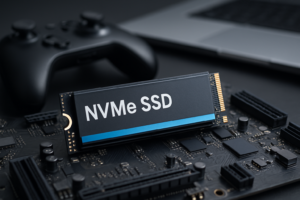
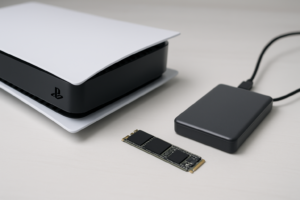
The PS5 requires a very specific type of SSD. You need an M.2 NVMe SSD using the PCIe Gen 4 interface (or newer). Gen 5 drives also work perfectly, and many of the best options available in 2026 are Gen 5, which are fully backward compatible with the PS5’s Gen 4 slot. Standard SATA M.2 drives will not work.
Here are the exact specs Sony requires:
- Interface: PCIe Gen 4 (or Gen 5) x4 M.2 NVMe SSD
- Form factor: M.2 Type 2230, 2242, 2260, 2280, or 22110
- Capacity: 250 GB to 4 TB
- Sequential read speed: 5,500 MB/s or faster recommended
- Size with heatsink: Must not exceed 110mm x 25mm x 11.25mm
I’d strongly recommend sticking with drives rated at 7,000 MB/s or above for read speeds. While 5,500 MB/s meets Sony’s minimum recommendation, faster drives ensure your load times match or beat the internal SSD’s performance. The difference is noticeable in games that stream assets heavily during gameplay.
How Much Storage Should You Get?
For most people, a 2 TB drive hits the sweet spot between capacity and value. It gives you enough room for 25 to 30 large PS5 titles alongside the internal storage. If you’re a digital-only buyer with a massive library, 4 TB drives are available, though they carry a significant price premium. I’d skip anything under 1 TB since you’ll fill it up faster than you think.
Do You Need a Heatsink?
Yes, with one caveat. The PS5 expansion slot doesn’t include its own cooling solution, so your NVMe drive needs a heatsink to prevent thermal throttling. You have two options: buy an SSD that comes with a heatsink pre-attached, or buy a separate heatsink and attach it yourself. Some of the most popular PS5-compatible SSDs (like the Samsung 990 Pro with Heatsink) come ready to install out of the box.
If your drive doesn’t include a heatsink, you can pick up a dedicated PS5 M.2 SSD heatsink on Amazon for very little money. Just make sure the total height of the drive plus heatsink stays under 11.25mm, or it won’t fit in the expansion bay.
Recommended PS5-Compatible SSDs for 2026
After testing several drives across different PS5 consoles, these are my top picks heading into 2026. I’ve factored in real-world PS5 load times, thermals, reliability, and overall value.
Best Overall: Samsung 990 Pro (2 TB with Heatsink)
The Samsung 990 Pro 2TB with Heatsink remains one of the most reliable and consistently fast PS5 SSDs you can buy. It delivers sequential reads up to 7,450 MB/s and comes with an integrated heatsink designed to fit the PS5 perfectly. Samsung’s V-NAND technology and the Pascari controller deliver exceptional endurance ratings too, which matters if you’re frequently installing and deleting large game files. This is the drive I personally use in my primary PS5.
Samsung 990 Pro 2TB with Heatsink
Top-tier speed at 7,450 MB/s with a pre-installed heatsink that fits the PS5 perfectly, no extra parts needed.
Best Value: WD Black SN850X (2 TB)
The WD Black SN850X 2TB is an outstanding performer that often undercuts the Samsung on price while delivering nearly identical PS5 load times. With read speeds up to 7,300 MB/s, it’s well above Sony’s recommended threshold. The SN850X is available in both heatsink and non-heatsink versions, so make sure you either grab the heatsink model or plan to add your own.
In my side-by-side testing, the load time difference between the SN850X and the 990 Pro was under one second in every game I tried. For most people, this drive represents the best balance of performance and affordability.
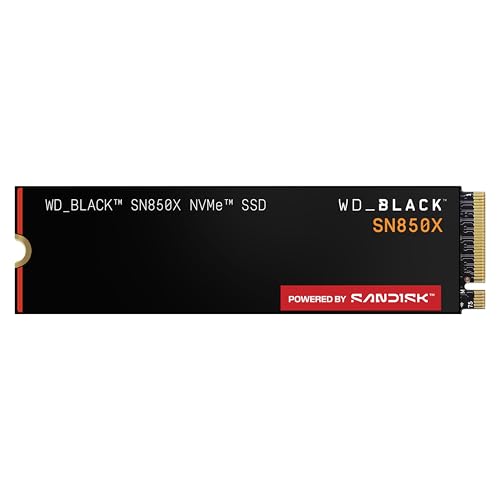
WD Black SN850X 2TB
Nearly identical PS5 performance to the Samsung 990 Pro, often available at a lower price point.
Best for Maximum Storage: Crucial T500 (4 TB)
If you want the most storage possible, the Crucial T500 4TB is the way to go. It pushes sequential reads up to 7,400 MB/s, and Crucial has earned a strong reputation for SSD reliability over the years. A 4 TB expansion drive combined with the PS5’s internal storage gives you close to 5 TB total, which is enough to keep a truly massive library installed at all times.
Budget Pick: Samsung 980 Pro (1 TB)
The older Samsung 980 Pro 1TB can still be found at very attractive prices as retailers clear inventory. Its 7,000 MB/s read speed meets the PS5’s needs perfectly. It’s a Gen 4 drive, so it won’t have the future-proofing of newer Gen 5 options, but for PS5 use specifically, that doesn’t matter one bit. Just remember to add a heatsink since the base model doesn’t include one.
Step-by-Step Installation Guide
What You’ll Need
- Your chosen M.2 NVMe SSD
- A heatsink (if not included with your SSD)
- A #1 Phillips-head screwdriver
- A clean, well-lit workspace
- About 10 minutes of your time
Step 1: Power Down and Prepare Your PS5
Completely shut down your PS5 (don’t just put it in rest mode). Unplug the power cable, HDMI cable, and any other connected accessories. Place the console on a soft, flat surface. If you have the original PS5 model, lay it horizontally with the glossy faceplate facing up. For the PS5 Slim, the process is similar but the panel layout differs slightly.
Before handling the SSD or any internal components, touch a grounded metal object to discharge any static electricity from your body. This is a small precaution, but it protects sensitive electronics.
Step 2: Remove the Side Panel
For the original PS5: With the console lying flat and the PS logo facing down, grip the top-left corner of the white faceplate. Gently lift and slide it to the left (toward the back of the console). You’ll hear a click, and the panel will slide off. It requires a bit of firm pressure the first time, so don’t be afraid to use some force.
For the PS5 Slim: The expansion slot cover is on the bottom of the console. Remove the stand, flip the unit over, and you’ll see a small rectangular cover near the back. Slide it off to reveal the SSD bay.
Step 3: Access the Expansion Slot
On the original PS5, you’ll see a rectangular metal cover secured by a single screw. Remove that screw with your Phillips-head screwdriver and lift off the cover. Inside, you’ll see the M.2 slot and several standoff positions for different SSD lengths. There’s also a small screw at one end that you’ll use to secure the SSD.
Identify which standoff position matches your SSD’s length. Most people will be using a 2280 (80mm) drive, which is the most common form factor. Move the spacer to the corresponding 80mm position if it isn’t already there.
Step 4: Install the SSD
If your SSD needs a separate heatsink, attach it before inserting the drive. Most aftermarket heatsinks use a thermal pad and clip system. Follow the heatsink’s included instructions for this part.
Hold the SSD by its edges and line up the connector with the M.2 slot at roughly a 15 to 30 degree angle. Slide the SSD firmly into the connector until it’s seated properly. You should feel it lock in. The opposite end of the drive will angle upward slightly, which is normal.
Gently press the raised end of the SSD down so it rests on the standoff spacer. Secure it with the small screw you removed earlier. Don’t overtighten it. Snug is sufficient.
Step 5: Reassemble
Replace the metal expansion slot cover and tighten its screw. Slide the faceplate back onto the console by reversing the removal process. You’ll hear it click into place. Reconnect all your cables.
Formatting Your New SSD
When you power on your PS5, it will automatically detect the new drive and prompt you to format it. This is a quick process.
- Turn on the PS5 and wait for the formatting notification to appear.
- Select “Format M.2 SSD” when prompted.
- The console will format the drive and run a quick speed test. This takes about 30 seconds.
- Once finished, you’ll see the drive’s read speed displayed on screen. Anything above 5,500 MB/s will show as meeting PS5 performance standards.
- Select “OK” to complete the process.
Your new SSD is ready to use. You can move existing games to it by going to Settings > Storage > Console Storage, selecting a game, and choosing “Move to M.2 SSD Storage.” You can also set your M.2 drive as the default installation location under Settings > Storage > Installation Location. I recommend doing this immediately so all future downloads go directly to the expansion drive.
Samsung 990 Pro 2TB with Heatsink
Our top overall pick for PS5 storage expansion in 2026, combining speed, reliability, and a built-in heatsink.
Tips for Getting the Most Out of Your PS5 SSD
- Keep at least 10% of each drive free. SSDs perform best when they aren’t completely full. This helps with wear leveling and sustained write speeds.
- Store your most-played games on the internal SSD. While the expansion SSD is excellent, the internal drive has a slight edge in some first-party titles that were specifically optimized for it.
- Use the M.2 drive for PS4 games too. PS4 titles run perfectly from the expansion SSD and can even see improved load times compared to an external USB drive.
- Check your drive’s health periodically. Go to Settings > Storage > M.2 SSD to see remaining capacity and verify the drive is functioning correctly.
Frequently Asked Questions
Can I use a PCIe Gen 5 SSD in the PS5?
Yes. Gen 5 NVMe drives are backward compatible with the PS5’s Gen 4 M.2 slot. The drive will simply operate at Gen 4 speeds, which is still more than fast enough. Many of the best drives available in 2026 are Gen 5, and they work perfectly in the PS5. You won’t gain any extra performance from the Gen 5 capability, but you also won’t encounter any compatibility issues.
Will installing an SSD void my PS5 warranty?
No. Sony designed the PS5 with a user-accessible M.2 expansion slot, and using it is fully supported and encouraged. You don’t need to open the console in any way that voids the warranty. The side panel removal and SSD installation are considered user-serviceable operations. Just be careful not to damage any components during installation.
Do I need to update my PS5’s firmware before installing an SSD?
Make sure your PS5 is running the latest system software before you start. Sony originally locked the M.2 expansion slot behind a firmware update back in 2021, and subsequent updates have improved SSD compatibility and performance. As of 2026, any PS5 with current firmware will handle M.2 SSD installation without issues. Go to Settings > System > System Software > System Software Update to check for updates.
Can I use my PS5’s expansion SSD in another device later?
The formatting process makes the drive PS5-specific, so your PC won’t read it as-is. However, you can always reformat the drive for use in a PC or another device later. Just keep in mind that reformatting will erase all data on the drive, so you’ll need to back up or re-download your games. The SSD hardware itself is completely standard and will work in any compatible M.2 slot after reformatting.
Final Thoughts
Adding an NVMe SSD to your PS5 is one of the best upgrades you can make. The installation takes minutes, it requires zero technical expertise beyond using a screwdriver, and the performance improvement in terms of available storage is immediate. With games routinely exceeding 100 GB in 2026, having extra space isn’t a luxury anymore. It’s practically a necessity.
My top recommendation for most people is the Samsung 990 Pro 2TB with Heatsink. It delivers top-tier speed, includes a heatsink that’s sized perfectly for the PS5, and Samsung’s track record for SSD reliability is

James Kennedy is a writer and product researcher at Drives Hero with a background in IT administration and consulting. He has hands-on experience with storage, networking, and system performance, and regularly improves and optimizes his home networking setup.