Best Budget NVMe SSDs Under $50 for a Boot Drive
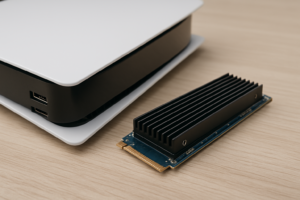
Upgrading to an NVMe SSD is the single biggest performance boost you can give an aging PC, and you don’t need to spend a fortune to feel the difference. A budget NVMe drive as your boot disk will slash your Windows startup time from over a minute to under 15 seconds, and every application you open will feel snappier. If you’re still running a SATA SSD or (worse) a mechanical hard drive, you’re leaving serious speed on the table.
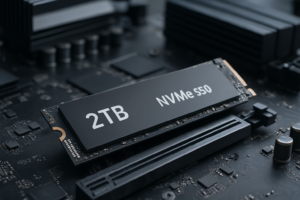
The sweet spot right now for a budget boot drive sits between 500GB and 1TB. That’s enough room for your operating system, core apps, a handful of games, and still leaves breathing room so the drive doesn’t slow down as it fills up. I’ve rounded up the best NVMe SSDs you can grab for under the cost of a nice dinner out, all of which deliver excellent real-world boot and app-loading performance.
Why NVMe Over SATA for a Boot Drive?
Before jumping into specific drives, it’s worth understanding why NVMe matters for a boot drive specifically. SATA SSDs max out around 550 MB/s, which is already fast compared to a spinning hard drive. But NVMe drives connect directly through the PCIe bus and can hit 3,500 MB/s or more on Gen3, with Gen4 drives pushing past 7,000 MB/s. For a deeper breakdown of how the two interfaces compare in real-world gaming and productivity tasks, check out our SATA vs NVMe real-world performance tests.
Where you’ll notice the NVMe advantage most is during boot sequences, loading large applications like Photoshop or Visual Studio, and handling Windows updates. Random read/write speeds (measured in IOPS) matter even more than sequential speeds for these tasks, and budget NVMe drives still crush SATA SSDs in random I/O performance.
If you’re unsure whether your system supports M.2 NVMe drives, or if you’re confused about form factors, our M.2 vs 2.5-inch SSD form factor guide will help you figure out exactly what fits your motherboard.
What to Look for in a Budget NVMe Boot Drive
Not all cheap NVMe drives are created equal. Some use QLC NAND that slows to a crawl once the SLC cache fills up, while others use TLC NAND with a DRAM cache that maintains consistent performance. Here’s what actually matters when you’re shopping at this price point:
- NAND type: TLC (triple-level cell) is the sweet spot for budget drives. It’s faster and more durable than QLC. Some budget drives use QLC to hit lower prices, but the tradeoff in sustained write speeds is real.
- DRAM cache: A DRAM cache helps the drive manage data mapping quickly. DRAM-less (HMB) drives aren’t necessarily bad, though. Modern HMB (Host Memory Buffer) controllers borrow a small chunk of your system RAM, and for a boot drive, this works fine.
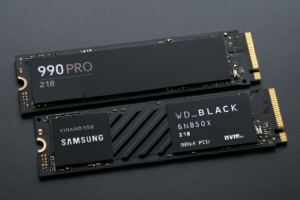
- Controller quality: Look for drives using Phison, Silicon Motion, or InnoGrit controllers. These are proven and reliable, even in budget configurations.
- Endurance (TBW): A 500GB drive rated for 300 TBW will outlast most users by years. Don’t obsess over this number, but avoid anything suspiciously low like 60 TBW. For a detailed look at how long SSDs actually last, read our SSD lifespan data analysis.
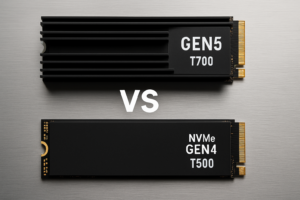
- Gen3 vs Gen4: For a boot drive, Gen3 is perfectly fine. Gen4 drives are faster on paper, but you won’t notice a meaningful difference in boot times or app loading. If a Gen4 drive is priced similarly, grab it for the future-proofing. Otherwise, don’t sweat it.
Best Budget NVMe SSDs for a Boot Drive
Silicon Power UD90 (1TB)
The Silicon Power UD90 is one of the most impressive budget NVMe drives available right now. It’s a Gen4 x4 drive that delivers sequential reads up to 5,000 MB/s and writes up to 4,800 MB/s, which is remarkable for a drive at this price tier. It uses 3D TLC NAND and a modern controller that handles boot and app-loading workloads with ease.
It’s a DRAM-less design relying on HMB, but for a boot drive, this is a non-issue. Random 4K performance is strong enough that Windows feels instant on startup, and applications snap open without hesitation. The 1TB capacity at this price point makes it an exceptional value, giving you enough room for your OS, programs, and a decent game library.

Silicon Power UD90 1TB NVMe SSD
Gen4 speeds and 1TB capacity at a budget price make this our top overall pick for a boot drive.
Kingston NV2 (500GB / 1TB)
Kingston’s NV2 line is widely available and consistently affordable. It’s a Gen4 x4 drive offering up to 3,500 MB/s reads and 2,800 MB/s writes on the 1TB model. The 500GB version is slightly slower on writes but still more than adequate for boot drive duty.
One caveat: Kingston uses varying components across production batches, meaning the exact NAND and controller in your drive might differ from the one reviewed elsewhere. In practice, most users won’t notice the difference for typical boot and productivity workloads. The drive comes with a limited 3-year warranty and solid endurance ratings. If you just want a reliable, recognizable brand name at a low cost, the NV2 delivers.
Teamgroup MP44L (500GB / 1TB)
Teamgroup doesn’t get the attention it deserves in the SSD space, but the MP44L is a quietly excellent Gen4 drive. It pushes up to 5,000 MB/s sequential reads and uses 3D TLC NAND, which gives it strong sustained write performance even during larger file transfers.
The MP44L uses a Silicon Motion SM2269XT controller, which is a proven, efficient chip. It’s DRAM-less with HMB support. For a pure boot and application drive, this is ideal, fast random reads, low power consumption, and it runs cool without a heatsink in most cases. The 1TB model offers excellent endurance at 600 TBW.

Teamgroup MP44L 1TB NVMe SSD
Excellent TLC-based Gen4 drive with strong sustained performance and a 600 TBW endurance rating.
WD Blue SN580 (500GB / 1TB)
Western Digital’s Blue SN580 is a Gen4 drive targeting mainstream users, and it hits the mark. With up to 4,150 MB/s sequential reads and a refined DRAM-less design, it’s optimized for responsiveness in everyday tasks. The drive uses WD’s in-house BiCS5 TLC NAND and a custom controller.
What sets the SN580 apart is WD’s software ecosystem. The WD Dashboard app lets you monitor drive health, update firmware, and run diagnostics easily. It also supports nCache 4.0 technology, which intelligently manages the SLC cache to maintain performance during mixed workloads. This is a great choice if you value brand reliability and a polished user experience.
Crucial P3 Plus (500GB / 1TB)
The Crucial P3 Plus is another Gen4 option that frequently dips into very affordable territory. It offers sequential reads up to 5,000 MB/s and uses Micron’s 176-layer NAND. Boot times and application loads are snappy, and the drive is backed by a 5-year limited warranty from Crucial, which is generous at this price bracket.
The P3 Plus uses QLC NAND, which means sustained write performance drops more noticeably once the SLC cache is exhausted compared to the TLC-based drives above. For a boot drive where you’re mostly reading data (loading the OS, opening apps), this is barely a concern. You’d only notice the QLC limitation during large sustained writes, like copying 100GB+ of files. For the intended use case, the P3 Plus is perfectly capable.

Crucial P3 Plus 1TB NVMe SSD
Budget-friendly Gen4 drive backed by Crucial’s 5-year warranty and 176-layer Micron NAND.
Performance Comparison: What Actually Matters for Boot Drives
Marketing materials love to emphasize sequential read and write speeds, but those numbers matter most when transferring large files. For a boot drive, random 4K read/write performance and queue depth 1 (QD1) latency are far more important. These metrics determine how fast your OS loads, how quickly apps open, and how responsive your system feels during everyday use.
All five drives in this roundup deliver QD1 random read speeds between 60 and 80 MB/s, which is more than enough for a responsive boot experience. The differences at this level are measured in milliseconds, and you won’t perceive them in daily use. Where you’ll feel a difference is between any of these NVMe drives and an older SATA SSD or hard drive. The jump from HDD to NVMe is transformative. If you’re still deciding between SSD and HDD technologies, our SSD vs HDD comparison guide covers everything you need to know.
Another factor worth considering is thermal performance. Budget NVMe drives typically run cooler than high-end Gen4 and Gen5 models because they use less power. Most of the drives listed here operate comfortably without a heatsink, though using the heatsink that came with your motherboard certainly won’t hurt.
How to Get the Most Out of Your New Boot Drive
Once you’ve picked your drive, installation is simple and usually takes about 15 minutes. Our step-by-step guide on how to install an NVMe SSD walks you through the entire process, from physically seating the drive to initializing it in Windows.
If you’re migrating from an existing drive, cloning is the fastest path. You can move your entire Windows installation, apps, and files to the new NVMe drive without reinstalling anything. We’ve put together a complete walkthrough on how to clone your hard drive without losing data that covers both free and paid cloning tools.
After you’ve got your new boot drive running, here are a few tips to keep it performing at its best:
- Enable TRIM: Windows 10 and 11 enable TRIM by default for SSDs, but it’s worth verifying. Open Command Prompt as admin and run
fsutil behavior query DisableDeleteNotify. A result of 0 means TRIM is active. - Don’t defragment: Windows will automatically optimize SSDs with periodic TRIM operations. Traditional defragmentation is unnecessary and slightly reduces drive lifespan.
- Keep some free space: Try to keep at least 10-20% of your drive free. SSDs slow down when nearly full because the controller has fewer empty blocks to work with. If you’ve ever noticed your SSD getting sluggish over time, our article on why SSDs slow down and how to fix it explains exactly what’s happening and how to restore performance.
- Update firmware: Check the manufacturer’s website or utility app periodically for firmware updates. These can improve performance, stability, and compatibility.
- Set your BIOS to NVMe boot priority: After installation, enter your BIOS and make sure the new NVMe drive is set as the first boot device. Some motherboards default to SATA drives or USB.
500GB vs 1TB: Which Capacity Should You Pick?
For a pure boot drive where you’re also storing a few core applications, 500GB is enough. Windows 11 takes up roughly 27GB after installation, and with drivers, updates, and essential software, you’ll typically use about 80-100GB before adding anything else. That leaves plenty of room on a 500GB drive.
However, the 1TB models of these drives often cost only a small premium over their 500GB counterparts, and you get more than double the usable space. The 1TB versions also tend to be slightly faster due to having more NAND chips working in parallel, and they generally carry higher TBW endurance ratings.
My recommendation: go with 1TB if your budget allows. You’ll avoid the headache of running low on space six months from now, and you can comfortably keep a few games or large applications on your boot drive without needing to shuffle files around. If you’re planning to use your old drive as secondary storage alongside the new NVMe, our guide on how to use an SSD and HDD together explains the best way to configure a dual-drive setup.
My Top Pick
If I had to buy one drive from this list today, I’d grab the Silicon Power UD90 1TB. It delivers Gen4 speeds, uses reliable TLC NAND, and the 1TB capacity gives you real room to work with. The Teamgroup MP44L is an equally strong choice, especially if you find it at a better price. Both drives punch well above their weight class.
For the absolute lowest budget, the 500GB Kingston NV2 gets the job done without fuss. It won’t win any benchmarking contests, but as a boot drive, it’ll make your PC feel like a different machine.
Frequently Asked Questions
Is a Gen4 NVMe drive noticeably faster than Gen3 for booting Windows?
Honestly, no. In real-world boot time tests, Gen4 and Gen3 NVMe drives typically land within 1-2 seconds of each other. The bottleneck during boot is the CPU initializing hardware and loading services, not the drive’s sequential speed. Both generations are dramatically faster

James Kennedy is a writer and product researcher at Drives Hero with a background in IT administration and consulting. He has hands-on experience with storage, networking, and system performance, and regularly improves and optimizes his home networking setup.