Cheap Storage Hacks: 5 Ways to Save $200+ on Drives
Storage costs add up fast. Whether you’re building a NAS, expanding your PC’s capacity, or setting up a home media server, buying drives at retail can eat through your budget before you’ve even started the fun part. I’ve spent years hunting for deals on hard drives and SSDs, and I’ve learned that a little patience and creativity can cut your storage spending dramatically.
The good part about the storage market is that there are several well-known, legitimate strategies for getting more gigabytes per dollar. Some of these methods carry a bit of risk, while others are practically foolproof. I’ll walk you through five proven approaches, rank the risk involved with each, and help you figure out which ones make sense for your situation.
These aren’t theoretical savings, either. By combining just two or three of these strategies, it’s realistic to keep an extra couple hundred dollars in your pocket on a typical multi-drive purchase.
1. Shucking External Drives
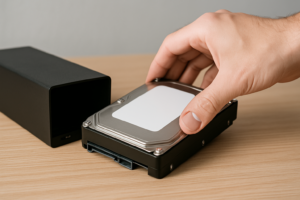
This is probably the most popular money-saving trick in the storage community, and for good reason. “Shucking” means buying an external USB hard drive and removing the drive from its enclosure. Manufacturers like Western Digital and Seagate frequently sell external drives at significantly lower prices than their bare internal equivalents, because external drives are often priced to compete in the consumer backup market.
The classic example is the WD Elements Desktop Hard Drive or the WD easystore line (a Best Buy exclusive). These external enclosures often contain the same WD Red or WD White-label drives that NAS builders pay a premium for when bought bare. An 18TB or 20TB external can save you a significant chunk compared to the equivalent internal WD Red Plus.
WD Elements 18TB Desktop External Hard Drive
One of the most popular shucking candidates, frequently containing reliable WD Red or White-label drives inside
How to Shuck a Drive
The process is surprisingly simple. Most WD external enclosures use plastic clips rather than screws. You’ll need a thin plastic pry tool (guitar picks work great) and about five minutes of patience. There are dozens of tutorials on YouTube for specific models. Once you pop the case open, the internal drive slides right out.
One thing to be aware of: some newer WD drives use a 3.3V pin configuration on the SATA power connector that can prevent them from spinning up in certain systems. The fix is easy. You can either cover the third pin on the SATA power connector with a small piece of Kapton tape, or use a Molex-to-SATA adapter that doesn’t supply 3.3V.
Risk Assessment: Low to Moderate
The main risk is voiding the manufacturer’s warranty, since you’re physically opening the enclosure. If the drive fails a month later, you won’t be able to send it back to WD. However, the drives inside are typically the same enterprise or NAS-grade units sold separately. Many people in the r/DataHoarder community have been running shucked drives for years without higher failure rates. Just buy from retailers with good return policies, and test the drive thoroughly before you toss the enclosure.
2. Buy Certified Refurbished Drives
Refurbished hard drives get a bad reputation they don’t entirely deserve. Certified refurbished drives from reputable sellers have been tested, wiped, and verified to meet operational standards. They typically come with a warranty ranging from 90 days to two years, depending on the seller.
For bulk storage where you’re using RAID or some form of redundancy, refurbished drives make a ton of sense. You can often find enterprise-grade SAS and SATA drives from brands like HGST (now Western Digital) and Seagate at a fraction of retail pricing. The selection of refurbished drives on Amazon includes everything from smaller capacity drives for light use to large enterprise units.
Sellers like serverpartdeals.com and goHardDrive have built strong reputations in this space. On Amazon, look for “Amazon Renewed” listings, which come with Amazon’s own guarantee. The HGST Ultrastar series (models like the He10, HC520, and HC530) are popular refurbished picks because HGST drives have historically had excellent reliability statistics, as tracked by Backblaze’s published drive stats.
HGST Ultrastar DC HC520 12TB (Renewed)
HGST enterprise drives are among the most reliable ever made, and refurbished units offer excellent value for NAS and server builds
Risk Assessment: Moderate
You’re buying a used mechanical device with moving parts. There’s inherently more risk than buying new. Mitigate this by running a full SMART test and a badblocks scan on every refurbished drive before putting it into service. Plan for redundancy. Don’t use a single refurbished drive as your only copy of important data. Buy from sellers who offer at least a one-year warranty, and check the drive’s power-on hours using CrystalDiskInfo or smartmontools when it arrives.
3. Time Your Purchases Around Sales Events
This one requires patience, but it’s the lowest risk approach on this list. Storage prices fluctuate significantly throughout the year, and buying at the wrong time can cost you a surprising amount. The best times to buy drives are:
- Amazon Prime Day (July): Consistently one of the best times for external drive deals, especially WD and Seagate desktop units.
- Black Friday / Cyber Monday (November): The single best time of year for storage deals across the board, including SSDs and internal drives.
- Back-to-School sales (August/September): Portable SSDs and external drives often see nice discounts.
- New product launches: When a new generation drops (like a new WD Red Plus revision), the previous generation gets clearanced.
Use price tracking tools like CamelCamelCamel (camelcamelcamel.com) to set alerts for specific drives. This site tracks Amazon price history, so you can see whether a “deal” is actually a deal or just the normal fluctuating price. Honey and Keepa are also useful browser extensions for spotting trends.
I keep a running list of drives I want and set CamelCamelCamel alerts at my target prices. When a drive hits my number, I get an email and pull the trigger. This passive approach has saved me more money over time than any other single strategy.
Risk Assessment: Very Low
You’re buying new drives from authorized retailers. The only “risk” is that you might wait too long and a deal slips away. Set your alerts and stay ready.
4. Consider Used Enterprise SAS Drives (With the Right Controller)
The used enterprise market is where the truly aggressive savings live. When companies decommission servers and storage arrays, they offload thousands of drives that still have years of useful life remaining. Enterprise SAS drives (Serial Attached SCSI) are built to much higher standards than consumer SATA drives, with rated workloads of 550TB per year and MTBF ratings of 2 million hours or more.
Models like the Seagate Exos (ST10000NM0086) or HGST Ultrastar He10 are common on the used market. You can find them through eBay sellers, Amazon Renewed listings, and dedicated refurb dealers. Some sellers even offer drives with low power-on hours that were pulled from arrays that were decommissioned due to lease expirations, not failures.
The SAS Catch
SAS drives require a SAS controller or HBA (Host Bus Adapter), not a regular SATA port on your motherboard. The LSI 9211-8i (flashed to IT mode) is the go-to recommendation and can be found for very little on the used market. A single HBA supports up to 8 drives, and they work perfectly in FreeNAS/TrueNAS, Unraid, and Linux systems.
If you’re building a NAS with four or more drives, the cost of the HBA gets spread across all your drives, and the per-terabyte savings can be substantial.
Risk Assessment: Moderate to High
Used enterprise drives have unknown histories. You don’t always know how hard they were worked. SMART data can tell you power-on hours and error counts, but it doesn’t tell the whole story. Always buy from sellers with generous return policies, test every drive before trusting it with real data, and never rely on a single used drive without a backup or redundancy plan.
5. Mix and Match Drive Tiers Strategically
Not every drive in your system needs to be top-tier. A smart storage strategy uses different quality levels for different purposes. This approach saves money not through a single trick, but through thoughtful allocation of your budget.
Here’s how I think about it:
- Hot data (OS, applications, games): Buy a quality new SSD. Something like the Samsung 990 EVO Plus for your boot drive is worth paying full price for, since speed and reliability matter most here.
- Warm data (active projects, current media): A mid-range new or shucked drive works well. Reliability matters, but you don’t need enterprise specs.
- Cold data (archives, backups, media library): This is where refurbished or used enterprise drives shine. Data you rarely access doesn’t need the fastest or newest hardware.
Samsung 990 EVO Plus 2TB NVMe SSD
Excellent performance for your boot drive and active data, while saving money on bulk storage with other methods
By putting your best drives where speed and uptime are critical, and using budget-friendly options for bulk storage, you avoid overspending on drives that will mostly sit idle holding movie files or old backups.
Risk Assessment: Low
This isn’t really a “hack” with inherent risk. It’s just being intentional about where you spend. The risk comes from whichever budget strategy you choose for your cold storage tier (refurb, shucked, used), but you’re applying that risk only where the consequences of a drive failure are lowest.
Putting It All Together: A Real-World Example
Say you’re building a 4-bay NAS for a home media server. A common approach would be to buy four new WD Red Plus 8TB drives at full retail. That’s a significant investment.
Instead, you could wait for a Prime Day sale on WD Elements 8TB or 10TB external drives, shuck all four, and use the savings to pick up a better NAS enclosure or invest in a proper UPS for power protection. Or you could buy two new shucked drives for your primary storage pool and two refurbished HGST drives for a backup pool.
The combination of timing (buying on sale) and method (shucking) can easily save you enough to cover the cost of an extra drive for redundancy, which actually makes your data safer than if you’d bought fewer drives at full price.
Quick Tips to Protect Yourself
- Always test new-to-you drives. Run a full SMART test, a surface scan, and ideally a burn-in test (badblocks or similar) before storing anything important on a refurbished or shucked drive.
- Keep receipts and packaging. If you’re shucking, keep the original box and receipt for the return window, just in case the drive is DOA.
- Maintain backups. No storage strategy replaces a proper 3-2-1 backup approach. Three copies, two different media types, one offsite.
- Check SMART data on arrival. Tools like CrystalDiskInfo (Windows) or smartctl (Linux/Mac) will tell you power-on hours, reallocated sectors, and other health indicators instantly.
- Buy from reputable sellers. On Amazon, prioritize Amazon Renewed or sellers with strong review histories. On eBay, stick with sellers who have thousands of positive ratings in the storage category.
Frequently Asked Questions
Is it legal to shuck an external hard drive?
Yes, completely legal. You own the hardware and can do what you want with it. The only consequence is that opening the enclosure typically voids the manufacturer’s warranty on the drive itself. Retailer return policies (like Amazon’s 30-day return window) still apply as long as you’re within the return period, though your mileage may vary depending on the retailer’s specific policy on opened items.
How long do refurbished hard drives typically last?
There’s no single answer, because it depends on the drive’s prior usage, model, and manufacturer. Enterprise drives like HGST Ultrastars are designed for 5+ year service lives in 24/7 data center environments. A refurbished unit with reasonable power-on hours (under 30,000 hours) could easily last several more years. Backblaze’s annual drive stats consistently show HGST/WD enterprise drives among the most reliable. The key is testing thoroughly on arrival and maintaining redundancy.
What’s the best time of year to buy hard drives?
Black Friday and Cyber Monday consistently offer the deepest discounts on storage. Amazon Prime Day in July is a close second, especially for external drives. Outside of major sales events, keep CamelCamelCamel alerts active on your target drives. Prices can dip randomly due to inventory adjustments, new product launches, or temporary promotions.
Can I mix different brands and capacities in a NAS?
Yes, most NAS operating systems (TrueNAS, Unraid, Synology DSM, etc.) support mixed drives. Unraid is especially flexible here since it doesn’t require matching drive sizes in the way traditional RAID does. In a ZFS-based system like TrueNAS, drives within a single vdev should ideally match in size, but you can have different vdevs with different capacities. Mixing brands is generally fine and can actually be beneficial, since drives from different manufacturing batches are less likely to fail simultaneously.
This article contains affiliate links. We may earn a small commission at no extra cost to you.

James Kennedy is a writer and product researcher at Drives Hero with a background in IT administration and consulting. He has hands-on experience with storage, networking, and system performance, and regularly improves and optimizes his home networking setup.