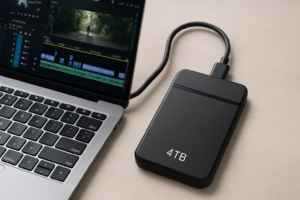
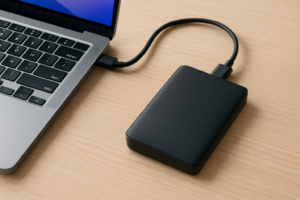
Why Your External Drive Keeps Disconnecting (7 Quick Fixes)
Few things are more maddening than watching your external drive disappear from your computer mid-file transfer. You’re copying a batch of family photos or backing up an important project, and suddenly Windows plays that dreaded “device disconnected” sound. The progress bar vanishes. Your drive letter is gone. And you’re left wondering if your files are corrupted.
This is one of the most common problems I see with external drives, and it affects everything from portable SSDs to large desktop hard drives. The good part is that most disconnection issues come down to a handful of causes, and nearly all of them are fixable without buying new hardware. I’ve walked dozens of people through this exact troubleshooting process, and about 90% of the time, the fix takes less than five minutes.
Below are seven practical fixes, ordered from the quickest and easiest to the more involved. Work through them in order, and you’ll almost certainly find your culprit.
Fix 1: Try a Different USB Port (Yes, Really)
I know this sounds too obvious, but hear me out. Not all USB ports on your computer are created equal. Some share bandwidth with other internal components, and some are simply flaky due to wear and tear. Front-panel USB ports on desktop PCs are especially unreliable because they connect to the motherboard through thin ribbon cables that loosen over time.
Here’s what to do:
- Unplug the drive and connect it to a USB port on the back of your desktop or a different side of your laptop.
- If you’ve been using a USB 3.0 (blue) port, try a USB 2.0 port. The transfer speed will be slower, but if the disconnections stop, you’ve identified the problem.
- Avoid connecting through a monitor’s built-in USB hub or a keyboard’s pass-through port. These rarely provide enough power for an external drive.
If switching ports solves the issue, your original port may be damaged or underpowered. You can keep using the working port, or consider a powered USB hub (more on that in Fix 3).
Fix 2: Disable USB Selective Suspend (Windows Power Management)
This is the single most common cause of random external drive disconnections on Windows laptops, and most people have never heard of it. Windows has a power-saving feature called USB Selective Suspend that allows the operating system to cut power to USB devices it thinks are idle. The problem is that Windows sometimes gets this wrong and suspends a drive that’s actively in use.
To disable it:
- Open Control Panel and go to Hardware and Sound > Power Options.
- Click Change plan settings next to your active power plan.
- Click Change advanced power settings.
- Expand USB settings > USB selective suspend setting.
- Set both “On battery” and “Plugged in” to Disabled.
- Click Apply and OK.
There’s a second setting you should check while you’re at it. Open Device Manager, expand Universal Serial Bus controllers, and double-click each USB Root Hub entry. Go to the Power Management tab and uncheck “Allow the computer to turn off this device to save power.” Repeat this for every USB Root Hub listed.
After making these changes, restart your computer and test the drive. In my experience, this fix resolves intermittent disconnections about 60% of the time.
Fix 3: Use a Powered USB Hub
Portable external hard drives (the 2.5-inch kind that don’t have their own power adapter) draw all their electricity from the USB port. A single USB 3.0 port is rated to provide 900mA of current, which is technically enough for most portable drives. But “technically enough” and “reliably enough” aren’t always the same thing.
Older laptops, ultrabooks, and heavily loaded USB controllers sometimes can’t deliver a stable 900mA, especially if you have other USB devices connected. The drive spins up fine, works for a few minutes, then disconnects when it tries to draw peak current during heavy read/write activity.
A powered USB hub solves this by providing its own power supply. The drive draws current from the hub’s adapter instead of your computer’s USB port. I recommend the Sabrent 4-Port USB 3.0 Hub with individual power switches. It’s well-built, widely compatible, and includes its own power adapter.
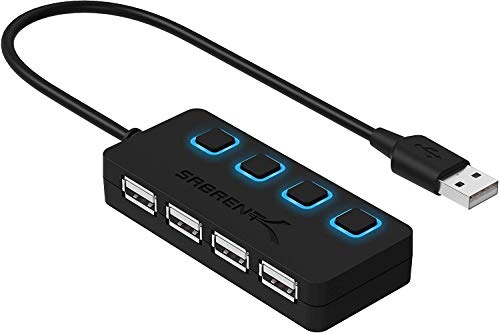
Sabrent 4-Port USB 3.0 Powered Hub
A reliable powered hub that solves most power-related disconnection issues with portable drives
If you’re using a USB-C drive with a modern laptop, power delivery is usually more reliable, but it’s still not immune to issues. A powered USB-C hub like the Anker 7-in-1 USB-C Hub can help in those cases.
Fix 4: Replace the USB Cable
USB cables fail more often than you’d think, and they don’t always fail completely. A cable with a slightly damaged internal conductor or a loose connector can maintain a connection just long enough for you to start trusting it before cutting out. Micro-USB 3.0 cables (the wide, flat connector used on many portable hard drives) are particularly prone to this because the connector design puts stress on the solder joints.
Try swapping in a different cable of the same type. If you don’t have a spare, they’re inexpensive and easy to find. Make sure you get one that’s rated for data transfer, not just charging. Charging-only cables lack the data wires entirely and won’t work with a drive at all.
A couple of tips for cable troubleshooting:
- Shorter cables are generally more reliable than longer ones. Stick to 3 feet or under if possible.
- Wiggle the cable gently at both ends while the drive is connected. If the connection drops when you move the cable, you’ve found your problem.
- For USB-C drives, avoid the cheapest no-name cables. A poorly made USB-C cable can cause disconnections, slow speeds, and in rare cases, damage to your devices.
Fix 5: Update or Reinstall Your USB Drivers
Corrupted or outdated USB drivers can cause all kinds of erratic behavior, including random disconnections. This is especially common after a major Windows update, which sometimes replaces working drivers with generic ones that don’t play nicely with your hardware.
Here’s how to reinstall your USB drivers:
- Open Device Manager (right-click the Start button and select it).
- Expand Universal Serial Bus controllers.
- Right-click each entry and select Uninstall device. Don’t panic when your mouse and keyboard stop working briefly.
- Restart your computer. Windows will automatically reinstall fresh USB drivers on boot.
You should also check for driver updates specific to the drive itself. Expand Disk drives in Device Manager, right-click your external drive, and select Update driver > Search automatically for drivers. For Western Digital and Seagate drives, it’s worth visiting their support websites directly, as they sometimes release firmware updates that address disconnection bugs.
If you’re running Windows 11 and started having disconnection issues after a specific update, check the optional updates section in Windows Update. Microsoft occasionally releases out-of-band fixes for USB stability issues.
Fix 6: Check Your Drive’s Health
Sometimes the drive itself is the problem. A failing hard drive can disconnect intermittently as its controller encounters read/write errors and resets itself. If your drive is making unusual clicking, beeping, or grinding sounds, this is very likely the cause.
You can check your drive’s health using a free tool called CrystalDiskInfo. Download it, install it, and connect your external drive. The software reads the drive’s S.M.A.R.T. data (Self-Monitoring, Analysis, and Reporting Technology) and gives you a simple health status:
- Good (Blue): The drive is healthy. Your disconnection issue is probably not hardware-related.
- Caution (Yellow): The drive has some concerning attributes. Back up your data immediately and plan to replace it.
- Bad (Red): The drive is failing. Stop using it for anything important and recover your data as soon as possible.
Pay special attention to the “Reallocated Sectors Count” and “Current Pending Sector Count” values. If either of these is rising, the drive is developing bad sectors and its days are numbered.
For external SSDs, the equivalent concern is controller firmware issues. CrystalDiskInfo works with most external SSDs, though some USB-to-NVMe enclosures don’t pass S.M.A.R.T. data through properly. If your SSD isn’t showing health data, try the manufacturer’s own utility (Samsung Magician for Samsung drives, WD Dashboard for Western Digital, etc.).
Fix 7: Disable USB Legacy Support in BIOS (Advanced)
This fix is less common but worth trying if nothing else has worked. Some motherboards have a BIOS setting called USB Legacy Support that allows USB devices to work during boot (before the operating system loads). This feature can occasionally conflict with how Windows manages USB devices, especially on older hardware.
To access your BIOS:
- Restart your computer and press the BIOS key during boot (usually F2, DEL, or F10, depending on your manufacturer).
- Look for USB Legacy Support in the Advanced or Peripherals section.
- Try setting it to Disabled or Auto.
- Save and exit.
Be aware that disabling this may prevent you from using a USB keyboard or mouse during boot. If you need to access the BIOS again, you might need to temporarily connect a PS/2 keyboard or reset the BIOS by clearing the CMOS.
Bonus: When It’s Time to Replace Your Setup
If you’ve worked through all seven fixes and your drive is still disconnecting, it might be time to consider replacing either the drive or its enclosure. Portable hard drives (HDDs) are mechanical devices with spinning platters, and they have a finite lifespan. Most last 3 to 5 years with regular use, though some survive much longer.
If your drive is getting old, consider upgrading to a portable SSD. They have no moving parts, which makes them more resistant to disconnection issues caused by vibration or power fluctuations. The Samsung T7 is my go-to recommendation for most people. It’s fast, compact, and extremely reliable.
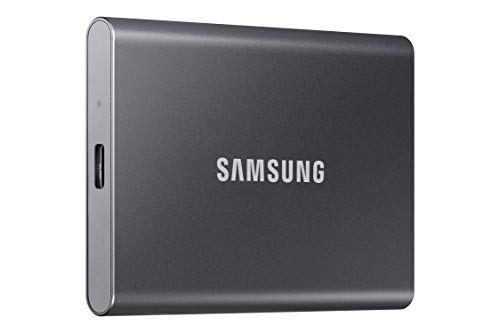
Samsung T7 Portable SSD
Fast, durable, and one of the most reliable portable drives available, ideal as a replacement for failing external HDDs
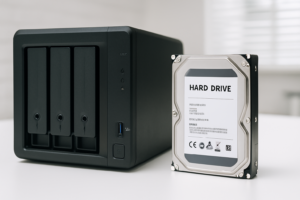
For those who need a larger capacity drive (4TB and up), you’ll likely still need a traditional HDD. The WD Elements Desktop is a solid option that comes with its own power adapter, which eliminates the USB power issues that cause so many disconnections with bus-powered drives.
A Quick Troubleshooting Cheat Sheet
Here’s a summary to keep handy:
- Disconnects immediately after plugging in: Bad cable, bad port, or insufficient power. Try a different port, cable, or powered hub.
- Disconnects after a few minutes of inactivity: Almost certainly USB Selective Suspend. Disable it in Power Options.
- Disconnects during large file transfers: Power issue (use a powered hub) or overheating (let the drive cool down and test again).
- Disconnects randomly with clicking sounds: Failing drive. Back up your data and replace it.
- Disconnects on one computer but not another: Driver issue or power management settings on the affected computer.
Frequently Asked Questions
Can a faulty USB cable cause data corruption when it disconnects?
Yes, absolutely. If your drive disconnects during a write operation, the file being written can be corrupted. In severe cases, the entire file system can become damaged, making the drive appear unformatted. This is why you should always “safely eject” a drive before unplugging it, and why fixing disconnection issues quickly is important. If your drive’s file system has been damaged by a sudden disconnection, try running chkdsk /f on it from an elevated Command Prompt before formatting.
Why does my external drive work fine on one computer but keep disconnecting on another?
This almost always points to a software or configuration issue on the problematic computer rather than a hardware problem with the drive. The most likely culprits are USB Selective Suspend being enabled, outdated USB drivers, or the specific USB port not providing enough power. Work through Fixes 2, 5, and 3 (in that order) on the affected computer, and the issue should clear up.
Do USB-C drives have fewer disconnection problems than USB-A drives?
Generally, yes. USB-C ports can deliver more power (up to 3A at 5V in standard USB 3.1, compared to 0.9A for USB 3.0 Type-A), which reduces power-related disconnections. The USB-C connector itself is also more physically secure than Micro-USB 3.0 or standard USB-A. But USB-C drives aren’t immune to software-related disconnection causes like power management settings and driver issues.
My external SSD keeps disconnecting during large transfers. Is it overheating?
It’s possible. Some portable NVMe SSDs, especially those in compact enclosures, can throttle or disconnect when they overheat during sustained write operations. You can test this by touching the enclosure after a disconnection. If it’s very warm to the touch, overheating is likely the cause. Give the drive a few minutes to cool down and try again. For a long-term fix, consider an enclosure with better thermal design, or place a small USB fan near the drive during extended transfers.
Sabrent USB 3.2 Tool-Free NVMe SSD Enclosure
Aluminum enclosure with solid thermal dissipation, a great upgrade if your current SSD enclosure causes overheating disconnections
This article contains affiliate links. We may earn a small commission at no extra cost to you.

James Kennedy is a writer and product researcher at Drives Hero with a background in IT administration and consulting. He has hands-on experience with storage, networking, and system performance, and regularly improves and optimizes his home networking setup.