External Drive Not Showing Up? Here’s How to Fix It
You plug in your external hard drive, expecting it to pop up like it always does, and… nothing. No notification, no new drive letter, no sign that your computer even noticed. Meanwhile, all your important files, backups, or media are sitting on that drive, completely out of reach.
This is one of the most common tech problems people run into, and it happens across all brands and drive types. Whether it’s a Western Digital My Passport, a Seagate Backup Plus, a Samsung T7 SSD, or a cheap flash drive from a gas station, the symptoms are the same. Your computer refuses to acknowledge the drive exists, or it shows up briefly and then vanishes.
The good part is that most of the time this isn’t a dead drive. It’s usually a software, driver, or formatting issue that you can fix yourself in under 15 minutes. This guide walks you through every common cause and fix, starting with the easiest solutions and working up to the more involved ones. We’ll cover both Windows and Mac, because this problem doesn’t play favorites.
Start with the Obvious: Cable and Port Checks
Before you start messing with settings and drivers, rule out the physical stuff first. A surprising number of “dead drive” situations come down to a bad cable, a loose connection, or a flaky USB port.
Try a Different USB Port
Plug the drive into a different USB port on your computer, preferably one on the back of a desktop tower rather than a front panel port. Front ports are often connected to the motherboard via internal cables that can come loose or deliver inconsistent power. USB ports on hubs are even less reliable for power-hungry devices.
Swap the Cable
USB cables wear out, especially the micro-USB 3.0 cables that come with many portable hard drives. That wide, flat connector is notorious for developing a loose fit over time. Try a different cable if you have one. For USB-C drives, make sure you’re using a data cable and not a charge-only cable. Charge-only cables lack the data pins and will power the drive without ever letting your computer communicate with it.
Test on Another Computer
Plug the drive into a different computer. If it works fine there, you know the problem is with your original machine and not the drive itself. This one simple test can save you a lot of unnecessary troubleshooting.
Check Power Supply (Especially for Desktop External Drives)
Portable 2.5-inch drives like the WD My Passport or Seagate Backup Plus Slim draw power directly from the USB port. They don’t need a separate power adapter. But larger 3.5-inch desktop drives, like the Seagate Expansion Desktop or WD Elements Desktop, require their own AC power adapter.
If your desktop external drive isn’t showing up, make sure the power adapter is plugged in and working. Check for a power LED on the drive enclosure. If there’s no light and you can’t feel or hear the drive spinning, the power supply is likely the issue. Replacement adapters are available on Amazon, but make sure you match the voltage and amperage ratings exactly.
For portable drives that seem to have intermittent detection issues, the USB port might not be delivering enough power. A powered USB hub can solve this. The Sabrent 4-Port USB 3.0 Hub with individual power switches is a solid option for this exact scenario.
Windows: Check Disk Management
This is the single most important troubleshooting step on Windows. Your drive might be connected and recognized by the system but simply not assigned a drive letter, which means it won’t appear in File Explorer.
How to Open Disk Management
- Right-click the Start button (or press Windows + X).
- Select Disk Management.
- Wait a moment for it to load all connected disks.
Look at the bottom section of the Disk Management window. You should see all connected drives listed as horizontal bars. Your external drive will likely show up as “Disk 1” or “Disk 2” (depending on how many drives you have).
Scenario 1: Drive Shows Up as “Unallocated”
If you see a black bar labeled “Unallocated,” the drive has no partition. Right-click on the unallocated space, select New Simple Volume, and follow the wizard. Choose NTFS if you’ll only use the drive with Windows, or exFAT if you want it to work with both Windows and Mac. Warning: this will erase any data on the drive.
Scenario 2: Drive Shows Up but Has No Letter
If the drive has a partition (shown as a blue bar) but no drive letter next to it, that’s your problem. Right-click on the partition, choose Change Drive Letter and Paths, click Add, assign any available letter, and click OK. The drive should immediately appear in File Explorer.
Scenario 3: Drive Shows as “RAW”
A RAW file system means Windows can’t read the partition. This can happen due to corruption, improper ejection, or a partially failed format. You can try right-clicking and selecting Format, but again, this destroys existing data. If you need the files on the drive, try a data recovery tool like Recuva (free) or EaseUS Data Recovery Wizard before formatting.
Scenario 4: Drive Doesn’t Appear in Disk Management at All
If the drive isn’t even listed in Disk Management, the issue is likely a driver problem, a dead USB port, or a hardware failure on the drive itself. Keep reading for driver fixes.
Windows: Update or Reinstall USB Drivers
Corrupted or outdated USB drivers can prevent Windows from recognizing external drives. Here’s how to fix that.
- Press Windows + X and select Device Manager.
- Expand the Disk drives section and look for your external drive. It might show up with a yellow warning triangle.
- Right-click the drive and select Uninstall device.
- Unplug the drive, wait 10 seconds, and plug it back in.
Windows will automatically reinstall the driver. In many cases, this clears up detection issues caused by a corrupted driver file.
Also expand the Universal Serial Bus controllers section. If you see any items with yellow triangles or listed as “Unknown Device,” right-click and update or uninstall them, then restart your computer.
Try the USB Troubleshooter
Windows has a built-in troubleshooter that can sometimes fix USB issues automatically. Go to Settings > System > Troubleshoot > Other troubleshooters and run the one related to hardware and devices. It doesn’t always find something, but when it does, it applies the fix automatically.
Windows: Disable USB Selective Suspend
Windows has a power management feature called USB Selective Suspend that can turn off USB ports to save energy. This is especially aggressive on laptops. It sometimes fails to wake the port back up, making your drive invisible.
- Open Control Panel > Power Options.
- Click Change plan settings next to your active plan.
- Click Change advanced power settings.
- Expand USB settings > USB selective suspend setting.
- Set it to Disabled for both “On battery” and “Plugged in.”
- Click Apply and OK.
This fix is particularly effective if your drive connects fine initially but disappears after your computer has been idle for a while.
Mac: Finding a Missing External Drive
macOS handles external drives a bit differently, but the troubleshooting process follows a similar logic.
Check Finder Preferences
Your drive might be connected and mounted but simply hidden in Finder. Open Finder, click Finder > Settings (or Preferences on older macOS versions), go to the General tab, and make sure “External disks” is checked. Do the same on the Sidebar tab.
Use Disk Utility
Open Disk Utility (search for it in Spotlight with Command + Space). Click the View dropdown and select Show All Devices. Your external drive should appear in the left sidebar, even if it isn’t mounted.
If the drive appears but is grayed out, select it and click Mount. If mounting fails, you can try First Aid to repair the file system. If the drive shows up as unformatted, you can click Erase to format it, but this will delete everything on the drive.
NTFS Drives on Mac
Here’s a common gotcha: macOS can read NTFS-formatted drives but can’t write to them natively. And in some cases, an NTFS drive may not mount at all. If your drive is NTFS-formatted and you need full read/write access on a Mac, install Paragon NTFS for Mac or the free alternative Mounty for NTFS. Or, if you don’t need the data, reformat the drive to exFAT for cross-platform compatibility.
File System Compatibility: Choosing the Right Format
Formatting issues cause more “drive not showing up” problems than most people realize. Different operating systems expect different file systems, and using the wrong one can make a drive invisible or read-only.
- NTFS: Native to Windows. Full read/write on Windows, read-only on Mac (and sometimes doesn’t mount at all).
- APFS / HFS+: Native to Mac. Windows can’t read these at all without third-party software like Paragon HFS+ for Windows.
- exFAT: Works with both Windows and Mac with full read/write. Best choice for drives shared between systems. Supports files larger than 4 GB.
- FAT32: Universal compatibility, but limited to 4 GB max file size. Fine for small files and flash drives, terrible for video files or backups.
My recommendation: if you use both Windows and Mac (or might in the future), format your external drives to exFAT. It eliminates cross-platform headaches almost entirely.
When the Drive Might Actually Be Dead
If you’ve tried everything above and the drive still doesn’t show up on any computer, doesn’t spin up, makes clicking or beeping noises, or gets extremely hot, you may be dealing with a hardware failure.
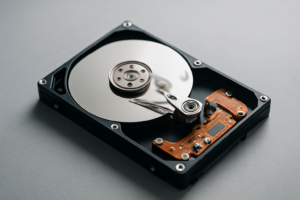
Clicking sounds from a mechanical hard drive usually indicate a failed read/write head. Beeping often means the motor is seized. In either case, the drive needs professional data recovery if the files are important. Companies like DriveSavers and Ontrack specialize in this, though the service can cost several hundred dollars or more depending on the severity.
For SSDs that fail, there’s usually no sound at all. The drive simply stops responding. SSD failures are harder to recover from at home, and professional recovery is often the only option.
To prevent future data loss, always follow the 3-2-1 backup rule: three copies of your data, on two different types of media, with one copy stored off-site or in the cloud.
Quick-Reference Troubleshooting Checklist
- Try a different USB port (preferably a rear port on a desktop).
- Swap the USB cable.
- Test the drive on another computer.
- Check Disk Management (Windows) or Disk Utility (Mac).
- Assign a drive letter if one is missing.
- Update or reinstall USB drivers in Device Manager.
- Disable USB Selective Suspend in power settings.
- Check Finder preferences on Mac for hidden external drives.
- Reformat the drive if necessary (after recovering data).
- Consider professional recovery if the drive makes unusual sounds or won’t spin up.
Frequently Asked Questions
Why does my external drive show up on one computer but not another?
This usually comes down to driver differences, USB power output, or file system compatibility. For example, a drive formatted as HFS+ (Mac) won’t appear in Windows File Explorer at all. Similarly, an older computer with outdated USB drivers might fail to recognize a newer USB 3.2 drive. Try updating drivers on the machine that doesn’t detect the drive, and consider reformatting to exFAT for universal compatibility.
Can I recover data from a drive that Windows says needs to be formatted?
Yes, in most cases. Don’t click “Format” when Windows prompts you. Instead, use a data recovery tool like Recuva, PhotoRec (free and open-source), or EaseUS Data Recovery Wizard to scan the drive and pull files off before formatting. These tools can often recover data from drives with RAW or corrupted file systems. Once you’ve recovered what you need, go ahead and format the drive to give it a fresh start.
Is it bad to just unplug an external drive without ejecting it first?
It can be. When your computer is writing data to the drive (even in the background for indexing or caching), pulling the cable can corrupt the file system. This is actually one of the most common reasons drives end up showing as RAW or unreadable. Always use “Safely Remove Hardware” on Windows or the eject button in Finder on Mac. It takes two seconds and can save you from a very frustrating recovery process.
My USB flash drive isn’t detected, but my external hard drive works fine. Why?
Flash drives are more prone to controller failures than external hard drives. The flash memory chip and the USB controller are both soldered onto a tiny PCB, and heat, static, or even just age can kill the controller while the memory is still fine. Try the drive on multiple computers and in multiple ports. If it doesn’t show up anywhere, including Disk Management or Disk Utility, the controller has likely failed. Inexpensive flash drives from unknown brands are especially prone to this. For important data, stick with reputable brands like SanDisk, Samsung, or Kingston, and always keep a backup.

James Kennedy is a writer and product researcher at Drives Hero with a background in IT administration and consulting. He has hands-on experience with storage, networking, and system performance, and regularly improves and optimizes his home networking setup.