Hard Drive Clicking Sounds: What They Mean and What to Do
Few sounds are as alarming as a clicking hard drive. You’re working on your computer, maybe editing photos or finishing a report, and suddenly you hear it: a rhythmic click, click, click coming from inside your machine. Your stomach drops. You know something is wrong, but you’re not sure how wrong.
That instinct is usually correct. A clicking hard drive is almost always a sign of a mechanical problem, and how you respond in the next few minutes can mean the difference between recovering your data and losing it forever. I’ve seen people lose years of irreplaceable family photos because they kept restarting their computer, hoping the noise would go away. It didn’t.
This guide will walk you through exactly what different hard drive sounds mean, what’s physically happening inside the drive, and the specific steps you should take the moment you hear something unusual. Whether you’re dealing with a desktop drive, a laptop, or an external backup, the core principles are the same.
Understanding How Hard Drives Work (and Fail)
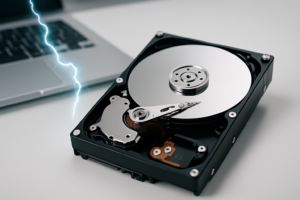
To understand why clicking is so concerning, it helps to know what’s happening inside your hard drive. A traditional hard disk drive (HDD) contains one or more spinning platters coated in a magnetic material. These platters spin at extremely high speeds, typically 5,400 or 7,200 RPM for consumer drives.
A read/write head floats above the platter surface on a tiny cushion of air. The gap between the head and the platter is smaller than a human hair. We’re talking about 3 to 5 nanometers on modern drives. Any physical contact between the head and the platter is catastrophic.
The head is positioned by an actuator arm, which is controlled by a voice coil motor. When everything is working properly, this mechanism moves the head to the correct position on the platter thousands of times per second, completely silently (or with a very faint hum). When something goes wrong with this mechanism, you get clicking.
The Different Types of Hard Drive Sounds and What They Mean
Rhythmic Clicking (Click of Death)
This is the most common and most recognizable failure sound. It’s a steady, repeating click that happens at regular intervals, often once every second or two. This sound means the actuator arm is trying to position the read/write head, failing, resetting to its home position, and trying again.
The drive’s firmware is essentially stuck in a loop. It can’t read the servo data it needs to position the head correctly, so it keeps retrying. This is commonly called the “click of death,” and it almost always indicates a serious mechanical failure. Common causes include failed or weak read/write heads, platter surface damage, and firmware corruption.
Grinding or Scraping
This is the worst sound a hard drive can make. A grinding or scraping noise means the read/write heads are making physical contact with the platter surface. This is called a head crash, and it actively destroys your data with every second the drive remains powered on.
If you hear grinding, power off your computer immediately. Don’t shut down gracefully. Don’t save your work. Hold the power button or pull the plug. Every moment of contact between the head and the platter is scraping away the magnetic coating that stores your data.
Intermittent Clicking During Heavy Use
Occasional clicking during intense read/write operations is slightly different from the steady click of death. Sometimes a drive will click a few times and then resume normal operation. This often indicates the early stages of head failure or growing bad sectors on the platter surface.
Don’t ignore this. A drive that clicks intermittently today will likely click constantly next week. This is your warning window, and you should treat it as an emergency: back up everything you can immediately and replace the drive.
Beeping or High-Pitched Whining
A beeping sound, especially from a 2.5-inch laptop drive or external drive, typically means the motor can’t spin the platters. This is often caused by a seized spindle motor or by the heads being stuck to the platter surface (called stiction). The beeping is the motor trying and failing to spin up.
With external drives, beeping can also indicate insufficient power. Before assuming the worst, try connecting the drive to a different USB port, preferably one directly on your motherboard rather than a hub. Some external drives need more power than a single USB 2.0 port can provide. If you’re using a USB Y-cable, make sure both connectors are plugged in.
Soft, Repetitive Ticking
A soft ticking sound that you can only hear in a quiet room might be a thermal calibration cycle. Many drives perform periodic recalibration as they warm up or cool down, and this can produce a faint tick. This is normal on some models, particularly Western Digital drives from certain product lines. Check your drive’s SMART data to confirm everything is healthy if you’re unsure.
Immediate Steps When Your Hard Drive Starts Clicking
Step 1: Stop Using the Drive
This is the single most important thing you can do. Every minute a failing drive remains powered on increases the risk of permanent data loss. If the drive is clicking rhythmically, the heads may be dragging across the platter surface, causing additional damage with each pass.
Power down the system. Don’t try to run disk repair utilities. Don’t try to copy files. Don’t restart and “see if it’s better.” Just turn it off.
Step 2: Assess What’s at Stake
Before deciding on next steps, think honestly about what’s on the drive. Do you have a recent backup? Is the data irreplaceable (family photos, business records, creative work)? Or is it mostly stuff you could re-download or recreate?
Your answer determines whether you should attempt recovery yourself or go straight to a professional. For irreplaceable data, skip the DIY approaches entirely. The risk isn’t worth it.
Step 3: Don’t Put It in the Freezer
I need to address this myth directly because it refuses to die. The “freezer trick,” where you put a clicking hard drive in a freezer bag and freeze it for a few hours, was marginally useful for a specific type of failure in drives manufactured in the early 2000s. For modern drives, it’s almost always harmful.
Condensation forms on the platters when you bring the drive back to room temperature. Moisture on the platter surface can cause head crashes and corrosion. Professional data recovery technicians universally advise against this approach.
DIY Recovery: When It Makes Sense and When It Doesn’t
If your drive is making a steady clicking sound (the click of death), DIY software recovery will not work. The drive can’t be read by your operating system because the heads can’t position themselves. No software can fix a mechanical problem. Period.
If your drive is making intermittent clicks but still partially functional, you have a narrow window to try copying your most critical files. Here’s how to approach it:
- Connect the drive as a secondary drive in another computer, or use a USB-to-SATA adapter like the Sabrent USB 3.0 to SATA adapter. Don’t try to boot from the failing drive.
- Use disk cloning software rather than copying files individually. Tools like ddrescue (Linux) or HDDSuperClone are designed to image failing drives. They work by reading whatever sectors they can access, skipping bad areas, and coming back to retry them later.
- Clone to a healthy drive first, then attempt file recovery from the clone. This minimizes the time the failing drive needs to be powered on.
- Work in a cool, well-ventilated area. Heat accelerates drive failure.
For checking drive health before a complete failure, CrystalDiskInfo (Windows) is an excellent free tool that reads SMART data from your drive. Look for reallocated sector counts, current pending sector counts, and uncorrectable sector counts. Any non-zero values in these fields are red flags.
Professional Data Recovery: What to Expect
For drives with consistent clicking, grinding, or beeping, professional recovery is your only real option if the data matters to you. These companies operate cleanroom facilities where they can open your drive without contaminating the platters with dust particles.
A few reputable companies I’d recommend looking into:
- Ontrack Data Recovery, one of the oldest and largest data recovery firms. They handle everything from single consumer drives to enterprise RAID arrays.
- DriveSavers, based in California, with a strong reputation and certifications for handling sensitive data.
- Gillware Data Recovery, known for transparent pricing and a “no data, no charge” policy.
Most reputable recovery companies will evaluate your drive for free or for a small diagnostic fee. They’ll tell you what’s wrong, what’s recoverable, and what it will cost before doing any work. Expect professional recovery for mechanical failures to run anywhere from competitively priced to competitively priced or more depending on the severity of the damage and the drive’s capacity.
Avoid any company that can’t explain their process or that quotes a flat rate over the phone without examining the drive. Data recovery pricing varies enormously based on the specific failure, and anyone offering a one-size-fits-all price is likely not doing the work properly.
Preventing Future Data Loss
Once you’ve dealt with the immediate crisis, it’s time to make sure this never happens again. Here are specific, practical steps:
Follow the 3-2-1 Backup Rule
Keep three copies of your data on two different types of media, with one copy stored off-site (or in the cloud). This sounds excessive until your drive clicks for the last time.
Use a NAS or Dedicated Backup Drive
The Synology DS224+ is my pick for most home users who want a reliable network backup solution. Pair it with two Western Digital Red Plus drives (WD40EFPX for 4TB) in a mirrored configuration, and you’ve got solid local redundancy. For simpler setups, even a single external drive running scheduled backups through Windows Backup or Time Machine on macOS is dramatically better than nothing.
Consider Switching to SSDs
Solid-state drives have no moving parts, which means no clicking, no head crashes, and no mechanical failures. The Samsung 870 EVO (for SATA) or the Samsung 980 Pro (for NVMe) are both excellent options. SSDs can still fail, but the failure modes are completely different, and they typically give you more warning through SMART data before dying.
Monitor Drive Health Regularly
Install CrystalDiskInfo and set it to run at startup. It sits in your system tray and will alert you if your drive’s SMART data starts showing warning signs. Catching a failing drive early, before it starts clicking, gives you time to migrate your data safely.
Frequently Asked Questions
Can a clicking hard drive fix itself?
No. A clicking hard drive has a mechanical problem that will only get worse over time. Sometimes a clicking drive will temporarily work after being powered off and cooled down, but this is not a fix. It’s a brief reprieve, and you should use it to copy your most critical data immediately before the drive fails completely. Do not rely on a clicking drive for any ongoing storage.
Is it safe to keep using a hard drive that only clicks occasionally?
Absolutely not. Intermittent clicking is an early warning sign of head failure or platter degradation. The drive is in the process of failing, and continued use increases the risk that it will progress to a complete failure, taking your data with it. Back up everything on the drive right away and replace it. Drives are cheap. Your data is not.
How much does professional data recovery cost for a clicking drive?
Professional data recovery for mechanical failures (clicking, grinding, beeping) typically costs between competitively priced and competitively priced for consumer drives, though extreme cases involving platter damage can exceed competitively priced. Most reputable companies offer free or low-cost evaluations and operate on a “no data, no charge” policy. Always get a quote before authorizing work, and be wary of companies that demand large upfront payments.
Do external hard drives click for different reasons than internal drives?
External hard drives can click for all the same mechanical reasons as internal drives, but they have one additional common cause: insufficient power. USB ports, especially on older computers or through hubs, sometimes can’t supply enough power to spin up the drive’s motor. Before panicking, try a different USB port, a different cable, or a powered USB hub. If the clicking persists with adequate power, you’re dealing with a mechanical issue and should follow the same steps outlined above.
Final Thoughts
A clicking hard drive is your data sending you an SOS. The sooner you act, and the less you tinker, the better your chances of getting your files back. Power down the drive, assess what’s on it, and decide whether the data is worth professional recovery or whether you can accept the loss and move on.
Most importantly, use this experience as motivation to set up a proper backup system. Every hard drive will eventually fail. It’s not a question of if, only when. The people who get through drive failures without losing anything important are the ones who planned for it ahead of time. Be one of those people.

James Kennedy is a writer and product researcher at Drives Hero with a background in IT administration and consulting. He has hands-on experience with storage, networking, and system performance, and regularly improves and optimizes his home networking setup.