How to Set Up RAID 5 on Your Home NAS (Beginner Guide)
You just bought a multi-bay NAS, you’ve got a stack of hard drives ready to go, and you’re staring at the storage configuration screen wondering which RAID level to pick. RAID 5 keeps coming up in every forum thread and buying guide, and for good reason. It’s the sweet spot between storage efficiency, performance, and data protection for most home users.
But setting it up correctly matters. A bad configuration can leave you with slower performance than expected, or worse, a false sense of security. This guide walks you through the entire RAID 5 setup process, from understanding what it actually does to configuring it on your NAS and knowing what to expect once it’s running.
Whether you’re building a media server, a backup target, or a home lab storage system, this is everything you need to know to get RAID 5 up and running the right way.
What Is RAID 5 and Why Should You Care?
RAID 5 distributes your data across multiple drives while also writing parity information. That parity data is what allows RAID 5 to survive a single drive failure without losing anything. If one drive dies, the array keeps running in a degraded state while you replace the failed drive and rebuild.
Unlike RAID 1 (mirroring), which gives you only 50% of your total drive capacity, RAID 5 is more efficient. You lose the equivalent of one drive’s worth of space to parity. With four 4TB drives, for example, you get 12TB of usable storage instead of the 8TB you’d get with RAID 1.
Compared to RAID 0 (striping with no redundancy), RAID 5 actually protects your data. RAID 0 is fast but a single drive failure destroys everything. RAID 5 gives you a good balance of read performance, storage efficiency, and fault tolerance.
RAID 5 at a Glance
- Minimum drives required: 3 (4 or more recommended)
- Usable capacity: (N-1) x smallest drive size, where N = number of drives
- Fault tolerance: Survives one drive failure
- Read performance: Excellent (scales with number of drives)
- Write performance: Moderate (parity calculations add overhead)
What You Need Before You Start
Before you begin the configuration process, make sure you have the right hardware. RAID 5 requires a minimum of three drives, but I strongly recommend using four. With four drives, you get better performance, more usable space, and a more comfortable rebuild scenario.
Choosing a NAS Enclosure
You’ll need a NAS with at least four bays to get the most out of RAID 5. Synology and QNAP are the two most popular brands for home use, and both make the RAID setup process very approachable through their web interfaces.
The Synology DS423+ and the QNAP TS-464 are both excellent four-bay options that handle RAID 5 with ease. If you want room to grow, consider a five or six-bay model, but four bays is the sweet spot for most home users.
Synology DiskStation DS423+ 4-Bay NAS
One of the best 4-bay NAS units for home RAID 5 setups, with an intuitive DSM operating system and strong community support
Choosing Your Hard Drives
This is where a lot of people make mistakes. Don’t just grab whatever desktop drives are on sale. NAS-rated drives are built to handle the constant vibration and 24/7 operation that a RAID array demands.
The top picks for NAS drives are:
- WD Red Plus (CMR recording, great for RAID)
- Seagate IronWolf (built-in vibration sensors, NAS-optimized firmware)
- Seagate IronWolf Pro (longer warranty, better for larger arrays)
- Toshiba N300 (often the most affordable NAS-class drive)
I’d go with 4TB or 8TB drives for most home setups. With four 8TB NAS drives in RAID 5, you get 24TB of usable space, which is plenty for most media libraries, backups, and file storage needs.
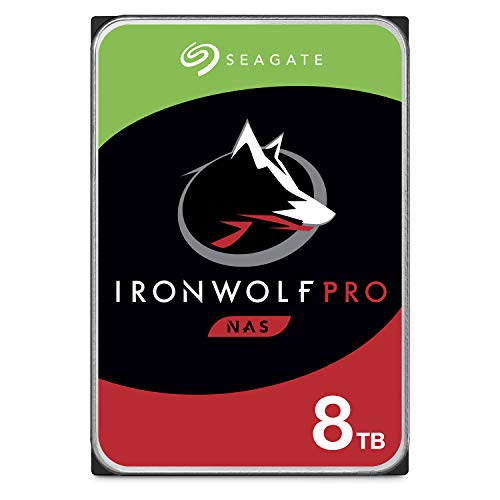
Seagate IronWolf 8TB NAS Internal Hard Drive
Purpose-built for NAS environments with vibration sensors and AgileArray technology, ideal for RAID 5 arrays
Important: Use drives of the same capacity. You can technically mix sizes in RAID 5, but the array will treat every drive as if it’s the same size as the smallest one. A 4TB, 4TB, 8TB, and 8TB setup would give you only 12TB usable, not 18TB. Don’t waste money mixing sizes.
Other Things You’ll Need
- A gigabit Ethernet connection (or 2.5GbE if your NAS supports it)
- A computer on the same network for the initial setup
- An uninterruptible power supply (UPS) to protect against sudden power loss during rebuilds
- Patience, because RAID initialization takes time
Step-by-Step: Setting Up RAID 5 on a Synology NAS
I’ll use Synology’s DSM interface for this walkthrough since it’s the most common NAS platform for home users. The process on QNAP is very similar, just with different menu names.
Step 1: Install Your Drives
Power off the NAS. Slide your drives into the drive bays, making sure they click into place. Most modern NAS enclosures use tool-free drive trays. Once all four drives are installed, connect the NAS to your router with an Ethernet cable and power it on.
Step 2: Initialize DSM
Open a browser and navigate to find.synology.com or type in the NAS’s IP address. Follow the prompts to install DSM (Synology’s operating system). During the initial setup, DSM may ask you about storage configuration, but I recommend skipping this step and configuring it manually afterward for more control.
Step 3: Open Storage Manager
Once DSM is installed and you’re logged in, open Storage Manager from the main menu. This is where all the RAID magic happens. You’ll see your four drives listed under “HDD/SSD” if everything is properly detected.
Step 4: Create a Storage Pool
Click on Storage Pool in the left sidebar, then click Create. Choose “Better performance” or “Higher flexibility” depending on your DSM version. Select RAID 5 as your RAID type. Select all four drives from the list.
DSM will warn you that all data on the drives will be erased. Confirm this and proceed.
Step 5: Create a Volume
After creating the storage pool, DSM will prompt you to create a volume on top of it. Choose Btrfs as the file system if your NAS supports it. Btrfs offers data checksumming and snapshot support, which adds another layer of protection on top of RAID. If Btrfs isn’t available, ext4 works fine too.
Allocate the maximum available space to the volume unless you have specific reasons to partition it.
Step 6: Wait for Initialization
This is the part nobody warns you about. RAID 5 initialization takes a long time. With four 8TB drives, expect anywhere from 12 to 24 hours. During this time, your NAS is usable but performance will be reduced. I recommend starting this process before bed and letting it run overnight.
You can monitor the progress in Storage Manager. Don’t power off the NAS during initialization.
Step 7: Create Shared Folders and Set Permissions
Once the volume is ready, go to Control Panel > Shared Folder and create your folder structure. Common setups include folders for media, backups, documents, and photos. Set user permissions for each folder to control who can access what on your network.
RAID 5 Performance: What to Realistically Expect
RAID 5 read performance is genuinely impressive. Because data is striped across all drives, your NAS can pull data from multiple disks simultaneously. On a four-drive RAID 5 array with modern NAS drives, you’ll typically see sequential read speeds of 400-500 MB/s at the array level, though your network will likely be the bottleneck.
Over a standard gigabit Ethernet connection, you’ll max out around 110-115 MB/s regardless of your RAID configuration. If you want to actually feel the array’s speed advantage, you’ll need a 2.5GbE network switch and compatible network cards.
Write performance is where RAID 5 shows its weakness. Every write operation requires the NAS to calculate parity data, which adds CPU overhead and extra disk I/O. Expect write speeds about 20-30% slower than reads. For most home use cases like streaming media, serving files, and running backups, this isn’t noticeable. If you’re running databases or virtual machines with heavy write loads, RAID 10 might be a better choice.
Understanding Rebuild Times (This Is Critical)
When a drive fails in a RAID 5 array, you replace it and the array rebuilds. During the rebuild, the NAS recalculates all the missing data using the parity information spread across the remaining drives. This process is extremely taxing on the system and the surviving drives.
Here’s what you need to know about rebuild times:
- 4TB drives: 8-16 hours typical rebuild time
- 8TB drives: 16-30 hours typical rebuild time
- 16TB drives: 30-48+ hours typical rebuild time
During the rebuild, your array has zero fault tolerance. If a second drive fails while the array is rebuilding, you lose everything. This is the single biggest risk with RAID 5, and it becomes more dangerous as drive sizes increase. With very large drives (12TB and up), the probability of an unrecoverable read error during rebuild becomes statistically significant.
For drives 12TB and larger, seriously consider RAID 6 instead. RAID 6 uses dual parity and survives two simultaneous drive failures. You lose the capacity of two drives instead of one, but the added safety is worth it for high-capacity arrays.
APC UPS Battery Backup 1500VA (BR1500MS2)
Protects your NAS from power loss during RAID rebuilds, which could otherwise destroy your array
Tips for Keeping Your RAID 5 Array Healthy
Run Regular SMART Tests
Both Synology and QNAP let you schedule automatic SMART tests on your drives. Set up monthly extended SMART tests. These will detect early signs of drive failure before you lose a disk. Catching a failing drive early means you can do a planned replacement instead of an emergency rebuild.
Enable RAID Scrubbing
Data scrubbing (also called a parity consistency check) reads all data in the array and verifies that the parity information is correct. Schedule this monthly. It catches bit rot and silent corruption before they become unrecoverable problems.
Keep a Hot Spare (If You Have the Bays)
A hot spare is an extra drive installed in the NAS that sits idle until a drive fails. When a failure is detected, the rebuild starts automatically using the spare. This dramatically reduces the window of vulnerability. If you have a five-bay NAS, using four drives for RAID 5 and one as a hot spare is an excellent configuration.
Always Have an External Backup
RAID is not a backup. I’ll say it again because it’s the most important thing in this article: RAID is not a backup. RAID protects against drive failure, but it doesn’t protect against accidental deletion, ransomware, fire, theft, or the array controller itself failing. Keep an external backup using a USB drive, a second NAS, or a cloud service like Backblaze B2 or Synology C2.
Common RAID 5 Mistakes to Avoid
- Using desktop drives instead of NAS drives. Desktop drives like the WD Blue aren’t designed for RAID environments and will fail sooner.
- Buying all drives from the same batch. Drives manufactured in the same batch may fail around the same time. Buy from different retailers or at different times to reduce this risk.
- Skipping the UPS. A power outage during a RAID rebuild can corrupt the entire array. A basic UPS with USB connectivity lets your NAS shut down gracefully.
- Ignoring SMART warnings. When your NAS alerts you about a drive issue, act immediately. Don’t wait for the drive to fully fail.
- Using RAID 5 with only three drives and large capacities. Three-drive RAID 5 with 16TB drives is risky. The rebuild time is too long, and the math on unrecoverable read errors doesn’t work in your favor.
RAID 5 vs. SHR: Which Should You Pick on Synology?
Synology offers its own hybrid RAID format called SHR (Synology Hybrid RAID). SHR-1 provides the same single-drive fault tolerance as RAID 5 but with one major advantage: it can use mixed drive sizes more efficiently.
If all your drives are the same size, RAID 5 and SHR-1 give you identical usable capacity. If you might mix drive sizes in the future (say, upgrading one drive at a time from 4TB to 8TB), SHR is the better choice. If you want maximum compatibility and the ability to move your drives to a non-Synology system later, stick with standard RAID 5.
My recommendation: if you’re committed to the Synology ecosystem, SHR-1 is slightly more flexible. If there’s any chance you’ll switch NAS brands, use RAID 5.
Frequently Asked Questions
Can I expand a RAID 5 array by adding more drives later?
Yes, most NAS operating systems support online RAID expansion. On Synology, you can add a drive to an existing RAID 5 storage pool through Storage Manager. The array will rebuild to incorporate the new drive, which takes a significant amount of time depending on capacity. You can also expand by replacing drives one at a time with larger ones, rebuilding after each replacement, and then expanding

James Kennedy is a writer and product researcher at Drives Hero with a background in IT administration and consulting. He has hands-on experience with storage, networking, and system performance, and regularly improves and optimizes his home networking setup.