SSD Trim Command: What It Does and How to Enable It
You bought an SSD to make your computer faster. And it worked, at least for a while. But over time, you might notice write speeds creeping downward, and that snappy responsiveness starts to feel a little sluggish. The culprit is often a missing or disabled feature called TRIM.
TRIM is one of those behind-the-scenes commands that most people never think about, but it plays a critical role in keeping your SSD performing at its best. Without it, your drive has to do extra work every time it writes new data, and that extra work adds up over months of use.
The good thing is that most modern operating systems enable TRIM automatically. But “most” doesn’t mean “all,” and automatic doesn’t mean it’s actually working correctly on your machine. Let’s walk through what TRIM actually does, why it matters, and how to make sure it’s doing its job on your system.
What the TRIM Command Actually Does
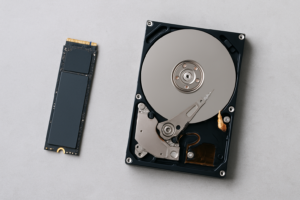
To understand TRIM, you first need to understand how SSDs handle data differently from traditional hard drives. On a spinning hard drive, when you delete a file, the operating system simply marks that space as available. When new data needs to be written there, the drive just overwrites it directly. Simple.
SSDs can’t do that. NAND flash memory, the technology inside every SSD, requires a block to be fully erased before new data can be written to it. And here’s the tricky part: SSDs write data in small units called pages (typically 4KB to 16KB), but they can only erase data in much larger units called blocks (often 256KB to several megabytes).
When you delete a file, the operating system knows those pages are free. But the SSD itself has no idea. It still thinks those pages contain valid data. Without TRIM, here’s what happens when the drive needs to write new data to that block:
- The SSD reads the entire block into its cache.
- It erases the entire block.
- It writes back only the valid data, plus the new data, to the freshly erased block.
This process is called write amplification, and it’s a performance killer. It turns a single write operation into a read-erase-write cycle, which is dramatically slower and also contributes to wearing out the NAND cells faster.
How TRIM Fixes This
TRIM is a command that the operating system sends to the SSD, telling it exactly which pages are no longer in use. Once the SSD knows a page is invalid, it can include those pages in its background garbage collection process, pre-erasing blocks during idle time so they’re ready for new writes.
Think of it like clearing dishes from a restaurant table between customers. Without TRIM, the next customer sits down, and the server has to clear the old dishes before setting new ones. With TRIM, the table is already clean and ready to go.
The result is faster, more consistent write performance, especially as your drive fills up. Testing by AnandTech and other hardware review sites has consistently shown that SSDs with TRIM enabled maintain significantly better sustained write speeds over time compared to the same drives without TRIM.
Why TRIM Matters More Than You Think
On a brand new SSD, you won’t notice TRIM’s absence at all. Every block is pre-erased from the factory, so writes are fast across the board. The problems start showing up weeks or months later, once the drive has been through enough write cycles that it’s running low on pre-erased blocks.
There are three main benefits to having TRIM properly enabled:
- Sustained write performance: Without TRIM, write speeds can drop by 50% or more on a heavily used drive. The Samsung 870 EVO, for example, maintains remarkably consistent write speeds with TRIM enabled, but shows noticeable degradation without it.
- Extended drive lifespan: Write amplification doesn’t just slow things down. It also means more actual writes to the NAND cells, which have a finite number of program/erase cycles. TRIM reduces unnecessary writes, which helps your SSD last longer.
- Better wear leveling: TRIM gives the SSD’s controller more accurate information about which blocks are actually in use, allowing it to distribute writes more evenly across all the NAND cells.
For everyday users who browse the web and edit documents, you might never notice the difference. But if you’re doing video editing, running virtual machines, working with databases, or gaming with large installs, TRIM is essential for maintaining the performance you paid for.
How to Check If TRIM Is Enabled
Windows 10 and Windows 11
Windows has supported TRIM since Windows 7, and it’s enabled by default for recognized SSD drives. To verify it’s active, open Command Prompt as Administrator (search for “cmd,” right-click, and select “Run as administrator”), then type:
fsutil behavior query DisableDeleteNotify
You’ll see one or two results. Look for DisableDeleteNotify = 0. Yes, it’s a double negative, which is confusing. A value of 0 means TRIM is enabled. A value of 1 means TRIM is disabled.
You might see separate entries for NTFS and ReFS. For most users, the NTFS value is the one that matters.
macOS
Apple has supported TRIM for its own factory-installed SSDs since OS X 10.6.8, and it’s enabled by default on those drives. If you’ve installed a third-party SSD, TRIM support was historically not automatic, but starting with macOS Yosemite (10.10.4), Apple added the trimforce command.
To check TRIM status, click the Apple menu, select “About This Mac,” then “System Report.” Click on “SATA/SATA Express” or “NVMExpress” in the sidebar (depending on your connection type) and look for “TRIM Support: Yes.”
Linux
Most modern Linux distributions support TRIM, but the implementation varies. There are two approaches: continuous TRIM (real-time) and periodic TRIM (scheduled). Most Linux experts recommend periodic TRIM using a systemd timer, as continuous TRIM can introduce small latency penalties on some drives.
To check if the periodic TRIM timer is active, run:
sudo systemctl status fstrim.timer
If it shows “active (waiting),” you’re good. Ubuntu 18.04 and later, Fedora, and most other major distributions enable this timer by default for SSDs.
For continuous TRIM, check your /etc/fstab file. If your SSD partition has the discard mount option, continuous TRIM is active. For example:
/dev/sda1 / ext4 defaults,discard 0 1
How to Enable TRIM If It’s Not Working
Enabling TRIM on Windows
If your check revealed that TRIM is disabled (DisableDeleteNotify = 1), enabling it is a one-line command. Open Command Prompt as Administrator and type:
fsutil behavior set DisableDeleteNotify 0
No reboot is required. TRIM will begin working immediately on new delete operations. It won’t retroactively inform the SSD about files you’ve already deleted, but your drive’s garbage collection will catch up over time.
Enabling TRIM on macOS (Third-Party SSDs)
For non-Apple SSDs in older Macs (particularly those with upgradeable storage), open Terminal and run:
sudo trimforce enable
You’ll get a warning that this could lead to data loss. In practice, TRIM-related data loss on modern SSDs is extremely rare, but make sure you have a current backup before proceeding. Your Mac will reboot automatically after confirming.
Enabling TRIM on Linux
To enable the periodic TRIM timer (recommended approach), run:
sudo systemctl enable fstrim.timer
sudo systemctl start fstrim.timer
This will run TRIM once a week by default, which is sufficient for most use cases. You can also run a manual TRIM at any time with:
sudo fstrim -av
The -a flag trims all mounted filesystems that support it, and -v gives you verbose output showing how many bytes were trimmed on each partition.
Troubleshooting: When TRIM Won’t Work
Sometimes TRIM doesn’t work even when your operating system claims it’s enabled. Here are the most common reasons and how to fix them.
Your SATA Controller Is in IDE Mode
TRIM requires AHCI mode for SATA SSDs. If your motherboard’s SATA controller is set to IDE or RAID mode in the BIOS, TRIM commands won’t reach your drive. Check your BIOS/UEFI settings and switch to AHCI. Be warned: changing this setting on an existing Windows installation can cause a blue screen. You’ll need to make a registry edit before changing the BIOS setting, or reinstall Windows.
To prepare Windows for the switch, open Registry Editor and navigate to HKEY_LOCAL_MACHINE\SYSTEM\CurrentControlSet\Services\iaStorV. Set the “Start” value to 0. Also check HKEY_LOCAL_MACHINE\SYSTEM\CurrentControlSet\Services\storahci and set its “Start” value to 0. Then reboot into BIOS and change to AHCI.
Your USB Enclosure Doesn’t Pass TRIM
This is a big one. If you’re using an external SSD in a USB enclosure, most USB-to-SATA bridges do not pass TRIM commands through. The SSD never receives the TRIM instruction, even though your OS thinks it sent one.
A few enclosures and bridge chips do support TRIM passthrough. Look for enclosures using the ASMedia ASM2362 or JMicron JMS583 chipsets for NVMe drives, or the ASMedia ASM1153E for SATA drives. The Sabrent USB 3.2 NVMe enclosure (EC-SNVE) is one popular option that supports TRIM passthrough.
RAID Configuration Is Blocking TRIM
Software RAID and some hardware RAID configurations don’t pass TRIM to the underlying drives. Windows Storage Spaces supports TRIM in simple (non-mirrored, non-parity) configurations. Intel RST (Rapid Storage Technology) added TRIM support for RAID 0 arrays starting with version 11.5, but RAID 1, 5, and 10 support came later and can be spotty depending on your controller.
If you’re running SSDs in a RAID array and need TRIM, verify support with your specific RAID controller manufacturer before assuming it works.
Old or Buggy SSD Firmware
Some early SSDs had firmware bugs that caused data corruption when TRIM was enabled. The Crucial M4 and some early OCZ drives were notorious for this. If you’re using an older SSD (pre-2014 or so), check the manufacturer’s website for firmware updates. Most of these bugs have been patched, but updating firmware is always a good idea regardless.
Encrypted Drives and TRIM
This one involves a security tradeoff. When you use full-disk encryption with tools like LUKS on Linux or VeraCrypt, enabling TRIM can theoretically leak information about which blocks are empty versus which contain encrypted data. An attacker could potentially determine how full the drive is and where data is located, even if they can’t read it.
For most people, this is a negligible risk, and the performance benefits of TRIM outweigh the theoretical vulnerability. But if you’re in a high-security environment or handling sensitive data, you may want to leave TRIM disabled on encrypted volumes and accept the performance penalty.
TRIM and NVMe Drives
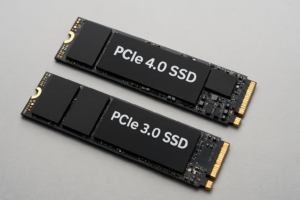
NVMe SSDs use a different command called Deallocate (part of the Dataset Management command set), but it serves the same purpose as TRIM. The good news is that NVMe drives handle this even more efficiently than SATA drives because the NVMe protocol was designed with flash storage in mind from the ground up.
All modern NVMe drives from Samsung, Western Digital, SK hynix, Crucial, and other major manufacturers support the Deallocate command. Windows, macOS, and Linux all send it automatically when an NVMe drive is detected. You generally don’t need to do anything special for NVMe.
Frequently Asked Questions
Does TRIM erase data permanently, and does this affect data recovery?
Yes. When TRIM runs, the SSD erases the affected blocks, making the data unrecoverable by conventional means. This is actually a significant concern if you accidentally delete an important file. On a traditional hard drive, deleted files can often be recovered with tools like Recuva or PhotoRec. On an SSD with TRIM enabled, the data is typically gone within seconds to minutes. If data recovery is important to you, maintain regular backups rather than relying on the ability to recover deleted files.
How often should TRIM run?
Windows handles TRIM in real-time, sending the command immediately when files are deleted, and also runs a scheduled optimization (which includes TRIM) weekly by default. On Linux, the weekly fstrim.timer schedule is plenty for most users. Running TRIM more frequently than necessary doesn’t provide additional benefit and can slightly increase overhead. You don’t need to obsess over scheduling. The defaults work well for the vast majority of use cases.
Can I run TRIM manually to fix a slow SSD?
You can, and it sometimes helps. On Windows, open “Defragment and Optimize Drives” (search for “defrag” in the Start menu), select your SSD, and click “Optimize.” Windows will run TRIM rather than defragmentation when it detects an SSD. On Linux, run sudo fstrim -av. Keep in mind that if your SSD is still slow after a manual TRIM, the issue might be something else entirely, like a drive nearing the end of its lifespan, thermal throttling, or a saturated SATA connection bottlenecking an otherwise fast drive.
Does my SSD need TRIM if it has over-provisioning?
Over-provisioning (extra NAND capacity hidden from the user) helps, but it doesn’t eliminate the need for TRIM. Drives like the Samsung 870 EVO and 990 Pro include built-in over-provisioning, and enterprise SSDs like the Samsung PM9A3 include even more. This extra space gives the controller more room to perform garbage collection and wear leveling. But over-provisioning is a buffer, not a replacement. TRIM tells the controller which blocks are actually free, allowing it to use both the over-provisioned space and the user-released space efficiently. You want both working together for the best results.

James Kennedy is a writer and product researcher at Drives Hero with a background in IT administration and consulting. He has hands-on experience with storage, networking, and system performance, and regularly improves and optimizes his home networking setup.