SSD vs HDD: Which Should You Choose in 2026?
Choosing between an SSD and an HDD in 2026 feels like it should be a settled debate by now. And in many cases, it is. But if you’ve recently priced out a 4TB or 8TB SSD and felt your jaw hit the desk, you know the conversation isn’t quite over yet. There are still very real scenarios where traditional hard drives make sense, and plenty of others where skipping an SSD would be a genuine mistake.
The storage market has shifted dramatically over the past few years. SSDs have gotten faster, more reliable, and more affordable. HDDs have responded by pushing into massive capacities at prices that solid-state drives still can’t touch. Your best choice depends entirely on what you’re doing with your computer, how much storage you need, and what your budget looks like.
This guide breaks down every major factor: speed, durability, price per gigabyte, noise, power consumption, and real-world use cases. By the end, you’ll know exactly which type of drive belongs in your system, and I’ll point you toward specific models worth buying.
Speed: It’s Not Even Close
If speed is your primary concern, SSDs win so decisively that it’s almost not worth discussing. A modern NVMe SSD like the Samsung 990 Pro reads sequential data at up to 7,450 MB/s. A typical 7,200 RPM hard drive tops out around 150 to 200 MB/s. We’re talking about a difference of roughly 40x in sequential read performance.
But raw sequential speeds don’t tell the whole story. Random read and write performance, the kind that matters most for booting your operating system, launching applications, and loading game levels, is where SSDs truly dominate. An NVMe drive can handle hundreds of thousands of random IOPS (input/output operations per second), while an HDD manages maybe 75 to 100. This is why your old laptop with a hard drive took two minutes to boot Windows, while an SSD-equipped machine does it in under 15 seconds.
SATA SSDs vs. NVMe SSDs
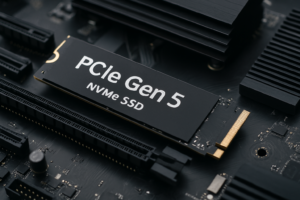
It’s worth understanding that not all SSDs perform the same. SATA SSDs top out at around 550 MB/s due to the interface limitation. NVMe SSDs use the PCIe bus and are dramatically faster. For a boot drive in 2026, you want NVMe. SATA SSDs still work fine for secondary storage or older systems that lack an M.2 slot, but NVMe should be your default choice for any new build.
The Samsung 990 EVO Plus is an excellent mid-range NVMe option that handles everything from everyday computing to gaming without breaking a sweat. It’s available in 1TB and 2TB capacities and offers a strong balance of performance and value.
Samsung 990 EVO Plus 2TB NVMe SSD
A versatile PCIe 5.0 NVMe drive with excellent everyday performance and Samsung’s proven reliability.
Price Per Gigabyte: HDDs Still Have the Edge at Scale
SSD prices have fallen significantly, and for capacities up to 2TB, they’re genuinely affordable. A 1TB NVMe SSD is well within reach for most budgets in 2026, and 2TB drives have hit very reasonable price points as well. For your average user who needs a boot drive plus room for applications and games, SSD pricing is no longer a barrier.
Where HDDs still hold a clear advantage is in bulk storage. If you need 8TB, 12TB, or 20TB of space for video archives, media libraries, surveillance footage, NAS storage, or cold backups, hard drives cost a fraction of what an equivalent SSD would run you. A Seagate IronWolf 8TB designed for NAS use delivers massive capacity at a price point that no SSD can match.
The crossover point keeps shifting. A few years ago, 1TB SSDs felt expensive. Today, they’re a normal purchase. But we’re still years away from 8TB+ SSDs being affordable for everyday consumers. If your storage needs are measured in multiple terabytes, HDDs remain the practical choice for your wallet.
Durability and Reliability
SSDs have no moving parts. This single fact gives them enormous advantages in durability. Drop a laptop with an SSD inside and the drive will almost certainly survive. Drop one with a spinning hard drive while it’s reading or writing data, and you risk a head crash that destroys the drive instantly.
HDDs use spinning magnetic platters and a mechanical read/write arm that floats nanometers above the surface. Vibration, shock, and temperature swings all pose real threats. SSDs, by contrast, are essentially circuit boards with memory chips soldered on. They handle rough treatment, temperature variation, and vibration far better than any mechanical drive.
Longevity and Write Endurance
SSDs do have a finite number of write cycles. Every NAND flash cell can only be written to a certain number of times before it wears out. In practice, though, modern SSDs are rated for hundreds of terabytes written (TBW) over their lifetime. The Samsung 990 Pro 2TB, for example, is rated for 1,200 TBW. For a typical user writing 50GB per day, that’s over 65 years of use. You’ll replace your entire computer many times over before you wear out the drive.
HDDs don’t have write endurance limits in the same way, but their mechanical components degrade over time. Most hard drives are rated for 3 to 5 years of continuous use, and annual failure rates for consumer HDDs hover around 1 to 2 percent. Enterprise and NAS-rated drives like the WD Red Plus series are built for longer service life and designed to handle always-on workloads.
Noise and Power Consumption
If you’ve ever sat in a quiet room and heard the rhythmic clicking and whirring of a hard drive, you know it’s not silent. HDD noise comes from the spinning platters and the movement of the actuator arm. Some drives are louder than others, but none are truly quiet. If you’re building a silent PC or a home theater system, this matters.
SSDs produce zero noise. They have no moving parts, so there’s nothing to generate sound. They also consume significantly less power, typically 2 to 5 watts under load compared to 6 to 10 watts for a spinning drive. In a desktop, the power difference is negligible. In a laptop, it translates directly into longer battery life.
Form Factor and Compatibility
Modern NVMe SSDs use the M.2 2280 form factor, a stick roughly the size of a stick of gum that slots directly into your motherboard. No cables, no drive bays, no fuss. Most motherboards from the last five years include at least one M.2 slot, and many newer boards offer two or three.
SATA SSDs come in the familiar 2.5-inch form factor, the same size as a laptop hard drive. They connect via SATA cable and need a drive bay or adapter bracket. HDDs come in 3.5-inch (desktop) and 2.5-inch (laptop) sizes and also use SATA connections.
For new desktop builds, NVMe M.2 drives are the cleanest option. No cable management, tiny footprint, and top-tier performance. If you’re upgrading an older laptop or desktop, a 2.5-inch SATA SSD is often the easiest and most impactful upgrade you can make.
Best Use Cases for SSDs
- Boot drives: Every computer in 2026 should boot from an SSD. This is the single biggest performance upgrade you can make to any system.
- Gaming: Modern games increasingly require SSD storage. DirectStorage and similar technologies are designed around fast NVMe drives. Games like Starfield and other open-world titles load dramatically faster on SSDs.
- Video editing: Working with 4K or 8K footage requires fast sustained read/write speeds. An NVMe SSD keeps your timeline smooth and reduces export times.
- Laptops: The shock resistance, low power draw, and compact form factor make SSDs the only sensible choice for portable computers.
- General productivity: Application launches, file searches, and multitasking all benefit enormously from SSD speeds.
For a high-performance gaming and productivity SSD, the WD Black SN850X 2TB is one of the best options available. It delivers top-tier NVMe speeds and includes an optional heatsink version for desktop builds that run hot.
WD Black SN850X 2TB NVMe SSD
One of the fastest PCIe Gen4 drives on the market, ideal for gaming and creative workloads.
Best Use Cases for HDDs
- Mass storage and archiving: If you have terabytes of photos, videos, music, or documents that you access infrequently, HDDs offer far more capacity per dollar.
- NAS and server storage: Network-attached storage devices often use multiple hard drives in RAID configurations. NAS-rated drives like the Seagate IronWolf or WD Red series are purpose-built for this.
- Backup drives: Keeping a local backup of your important data on an HDD is practical and affordable. A 4TB or 8TB external hard drive gives you plenty of room for full system images.
- Surveillance systems: Security camera systems write data continuously. Surveillance-rated HDDs are designed for 24/7 sequential write workloads.
- Extremely tight budgets: If you genuinely can’t afford an SSD of any size, a hard drive will still work. But I’d strongly encourage even a small 500GB SSD for your boot drive and adding an HDD for extra storage later.
The Best Setup for Most People in 2026
For the majority of desktop users, the ideal configuration is a 1TB or 2TB NVMe SSD as your primary drive, paired with a large HDD if you need additional bulk storage. Your operating system, applications, and frequently played games live on the SSD. Your media library, archives, and backups go on the HDD.
Laptop users don’t typically have the luxury of a second drive bay, so a single SSD is the way to go. Choose the largest capacity you can fit in your budget, ideally 1TB or more. Cloud storage and an external backup drive can supplement if you need additional space.
For a reliable, high-capacity option for bulk storage or backups, the Seagate Barracuda 4TB is a dependable desktop hard drive that pairs well with an SSD boot drive.
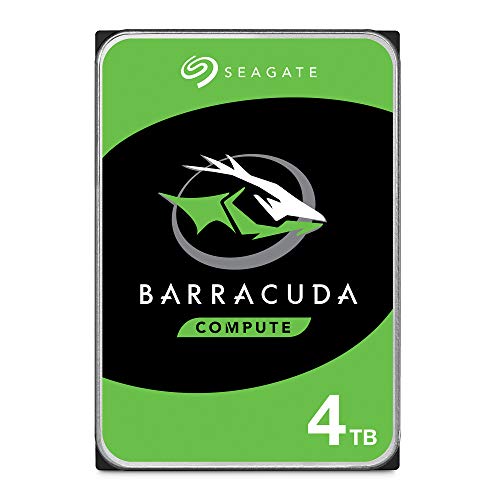
Seagate Barracuda 4TB HDD
A solid and affordable desktop hard drive for bulk storage, backups, and media libraries.
My Pick: SSD Wins for Almost Everyone
I’m going to be direct here. If you’re buying one drive in 2026, it should be an SSD. The performance difference is too large to ignore, and prices have dropped enough that a 1TB NVMe drive fits comfortably into almost any budget. Booting from a hard drive in 2026 feels like using dial-up internet. It technically works, but once you experience the alternative, there’s no going back.
HDDs still earn their place in specific roles: mass storage, NAS builds, backups, and surveillance. They’re not obsolete, and they won’t be for a while. But as your primary system drive, an SSD is the clear winner by every metric except raw cost per terabyte at very high capacities.
Frequently Asked Questions
Can I use both an SSD and HDD in the same computer?
Absolutely, and this is actually the recommended setup for many desktop users. Install your operating system and frequently used programs on the SSD for fast performance, then use the HDD for storing large files like videos, photos, and backups. Most desktop motherboards support multiple drives through a combination of M.2 slots and SATA ports. You can browse SSD and HDD options on Amazon to find the right pairing for your build.
How long do SSDs last compared to HDDs?
Modern SSDs are rated for hundreds of terabytes of data writes over their lifetime, which translates to many years of typical use. Most consumer SSDs will outlast the computer they’re installed in. HDDs, on the other hand, have mechanical parts that wear out over time, and they’re typically rated for 3 to 5 years of regular use. Both types can fail unexpectedly, so always keep backups of important data regardless of which drive type you use.
Is it worth upgrading my old laptop from an HDD to an SSD?
This is one of the best upgrades you can make to an aging laptop. Swapping a hard drive for a 2.5-inch SATA SSD can make a 5-year-old laptop feel nearly new. Boot times drop dramatically, applications open faster, and general responsiveness improves across the board. If your laptop has a SATA connection (most pre-2018 models do), a drive like the Samsung 870 EVO is a popular and reliable upgrade choice. Just make sure to clone your existing drive or do a fresh OS install.
Do SSDs slow down as they fill up?
Yes, to a degree. Most SSDs see some performance degradation when they’re nearly full, typically above 80 to 90 percent capacity. This happens because the drive has fewer empty blocks available for writing new data, forcing it to perform more complex read-modify-write cycles. The best practice is to keep at least 10 to 20 percent of your SSD free for optimal performance. This is another reason the dual-drive approach works well: offload large, rarely accessed files to an HDD so your SSD stays lean and fast.
This article contains affiliate links. We may earn a small commission at no extra cost to you.

James Kennedy is a writer and product researcher at Drives Hero with a background in IT administration and consulting. He has hands-on experience with storage, networking, and system performance, and regularly improves and optimizes his home networking setup.