Storage Spring Cleaning: Organize 10TB+ Collections Easily
Every spring, we clean out closets, garages, and attics. But what about the digital clutter living on your hard drives? If you’ve accumulated 10TB or more of photos, videos, music, documents, and project files over the years, you already know the creeping dread. You open a folder called “Backup_Final_v3_REAL” and wonder what past-you was thinking.
Organizing a massive digital collection feels overwhelming because traditional methods don’t scale. You can’t just eyeball 10 terabytes of data and drag things into neat little folders. At that volume, you need a strategy, the right tools, and a systematic approach. The good news is that most of the heavy lifting can be automated, and a single weekend of focused effort can transform years of digital chaos into something you can actually navigate.
This guide walks you through a practical, step-by-step plan for tackling large collections. We’ll cover duplicate detection, folder structure design, metadata management, and the hardware and software that makes it all possible. Whether you’re a photographer with 80,000 RAW files, a videographer drowning in footage, or someone who’s simply never deleted anything since 2009, this is for you.
Step 1: Take Inventory Before You Touch Anything
The first instinct when cleaning up a big drive is to start moving files around. Resist that urge. You need a map of what you’re working with before you reorganize anything.
Start by running a disk space analyzer to understand where your storage is actually going. WizTree (Windows) and DaisyDisk (Mac) are both excellent for this. They’ll give you a visual breakdown showing exactly which folders are eating up the most space. You might discover that 3TB of your 12TB collection is duplicate iPhone backups you forgot about.
Make a quick list of your major content categories. For most people with large collections, this breaks down into a few buckets: photos and videos, music, documents and PDFs, software archives/ISOs, and project files. Knowing the proportions helps you design your folder structure intelligently.
Document Your Starting Point
Before making changes, take screenshots of your current folder structure and jot down total file counts and sizes. This isn’t just for nostalgia. If something goes wrong during reorganization, you’ll want to know what things looked like before. A quick note in a text file saved to your desktop takes two minutes and can save you hours of headaches.
Step 2: Eliminate Duplicates First
Duplicate files are the single biggest waste of space in large collections, and they make every other organizing step harder. In my experience, collections over 10TB typically contain 15-25% duplicate data. On a 12TB drive, that could mean recovering 2-3TB of usable space.
Choosing the Right Duplicate Finder
Not all duplicate finders are created equal, especially at this scale. You need a tool that uses hash-based comparison (not just filename matching) and can handle millions of files without crashing or taking a week to complete.
dupeGuru is a free, open-source option that works on Windows, Mac, and Linux. It handles large scans well and supports music-specific duplicate detection, which is great if a big chunk of your collection is audio files. For photo-heavy collections, VisiPics goes beyond exact duplicates and finds visually similar images, catching those situations where you saved the same photo at different resolutions or compression levels.
For a more polished, all-in-one experience, dedicated file management software can combine duplicate detection with other cleanup tools. Look for options that offer preview before deletion, so you’re never blindly removing files.
Safe Deletion Practices
When dealing with duplicates across 10TB+, never set any tool to auto-delete. Always review results first and keep these rules in mind:
- Keep the highest quality version. If you have a RAW and a JPEG of the same photo, the tool might flag them as similar. Keep the RAW.
- Prefer organized locations over random ones. If one copy lives in a properly named folder and the duplicate sits in “Downloads,” delete the Downloads copy.
- Move to a “Pending Delete” folder first. Instead of permanently deleting, move flagged duplicates to a temporary folder. Wait a week before emptying it. This gives you a safety net.
- Never delete the only copy of anything. This sounds obvious, but automated tools can sometimes misidentify similar files as duplicates.
Step 3: Design Your Folder Structure
A good folder structure for a 10TB+ collection needs to be simple enough to remember but specific enough to be useful. Overly complex hierarchies with 8 levels of nesting become just as unusable as no structure at all.
The Three-Level Rule
Try to keep your structure to three levels of depth for the main categories. Here’s a template that works well for most large collections:
Level 1: Content type (Photos, Videos, Music, Documents, Projects, Archives)
Level 2: Year or major category (2024, 2023, Client Work, Personal)
Level 3: Specific event, project, or album (Hawaii_Trip, Johnson_Wedding, Q3_Marketing)
For example, a photo from a 2023 vacation would live at: Photos/2023/Iceland_June/
This approach scales beautifully. Even with decades of files, you’ll never have more than 20-30 folders at any given level, making navigation quick and intuitive.
Naming Conventions That Actually Stick
Pick a naming convention and be ruthless about consistency. Here are the rules I recommend:
- Use underscores or hyphens instead of spaces (prevents issues with scripts and some software)
- Put dates in YYYY-MM-DD format so they sort chronologically
- Avoid vague names like “Stuff,” “Misc,” or “New Folder (3)”
- Use lowercase for everything if possible (eliminates case-sensitivity issues across operating systems)
Step 4: Automate the Sorting Process
Manually sorting millions of files into a new folder structure would take months. Automation tools can do it in hours. The key is using file metadata, especially dates, file types, and EXIF data, to route files to the right locations automatically.
Photo and Video Sorting
Adobe Lightroom Classic remains one of the best tools for ingesting and organizing massive photo libraries. Its import functionality can automatically sort images into date-based folders using EXIF data. For a free alternative, digiKam is surprisingly powerful and handles collections of 100,000+ images without breaking a sweat.
XnView MP is another excellent free option for batch processing. You can set up rules to rename and move files based on their metadata, file type, or creation date. For video files specifically, tools like Bulk Rename Utility (Windows) can parse creation dates from video metadata and rename files in batches of thousands.
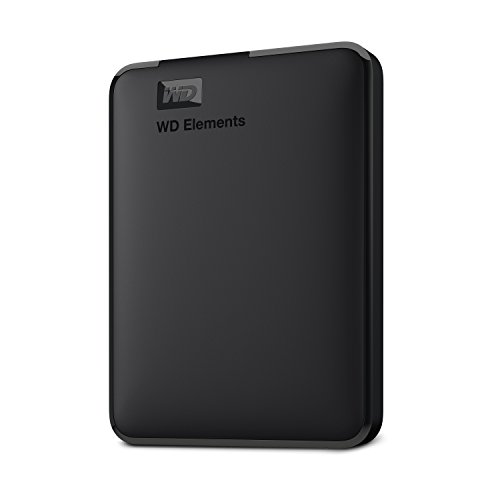
Western Digital 12TB Elements Desktop Hard Drive
Reliable external storage for staging your reorganized files, with plenty of room for a full backup before you start moving things around
Document and General File Sorting
For documents, music, and other general files, file organization software can help automate the grunt work. DropIt (Windows, free) monitors folders and automatically sorts incoming files based on rules you define. You can match by extension, filename patterns, size, or date.
If you’re comfortable with command-line tools, PowerShell on Windows or simple bash scripts on Mac/Linux can sort tens of thousands of files in minutes. A basic script that moves files into year/month folders based on creation date is only about 10 lines of code, and you can find templates on GitHub for every common use case.
Step 5: Get Your Metadata in Order
Metadata is the invisible backbone of a well-organized collection. Good metadata means you can find any file through search, even if you can’t remember where you put it. Bad or missing metadata makes search useless.
Photo Metadata
For photos, ExifTool is the gold standard. It’s a command-line utility that can read and write metadata for virtually every image format. You can batch-update thousands of files at once, adding keywords, location data, copyright notices, or correcting timestamps. There’s also ExifToolGUI if you prefer a visual interface.
Focus on tagging these fields: date taken (fix any incorrect timestamps from camera clock issues), location/event keywords, and star ratings for your best shots. Even spending 30 minutes tagging your top 1,000 photos makes future searching dramatically easier.
Music Metadata
Music libraries tend to be a metadata disaster, especially if files came from various sources over the years. MusicBrainz Picard is a free tool that uses audio fingerprinting to identify tracks and automatically fill in correct metadata, even for files with no tags at all. Mp3tag is another excellent choice for batch editing tags across large music collections.
Document Metadata
Documents are trickier because there’s no universal metadata standard across file types. Your best approach here is consistent naming plus a simple tagging system. On Windows, you can add tags to files through the Properties panel. On Mac, Finder’s built-in tagging system works well. For large-scale document management, consider Calibre for ebooks and PDFs, as it provides a proper library interface with search and categorization.
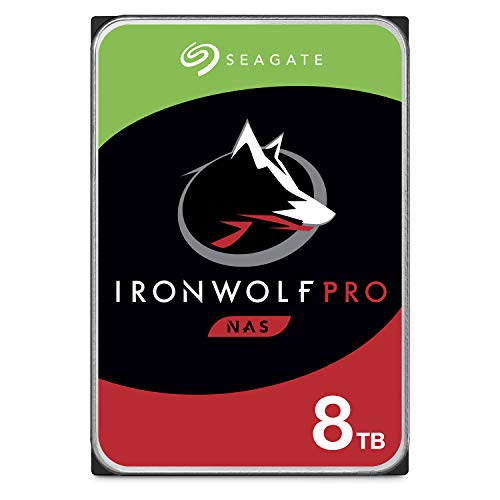
Seagate IronWolf 16TB NAS Internal Hard Drive
Built for always-on NAS systems and ideal for housing a permanently organized media library with multi-drive redundancy
Step 6: Set Up Ongoing Maintenance
A clean collection only stays clean if you have systems to prevent future chaos. Spending 15 minutes per week on digital maintenance is infinitely easier than doing another 10TB spring cleaning next year.
Inbox Folder System
Create an “Inbox” folder at the root of your drive. Everything new goes there first. Once a week (or once a month, at minimum), sort the inbox into your established folder structure. This prevents the slow drift back toward “throw everything in Downloads and deal with it later.”
Automated Backup Verification
A beautifully organized collection is worthless without backups. Follow the 3-2-1 rule: three copies, two different media types, one offsite. Tools like FreeFileSync can automate sync jobs between your primary drive and backup drives, running on a schedule so you never have to think about it.
For offsite backup of truly irreplaceable files, cloud storage services like Backblaze B2 offer affordable per-gigabyte pricing that makes backing up even large collections feasible. You don’t need to back up everything to the cloud, just the files you can’t replace, like original photos, important documents, and creative project files.
Synology DiskStation DS224+ NAS
A fantastic two-bay NAS for centralizing your organized collection with automated backup, remote access, and built-in media management apps
Hardware Considerations for Large Collections
Organizing 10TB+ of data puts real demands on your hardware. Slow drives and limited RAM will make every step of this process painful. A few upgrades can make a significant difference.
Use an SSD or NVMe drive as your “working drive” for running scans, duplicate detection, and batch operations. These tools do enormous amounts of random reads across millions of files, and spinning hard drives are painfully slow at random access. Your bulk storage can stay on traditional HDDs, but let your tools work from fast flash storage.
If you’re running duplicate scans or batch metadata operations, 16GB of RAM is the minimum you’ll want. Some tools will chew through 8GB easily when indexing millions of files. And if you’re working with a NAS over your network, make sure you’re connected via gigabit Ethernet at minimum. Running these operations over WiFi will test your patience in ways you didn’t know were possible.
Frequently Asked Questions
How long does it take to organize a 10TB+ collection?
Plan for a full weekend of active work, plus additional time for automated scans to run in the background. The initial duplicate scan on a 10TB hard drive can take 8-24 hours depending on your hardware. The actual sorting, renaming, and metadata work typically takes another 6-10 hours of hands-on effort. Spreading it over two weekends is perfectly reasonable, and the payoff lasts for years.
Should I reorganize files on the same drive or copy to a new one?
Always work with a backup in place. Ideally, copy your files to a new drive using your new folder structure rather than reorganizing in place. This gives you a clean starting point and preserves the original as a safety net. Once you’ve verified everything transferred correctly and your new structure is solid, you can repurpose or format the original drive. An external hard drive with 12TB or more works perfectly as a staging and backup drive for this purpose.
What’s the best way to handle files I’m not sure I need?
Create a “Review” or “Archive_Unsorted” folder and move anything questionable there. Set a calendar reminder for 6 months from now. If you haven’t needed anything from that folder in 6 months, you can safely delete it or move it to cold storage. This removes the emotional burden of deciding in the moment while keeping your main collection clean.
Can I use AI tools to help organize photos and videos?
Yes, and this is one area where AI-powered tools genuinely shine. Google Photos and Apple Photos both offer impressive automatic categorization by faces, places, and objects. For local/offline options, digiKam has built-in face recognition, and PhotoPrism (self-hosted) can automatically tag and categorize photos using AI without sending your data to the cloud. These tools are particularly useful for large photo collections where manual tagging would take weeks.
Your Spring Cleaning Checklist
To wrap things up, here’s a quick-reference checklist you can follow:
- Analyze your current storage with a disk space visualizer
- Back up everything before making any changes
- Scan for and remove duplicates (expect to recover 15-25% of space)
- Design a simple three-level folder structure
- Automate file sorting using metadata-based tools
- Clean up metadata for photos, music, and key documents
- Establish an inbox system to maintain order going forward
- Set up automated backups with the 3-2-1