Samsung Magician Software: Complete User Guide 2026
Samsung makes some of the best SSDs on the market. The 990 Pro, 870 EVO, and 980 Pro have earned their reputations through consistent performance and reliability. But here’s what a lot of people overlook: Samsung also ships a free software tool called Samsung Magician that gives you real control over your drive’s health, performance, and longevity.
Most SSD manufacturers offer some kind of management utility, but Samsung Magician is in a league of its own when it comes to features. We’re talking firmware updates, performance benchmarking, secure erase, over-provisioning, drive health monitoring, and more. If you’ve got a Samsung SSD and you’re not using Magician, you’re leaving useful tools on the table.
This guide walks you through every major feature in Samsung Magician (version 8.x and later, current through 2026), explains what each one actually does, and gives you practical tips for getting the most out of your Samsung SSD.
What Is Samsung Magician?
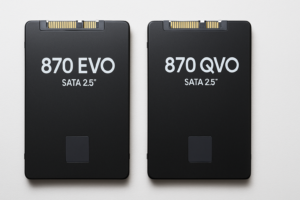
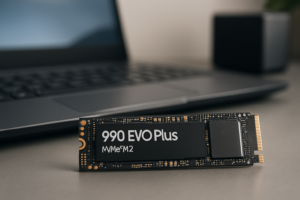
Samsung Magician is a free desktop application available for Windows that lets you manage, monitor, and optimize Samsung SSDs. It works with most Samsung consumer drives, including the 870 EVO, 870 QVO, 980, 980 Pro, 990 Pro, 990 EVO, 990 EVO Plus, and the newer T7 and T9 portable SSDs.
You can download it directly from Samsung’s official Semiconductor site. Installation takes about two minutes, and the software runs with minimal system resources in the background.
One important note: Magician only works with genuine Samsung SSDs. It won’t recognize drives from Crucial, Western Digital, SK hynix, or anyone else. It also doesn’t support Samsung OEM drives that shipped inside pre-built systems unless they carry standard Samsung model numbers.
Drive Dashboard: Your SSD at a Glance
When you first open Samsung Magician, you’ll land on the Drive Dashboard. This is your home base. It shows you which Samsung drives are connected, their current health status, temperature, total bytes written (TBW), and firmware version.
The health indicator uses a simple color system. Green means your drive is in good shape. Yellow means it’s time to start paying attention. Red means you should back up your data and consider a replacement soon.
Understanding Total Bytes Written (TBW)
TBW is one of the most useful numbers on this screen. Every SSD has a rated endurance, and TBW tells you how much data has been written to the drive over its lifetime. For example, the 990 Pro 1TB is rated for 600 TBW. If your dashboard shows 150 TBW, you’ve used about 25% of the drive’s rated write endurance.
Don’t panic if you see a high number. TBW ratings are conservative, and most drives last well beyond their rated endurance. But it’s valuable information if you’re running heavy workloads like video editing, database operations, or constant virtual machine use.
Temperature Monitoring
The dashboard also tracks your drive’s temperature in real time. NVMe drives like the 990 Pro can throttle performance when they get too hot, typically above 70 to 75 degrees Celsius. If you’re seeing consistently high temperatures, that’s a signal to improve airflow in your case or add a heatsink. Many motherboards ship with M.2 heatsinks these days, and aftermarket options from companies like Thermalright are inexpensive and effective.
Firmware Updates
This is probably the single most important reason to install Samsung Magician. SSD firmware updates can fix bugs, improve compatibility, and sometimes even boost performance. Samsung releases firmware updates periodically, and Magician makes applying them simple.
When a new firmware version is available, you’ll see a notification on the dashboard. Click the update button, follow the prompts, and your drive will update. Some updates require a reboot. Others apply instantly.
Always keep a backup before updating firmware. Firmware update failures are rare with Samsung drives, but they’re not impossible. A power outage during a firmware flash can brick your drive. It takes five minutes to verify your backup is current, and that small investment of time can save you from a very bad day.
Performance Benchmark
Samsung Magician includes a built-in benchmarking tool that measures sequential read/write speeds and random read/write IOPS. It’s not as detailed as CrystalDiskMark, but it’s useful for quick health checks.
Here’s how I recommend using it: run the benchmark right after installing a new drive and save a screenshot of the results. Then run it again every few months. If you notice a significant drop in performance over time, that could indicate the drive is filling up, thermal throttling is occurring, or the drive’s health is declining.
What “Normal” Results Look Like
For the 990 Pro on a PCIe 4.0 x4 slot, you should see sequential reads around 7,000 MB/s and sequential writes around 6,900 MB/s. The 870 EVO, being a SATA drive, will top out around 550 MB/s in both directions. If your numbers are dramatically lower than the rated specs, check that your drive is installed in the correct slot (some motherboard M.2 slots share bandwidth with other components) and that you have the latest firmware installed.
Performance Optimization
Samsung Magician offers a feature called Performance Optimization, which essentially runs a TRIM operation on your SSD. TRIM tells the drive which blocks of data are no longer in use, allowing the controller to manage free space more efficiently.
Windows 10 and 11 already run TRIM automatically on a weekly schedule through the “Optimize Drives” utility. But if you’ve recently deleted a massive amount of data or cloned a drive, running a manual TRIM through Magician can help restore snappy performance more quickly.
You can also enable RAPID Mode on supported SATA drives (like the 870 EVO). RAPID Mode uses a portion of your system RAM as a write cache, which can dramatically accelerate certain workloads. It won’t help much with large file transfers, but it can speed up application loading and small file operations. I’d recommend enabling it if you have 16 GB or more of RAM and your Samsung drive is a SATA model. RAPID Mode is not available for NVMe drives, as they’re already fast enough that RAM caching provides minimal benefit.
Over-Provisioning
Over-provisioning (OP) is one of Magician’s most underused features. It sets aside a portion of your SSD’s capacity as reserved space that the drive controller can use for wear leveling, garbage collection, and maintaining write performance. The drive can’t use this space for storing your files, but it uses it behind the scenes to keep things running smoothly.
Samsung recommends setting over-provisioning to about 10% of your drive’s total capacity. On a 1TB drive, that means roughly 100 GB is reserved. This is particularly valuable for drives that stay nearly full most of the time, because SSDs slow down and wear faster when they run low on free space.
Should You Enable Over-Provisioning?
If your drive is a boot drive with plenty of free space (say, 30% or more consistently free), you probably don’t need to manually set OP. The drive already has enough breathing room. But if you’re using a Samsung SSD as a scratch disk for video editing, a game library that stays 80 to 90 percent full, or a workstation drive with heavy write loads, enabling 10% OP is a smart move. The small sacrifice in usable capacity pays off with better sustained write speeds and longer drive life.
Secure Erase
When you need to completely wipe a Samsung SSD, Magician’s Secure Erase feature is the way to do it. Unlike a standard Windows format (which just marks space as available without actually erasing data), Secure Erase sends a command to the SSD controller to reset all NAND cells to their factory state. The data becomes unrecoverable.
This is essential in a few scenarios:
- Selling or giving away a drive. You don’t want someone recovering your personal files.
- Troubleshooting persistent performance issues. A Secure Erase followed by a fresh OS install can resolve problems that other fixes won’t touch.
- Repurposing a drive. Starting completely fresh eliminates any leftover partition tables, encryption keys, or residual data.
There’s one critical limitation: you cannot Secure Erase your system drive while Windows is running from it. You’ll need to create a bootable USB with Samsung Magician’s Secure Erase tool, or install the drive as a secondary device in another system. Magician walks you through this process, but it does require a USB flash drive and a reboot.
Data Migration
Samsung Magician integrates with (or links you to) Samsung Data Migration, a separate free tool for cloning your existing drive to a new Samsung SSD. It’s designed to make OS migration painless, copying your Windows installation, applications, and files to the new drive so you can swap it in and boot right up.
Data Migration works well for simple setups where your source drive is the same size or smaller than the target Samsung SSD. For more complex scenarios involving multiple partitions, dual-boot configurations, or drives larger than the target, you might want to use a more flexible cloning tool like Macrium Reflect Free or Clonezilla.
Encrypted Drive Management
Many Samsung SSDs support hardware-based encryption through AES 256-bit, and some support TCG Opal and Microsoft eDrive (BitLocker hardware acceleration). Samsung Magician lets you enable and manage these encrypted drive features.
If you’re using BitLocker on Windows Pro or Enterprise, enabling eDrive support through Magician allows BitLocker to offload encryption to the SSD’s hardware controller rather than using software encryption. This can improve performance since the CPU isn’t handling the encryption workload. Just be aware that enabling encrypted drive features typically requires a Secure Erase first, so plan accordingly.
Practical Tips for Getting the Most Out of Magician
- Check for updates monthly. Open Magician once a month to look for firmware updates. It takes 30 seconds and can prevent issues down the road.
- Monitor your TBW if you do heavy writes. Content creators working with 4K or 8K video footage can burn through write endurance faster than typical users.
- Don’t obsess over benchmarks. Real-world performance matters more than synthetic numbers. If your system feels fast, it is fast.
- Use over-provisioning on full drives. It’s free performance insurance that costs you nothing but a bit of capacity.
- Screenshot your benchmark baseline. Having a reference point makes it easy to identify problems later.
Frequently Asked Questions
Does Samsung Magician work on Mac or Linux?
No. Samsung Magician is a Windows-only application. On macOS and Linux, you’ll need to use alternative tools for SSD monitoring, like smartmontools (which reads SMART data) or GSmartControl. Firmware updates for Samsung drives on non-Windows platforms can sometimes be applied through bootable USB ISO images that Samsung provides, but the process is less convenient.
Will Samsung Magician work with a Samsung SSD inside an external USB enclosure?
It depends on the enclosure. Magician can sometimes detect Samsung drives in USB enclosures, but many features (like Secure Erase, firmware updates, and Performance Optimization) require a direct SATA or NVMe connection to work properly. For full functionality, connect the drive directly to your motherboard. If you’re using a portable SSD like the T7 or T9 that connects via USB natively, Magician supports those directly.
Is Samsung Magician safe to install? Does it contain bloatware?
Samsung Magician is clean software with no bundled toolbars, adware, or unnecessary extras. It installs a small background service for drive monitoring, but it uses minimal system resources. Just make sure you download it from Samsung’s official site and not from third-party download portals, which sometimes repackage software with unwanted additions.
How often should I run Performance Optimization (TRIM) manually?
For most users, never. Windows handles TRIM automatically on a weekly schedule, and that’s sufficient for normal use. The only time manual TRIM through Magician is useful is after large-scale file deletions, drive cloning, or if you suspect your drive’s performance has degraded. Running it more frequently than needed won’t cause harm, but it also won’t provide any extra benefit.

James Kennedy is a writer and product researcher at Drives Hero with a background in IT administration and consulting. He has hands-on experience with storage, networking, and system performance, and regularly improves and optimizes his home networking setup.