Best Backup Strategies for Photographers and Creators
Losing photos is permanent. Unlike a corrupted spreadsheet or a deleted email, a lost photograph can never be recreated. That sunset you waited three hours to capture, or the client’s wedding reception you spent all day shooting, exists exactly once until you back it up. And most photographers don’t have a real backup strategy. They have a collection of hard drives in a drawer and a vague hope that nothing fails.
This guide walks through a practical, multi-tier backup approach that covers every stage of your workflow, from the moment you pull a card out of your camera to long-term archival storage. We’ll cover field backup on location, studio archiving at home, and cloud sync for large media files, all while keeping costs reasonable.
The 3-2-1 Rule (And Why Photographers Need to Actually Follow It)
You’ve probably heard of the 3-2-1 backup rule: keep three copies of your data, on two different types of media, with one copy stored offsite. It sounds simple, but very few creators follow it consistently, especially when individual shoots can produce hundreds of gigabytes of RAW files.
For photographers and video creators, I’d actually push this to 3-2-1-1: three copies, two media types, one offsite, and one copy that’s immutable or air-gapped. Ransomware doesn’t just target corporations. It can encrypt every connected drive on your network, including your NAS, in minutes. Having one backup that’s physically disconnected gives you a safety net that no cloud sync can replace.
Tier 1: Field Backup While Shooting
Your most vulnerable moment is in the field. You’ve got irreplaceable images sitting on a single memory card, and you’re one drop, one corruption event, or one stolen camera bag away from losing everything. Field backup should happen during the shoot, not after you get home.
Dual Card Slots
If your camera supports dual card slots, use them. Set the second slot to write redundant copies (mirror mode), not overflow. This is your first line of defense and costs nothing beyond an extra memory card. Don’t put both cards in the same bag when you’re done, either. Separate them physically.
Portable SSDs for On-Location Backup
A fast portable SSD is the best field backup tool available. After each session (or even during breaks), copy your cards to a portable drive using a laptop, tablet, or a device like the Gnarbox 2.0 or a small laptop. The Samsung T7 Shield is a solid choice here because it’s dust-resistant, water-resistant, and fast enough to handle large RAW file transfers without bottlenecking. If you’re a Mac user, we’ve tested several options in our roundup of the best portable SSDs for travel in 2026.

Samsung T7 Shield 2TB Portable SSD
Dust and water resistant with fast USB 3.2 speeds, making it ideal for on-location photo and video backup.
For wedding and event photographers, I recommend carrying two portable SSDs and copying to both before you leave the venue. It takes an extra fifteen minutes and could save your career.
Tier 2: Studio Archiving with a NAS or Desktop RAID
Once you’re back at your home studio or office, your files need a permanent home. Relying on a collection of loose external drives isn’t a strategy. It’s a ticking clock. Drives get knocked off desks, cables fail, and individual drives have no redundancy.
Why a NAS Makes Sense for Creators
A network-attached storage (NAS) device with RAID redundancy is the backbone of a serious backup workflow. A two-bay or four-bay NAS from Synology or QNAP lets you set up RAID 1 (mirroring) so that if one drive fails, your data survives on the other. If you’re unsure which RAID level fits your needs, our breakdown of RAID 0 vs RAID 1 explains the trade-offs clearly.
A Synology DS224+ with two WD Red Plus 4TB drives in RAID 1 gives you 4TB of usable, redundant storage with room to grow. It also runs Synology’s excellent backup and sync software, which can automate transfers from your editing workstation. If you’re new to NAS setups, our beginner’s NAS guide walks through the entire process from unboxing to configuration.

Synology DS224+ NAS DiskStation
Excellent two-bay NAS with intuitive software for automated backups, photo indexing, and remote access to your archive.
The Cold Storage Layer
Your NAS handles your “warm” archive: projects you might revisit, recent client work, and your active catalog. But you also need a “cold” archive for completed projects that you want to keep forever but won’t access regularly.
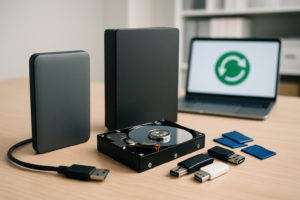
Large-capacity external hard drives work perfectly for this purpose. A WD Elements Desktop 12TB can hold years of photography work. Buy two, copy your annual archive to both, and store one at a different physical location (a family member’s house, a safe deposit box, or your office if you edit at home). This is your air-gapped backup, the one that survives fires, floods, theft, and ransomware.
When drives in your cold storage rotation eventually reach end-of-life, make sure to securely wipe them before disposal or sale to protect your clients’ images and your own work.
Tier 3: Cloud Sync for Offsite Protection
Local backups protect you from drive failures. Cloud backups protect you from location-based disasters. You need both.
Choosing the Right Cloud Backup for Large Files
Most consumer cloud storage services (iCloud, Google Drive, Dropbox) aren’t built for photographer-scale archives. Uploading 2TB of RAW files to Google Drive will be slow, expensive, and frustrating. Instead, look at services designed for backup rather than sync:
- Backblaze B2: Pay-per-gigabyte cloud storage with no file size limits. Pairs perfectly with Synology NAS or direct computer backup via their desktop client. Egress fees are low and predictable.
- Backblaze Personal Backup: Unlimited backup of a single computer, including connected external drives. This is one of the most cost-effective options for photographers who edit from one main workstation.
- Amazon S3 Glacier Deep Archive: Extremely affordable for long-term cold storage, but retrieval takes hours. Best for archival copies you hope to never need.
- Synology C2: If you already own a Synology NAS, their native cloud backup integrates directly and handles versioning automatically.
For a detailed cost breakdown of cloud vs. local storage, including real numbers on monthly and annual expenses, check out our cloud backup vs. local NAS cost comparison.
Managing Upload Speeds
The biggest pain point with cloud backup for creators is upload bandwidth. A 500GB wedding shoot will take days to upload on most residential internet connections. To manage this, configure your cloud backup software to run overnight with bandwidth throttling during work hours. Most NAS backup apps (Synology Hyper Backup, for example) support scheduling natively. You don’t need to babysit the process.
Also consider doing initial cloud uploads incrementally. Back up your most critical current projects first, then let older archive folders trickle up over weeks. Don’t try to upload your entire 10TB archive in one shot.
Putting It All Together: A Sample Workflow
Here’s what a complete backup workflow looks like for a working photographer:
- In the field: Shoot to dual card slots. Copy files to a portable SSD (like the Samsung T7 Shield) before leaving the location.
- At home, same day: Import files to your editing workstation. Your NAS automatically syncs a copy via scheduled backup (or manual transfer).
- During editing: Work from your local SSD for speed. The NAS keeps a secondary copy updated nightly.
- After delivery: Archive the completed project folder. Copy it to your cold storage external drive during your monthly archiving session.
- Ongoing: Cloud backup runs nightly, syncing new and changed files from your NAS to Backblaze B2 or your preferred provider.
This gives you five copies at peak (two cards, portable SSD, workstation, NAS) and three long-term copies (NAS, cold storage drive, cloud). Redundancy at every stage.

WD Red Plus 4TB NAS Hard Drive
Designed for always-on NAS environments with vibration resistance and optimized firmware for RAID configurations.
Frequently Asked Questions
How many copies of my photos do I really need?
At minimum, three. The 3-2-1 rule exists because any single storage device can fail without warning. Hard drives have an annual failure rate between 1% and 5%, and SSDs aren’t immune either (we break down their real-world longevity in our SSD lifespan analysis). If you have only two copies and one fails while you’re replacing it, you’re down to one copy. Three is the minimum. For professional work, four isn’t overkill.
Should I back up RAW files or just the edited JPEGs?
Always back up your RAW files. JPEGs are processed, compressed, and limited in what you can do with them later. RAW files are your digital negatives. Storage is cheap compared to the value of irreplaceable source files. Back up your Lightroom catalogs, Capture One sessions, and Photoshop working files alongside the RAWs so you can reconstruct your entire editing history if needed.
Is cloud backup fast enough for large video files?
Initial uploads will be slow on most home internet connections, there’s no way around that. A 1TB upload on a 20 Mbps connection takes roughly five days of continuous uploading. But after the initial sync, incremental backups only transfer new or changed files, which is much more manageable. Services like Backblaze handle large files gracefully with automatic chunking and resume

James Kennedy is a writer and product researcher at Drives Hero with a background in IT administration and consulting. He has hands-on experience with storage, networking, and system performance, and regularly improves and optimizes his home networking setup.