Data Backup Strategy: 3-2-1 Rule Explained for Home Users
Every single hard drive you own will eventually fail. This isn’t pessimism. It’s a mechanical and electronic certainty. The average hard drive lasts somewhere between three and five years, and SSDs, while more durable, aren’t immortal either. If you’ve been storing your family photos, financial documents, and years of creative work on a single drive with no backup, you’re essentially playing a slow game of Russian roulette with your data.
The good part is that protecting yourself doesn’t require a computer science degree or an enterprise IT budget. There’s a simple, time-tested framework called the 3-2-1 backup rule that professionals have relied on for decades. And with today’s affordable hardware and cloud services, home users can implement it with minimal effort and cost.
This guide will walk you through exactly what the 3-2-1 rule means, why each piece matters, and how to set it up based on your specific situation. I’ll include real product recommendations and automation tips so you can build a backup system that actually works and, more importantly, one you’ll stick with.
What Is the 3-2-1 Backup Rule?
The 3-2-1 rule is beautifully simple. Keep 3 copies of your data, stored on 2 different types of media, with 1 copy stored offsite. That’s it. Every data protection strategy, from personal photo libraries to Fortune 500 disaster recovery plans, builds on this foundation.
Three Copies of Your Data
Your original file counts as the first copy. You then need two additional backup copies. This might sound excessive, but consider how often a backup coincidentally fails right when you need it most. Having two backup copies means even if one backup is corrupted or unavailable, you still have a safety net.
Two Different Types of Media
Storing all your copies on the same type of device exposes you to shared vulnerabilities. If you back up your internal hard drive to another internal hard drive of the same model, a firmware bug or a batch manufacturing defect could take both out. By using two different media types (say, an internal SSD and an external HDD, or a local drive and cloud storage), you diversify your risk.
One Copy Offsite
This is the part most home users skip, and it’s the most critical. If a fire, flood, power surge, or theft hits your home, every local backup goes with it. An offsite copy, whether it’s a physical drive stored at a friend’s house or a cloud backup, ensures your data survives even a worst-case scenario at your primary location.
Why Home Users Need This (Yes, Really)
I hear it constantly: “I’m not a business. I don’t have important data.” Then the laptop dies, and suddenly 10 years of family photos, tax returns, school projects, and personal documents vanish overnight. The emotional cost of losing irreplaceable photos alone makes a backup strategy worth every minute of setup time.
Ransomware attacks also increasingly target home users. These attacks encrypt your files and demand payment for the decryption key. A solid 3-2-1 backup means you can simply wipe your system and restore from a clean backup. No ransom paid, no panic.
Even simple user error accounts for a huge percentage of data loss. Ever accidentally deleted a folder and emptied the recycle bin? With proper backups, that’s a minor inconvenience instead of a catastrophe.
Implementing the 3-2-1 Rule: A Practical Blueprint
Let’s break this into actionable steps based on three common user profiles. Find the one closest to your situation and start there.
The Light User (Under 500GB of Data)
If your digital life consists mostly of documents, some photos, and a modest music or video collection, your backup needs are simple and affordable. Here’s what I recommend:
- Copy 1 (Original): Your computer’s internal drive
- Copy 2 (Local backup): A portable external hard drive
- Copy 3 (Offsite backup): A cloud backup service
For the local backup, a portable external drive like the WD My Passport (2TB) is compact, bus-powered (no separate power cable needed), and large enough for most light users. Plug it in once a week, run your backup, and tuck it in a drawer.
WD My Passport 2TB Portable External Hard Drive
Compact and reliable portable drive, perfect for weekly local backups for users with modest storage needs
For cloud backup, services like Backblaze Personal Backup offer unlimited storage for a flat monthly or annual fee. It runs quietly in the background and uploads everything automatically. IDrive is another solid option, especially if you need to back up multiple devices under one account.
The Enthusiast (500GB to 5TB of Data)
Photographers, hobbyist video editors, and anyone with a large media library will need more capacity and a slightly more sophisticated setup:
- Copy 1 (Original): Your computer’s internal drive(s)
- Copy 2 (Local backup): A desktop external hard drive (larger capacity)
- Copy 3 (Offsite backup): A second external drive stored offsite, or a cloud service
A desktop external drive like the Seagate Backup Plus Hub (8TB) or the WD My Book (8TB) gives you plenty of room to grow. These require a power adapter but offer much better value per terabyte than portable drives.
For the offsite copy, I’d recommend buying a second external drive of similar capacity. Run a full backup to it monthly, then store it at a trusted friend or family member’s house. Swap it out on a regular schedule. This “drive rotation” method is old school but incredibly effective, and it doesn’t require ongoing subscription costs.
WD My Book 8TB Desktop External Hard Drive
High-capacity desktop drive ideal for photographers and video hobbyists who need serious local backup storage
If you prefer the offsite copy to be cloud-based, be aware that uploading multiple terabytes will take a long time on most residential internet connections. Backblaze is still a great option here since they don’t cap storage. Your initial upload might take weeks, but after that, incremental backups are quick.
The Power User or Small Home Office (5TB+)
When you’re dealing with serious data volumes, managing projects for clients, or running a home-based business, a NAS (Network Attached Storage) device becomes your best friend:
- Copy 1 (Original): Your computer’s internal storage
- Copy 2 (Local backup): A NAS with RAID redundancy
- Copy 3 (Offsite backup): Cloud sync from the NAS, or a rotated offsite drive
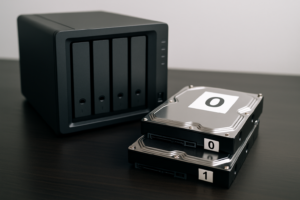
A two-bay NAS like the Synology DS224+ populated with two matching NAS-rated drives (like Western Digital Red Plus or Seagate IronWolf) gives you both local network backup and built-in redundancy. Set it up in RAID 1 (mirroring) and one drive can completely fail without any data loss.
Synology’s built-in software makes cloud sync incredibly easy. You can configure it to automatically back up to Backblaze B2, Google Drive, or Amazon S3. This means your offsite copy updates automatically without you lifting a finger.
Automation: The Secret to Actually Following Through
The best backup system is the one that runs without you thinking about it. Manual backups sound great in theory, but life gets busy and you’ll inevitably skip a week, then a month, then six months. Here’s how to automate each piece:
Windows Users
Windows has a built-in tool called File History that continuously backs up your files to an external drive. It’s not perfect, but it’s free and runs automatically once configured. For full system image backups (which let you restore your entire operating system, apps, and files), Macrium Reflect Free or Veeam Agent for Windows are both excellent. Schedule these to run overnight once a week.
Mac Users
Time Machine is one of the best things Apple has ever built for everyday users. Plug in an external drive, tell Time Machine to use it, and forget about it. Time Machine creates hourly, daily, and weekly snapshots automatically. Pair it with a cloud service for your offsite copy and you’re fully covered.
Cloud Backup Automation
Services like Backblaze and IDrive install a lightweight agent on your computer that constantly monitors for new and changed files. After your initial full upload, they work silently in the background. You can set bandwidth limits so they don’t slow down your internet during working hours.
NAS-Based Automation
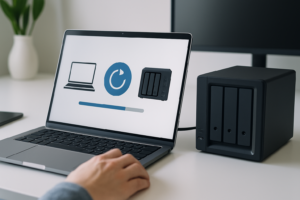
If you’ve gone the NAS route, Synology’s Hyper Backup and Active Backup for Business tools let you schedule automated backups of connected computers. QNAP offers similar functionality through its Hybrid Backup Sync app. Set these up once and your entire household’s computers back up to the NAS on schedule, with the NAS then syncing to the cloud.
Common Mistakes to Avoid
Even with good intentions, people make the same backup mistakes over and over. Here are the ones I see most frequently:
- Keeping the backup drive plugged in 24/7. Ransomware can encrypt connected drives. Consider unplugging your local backup drive when not actively running a backup, or use a NAS with proper access controls.
- Never testing restores. A backup you’ve never tested is a backup you can’t trust. Every few months, pick a random file or folder and try restoring it from each of your backup copies. Verify it opens and is intact.
- Relying on sync services as backups. Google Drive, Dropbox, and OneDrive are file synchronization services, not true backups. If you delete a file or it gets corrupted, that deletion syncs everywhere. These services have limited version history, but it’s not the same as a proper backup with long retention periods.
- Ignoring mobile devices. Your phone likely holds thousands of photos and important messages. Enable iCloud Photos or Google Photos automatic upload. These aren’t full backups, but they protect your most irreplaceable mobile data.
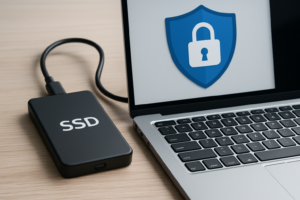
- Forgetting about encryption. Your offsite backup, whether it’s a cloud service or a physical drive at someone else’s home, should be encrypted. Most backup software offers this option. Use it. You don’t want your personal financial documents accessible if a drive goes missing.
A Quick Note on Cloud Storage Costs
Cloud backup pricing varies widely, and the best value depends on how much data you need to protect. Here’s a quick comparison of popular services:
- Backblaze Personal Backup: Unlimited storage, flat annual fee, one computer per license. Best for individual users with large data sets.
- IDrive: Multiple plans with multi-device support. Great for families or users with several computers and phones.
- Backblaze B2 (for NAS users): Pay-per-gigabyte cloud storage. Very affordable at scale and integrates directly with Synology and QNAP.
- iCloud+ / Google One / OneDrive: Good for mobile device backup and document sync but less suited for full computer backups.
For most home users, Backblaze Personal Backup hits the best balance of price, simplicity, and reliability. If you have multiple family members’ devices to protect, IDrive’s multi-device plans are worth a look.
Building Your Backup Habit
Treat your backup like an oil change for your car. You don’t do it because it’s exciting. You do it because the cost of skipping it is catastrophic. Block off 30 minutes this weekend to get your first backup running. Future you will be grateful.
If you can only do one thing today, plug in an external drive and start a local backup. Tomorrow, sign up for a cloud backup trial. Within a week, you can have a complete 3-2-1 system protecting everything you care about.

Seagate Portable 2TB External Hard Drive
Budget-friendly starter drive for anyone ready to take their first backup step today
Frequently Asked Questions
How often should I run my backups?
For local backups, daily is ideal. Tools like Time Machine and File History do this automatically in the background. Cloud backups should run continuously (most services handle this by default). If you’re doing manual backups to an external drive, aim for at least weekly. The key question is: how much work can you afford to lose? If losing a day’s worth of files would hurt, back up daily. If a week’s worth is tolerable, weekly is fine.
Is cloud backup safe? Can the cloud company access my files?
Reputable cloud backup services like Backblaze and IDrive encrypt your data both in transit and at rest. Backblaze even offers a personal encryption key option, which means not even Backblaze employees can decrypt your files. The tradeoff is that if you lose that key, your data is gone permanently. For most people, the default encryption with the provider holding the key is a reasonable balance of security and recoverability.
Can RAID replace a backup?
Absolutely not. This is one of the most dangerous misconceptions in data storage. RAID protects against drive failure, but it does nothing to protect against accidental deletion, ransomware, file corruption, fire, theft, or software bugs. If you delete a file on a RAID array, it’s gone from all drives instantly. RAID is a tool for uptime and availability. It is not a backup. You still need separate backup copies, ideally offsite.
What about USB flash drives for backup?
Flash drives are convenient for transferring individual files, but they’re poor choices for regular backups. They have limited write endurance, are easy to lose, and lack the capacity for full system backups. They also don’t support the automated scheduling that makes backups sustainable. Stick with external hard drives, external SSDs, or cloud services for your backup strategy. Save the flash drives for sneakernet file transfers.
This article contains affiliate links. We may earn a small commission at no extra cost to you.

James Kennedy is a writer and product researcher at Drives Hero with a background in IT administration and consulting. He has hands-on experience with storage, networking, and system performance, and regularly improves and optimizes his home networking setup.