How to Clone Hdd to Ssd Macbook Pro 2011? 10 Steps!
Embarking on the journey of upgrading your MacBook Pro 2011 from an HDD to an SSD is an exciting endeavor that promises to breathe new life into your device.
However, the thought of migrating your data can be daunting. With the process of cloning, you can effortlessly transfer all your files, applications, and settings from the old HDD to the new SSD, ensuring a seamless transition and preserving your digital ecosystem.
We’ll walk you through the steps to clone your HDD to an SSD on your MacBook Pro 2011, empowering you to enjoy the benefits of improved speed and performance without the hassle of manual data transfer.

Key Takeaway
Cloning HDD to SSD in MacBook Pro 2011: Easy Steps
Step 1: Prepare Your SSD
- Ensure your SSD is connected to your MacBook Pro 2011 using an external enclosure or adapter.
Step 2: Download Cloning Software
- Download and install cloning software such as Carbon Copy Cloner or SuperDuper! on your MacBook Pro 2011.
Step 3: Launch Cloning Software
- Open the cloning software you installed.
Step 4: Select Source and Destination
- Choose your current HDD (source) and the SSD (destination) in the cloning software.
Step 5: Start the Cloning Process
- Follow the prompts in the cloning software to start the cloning process.
- This may take some time depending on the size of the data on your current HDD.
Step 6: Verify Cloned Data
- Once the cloning process is complete, verify that all data has been successfully copied to the SSD.
Step 7: Shutdown MacBook Pro
- Power off your MacBook Pro 2011.
Step 8: Replace HDD with SSD
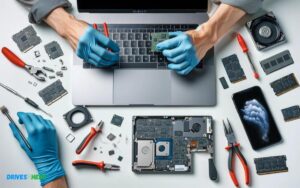
- Follow the instructions to physically replace the old HDD with the new SSD.
- This may involve opening the MacBook Pro and swapping the drives.
Step 9: Boot from SSD
- Turn on your MacBook Pro and hold down the Option key.
- Select the SSD as the startup disk from the list of options.
Step 10: Verify Operation
- Once your MacBook Pro has been booted from the SSD, verify that everything is working correctly.
- Ensure that all your files, applications, and settings have been successfully transferred.
By following these steps, you can clone the HDD to an SSD in your MacBook Pro 2011, improving performance and storage reliability.
Understanding The HDD to SSD Upgrade
Upgrading from an HDD to an SSD on your MacBook Pro 2011 signifies a significant leap in performance. An SSD, or solid-state drive, offers faster data access speeds, quicker boot times, and overall enhanced system responsiveness.
If you’re ready to breathe new life into your MacBook Pro, here’s a guide to clone your hard drive onto a faster, more reliable SSD.
Checking Compatibility
- Verify the SSD form factor: The MacBook Pro 2011 requires a 2.5-inch SATA SSD.
- Examine the SSD’s interface specification: It should be compatible with SATA I, II, or III.
- Ensure macOS support: Check the maximum version of macOS supported by your MacBook Pro.
- Consider capacity needs and budget: SSDs come in various storage capacities.
Backing Up Data
The next step in the upgrade process is to back up your data. Losing files during upgrading is a risk not worth taking; hence, a full backup is essential.
Here’s how to securely back up your data:
- Connect an external hard drive or use a cloud-based service.
- Use Time Machine or a preferred backup software to create a complete backup of your HDD’s contents.
- Verify the integrity of the backup to ensure no data is corrupted or missing.
Selecting The Right Cloning Software
Upgrading your MacBook Pro 2011 with an SSD is a game-changer, requiring cloning software that’s both efficient and Mac-compatible.
Ensure the selected tool supports macOS and optimizes data transfer to maintain the speed and integrity of your files during the cloning process.
Evaluating Options
When choosing your cloning software, focus on compatibility with your Mac’s operating system and the level of user support provided.
Consider the following:
- User Interface: The software should feature an intuitive interface, simplifying the process.
- Cloning Versatility: Opt for software that offers both disk cloning and disk imaging for flexibility.
- Performance: Check user reviews for the software’s speed and efficiency during the cloning process.
- Cost: Free options can be appealing, yet sometimes investing in a paid version assures better functionality and support.
Evaluate leading options such as Carbon Copy Cloner, SuperDuper!, and Disk Utility — the built-in macOS tool. Each has its merits, and the choice often comes down to personal preference and specific needs.
Installing Chosen Software
- Download the installer directly from the developer’s website to avoid any risk of malware.
- Install the application according to the developer’s instructions, usually involving a simple drag-and-drop to the Applications folder.
- Open the software, and take a moment to familiarize yourself with the user guidance or documentation provided.
With the correct software installed, you’re ready to proceed with cloning your existing HDD to your new SSD a critical step for your MacBook Pro 2011’s performance boost.
Initiating The Cloning Process
Embarking on a MacBook Pro 2011 HDD to SSD upgrade begins with the right cloning software. Ensure the transition is seamless by selecting a trusted tool to replicate your hard drive’s data onto your new SSD.
Configuring Settings
- Ensure your MacBook Pro is plugged into a power source to avoid interruption due to power loss.
- Connect your SSD to the MacBook using a SATA-to-USB cable or enclosure.
- Format the SSD using Disk Utility to Mac OS Extended (Journaled) format or APFS, depending on your MacOS version, and GUID Partition Map scheme.
- Turn off any antivirus software or power-saving settings that could interfere with the cloning process.
Executing The Clone
- Open your chosen cloning software and select the source disk (your old HDD).
- Select the destination disk (your new SSD).
- Choose the option to clone the entire disk, which will copy all data including the recovery partition.
- Start the cloning process and wait for the software to complete the task, which can take several hours depending on the amount of data.
- Once the clone is complete, keep both drives connected and restart your MacBook Pro while holding the Option (Alt) key to choose the SSD as the boot drive.
- Check the SSD by using your MacBook Pro for a while to confirm that everything runs correctly.
- After successful verification, you can swap out the drives if desired or simply continue using the SSD externally.
Verifying The Cloned Data
Upon completing the HDD to SSD cloning process for your MacBook Pro 2011, it’s vital to verify the copied data. Ensure the SSD’s content mirrors the original drive accurately to prevent data loss or corruption.
Checking For Errors
- Navigate to Applications > Utilities > Disk Utility.
- Select the newly cloned SSD from the sidebar.
- Click on First Aid at the top, and then Run to start the verification process.
If Disk Utility finds issues, it’ll attempt to rectify them. At the end of this process, a report will be displayed with details about the state of your SSD and any corrections made.
Resolving Issues
If encountering problems that Disk Utility couldn’t resolve, you might need to consider alternative solutions like safe booting or using third-party tools.
To take a deeper dive:
- Start your MacBook Pro in Safe Mode (holding the Shift key during startup) to perform an automatic disk check and repair.
- If issues persist, third-party disk repair tools like DiskWarrior or TechTool Pro might offer more advanced solutions.
It’s essential to ensure your cloned SSD is error-free before relying on it as your primary drive. Thorough verification safeguards against data loss and maximizes your MacBook Pro’s performance.
Optimizing The Ssd Performance
After successfully cloning your MacBook Pro 2011 HDD to an SSD, the next step is to optimize the SSD’s performance.
Ensuring that your new SSD is running at peak efficiency will allow you to truly enjoy the speed and reliability benefits it brings to your MacBook Pro.
This involves a couple of important procedures such as enabling TRIM support and updating the drive’s firmware for optimal interaction with your system.
Enabling Trim Support
The TRIM command is an essential feature for maintaining the speed and longevity of SSDs. It allows the operating system to inform an SSD that blocks of data are no longer in use and can be wiped internally.
Without TRIM, your SSD’s performance could degrade over time due to unnecessary write operations.
Here’s how to enable TRIM on your MacBook Pro:
- Open the Terminal application from your Utilities folder or via Spotlight.
- Type the command
sudo trimforce enableand press Enter. - After reading the warning, type ‘Y’ to agree and proceed with enabling TRIM.
- Your system will require a restart to complete the process.
With TRIM enabled, your SSD will have better wear leveling and should last longer while maintaining its performance.
Updating Firmware
SSD firmware is the software embedded into your drive that manages its operations. Keeping this firmware up-to-date is critical since it can provide performance improvements, bug fixes, and additional features.
Firmware updates are specific to the SSD brand and model, so you’ll have to follow these general steps tailored to your particular SSD:
- Visit the SSD manufacturer’s website to check for the latest firmware version.
- Download the applicable firmware update tool or software provided by the manufacturer.
- Follow the manufacturer’s specific instructions to apply the firmware update—often this will require a USB drive to boot from or an application that can run within macOS.
Remember, before initiating a firmware update, always ensure that you back up your essential data to avoid any loss in the rare event of an update failure.
Once updated, your SSD will be aligned with the latest optimizations offered by the manufacturer, ensuring smoother performance and a more stable experience.
Booting From The Ssd
Upgrading your MacBook Pro 2011 with a cloned SSD ensures swift booting and enhanced performance. The cloning process requires careful execution to ensure your system runs seamlessly from the SSD.
Checking Performance
After successfully setting your new SSD as the startup disk, you’ll want to evaluate the performance enhancements right out of the gate.
Look for the usual suspects of a successful SSD upgrade: faster boot times, quicker application launches, and more responsive multitasking.
Keep an eye out for the swift loading of heavyweight programs, which is a definitive indicator of a well-executed cloning process and proper SSD operation.
Employ disk speed test tools to quantitatively assess the SSD’s read and write speeds and confirm they align with the manufacturer’s specifications.
- Boot Time: Time how long your Mac takes to start-up. An SSD should slash this time significantly compared to the old HDD.
- Application Launch: Monitor the responsiveness when opening apps. They should bounce open with newfound zest.
- File Transfer Speed: Test copying large files or folders. The progress bar should fly, not crawl.
- Disk Speed Tests: Utilize tools such as Blackmagic Disk Speed Test or Disk Mark to get a quantitative performance measure.
Troubleshooting Boot Issues
- Ensure the SSD is correctly seated in the hard drive bay.
- Set the SSD as the startup disk in
System Preferences > Startup Disk. - Reset the NVRAM/PRAM if the MacBook Pro still refuses to boot from the SSD.
- Boot into Safe Mode (holding the Shift key during startup) to run Disk Utility checks.
Finalizing The Upgrade
Completing the upgrade process for your MacBook Pro 2011 is straightforward once you’ve successfully cloned your HDD to an SSD. With improved performance and efficiency, your MacBook will feel like a brand-new device post-transition.
Reconfiguring Settings
After physically swapping the drives and booting up your MacBook Pro with the new SSD, some configurations are in order:
- Check Startup Disk: Navigate to System Preferences > Startup Disk, and select the new SSD as the boot drive.
- Enable TRIM: For optimized SSD performance and longevity, execute
sudo trimforce enablein Terminal. - Review Energy Settings: Access System Preferences > Energy Saver to adjust sleep and power settings ideal for SSD use.
Safely Disposing Of The Hdd
- Backup Disk: Transform the old HDD into an external backup drive with an appropriate enclosure.
- Data Sanitization: If you choose to dispose of it, ensure you properly wipe all sensitive data using disk utility or professional software.
- Recycling: Check with local electronic waste facilities to recycle your HDD responsibly, or consider a manufacturer take-back program.
Conclusion
Upgrading your MacBook Pro 2011 with an SSD is a game changer. It boosts speed and breathes new life into your device. Remember, ensuring correct cloning steps ensures a seamless transition.
Embrace the rejuvenation of your Mac with confidence. It starts with cloning your HDD to SSD.

Harold Williams is a senior writer and technical editor at Drives Hero with 20+ years of experience in IT administration. He specializes in storage systems, SSD reviews, and performance testing, bringing real-world insight to every guide.