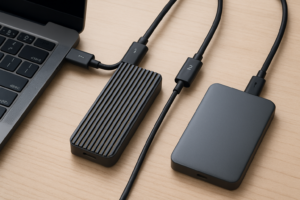
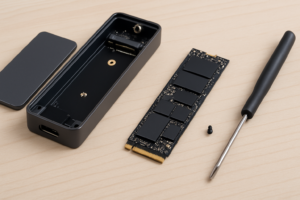
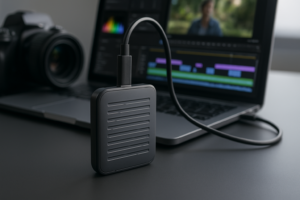
How To Use SSD As External Storage For iPad Pro
The iPad Pro has quietly become one of the most capable portable workstations available. With its M-series chips, stunning display, and USB-C (or Thunderbolt) port, it can handle video editing, photo work, music production, and more. But all that power hits a wall when you run out of internal storage.
That’s where external SSDs come in. Since iPadOS 13, Apple has supported external storage devices through the Files app, and the experience has only improved with each software update. You can plug in a portable SSD, browse your files, move large video projects around, and even edit directly from the drive in certain apps. It’s a massive expansion of what your iPad Pro can do, especially if you opted for a lower-storage model to save money.
This guide covers everything you need to know about using an external SSD with your iPad Pro. We’ll walk through compatible file systems, connection requirements, how to manage files, and which portable SSDs are actually worth buying.
Why Use an External SSD with iPad Pro?
The most obvious reason is storage expansion. iPad Pro models start at 128GB or 256GB depending on the generation, and if you’re working with 4K video, RAW photos, or large music libraries, that fills up fast. An external SSD gives you terabytes of additional space without upgrading to a more expensive iPad configuration.
Beyond raw capacity, external SSDs are incredibly useful for transferring files between devices. If you shoot video on a camera with an SSD recording setup, you can plug that same drive into your iPad Pro and start editing immediately. Photographers can offload images from SD cards to an SSD for backup while traveling. And if you work across a Mac, PC, and iPad, a single external SSD can serve as your portable project drive.
There’s also the backup angle. Keeping important files on a separate physical drive protects you if something happens to your iPad. It’s simple, practical, and requires no cloud subscription.
iPad Pro Models and Connection Types
Before you buy an external SSD, you need to know what port your iPad Pro has. This determines your maximum transfer speeds and which drives will work best.
USB-C Models (2018 and 2020 iPad Pro)
The 2018 and 2020 iPad Pro models feature a USB-C port that supports USB 3.1 Gen 2, which means theoretical transfer speeds up to 10 Gbps. In real-world use, you’ll see read and write speeds around 700-800 MB/s with a good NVMe SSD. That’s plenty fast for most tasks, including scrubbing through 4K video files.
Thunderbolt/USB 4 Models (2021 M1 and Later)
Starting with the M1 iPad Pro in 2021, Apple added Thunderbolt/USB 4 support. This pushes the theoretical bandwidth to 40 Gbps. While iPadOS doesn’t always take full advantage of this speed, Thunderbolt-compatible SSDs will deliver the fastest possible transfers. The M2 and M4 iPad Pro models continue to support Thunderbolt.
What About Adapters?
If your SSD uses a USB-A connector (the old rectangular type), you’ll need a USB-A to USB-C adapter or a USB-C hub. Apple’s own USB-C to USB Adapter works fine, and most third-party USB-C hubs will too. Just keep in mind that using an adapter can sometimes limit speeds to USB 3.0 (5 Gbps), depending on the hub’s specifications.
Compatible File Systems: What Your SSD Needs to Be Formatted As
This is the part that trips people up the most. Your iPad Pro can’t read every file system, and if your SSD is formatted in the wrong one, it won’t show up in the Files app at all.
iPadOS supports these file systems:
- APFS (Apple File System) – Apple’s modern file system. Best choice if you only use the SSD with Apple devices (Mac and iPad).
- HFS+ (Mac OS Extended) – The older Mac file system. Fully supported on iPad, though APFS is generally preferred for SSDs.
- ExFAT – The best cross-platform option. Works with iPad, Mac, Windows, and most other devices. If you share the SSD between different platforms, use ExFAT.
- FAT32 – Supported but limited to files no larger than 4GB each. Not practical for video work or large files.
NTFS is not supported. This is the default file system on most Windows-formatted drives. If your SSD came formatted as NTFS, you’ll need to reformat it before your iPad will recognize it. You can do this on a Mac using Disk Utility or on a Windows PC using the format tool (just select ExFAT).
My recommendation: format your SSD as ExFAT unless you’re certain you’ll only ever use it with Apple devices. ExFAT gives you the most flexibility, supports large file sizes, and works everywhere.
How to Connect and Use an External SSD with iPad Pro
Step 1: Plug It In
This part is genuinely simple. Take your USB-C SSD and plug it into your iPad Pro’s USB-C port. If the drive is formatted in a compatible file system, it will appear in the Files app within a few seconds. There’s no driver to install, no setup wizard, and no settings to configure.
Step 2: Open the Files App
The Files app is your command center for external storage. Open it and look in the left sidebar under “Locations.” Your SSD should appear by name. Tap on it to browse its contents, just like you would any folder.
Step 3: Moving and Copying Files
To copy files from your iPad to the SSD, navigate to the files you want to move (they could be in “On My iPad,” iCloud Drive, or another location). Long-press on a file, then select “Move” or “Copy.” Choose your external SSD as the destination. For multiple files, tap “Select” in the top-right corner, choose your files, then tap the folder icon to move them.
You can also drag and drop if you’re using Split View or Slide Over multitasking. Open Files in one half of the screen with your SSD visible, and drag files from another app directly onto the drive.
Step 4: Working Directly from the SSD
Many apps support opening files directly from an external drive. LumaFusion, for example, can import and edit video files from a connected SSD. Affinity Photo can open RAW images straight from the drive. GarageBand, Procreate, and many PDF readers also play nicely with external storage.
Not every app supports this, though. Some apps require files to be imported into their local storage first. You’ll need to test this with your specific workflow, but the trend is moving toward broader external storage support with each iPadOS update.
Step 5: Ejecting the SSD
Before unplugging your SSD, you should eject it properly to avoid data corruption. In the Files app, long-press on the drive name in the sidebar and select “Eject.” Once it disappears from the sidebar, it’s safe to unplug. This step is easy to forget, but it matters, especially if you were writing files to the drive.
Tips for Getting the Best Performance
A few practical things can make your experience noticeably better:
- Use a direct USB-C connection when possible. Hubs and adapters can introduce bottlenecks. If your SSD has a built-in USB-C cable, plug it straight into the iPad.
- Choose an SSD over an HDD. Traditional spinning hard drives work with iPad Pro, but they’re slow and more fragile. SSDs are faster, lighter, and have no moving parts.
- Keep your iPadOS updated. Apple has improved external storage support with nearly every major update. Running the latest version ensures the best compatibility and performance.
- Avoid bus-powered drives that draw too much current. The iPad Pro’s USB-C port can supply limited power. Most portable SSDs are fine, but some older or larger external drives may need their own power supply.
- Consider an SSD with a short integrated cable. Dangling adapters and long cables are awkward when you’re using an iPad on your lap or at a café. A compact SSD with a built-in USB-C cable keeps things tidy.
Recommended Portable SSDs for iPad Pro
Not all external SSDs are created equal, and some are better suited for iPad Pro use than others. Here are my top picks based on speed, portability, reliability, and iPad compatibility.
Samsung T7 / T7 Shield
The Samsung T7 has been a favorite for iPad Pro users for good reason. It’s compact (about the size of a credit card), supports USB 3.2 Gen 2 speeds up to 1,050 MB/s, and comes in 500GB, 1TB, and 2TB capacities. The T7 Shield variant adds IP65 dust and water resistance plus a rugged rubber exterior, making it perfect for field work. Both versions connect via USB-C with an included cable.

Samsung T7 Shield Portable SSD
Excellent balance of speed, durability, and portability with IP65 water and dust resistance
The T7 is formatted as ExFAT out of the box, so it works with your iPad Pro immediately. No reformatting needed. The build quality is excellent, and Samsung’s track record with SSD reliability is strong.
SanDisk Extreme Portable SSD V2
The SanDisk Extreme Portable SSD V2 is another fantastic option. It delivers read speeds up to 1,050 MB/s, has IP55 water and dust resistance, and features a carabiner loop so you can clip it to a bag. It’s slightly more rugged-feeling than the Samsung T7 and comes in capacities up to 4TB. The included USB-C cable plugs directly into your iPad Pro with no adapter needed.
Samsung T9 Portable SSD
For those who want maximum speed, the Samsung T9 supports USB 3.2 Gen 2×2 with sequential read speeds up to 2,000 MB/s. While the iPad Pro won’t fully saturate that bandwidth (USB 3.2 Gen 2×2 requires specific host controller support), you’ll still get excellent performance. The T9 also features a rubber housing for drop protection. It’s ideal if you also plan to use the SSD with a desktop or laptop that can take advantage of the full speed.
Samsung T9 Portable SSD
Top-tier speed with 2,000 MB/s reads, great for users who also work on Mac or PC
Crucial X9 Pro
The Crucial X9 Pro is worth a look if you want solid performance at a competitive price point. It reads up to 1,050 MB/s, is IP55 rated for water and dust, and has a very compact aluminum design. Available in 1TB, 2TB, and 4TB options, it also works beautifully with iPad Pro over USB-C. Crucial is owned by Micron, so the NAND quality is excellent.

Crucial X9 Pro Portable SSD
Compact, reliable, and competitively priced with IP55 protection
Limitations to Be Aware Of
Using an external SSD with iPad Pro is incredibly useful, but it’s not without limitations. Here’s what to keep in mind:
You can’t install apps on external storage. iPadOS only installs apps on internal storage. Your external SSD is limited to documents, photos, videos, music, and other user files.
Some apps don’t support external storage natively. While support has improved dramatically, certain apps still require you to import files into their internal sandbox before you can work with them. This means copying the file to your iPad first, which takes time and uses internal storage temporarily.
No background file transfers. If you start a large file copy in the Files app and then switch to another app, the transfer may pause or slow down significantly. Keep the Files app in the foreground during large transfers for the best results.
Encrypted drives can be tricky. If your SSD uses hardware encryption with software that requires a Windows or Mac application to access (like Samsung’s optional encryption on some drives), your iPad won’t be able to access the encrypted partition. APFS encryption, on the other hand, is supported.
Frequently Asked Questions
Can I use a regular USB hard drive instead of an SSD with my iPad Pro?
Yes, traditional spinning hard drives (HDDs) do work with iPad Pro as long as they’re formatted in a compatible file system (ExFAT, APFS, HFS+, or FAT32). However, some bus-powered HDDs draw more power than the iPad’s USB-C port can supply, which means they may not spin up reliably. You might need a powered USB hub in that case. SSDs are strongly recommended because they’re faster, lighter, more durable, and use less power.
Do I need a special app to access files on my external SSD?
No. The built-in Files app handles everything. Once you plug in your SSD, it appears automatically in the Files app sidebar. You can browse, copy, move, delete, and rename files without downloading any third-party software. Some third-party file managers, like Documents by Readdle, also support external drives and offer additional features like zip file management and media playback.
Can I edit 4K video directly from an external SSD on iPad Pro?
It depends on the app. LumaFusion, one of the most popular video editors for iPad, supports importing and editing media directly from an external SSD. This is a huge deal for video creators because it means you don’t need to copy large video files to your iPad’s internal storage first. Final Cut Pro for iPad also supports working with external media. Just make sure your SSD has fast enough read speeds (500 MB/s or higher is recommended for smooth 4K editing).
Will any USB-C SSD work, or do I need one specifically designed for iPad?
Any standard USB-C external SSD will work with iPad Pro. There’s no special “iPad-compatible” certification to look for. Just confirm the drive is formatted in a supported file system (ExFAT is the safest choice) and that it connects via USB-C, either directly or through an adapter. Every SSD recommended in this article has been widely tested and confirmed to work with iPadOS.
Final Thoughts
Adding an external SSD to your iPad Pro setup is one of the smartest upgrades you can make. It solves the storage limitation problem, makes file transfers between devices easy, and opens up workflows that simply aren’t possible with internal storage alone. Whether you’re a photographer backing up shots in

James Kennedy is a writer and product researcher at Drives Hero with a background in IT administration and consulting. He has hands-on experience with storage, networking, and system performance, and regularly improves and optimizes his home networking setup.