M.2 2230 Vs 2242 Vs 2280 SSD Sizes Explained
You’ve found the perfect M.2 SSD upgrade, added it to your cart, and it arrives at your door. You open up your laptop or gaming handheld, and the drive physically doesn’t fit. It’s too long, or the mounting hole doesn’t line up. This happens more often than you’d think, and it’s entirely avoidable once you understand M.2 form factors.
The numbers 2230, 2242, and 2280 aren’t random model codes. They describe the physical dimensions of the SSD, and choosing the wrong size means the drive simply won’t work in your device. Some devices are flexible and accept multiple sizes, while others are very particular. Knowing which size you need before you buy will save you a return trip to the post office.
This guide breaks down exactly what each M.2 size means, which devices use which form factor, and which specific drives are worth your money in each category.
What Do the M.2 Numbers Actually Mean?
The naming convention is surprisingly simple once someone explains it. The first two digits represent the width in millimeters, and the remaining digits represent the length in millimeters. Every standard M.2 SSD is 22mm wide, so the only real variable is length.
- 2230: 22mm wide, 30mm long
- 2242: 22mm wide, 42mm long
- 2280: 22mm wide, 80mm long
There are other sizes too (2260 and 22110 exist), but they’re rare enough that you’ll almost never encounter them in consumer devices. The three sizes above cover roughly 99% of what you’ll run into.
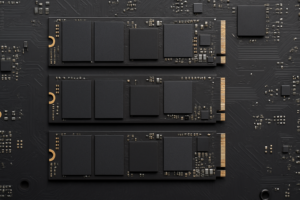
All three sizes use the same M.2 connector interface. The electrical connection is identical. A 2230 drive uses the same M-key or B+M-key slot as a 2280 drive. The difference is purely physical, which is why some motherboards include multiple mounting standoff positions to accommodate different lengths.
M.2 2280: The Standard Size
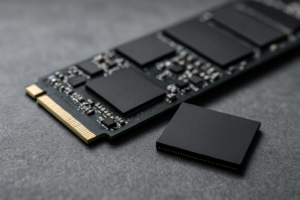
The 2280 form factor is the default for desktop PCs, most laptops, and the PS5. When someone says “M.2 SSD” without specifying a size, they almost always mean 2280. It’s the longest of the three common sizes at 80mm, which gives manufacturers the most room for NAND flash chips and controllers.
Because of that extra space, 2280 drives are available in the highest capacities (up to 8TB from some manufacturers) and often deliver the best performance. This is where you’ll find the fastest PCIe Gen 5 drives and the most affordable per-gigabyte pricing. More physical space means more NAND chips, which means better parallelism and throughput.
Devices That Use 2280
- Desktop motherboards (virtually all modern boards)
- PlayStation 5 internal expansion slot
- Most 15-inch and larger laptops
- Many 14-inch laptops
- NAS devices with M.2 slots
- External SSD enclosures (most are designed for 2280)
Top 2280 Drive Picks
For a PCIe Gen 4 NVMe drive that balances speed, reliability, and value, the WD Black SN770 2TB is hard to beat. It hits sequential read speeds of 5,150 MB/s and has proven itself across millions of PCs and PS5 consoles. If you need Gen 5 speed for heavy video editing or large file transfers, the Samsung 990 EVO Plus is a strong contender.
For budget builds, the Kingston NV2 1TB delivers solid everyday performance at a very competitive price point. It won’t win any speed records, but for gaming, general productivity, and OS duties, it’s more than enough.

WD Black SN770 2TB NVMe SSD
The best all-around 2280 PCIe Gen 4 drive for desktops, laptops, and PS5 upgrades.
M.2 2230: The Compact Powerhouse
The 2230 form factor has surged in popularity over the past few years, thanks largely to the Steam Deck, Microsoft Surface devices, and an increasing number of ultra-thin laptops. At just 30mm long, these drives are roughly a third the length of a standard 2280 SSD.
A few years ago, finding a 2230 drive at retail was genuinely difficult. Most were OEM parts pulled from laptops and sold on eBay with questionable histories. That’s changed significantly. Major manufacturers like Western Digital, Samsung, and Sabrent now sell 2230 drives directly to consumers in retail packaging with full warranties.
The tradeoff with 2230 is that the smaller size limits capacity and can sometimes limit performance. You’ll typically max out at 2TB, and the drives can run warmer because there’s less surface area for heat dissipation. For most use cases though, modern 2230 drives perform nearly as well as their 2280 counterparts.
Devices That Use 2230
- Valve Steam Deck (all models)
- ASUS ROG Ally and ROG Ally X
- Lenovo Legion Go
- Microsoft Surface Pro (most generations)
- Microsoft Surface Laptop (select models)
- Dell XPS 13 and 14 (recent models)
- Framework Laptop (supports both 2230 and 2280 with an adapter)
- Xbox Series X/S (internal, not user-replaceable)
- Some mini PCs and handheld gaming devices
Top 2230 Drive Picks
The WD Black SN770M is the go-to recommendation for most people shopping for a 2230 drive. It’s the compact version of the acclaimed SN770, available in 512GB, 1TB, and 2TB capacities. Sequential reads hit 5,150 MB/s, and it runs cool enough for handheld gaming devices without thermal throttling.
WD Black SN770M 1TB 2230 NVMe SSD
The top choice for Steam Deck, ROG Ally, and Surface upgrades with full retail warranty support.
Samsung’s Samsung 990 EVO 2230 is another excellent option, particularly if you want a Samsung drive for compatibility or brand preference. The Sabrent Rocket 2230 also deserves mention as a reliable performer that’s often competitively priced.
One important note: if you’re upgrading a Steam Deck, you’ll also want a small Phillips screwdriver and a bit of patience. The process is straightforward mechanically (remove back cover, swap the drive, reassemble), but you’ll need to reinstall SteamOS afterward using a USB drive. Valve has a recovery image available on their website for exactly this purpose.
M.2 2242: The Middle Child
The 2242 form factor sits between 2230 and 2280 at 42mm long, and it’s the least common of the three in modern consumer devices. You’ll mostly encounter it in older or budget laptops from Lenovo (particularly ThinkPad models from a few years back), some mini PCs, and certain industrial or embedded systems.
Finding high-performance 2242 drives is trickier than the other two sizes. The selection is smaller, and top-tier manufacturers don’t prioritize this form factor. You won’t find many (if any) PCIe Gen 4 options in 2242. Most are PCIe Gen 3 or even SATA-based M.2 drives.
Devices That Use 2242
- Lenovo ThinkPad T480, T470, and similar older models
- Some Lenovo IdeaPad budget laptops
- Select mini PCs (GPD, certain Intel NUCs)
- Certain industrial single-board computers
- Some routers and networking equipment with M.2 slots
Top 2242 Drive Picks
Your options here are more limited, but the WD PC SN740 2242 and Transcend MTE452T2 are solid choices if you can find them. For SATA M.2 2242 slots (which some older ThinkPads use), the Transcend MTS430S is a reliable pick.
If you’re struggling to find a 2242 drive with the specs you want, check whether your device can actually accept a 2230 drive with a spacer or adapter. Some 2242 slots have a mounting screw position that also works with 2230 drives, giving you access to the much wider selection of compact NVMe SSDs.
Key Compatibility Considerations
Size isn’t the only thing you need to check before buying an M.2 SSD. Here are the other factors that matter.
Interface: NVMe vs. SATA
M.2 is a physical form factor, not an interface protocol. An M.2 slot can support NVMe (fast, using PCIe lanes), SATA (slower, same speed as 2.5-inch SATA drives), or both. Most modern devices use NVMe, but some older laptops have M.2 SATA slots. Plugging an NVMe drive into a SATA-only slot won’t work, and vice versa.
Check your device’s documentation or look up the specific M.2 slot type. M-key slots typically support NVMe. B-key slots typically support SATA. B+M-key slots can go either way depending on the motherboard.
PCIe Generation
A PCIe Gen 4 drive will work in a Gen 3 slot, but it’ll run at Gen 3 speeds. Similarly, a Gen 5 drive in a Gen 4 slot runs at Gen 4 speeds. You won’t damage anything by mismatching generations, but you also won’t get the performance you paid for. There’s no reason to buy a Gen 5 drive for a device that only supports Gen 3.
Single-Sided vs. Double-Sided
This one catches people off guard. Some M.2 drives have NAND chips on both sides of the PCB, making them slightly thicker. Thin laptops and handheld devices sometimes don’t have enough clearance for double-sided drives. The Steam Deck, for example, works best with single-sided 2230 drives. Double-sided drives might physically fit but can create pressure against the back cover or the EM shielding.
When in doubt, check community forums or teardown videos for your specific device. Someone has almost certainly tested multiple drives and reported what fits.
Can You Use Adapters?
Adapters exist that let you use a smaller drive in a larger slot. A 2230-to-2280 adapter bracket, for example, holds a 2230 drive in place within a standard 2280 mounting slot. These work well in desktops and PS5 consoles. Going the other direction (fitting a larger drive into a smaller slot) isn’t possible because the drive would physically overhang other components.
Sabrent M.2 2230 to 2280 SSD Adapter
Essential accessory if you want to use a compact 2230 drive in a desktop motherboard or PS5 expansion slot.
Quick Comparison Table
| Feature | 2230 | 2242 | 2280 |
|---|---|---|---|
| Length | 30mm | 42mm | 80mm |
| Max Common Capacity | 2TB | 1TB | 8TB |
| Typical Use | Handhelds, ultrabooks, Surface | Older ThinkPads, mini PCs | Desktops, PS5, most laptops |
| Drive Selection | Growing rapidly | Limited | Largest selection |
| Best PCIe Gen Available | Gen 4 |  James Kennedy is a writer and product researcher at Drives Hero with a background in IT administration and consulting. He has hands-on experience with storage, networking, and system performance, and regularly improves and optimizes his home networking setup. Similar Posts |