NVMe SSD Buying Guide: Speed Grades Explained Simply
Shopping for an NVMe SSD feels a lot like ordering coffee in 2024. You just want something fast, but suddenly you’re staring at a menu full of PCIe generations, sequential read speeds, DRAM vs. HMB, and TLC vs. QLC. The jargon is thick, and most of it doesn’t matter nearly as much as manufacturers want you to believe.
I’ve tested and recommended dozens of NVMe drives over the past few years, and I can tell you this with confidence: most people overspend on speed they’ll never notice. But some people genuinely need the fastest drives available. The trick is figuring out which camp you’re in before you hand over your money.
This guide will break down exactly what the different speed grades mean in plain English, explain when faster actually matters, and point you toward the best drives at each tier so you can make a smart purchase without second-guessing yourself.
What Is NVMe, and Why Does It Matter?
NVMe stands for Non-Volatile Memory Express. It’s a communication protocol designed specifically for flash storage. Before NVMe, SSDs used the SATA interface, which was originally built for spinning hard drives. SATA maxes out at about 550 MB/s, and no matter how fast the flash chips are, that bottleneck stays in place.
NVMe drives connect through the M.2 slot on your motherboard using PCIe lanes instead of SATA. This removes the bottleneck entirely, allowing modern SSDs to hit speeds that would’ve seemed absurd just a few years ago. We’re talking 3,500 MB/s, 7,000 MB/s, and even beyond 14,000 MB/s with the latest generation.
Every NVMe drive is faster than every SATA drive. That part is simple. The confusing part is understanding the differences between NVMe drives, because those differences range from enormous to completely irrelevant depending on what you’re doing with your computer.
PCIe Generations Explained: Gen 3, Gen 4, and Gen 5
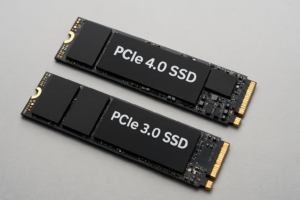
The PCIe generation is the single biggest factor determining an NVMe drive’s maximum speed. Think of it like highway lanes. Each new generation roughly doubles the available bandwidth.
PCIe Gen 3
Gen 3 NVMe drives top out at roughly 3,500 MB/s for sequential reads. These were the first mainstream NVMe drives, and they’re still perfectly capable for everyday computing. If you’re browsing the web, working in Office apps, gaming, or even doing light photo editing, a Gen 3 drive handles all of it without breaking a sweat.
Popular Gen 3 drives include models like the WD Blue SN570 and Kingston NV2. They’re the most affordable NVMe options and represent the best value for general-purpose use.
PCIe Gen 4
Gen 4 doubles the theoretical bandwidth, pushing sequential reads up to about 7,000 MB/s on the fastest models. This is currently the sweet spot for most buyers. The drives are mature, widely available, and the price gap between Gen 3 and Gen 4 has shrunk considerably.
The Samsung 990 Pro and the WD Black SN850X represent the top end of Gen 4. For most people building or upgrading a PC today, Gen 4 is where I’d recommend spending your money.

Samsung 990 Pro 2TB NVMe SSD
The best all-around Gen 4 drive with top-tier speeds, excellent endurance ratings, and proven reliability.
PCIe Gen 5
Gen 5 is the newest generation, and it’s a beast on paper. Sequential reads can exceed 14,000 MB/s. But there are trade-offs right now. Gen 5 drives run hotter (many require bulky heatsinks), consume more power, and carry a significant price premium. The selection is also limited compared to Gen 4.
Drives like the Crucial T705 and Samsung 990 EVO Plus are pushing this technology forward, but for most consumers, Gen 5 is overkill in 2024. Content creators working with massive video files and enterprise users with specific workloads will benefit. Everyone else can wait for prices to drop and thermals to improve.
Speed Ratings: What the Numbers Actually Mean
Every NVMe drive gets marketed with big, impressive numbers. Let’s decode what they mean and, more importantly, which ones you should care about.
Sequential Read/Write Speeds
These are the headline numbers you see on the box. “Up to 7,000 MB/s read!” sounds incredible, and it is, when you’re transferring a single large file. Sequential speeds measure how fast the drive can read or write data in a continuous stream, like copying a 50 GB video file from one location to another.
For most day-to-day tasks, you’ll rarely hit these peak speeds. They matter most for large file transfers, video editing timelines, and loading very large datasets.
Random Read/Write Speeds (IOPS)
This is the spec most people should pay attention to. Random IOPS (Input/Output Operations Per Second) measures how quickly the drive handles lots of small, scattered data requests. That’s what actually happens when you boot your OS, launch applications, multitask, or load game levels.
A drive with slightly lower sequential speeds but excellent random performance will feel faster in daily use than a drive with jaw-dropping sequential numbers but mediocre random I/O. The Samsung 990 Pro, for example, offers up to 1,400K random read IOPS, which is part of why it feels so snappy in practice.
Sustained vs. Burst Speeds
Here’s where manufacturers get sneaky. Most NVMe drives use an SLC cache, a portion of the drive that temporarily operates in a faster mode to handle bursts of write activity. When you’re copying a handful of files, the drive screams along at advertised speeds. But during extended writes (like copying 200 GB of data at once), the SLC cache fills up, and write speeds can plummet dramatically.
Budget drives often drop to 500 MB/s or lower once the cache is exhausted. Premium drives maintain much higher sustained speeds. If you regularly move large amounts of data, this distinction matters a lot. Check independent reviews on sites like Tom’s Hardware or TechPowerUp for sustained write benchmarks before buying.
NAND Types: TLC vs. QLC
The type of flash memory inside an NVMe drive affects its speed, endurance, and price.
- TLC (Triple-Level Cell) stores 3 bits per cell. It offers a good balance of speed, endurance, and cost. Most mid-range and high-end NVMe drives use TLC NAND. This is what I recommend for most buyers.
- QLC (Quad-Level Cell) stores 4 bits per cell. It’s cheaper to manufacture, which means lower prices, but it comes with reduced write endurance and slower sustained write speeds. QLC drives are fine for secondary storage or light-use systems, but I’d avoid them as a primary drive for heavy workloads.
You generally won’t see NAND type printed in big letters on the product page. You’ll need to check the specs sheet or read reviews. As a rule of thumb, if a drive seems surprisingly affordable for its capacity, it’s probably QLC.
DRAM vs. DRAM-less vs. HMB
NVMe drives use a mapping table to track where data is stored on the NAND chips. How this table is handled affects performance.
- DRAM cache: The drive has its own dedicated memory chip to store the mapping table. This delivers the most consistent performance, especially under heavy workloads. Premium drives like the Samsung 990 Pro and WD Black SN850X include DRAM.
- HMB (Host Memory Buffer): The drive borrows a small portion of your system RAM to store the mapping table. This works surprisingly well for consumer workloads and keeps costs down. Drives like the WD Blue SN580 use HMB effectively.
- DRAM-less (no HMB): The cheapest drives skip both options. Performance can stutter under heavy multitasking or sustained loads. I’d avoid these for boot drives.
For a general-use PC, an HMB drive is perfectly fine. If you’re building a workstation or doing professional content creation, spend a bit more for a drive with a proper DRAM cache.
Which Speed Grade Do You Actually Need?
This is the most important section of this guide. Let me be direct about who needs what.
Basic Computing, Web Browsing, Office Work
A Gen 3 NVMe drive with 1TB capacity is all you need. You won’t notice the difference between a Gen 3 and Gen 5 drive for these tasks. Save your money for a nicer monitor or more RAM. Something like the WD Blue SN570 will serve you well for years.
Gaming
Gaming is where NVMe marketing gets aggressive, but the truth is nuanced. Game load times barely differ between Gen 3 and Gen 4 in most titles. The exceptions are games using DirectStorage on PC, which is still in its infancy. A solid Gen 4 drive is the smart pick for gamers because it gives you headroom for future DirectStorage titles without paying the Gen 5 premium.
The WD Black SN850X remains my top recommendation for a gaming-focused NVMe drive. It’s fast, reliable, and comes in capacities up to 4TB for those growing game libraries.
WD Black SN850X 2TB NVMe SSD
Excellent Gen 4 gaming drive with optional heatsink and consistently strong real-world performance.
Content Creation and Video Editing
If you’re editing 4K or 8K video, working with RAW photo files in Lightroom, or compiling large software projects, you’ll actually benefit from faster sequential and sustained write speeds. A high-end Gen 4 drive is the minimum I’d recommend. Gen 5 starts making sense here if your motherboard supports it and your budget allows.
For video editors specifically, pay close attention to sustained write speeds. You need a drive that won’t throttle during long ingest sessions. The Samsung 990 Pro excels here, and so does the Crucial T700 if you want to step up to Gen 5.
General Upgraders (Replacing an Old SATA SSD or Hard Drive)
If you’re upgrading from a SATA SSD or, especially, a mechanical hard drive, literally any NVMe drive will feel like a revelation. Don’t overthink it. Grab a well-reviewed Gen 3 or entry-level Gen 4 drive in the capacity you need, and enjoy the massive improvement.
Capacity Matters More Than Speed
I’ll say this plainly: for most people, buying a larger drive at a lower speed grade is smarter than buying a smaller drive at a higher speed grade. A 2TB Gen 3 drive will serve you better than a 500GB Gen 5 drive in almost every real-world scenario.
Modern operating systems, games, and applications keep growing. Windows 11 with a few major games installed can easily eat through 1TB. I recommend 2TB as the sweet spot for a primary drive in 2024. If budget is tight, 1TB is the absolute minimum I’d go with.
SK Hynix Platinum P41 2TB NVMe SSD
Often overlooked but one of the best Gen 4 drives available, with exceptional real-world performance and efficiency.
Quick Compatibility Check Before You Buy
Before adding any NVMe drive to your cart, verify a few things:
- Does your motherboard have an M.2 slot? Most motherboards from 2018 onward have at least one. Check your manual or the manufacturer’s website.
- What PCIe generation does your M.2 slot support? A Gen 5 drive will work in a Gen 3 slot, but it’ll run at Gen 3 speeds. You won’t damage anything, but you’ll waste money on speed you can’t access.
- Is it a PCIe or SATA M.2 slot? Some older boards have M.2 slots that only support SATA. An NVMe drive won’t work in a SATA-only M.2 slot. Again, your motherboard manual is the definitive source.
- Do you need a heatsink? Many motherboards include M.2 heatsinks. If yours doesn’t, consider a drive that comes with one, or pick up an aftermarket heatsink. This is especially important for Gen 5 drives.
My Top Picks by Category
- Best budget NVMe: WD Blue SN570 (Gen 3, great for everyday use)
- Best value Gen 4: SK Hynix Platinum P41 (excellent all-around performance)
- Best for gaming: WD Black SN850X (fast, reliable, available in large capacities)
- Best for content creation: Samsung 990 Pro (top-tier sustained performance with DRAM)
- Best Gen 5 (for early adopters): Crucial T700 (blazing fast, bring a heatsink)
Frequently Asked Questions
Will a Gen 5 NVMe SSD make my games load faster than a Gen 4 drive?
In most current games, no

James Kennedy is a writer and product researcher at Drives Hero with a background in IT administration and consulting. He has hands-on experience with storage, networking, and system performance, and regularly improves and optimizes his home networking setup.