SSD Encryption: BitLocker Vs Hardware Encryption
Encrypting your SSD sounds simple enough until you realize there are two fundamentally different ways to do it. You can let Windows handle everything through BitLocker, which encrypts your data using your CPU. Or you can use the encryption engine built directly into many modern SSDs, known as hardware-based encryption (typically following the TCG Opal 2.0 standard). Both protect your data if someone steals your laptop, but they work very differently under the hood.
The distinction matters more than most people think. Back in 2018, researchers from Radboud University discovered that several popular SSDs had critical flaws in their hardware encryption implementations, allowing attackers to bypass the encryption entirely. Microsoft responded by changing BitLocker’s default behavior, and the entire conversation around SSD encryption shifted. If you care about protecting sensitive data, you need to understand what each approach actually does, where it falls short, and which one you should trust.
This guide breaks down both methods in practical terms, covering performance, security, setup, and compatibility so you can make an informed decision for your specific situation.
How BitLocker (Software Encryption) Works
BitLocker is Microsoft’s built-in encryption tool, available on Windows 10 and 11 Pro, Enterprise, and Education editions. When you enable BitLocker, it encrypts the entire volume using the AES algorithm (either AES-128 or AES-256), and your CPU handles all the encryption and decryption work in real time as data is read from or written to the drive.
Starting with Windows 10 version 1903 (the May 2019 update), BitLocker defaults to software encryption mode, even if your SSD supports hardware encryption. This was a direct response to those Radboud University findings. Microsoft essentially said, “We can’t verify that every SSD manufacturer implemented hardware encryption correctly, so we’ll handle it ourselves.”
BitLocker stores its encryption keys in the system’s TPM (Trusted Platform Module) chip, which means your drive automatically decrypts at boot without requiring you to type a password every time. You can add a pre-boot PIN for extra security, and you should, but by default, the TPM handles authentication transparently.
How Hardware-Based SSD Encryption Works
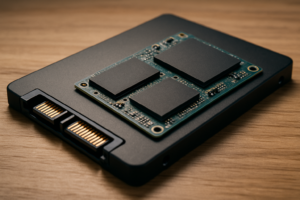
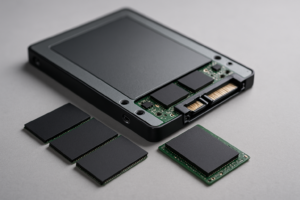
Many modern SSDs include a dedicated encryption engine built into the drive’s controller. This engine encrypts and decrypts all data as it passes through the controller, completely independent of your operating system or CPU. The most common standard for managing this encryption is TCG Opal 2.0, developed by the Trusted Computing Group.
With hardware encryption, the SSD is always encrypting data, even if you haven’t set up any password or encryption management. The difference is that until you activate the Opal security features, the encryption key is freely accessible. Once you enable Opal through compatible software, the drive requires authentication before it will release the encryption key and allow access to your data.
Self-Encrypting Drives (SEDs)
You’ll often see the term “SED” or “Self-Encrypting Drive” used to describe SSDs with hardware encryption capabilities. Every SED generates a unique Data Encryption Key (DEK) during manufacturing. This key never leaves the drive’s controller, and it encrypts everything written to the NAND flash. The Authentication Key (AK), which you set during setup, protects the DEK. Without the correct authentication, the DEK remains locked, and your data is unreadable.
One practical benefit of this architecture is instant secure erase. Instead of overwriting every sector on the drive, the SSD can simply destroy the DEK and generate a new one. All previously written data becomes cryptographically irretrievable in seconds.
Performance Impact: A Clear Winner
This is where hardware encryption has a genuine advantage. Since the SSD’s controller handles encryption using dedicated hardware, there is essentially zero performance overhead. Your read and write speeds are identical whether encryption is active or not. The encryption engine operates at the full speed of the drive’s interface.
BitLocker’s software encryption does consume CPU cycles. On modern processors with AES-NI instruction support (which includes virtually every Intel and AMD CPU made in the last decade), the impact is minimal for most workloads. Independent testing typically shows a 1-5% reduction in sequential read/write speeds and slightly more impact on random I/O operations. You’re unlikely to notice this during everyday use.
However, the difference becomes measurable during sustained heavy workloads. If you’re doing large file transfers, video editing, or running database operations, BitLocker’s CPU overhead can add up. On older or lower-power CPUs (like those in budget laptops), the impact is more noticeable. Hardware encryption avoids this entirely.
Winner: Hardware encryption. It has zero performance cost, period. But for most users with modern hardware, BitLocker’s overhead is small enough that it shouldn’t be the deciding factor.
Security: Where Things Get Complicated
Performance is simple to measure. Security is not. And this is where the conversation gets important.
The 2018 SED Vulnerability Scandal
Researchers Carlo Meijer and Bernard van Gastel published a paper showing that several popular SSDs from Crucial (MX100, MX200, MX300) and Samsung (840 EVO, 850 EVO, T3, T5) had severe flaws in their hardware encryption implementations. Some drives allowed the encryption to be bypassed entirely. Others used empty or easily recoverable encryption keys. The full paper is publicly available and makes for sobering reading if you assumed “hardware encryption” meant “secure by default.”
Samsung issued firmware updates for some affected models, and Crucial acknowledged the issues. But the damage to trust was done. The fundamental problem remains: hardware encryption is a black box. You’re trusting that the SSD manufacturer implemented AES correctly in their controller firmware, and you have no practical way to verify it.
BitLocker’s Transparency Advantage
BitLocker’s software encryption implementation has been extensively audited, tested, and attacked by security researchers for years. While no encryption is perfect, BitLocker’s code runs on well-understood, general-purpose processors where vulnerabilities are more likely to be discovered and patched. Microsoft regularly updates BitLocker through Windows Update, and the security community actively scrutinizes its behavior.
With hardware encryption, you’re dependent on each SSD manufacturer’s firmware update cadence and their willingness to disclose vulnerabilities. Some manufacturers are better about this than others. Samsung and Micron (Crucial’s parent company) have improved their practices since 2018, but smaller or newer SSD brands may not have the same commitment to ongoing security validation.
My Recommendation on Security
For most users, BitLocker’s software encryption is the more trustworthy option. You benefit from Microsoft’s ongoing security updates, a well-audited implementation, and independence from SSD firmware quality. The only scenario where I’d confidently recommend hardware encryption alone is in enterprise environments where the specific SSD model has been independently validated and the organization has a managed security infrastructure.
SSDs That Support Hardware Encryption (TCG Opal 2.0)
Not every SSD supports hardware encryption management through TCG Opal. Here are some current models that do:
- Samsung 990 Pro, 980 Pro, 870 EVO (TCG Opal 2.0 and AES-256)
- SK hynix Platinum P41 (TCG Opal 2.0)
- Western Digital WD Black SN770, SN850X (select models support TCG Opal)
- Crucial T500, T700 (TCG Opal 2.0 via Micron’s implementation)
- Intel Solidigma P44 Pro (TCG Opal 2.0)
- Kingston KC3000 (TCG Opal 2.0)
Always verify TCG Opal support on the manufacturer’s spec sheet before purchasing. Some models within a product line support it while others don’t, and the feature can vary by capacity or firmware version.
Setting Up BitLocker (Software Mode)
BitLocker setup on Windows 10/11 Pro is relatively painless. Here’s the process:
- Make sure your PC has a TPM 2.0 chip (most computers from 2016 onward do). Check by pressing Win+R, typing
tpm.msc, and hitting Enter. - Open Control Panel, navigate to System and Security, then BitLocker Drive Encryption.
- Click “Turn on BitLocker” for your system drive.
- Choose how to back up your recovery key (Microsoft account, USB drive, or printed copy). Do not skip this step. If something goes wrong with your TPM or Windows installation, the recovery key is the only way to access your data.
- Select “Encrypt entire drive” (not “used disk space only”) for maximum security.
- Choose the XTS-AES encryption mode for fixed drives, or compatible mode if you need the drive to work with older Windows versions.
- Restart your PC to begin encryption. The initial encryption process runs in the background and can take anywhere from 30 minutes to several hours depending on drive size and speed.
Since Windows 10 version 1903, BitLocker will use software encryption by default. You don’t need to do anything special to avoid hardware encryption mode.
Setting Up Hardware Encryption (TCG Opal)
Hardware encryption setup is more involved and less forgiving. The drive must be in an uninitialized state (or you’ll need to perform a PSID revert, which erases all data). Here’s the general process:
- Verify your SSD supports TCG Opal 2.0 by checking the manufacturer’s specifications.
- Install TCG Opal management software. Options include Sedutil (free, open-source), Samsung Magician (for Samsung drives), or enterprise tools like Wave Embassy Security Center.
- If the drive already has data, back everything up. Enabling Opal requires starting fresh.
- Use your management software to take ownership of the drive and set an authentication password.
- Configure the Pre-Boot Authentication (PBA) image, which is a small bootable environment that asks for your password before the operating system loads.
- Install your operating system on the now-secured drive.
The process using Sedutil involves command-line operations and can be intimidating if you’re not comfortable with terminal commands. Samsung Magician offers a friendlier interface for Samsung drives, but the functionality is more limited. Enterprise environments typically use endpoint management platforms that handle Opal provisioning at scale.
Can You Use Both Together?
Technically, yes, you can force BitLocker to use your SSD’s hardware encryption instead of software encryption. This was actually BitLocker’s default behavior before the 2018 vulnerabilities were discovered. You can still enable it through Group Policy by setting “Configure use of hardware-based encryption for fixed data drives” to Enabled.
However, I don’t recommend this for most users. You’re combining the management convenience of BitLocker with the security uncertainties of hardware encryption. If the SSD’s hardware encryption has a flaw, BitLocker won’t protect you because it’s relying entirely on the drive’s implementation.
A better approach, if you want layered protection, is to use BitLocker in software mode on top of a drive that also has its always-on hardware encryption active (but unmanaged). This way, even if someone bypasses BitLocker, the data on the NAND chips is still encrypted by the drive’s controller. This isn’t a widely tested configuration for practical attacks, but it does add a theoretical layer of defense.
Which Should You Choose?
For the vast majority of users, BitLocker in software mode is the right choice. It’s well-tested, regularly updated, easy to set up, and its performance impact is negligible on modern hardware. You don’t need to worry about whether your specific SSD model implemented AES correctly in its controller firmware.
Hardware encryption (TCG Opal) makes sense in specific scenarios: enterprise deployments where IT teams have validated specific drive models, situations where even minimal CPU overhead is unacceptable (high-performance computing, heavily loaded servers), or environments where the operating system can’t provide encryption (certain Linux configurations, multi-boot setups, or drives that move between systems).
If you’re a regular Windows user who wants to protect your data in case your laptop gets lost or stolen, turn on BitLocker, save your recovery key somewhere safe, and add a pre-boot PIN. That combination provides strong protection without requiring you to become an encryption expert.
Frequently Asked Questions
Does BitLocker slow down my SSD?
On modern systems with CPUs that support AES-NI (which is virtually all Intel and AMD processors from the past 10+ years), BitLocker’s performance impact typically ranges from 1-5% on sequential operations. For everyday tasks like web browsing, office work, and gaming, you won’t notice any difference. Heavy sustained workloads like large file copies or database operations may show a slightly larger impact, but it’s still modest.
How do I know if my SSD has hardware encryption?
Check your SSD’s product page on the manufacturer’s website and look for mentions of “TCG Opal 2.0,” “SED,” “Self-Encrypting Drive,” or “AES-256 hardware encryption” in the specifications. You can also use tools like Sedutil to scan for Opal-compatible drives in your system. Keep in mind that many SSDs always encrypt data at the hardware level but don’t support TCG Opal management, meaning you can’t lock the drive with a password without Opal support.
What happens if I lose my BitLocker recovery key?
If your TPM fails, your BIOS is updated, or a hardware change triggers BitLocker’s recovery mode, you’ll need that recovery key to access your data. Without it, your data is permanently inaccessible. There is no backdoor, no master key, and no way for Microsoft to recover it. Store your recovery key in at least two separate locations: your Microsoft account, a printed copy in a secure place, and optionally on a separate USB drive. This is the single most important step in the entire BitLocker setup process.
Is hardware encryption on SSDs safe to use after the 2018 vulnerabilities?
Manufacturers have improved their implementations since the 2018 disclosures. Samsung and Crucial both issued firmware updates, and newer drive models have undergone more scrutiny. However, the core problem persists: SSD firmware is proprietary, and independent verification is difficult. If you choose to rely on hardware encryption, stick with drives from major manufacturers with a track record of issuing security updates, and keep your drive’s firmware current. For most people, though, BitLocker’s software encryption remains the safer bet simply because it’s more transparent and more widely audited.

James Kennedy is a writer and product researcher at Drives Hero with a background in IT administration and consulting. He has hands-on experience with storage, networking, and system performance, and regularly improves and optimizes his home networking setup.