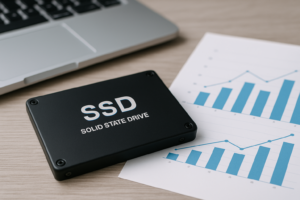
SSD vs HDD: Which Should You Choose in 2026?
Choosing between an SSD and an HDD used to be simple. If you wanted speed, you paid a premium for solid-state storage. If you wanted lots of space on a budget, you grabbed a traditional hard drive and moved on with your life. In 2024, the decision has gotten more nuanced, and arguably more interesting, because the price gap between these two technologies has narrowed significantly.
But “narrowed” doesn’t mean “disappeared.” Depending on what you’re doing with your computer, one of these options is clearly better than the other. And in some cases, the smartest move is to use both. I’ve built and upgraded dozens of systems over the past several years, and I’ve seen firsthand how the right storage choice can transform a sluggish machine into something that actually feels good to use.
This guide will walk you through everything you need to know: raw performance numbers, real-world differences you’ll actually notice, durability concerns, and specific recommendations based on your use case and budget. By the end, you’ll know exactly which drive belongs in your system.
How SSDs and HDDs Actually Work
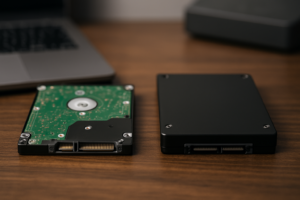
Understanding the basic technology helps explain why these drives perform so differently. A traditional HDD (hard disk drive) stores data on spinning magnetic platters. A mechanical arm moves across these platters to read and write information, much like a record player’s needle. This mechanical process is inherently limited by physical movement.
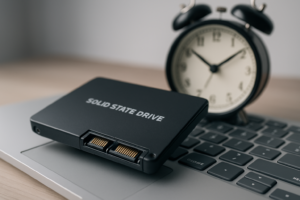
An SSD (solid-state drive) has no moving parts whatsoever. It stores data on interconnected flash memory chips, accessing information electronically rather than mechanically. This fundamental difference is the reason SSDs are faster, quieter, lighter, and more resistant to physical shock.
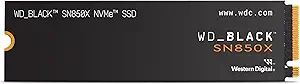
There are also different types of SSDs to be aware of. SATA SSDs use the same interface as traditional hard drives and top out around 550 MB/s. NVMe SSDs connect through the M.2 slot on your motherboard and can reach speeds of 3,500 MB/s or more. The newest Gen 5 NVMe drives push past 10,000 MB/s, though most people won’t notice the difference between Gen 3 and Gen 4 in daily use.
Speed: Where SSDs Dominate
This is the category where SSDs win decisively, and it’s not even close. A typical 7200 RPM hard drive delivers sequential read speeds of about 80 to 160 MB/s. A basic SATA SSD hits around 550 MB/s. And a mid-range NVMe SSD like the Samsung 980 Pro reaches 7,000 MB/s.
But raw sequential speeds only tell part of the story. The metric that matters most for everyday computing is random read/write performance, measured in IOPS (input/output operations per second). This determines how snappy your computer feels when you’re opening apps, browsing the web, or multitasking. SSDs deliver roughly 50 to 100 times more random IOPS than hard drives.
What This Means in Real Life
Here are some practical comparisons you’ll actually feel:
- Windows boot time: 10 to 15 seconds on an SSD vs. 45 to 90 seconds on an HDD
- Opening Photoshop: 2 to 3 seconds on an SSD vs. 15 to 20 seconds on an HDD
- Copying a 20GB file: Under 30 seconds on NVMe SSD vs. 3 to 5 minutes on HDD
- Game loading screens: Often 3 to 5 times faster on SSD
- File search and indexing: Nearly instant on SSD vs. painfully slow on HDD
If your computer currently runs on a hard drive, swapping in an SSD is the single most impactful upgrade you can make. It will feel like you bought a new machine.

Samsung 870 EVO SATA SSD
The best SATA SSD for most people, offering excellent reliability and consistent performance in a 2.5-inch form factor
Storage Capacity and Pricing
Hard drives still hold an advantage when it comes to cost per gigabyte, especially at higher capacities. You can pick up a 4TB or even 8TB HDD for a fraction of what a same-size SSD would cost. For bulk storage of media files, backups, and archives, hard drives remain the more economical choice.
SSD prices have dropped dramatically over the past few years, though. A 1TB NVMe SSD is extremely affordable in 2024, and 2TB models have reached price points that would have seemed impossible just two or three years ago. For most people building a new PC or upgrading a laptop, 1TB of SSD storage is the sweet spot.
If you need more than 2TB of fast storage, costs start climbing quickly with SSDs. This is where a hybrid approach makes sense: use an SSD for your operating system, applications, and frequently accessed files, then add an HDD for everything else. Plenty of desktop users run a 1TB NVMe boot drive alongside a 4TB hard drive like the Seagate BarraCuda 4TB for mass storage, and this setup works beautifully.
Durability and Lifespan
SSDs are significantly more durable than HDDs in most real-world scenarios. Because they have no moving parts, they’re resistant to drops, vibrations, and physical impacts that would destroy a traditional hard drive. If you’ve ever heard the sickening click of a dying HDD after a bump, you understand the value of solid-state reliability.
Modern SSDs are rated for hundreds of terabytes written (TBW) over their lifetime. The Samsung 870 EVO 1TB, for example, is rated for 600 TBW. For a typical user writing 20 to 40 GB per day, that translates to decades of use before the flash memory wears out. You’ll almost certainly replace the drive for capacity reasons before it fails from wear.
When HDDs Have the Edge
There is one durability scenario where HDDs perform better: long-term unpowered storage. SSDs can potentially lose data if left without power for extended periods (months to years), because the electrical charges in flash cells gradually leak. For cold storage and archival purposes, HDDs are generally considered more reliable. This matters for photographers, videographers, and anyone creating backups they plan to shelve for a long time.
Hard drives are also more tolerant of extreme temperatures during storage, making them better suited for disaster recovery archives kept in non-climate-controlled environments.
Noise, Heat, and Power Consumption
SSDs run completely silent. Zero noise. If you’ve ever been annoyed by the constant humming or clicking of a hard drive, switching to all-SSD storage eliminates that entirely. This matters a lot for recording studios, quiet office environments, and anyone who values a silent PC build.
On the power consumption front, SSDs also win. A typical NVMe SSD draws 2 to 5 watts under load, while a 3.5-inch HDD draws 6 to 10 watts. For desktop users, this difference is negligible. For laptop users, it translates to noticeably better battery life. An SSD can add 30 minutes to an hour of battery runtime compared to an HDD.
Heat is worth mentioning, too. High-performance NVMe SSDs can actually run quite hot under sustained workloads, sometimes reaching 70°C or higher without a heatsink. Most motherboards include M.2 heatsinks these days, and aftermarket options are inexpensive. SATA SSDs and HDDs rarely have heat issues during normal use.
Best Use Cases for Each Drive Type
Choose an SSD If You’re:
- Building or upgrading a primary computer for everyday use
- Gaming and tired of long loading screens
- Running professional applications like video editing, 3D rendering, or software development
- Using a laptop where battery life, weight, and shock resistance matter
- Running virtual machines or databases that rely heavily on random I/O
Choose an HDD If You’re:
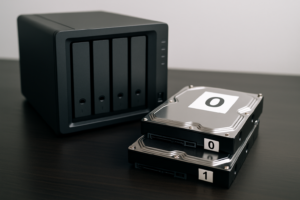
- Building a NAS (network-attached storage) for media streaming and backups
- Storing large archives of photos, videos, or music you don’t access frequently
- Setting up a surveillance system with continuous recording
- On a very tight budget and need maximum capacity above all else
- Creating offline backups for long-term archival storage
My Top Picks for 2024
Best Overall SSD: Samsung 990 Pro (NVMe)
The Samsung 990 Pro remains one of the best NVMe drives you can buy. It delivers sequential read speeds up to 7,450 MB/s, comes with Samsung’s excellent Magician software for drive management, and has a proven track record for reliability. It’s available in 1TB, 2TB, and 4TB capacities, and it works great as a PS5 upgrade drive too.
Samsung 990 Pro NVMe SSD
Top-tier NVMe performance with outstanding endurance ratings, ideal for power users and gamers
Best Budget SSD: Kingston NV2
If you want NVMe speeds without spending extra for premium features, the Kingston NV2 1TB is a terrific option. It won’t match Samsung’s top-end drives in sustained write performance, but for everyday computing, gaming, and general productivity, you won’t notice the difference. It’s one of the best values in storage right now.
Best HDD for Mass Storage: WD Red Plus
For NAS use or bulk storage in a desktop, the WD Red Plus line is purpose-built for reliability in always-on environments. These drives use CMR (conventional magnetic recording) technology, which provides better sustained performance and durability compared to cheaper SMR drives. They’re available in capacities up to 14TB.
WD Red Plus NAS HDD
Built specifically for NAS environments with CMR technology for reliable 24/7 operation
The Hybrid Approach: Why Many Users Should Consider Both
For desktop builds, combining an SSD and an HDD gives you the best of both worlds. Install your operating system, applications, and most-played games on a 1TB NVMe SSD. Then add a 2TB or 4TB HDD for your media library, old projects, downloads folder, and backups.
This approach keeps your system snappy while giving you plenty of affordable space for files that don’t benefit from SSD speeds. Watching a movie from an HDD? It plays exactly the same as from an SSD because the data rate of video playback is well within what a hard drive can deliver. Storing thousands of RAW photos you only access occasionally? An HDD handles that perfectly.
The only scenario where this doesn’t apply is laptops, since most modern laptops only have a single M.2 slot and no 2.5-inch drive bay. For laptops, just get the largest SSD you can afford and use an external drive for overflow storage.
Frequently Asked Questions
Can I replace my laptop’s HDD with an SSD?
In most cases, yes. If your laptop has a 2.5-inch HDD, you can replace it with a 2.5-inch SATA SSD like the Samsung 870 EVO. You’ll need to clone your existing drive or do a fresh OS install. Many laptops from the last five years also have an M.2 slot, which lets you install a faster NVMe drive. Check your laptop’s specifications or service manual to confirm compatibility before buying.
Do SSDs fail without warning?
SSDs can fail suddenly, but modern drives include S.M.A.R.T. monitoring that tracks the health of the drive and warns you as it approaches its rated endurance limit. HDDs also fail, and their mechanical nature actually makes catastrophic failure more common. Regardless of which drive type you use, maintaining regular backups is essential. No storage device lasts forever.
Is it worth getting a Gen 4 or Gen 5 NVMe SSD over a Gen 3 model?
For most people, a Gen 3 NVMe SSD provides all the speed you’ll ever notice in day-to-day computing. The jump from Gen 3 to Gen 4 matters mainly for large file transfers, video editing, and other workloads that involve sustained sequential reads and writes. Gen 5 drives are overkill for almost everyone right now and tend to run hot, requiring beefy heatsinks. Save your money and go with Gen 4 unless you have specific professional needs that demand maximum throughput.
How long do SSDs last compared to HDDs?
Both drive types typically last 5 to 10 years under normal use. SSDs have a finite number of write cycles, but modern TLC and QLC NAND is rated for endurance levels that far exceed what most consumers will ever approach. HDDs are more prone to mechanical failure over time, especially in environments with vibration or frequent movement. In practice, the reliability difference between a quality SSD and a quality HDD is minimal for the average user.
The Verdict
If you’re buying one drive for a computer you use every day, buy an SSD. Specifically, buy a 1TB NVMe SSD. The performance improvement over a hard drive is enormous, prices are lower than ever, and there’s simply no good reason to use an HDD as a primary boot drive in 2024. You’ll notice the difference every single time you turn on your computer, open an application, or load a file.
Hard drives aren’t dead, though. They still make perfect sense for bulk storage, NAS systems, and archival backups where capacity matters more than speed. A mixed setup with an SSD for your OS and an HDD for storage remains one of the best value propositions in PC building.
Whatever you choose, buy from reputable brands like Samsung, Western Digital, Seagate, or Kingston, and always keep backups of your important data. Drives fail eventually. The best storage strategy isn’t just picking the fastest drive; it’s making sure you never lose anything that matters to you.
This article contains affiliate links. We may earn a small commission at no extra cost to you.

James Kennedy is a writer and product researcher at Drives Hero with a background in IT administration and consulting. He has hands-on experience with storage, networking, and system performance, and regularly improves and optimizes his home networking setup.