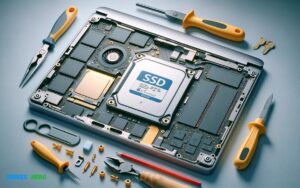
What Ssd for Macbook Pro 2012? Learning Approach!
For a MacBook Pro 2012, compatible SSDs include 2.5-inch SATA III drives from brands like Samsung (EVO 860), Crucial (MX500), SanDisk, and Kingston. These SSDs offer improved speed and reliability over the original hard drives.
When upgrading the storage of a MacBook Pro 2012, it’s important to choose an SSD that meets the following criteria:
Some recommended SSD models include:
- Samsung 860 EVO: Known for its speed and reliability.
- Crucial MX500: Offers good performance with integrated data protection features.
- SanDisk SSD PLUS: A cost-effective option with decent performance.
- Kingston UV500: A budget-friendly choice with solid-state security features.

Key Takeaway
Understanding Ssds For Macbook Pro 2012
When considering performance upgrades for the MacBook Pro 2012, introducing an SSD is a transformative step.
Before embarking on this enhancement journey, it’s critical to comprehend what an SSD is and the advantages it brings, especially taking into account the compatibility aspects for a seamless upgrade experience.
Benefits Of Upgrading To Ssd For Macbook Pro 2012
Upgrading your 2012 MacBook Pro to an SSD offers several enhancements:
- Speed: Dramatically increase system boot-up, file access, and application startup times.
- Reliability: With no moving parts, SSDs are less prone to failure and are better suited for mobile devices.
- Battery Life: SSDs are more power-efficient, potentially improving your MacBook’s battery life.
- Noise: SSDs operate silently, contributing to a quieter working environment.
Compatibility Considerations For Macbook Pro 2012 And Ssds
Before upgrading your MacBook Pro 2012, consider the following:
| Factor | Consideration |
|---|---|
| Model Identifier | Ensure your MacBook is compatible with SSD upgrades by checking the Model Identifier (e.g., MacBookPro9,1). |
| Drive Interface | MacBook Pro 2012 typically uses a SATA interface. An appropriate SSD must match this interface. |
| Form Factor | Look for a 2.5-inch drive, which is the correct size for a 2012 MacBook Pro’s internal bay. |
| Operating System | Update your macOS to the latest version possible to ensure full compatibility with the new SSD. |
Remember to back up your data before starting any upgrade process, and consider seeking professional assistance if unsure about the technical requirements or installation process.
Choosing The Right Ssd For Macbook Pro 2012
Upgrading your Macbook Pro 2012 with a new SSD is like injecting a new lease of life into an aging powerhouse.
As software requirements evolve, it’s crucial to select an efficient SSD that not only revitalizes your Macbook Pro but also meshes seamlessly with its hardware.
Factors To Consider When Selecting An Ssd
Several critical aspects demand your attention while hunting for an SSD upgrade.
- Compatibility: Ensure the SSD fits the connection interface of your Macbook Pro 2012.
- Performance: Look for SSDs with high read/write speeds to boost your system’s responsiveness.
- Durability: Opt for SSDs known for longevity, as the Macbook Pro 2012 will likely serve you for many more years.
- Warranty and Support: A reassuring warranty and customer support can save you from future headaches.
- Price: Balancing cost with quality is key to a worthwhile investment in your Macbook’s future.
Best Ssd Brands For Macbook Pro 2012
| Brand | Model | Read/Write Speed | Warranty |
|---|---|---|---|
| Samsung | 860 EVO | Up to 550/520 MB/s | 5 Years |
| Crucial | MX500 | Up to 560/510 MB/s | 5 Years |
| SanDisk | Ultra 3D | Up to 560/530 MB/s | 5 Years |
Selecting a brand with a strong track record is essential for ensuring quality and reliability. Renowned brands like Samsung, Crucial, and SanDisk deliver performance upgrades that are noticeable immediately.
Storage Capacity Options For Macbook Pro 2012
- 250GB: Suitable for users who rely on cloud storage or have minimal data storage needs.
- 500GB: A middle ground for regular users with a balanced mix of documents, photos, and applications.
- 1TB and above: Ideal for power users who handle large files, extensive photo libraries, or video editing.
Storage capacity is a pivotal choice that hinges on personal usage patterns. While greater capacity future-proofs your device, it’s wise to assess your current and near-future needs to make a cost-effective decision.
Installing Ssd In Macbook Pro 2012
Upgrading to an SSD can breathe new life into your MacBook Pro 2012, enhancing speed and performance.
Selecting the right SSD is crucial for compatibility and optimal operation, ensuring a smooth installation process for your older MacBook model.
Step-by-step Guide For Ssd Installation
Upgrading to an SSD is a straightforward process that even those new to DIY computer upgrades can accomplish by following these detailed steps:
- Gather the right tools: A small Phillips head screwdriver and a Torx T6 screwdriver.
- Buy the correct SSD: Ensure compatibility with the MacBook Pro 2012.
- Power down the MacBook: Ensure the machine is completely turned off and disconnected from any power source.
- Remove the back panel: Unscrew and set aside the bottom cover.
- Disconnect the battery: Carefully detach the battery connector.
- Remove the old hard drive: Unscrew and carefully remove it from the bay.
- Install the SSD: Place the SSD in the hard drive bay and secure it using the screws.
- Reconnect the battery and replace the back panel: Reassemble the MacBook Pro and power it on.
Precautions And Best Practices For Installation
Correct handling and installation ensure the SSD’s performance and longevity.
Here are essential precautions:
- Static electricity discharge: Ground yourself to prevent any static discharge that could damage the MacBook Pro’s internal components.
- Right tools for the job: Use the correct screwdriver sizes to prevent stripping screws.
- Keeping track of screws: Organize screws during disassembly to ease reassembly.
- Gentle handling: Be delicate with cables and connectors as they can be fragile.
- Software backup: Do a full backup of data before starting the hardware swap.
- SSD compatibility: Confirm SSD specifications are compatible with the MacBook Pro 2012.
Software And Tools Required For A Successful Ssd Upgrade
Several software applications and tools are necessary for a smooth transition to a new SSD:
- Drive cloning software: EaseUS Todo Backup or Carbon Copy Cloner for duplicating the content of the current drive onto the new SSD.
- macOS installer: A bootable USB drive with macOS for a fresh installation on the new SSD.
- Screwdrivers: Phillips #00 and Torx T6 for the internal fasteners.
Remember, it is crucial to download the latest firmware for the SSD when available, and ensure the bootable USB drive is created following Apple’s guidelines for creating a bootable installer for macOS.
Optimizing Performance With Ssd On Macbook Pro 2012
Revitalize your MacBook Pro 2012 with a compatible SSD upgrade a quick fix for sluggish performance. Choosing the right SSD unlocks faster boot times and smoother application running, ensuring your Mac stays at peak efficiency.
Enhancing Speed And Responsiveness With Ssd
- Quicker Boot Times: The time it takes for your MacBook to startup will dramatically decrease.
- Improved App Performance: Applications will launch and operate more swiftly, making multitasking more efficient than ever.
- Faster File Access: Accessing and saving files will feel instant, greatly enhancing your workflow.
Managing Data And Optimizing Storage On Ssd
- Migrate essential data onto your new SSD, making sure to have a backup plan such as Time Machine or a cloud service.
- Regularly clean up your drive by deleting unnecessary files or using built-in optimization tools like macOS Storage Management.
- Consider using an external drive for additional storage to ensure your SSD maintains optimal performance over time.
Maximizing Battery Life And Efficiency With Ssd
| Aspect | Impact |
|---|---|
| Extended Battery Life | Enjoy longer use between charges, ideal for on-the-go computing. |
| Lower Heat Emission | Your MacBook stays cooler, enhancing comfort and prolonging component life. |
| Quieter Operation | Since there are no mechanical parts, your MacBook will operate silently. |
Troubleshooting Common Issues With Ssd Upgrade
Upgrading your MacBook Pro 2012 with a solid-state drive (SSD) can breathe new life into your aging laptop by boosting its speed, performance, and longevity.
While an SSD upgrade is a desirable enhancement for most MacBook Pro owners, it’s not without its potential hiccups. Understanding how to effectively troubleshoot such issues is crucial for a smooth transition.
Addressing Compatibility Or Performance Issues Post-upgrade
Here are additional steps to troubleshoot common issues that may arise after upgrading your MacBook Pro with an SSD:
- Check Compatibility: Ensure that the SSD you’ve installed is compatible with your MacBook Pro model. Sometimes, compatibility issues can lead to performance issues or system instability. Refer to the manufacturer’s specifications or consult with Apple support to confirm compatibility.
- Update Firmware: Check if there are any firmware updates available for your SSD. Firmware updates often include bug fixes and performance enhancements that can resolve issues you may encounter.
- Check for Driver Updates: If your SSD requires specific drivers for optimal performance, ensure that you have the latest drivers installed. Visit the SSD manufacturer’s website to download and install any necessary driver updates.
- Verify SATA Connection: If you’ve installed an SSD using a SATA connection, double-check that the connection is secure. Loose connections can cause intermittent issues or performance degradation.
- Update macOS: Ensure that your MacBook Pro is running the latest version of macOS. Apple frequently releases updates that address compatibility issues and improve performance. Updating to the latest macOS version may resolve any SSD-related issues you’re experiencing.
- Check Disk Health: Use disk health monitoring tools to check the health and performance of your SSD. Utilities like DriveDx or SMART Utility can provide insights into the overall health of your SSD and identify any potential issues.
- Trim Enabler: If you’re experiencing performance degradation over time, consider using a Trim Enabler tool. Trim helps maintain SSD performance by optimizing data writing and garbage collection.
- Reset SMC and NVRAM/PRAM: Resetting the System Management Controller (SMC) and Non-Volatile Random-Access Memory (NVRAM) or Parameter RAM (PRAM) can sometimes resolve hardware-related issues, including those related to SSDs.
If you’ve exhausted these troubleshooting steps and are still experiencing persistent SSD-related problems, it may be necessary to seek professional assistance.
Contact Apple support or consult with a qualified technician who can diagnose and resolve the issue effectively.
Tips For Resolving Installation Or Functionality Problems
- Basic Check: Verify all cables and the SSD are connected properly.
- Disk Utility: Use Disk Utility to format the SSD to the correct file system (APFS or Mac OS Extended).
- OS Installation: Attempt to reinstall macOS to confirm that the software is not the root of the issue.
Conclusion
Upgrading your MacBook Pro 2012 with a compatible SSD is a game changer. Performance and speed see noticeable improvements, rejuvenating your aging laptop.
Choose wisely, install carefully, and watch your Mac spring back to life. For seamless workflow and revived reliability, an SSD upgrade is your answer. Embrace the change and enjoy the boost!

Harold Williams is a senior writer and technical editor at Drives Hero with 20+ years of experience in IT administration. He specializes in storage systems, SSD reviews, and performance testing, bringing real-world insight to every guide.