What Is a NAS and Who Actually Needs One?
You’ve probably heard the term “NAS” thrown around in tech circles, maybe in a conversation about backups, media servers, or home networks. It sounds complicated, but it really isn’t. A NAS is one of those rare tech purchases that can genuinely simplify your digital life, and you don’t need to be an IT professional to use one.
Let’s break down what a NAS actually does, figure out if you’re the kind of person who’d benefit from one, and look at what it takes to get started.
What Is a NAS, Exactly?
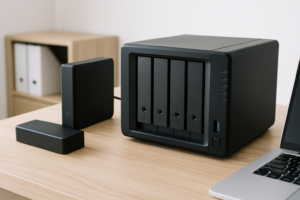
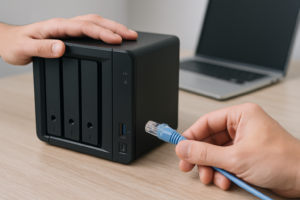
NAS stands for Network Attached Storage. In plain English, it’s a small box with one or more hard drives inside that connects to your home network (usually through your router). Once it’s connected, every device in your house, your laptop, your phone, your smart TV, can access the files stored on it.
Think of it like your own personal cloud. You get the convenience of accessing files from anywhere without paying monthly fees to Google, Apple, or Dropbox. Your data stays in your house, on your hardware, under your control.
A NAS typically runs its own operating system (Synology’s DiskStation Manager and QNAP’s QTS are the two most popular). This means it can do more than just store files. It can run a media server, handle automatic backups from every computer in your house, sync photos from your phone, and even host security camera footage.
Who Actually Benefits from a NAS?
A NAS isn’t for everyone. If you have a single laptop and store everything in iCloud, you’re probably fine. But certain people will get enormous value from one.
- Families with multiple devices. If your household has several laptops, tablets, and phones, a NAS gives everyone a central place to store and share files. Family photos, home videos, important documents: all in one spot, accessible from any device.
- Photographers and videographers. If you’re generating gigabytes (or terabytes) of media files, cloud storage gets expensive fast. A NAS with large-capacity drives gives you massive local storage. For help choosing between drive types, our guide on SSD vs HDD covers the tradeoffs.
- Anyone serious about backups. A NAS can automatically back up every computer in your home on a schedule. If you’ve ever lost files to a dead drive (and haven’t read up on how to recover data from a failed external drive), you know how painful that is.
- Home media enthusiasts. Want to run Plex or Jellyfin and stream your movie collection to any TV in the house? A NAS handles that beautifully.
- Remote workers. If you need to access large files from home and the office (or while traveling), a NAS with remote access configured gives you that flexibility without third-party subscriptions.
If you’re weighing whether local storage or cloud subscriptions make more sense for your budget, we did a full breakdown in our cloud backup vs local NAS cost comparison.
What Does It Cost to Get Started?
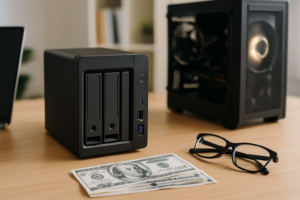
A basic NAS setup has two components: the enclosure (the box itself) and the drives you put in it.
For beginners, a 2-bay NAS is the sweet spot. The Synology DS224+ is the most recommended starter unit for good reason. Synology’s software is intuitive, the mobile apps work well, and the community support is excellent. You can start with one drive and add a second later.

Synology DS224+ 2-Bay NAS
The best beginner NAS for most people, with excellent software and easy setup.
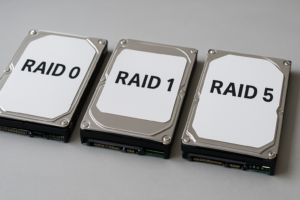
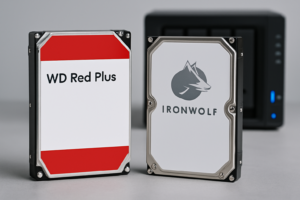
For drives, NAS-rated hard drives are designed to run 24/7 without overheating or failing prematurely. The Seagate IronWolf 4TB and WD Red Plus 4TB are both popular choices. A pair of 4TB drives gives you plenty of room to grow, and if you configure them in RAID 1, one drive mirrors the other for redundancy. Our RAID 0 vs RAID 1 guide explains which configuration makes sense for your situation.
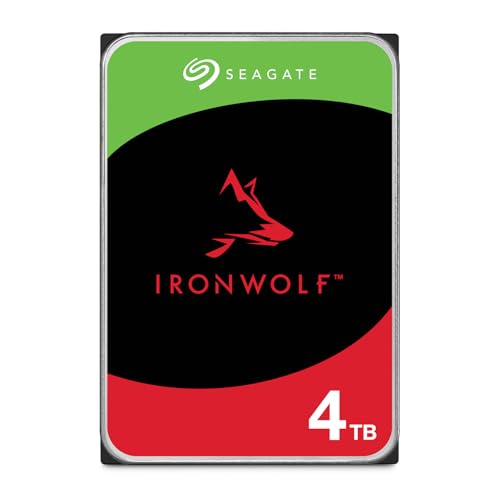
Seagate IronWolf 4TB NAS Hard Drive
Purpose-built for NAS use with vibration resistance and 24/7 reliability.
Once your NAS is up and running, you can set up automated backups in about 30 minutes and forget about manual file management for good.
Frequently Asked Questions
Can I access my NAS files when I’m away from home?
Yes. Both Synology and QNAP offer free apps and services (like Synology’s QuickConnect) that let you access your NAS remotely over the internet. You don’t need to configure port forwarding or mess with your router settings, though more advanced users can set up a VPN for added security.
Is a NAS the same as just plugging in an external hard drive?
Not quite. An external drive connects to one computer at a time over USB. A NAS connects to your entire network, so multiple people and devices can read and write files simultaneously. It also runs its own software, which means it can handle tasks like media streaming, automatic backups, and file syncing independently, even when your computer is turned off.
This article contains affiliate links. We may earn a small commission at no extra cost to you.

James Kennedy is a writer and product researcher at Drives Hero with a background in IT administration and consulting. He has hands-on experience with storage, networking, and system performance, and regularly improves and optimizes his home networking setup.