UHS-I vs UHS-II SD Cards: Do You Need the Faster Option?
You’re shopping for a new SD card, and you keep seeing UHS-I and UHS-II plastered on the packaging. The price difference between them can be significant, sometimes double or more for the same capacity. But does that extra speed actually translate to a better experience behind the camera, or are you paying a premium for numbers you’ll never use?
I’ve tested both card types across multiple camera bodies and real shooting scenarios. The answer isn’t the same for everyone, and it depends on what you shoot, how you shoot, and what camera you’re using. Let me break it down so you can make a smart buying decision.
Understanding the Bus Speed Difference
Before we get into real-world results, it helps to understand what UHS-I and UHS-II actually mean. These designations refer to the bus interface speed, which is the maximum theoretical data transfer rate between the card and the device reading it.
UHS-I has a maximum bus speed of 104 MB/s. That’s the ceiling, and most UHS-I cards don’t actually hit it in sustained writes. A good UHS-I card will deliver somewhere between 80-95 MB/s read and 60-80 MB/s write in practice.
UHS-II bumps that ceiling up to 312 MB/s. Premium UHS-II cards routinely deliver 250-300 MB/s read speeds and 150-250 MB/s write speeds. You can physically tell a UHS-II card apart by its second row of pins on the back of the card.
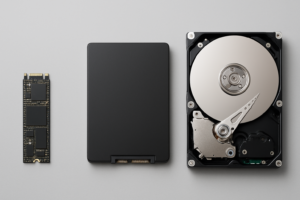
This is similar to how different SSD interfaces create real performance gaps. Just like SATA and NVMe SSDs perform very differently despite both being “SSDs,” UHS-I and UHS-II cards can feel like completely different products depending on your use case.
Real-World Camera Buffer Clearing Tests
Theoretical speeds are nice, but what actually matters is how these cards perform when you’re shooting. I tested buffer clearing times across several common scenarios. Buffer clearing is the time your camera takes to write the images from its internal memory to the SD card after a burst of shots. A faster card means you can get back to shooting sooner.
Burst Shooting (RAW Files)
Using a Sony a7 IV shooting 33 MP RAW files in a continuous burst until the buffer fills (roughly 828 frames in compressed RAW):
- SanDisk Extreme (UHS-I, V30): Buffer cleared in approximately 48 seconds after a full burst
- SanDisk Extreme PRO (UHS-II, V60): Buffer cleared in approximately 18 seconds after the same burst
- Sony TOUGH-G (UHS-II, V90): Buffer cleared in approximately 12 seconds
That’s a massive difference. If you’re a wildlife or sports photographer firing off rapid bursts, waiting 48 seconds versus 12 seconds to resume shooting could mean missing the shot.
4K Video Recording
For video, the story changes. Most cameras shooting 4K at 24/30fps require sustained write speeds of only 30-60 MB/s. A quality UHS-I card with a V30 speed class handles this without breaking a sweat. You won’t see dropped frames or recording errors.
However, if your camera supports 4K 120fps, 8K, or high-bitrate All-Intra codecs, you’ll need the sustained write speeds that only UHS-II V60 or V90 cards can provide. The Panasonic GH7 shooting 5.7K ProRes, for example, absolutely requires a V90 card.
File Transfer to Computer
This is where UHS-II really shines for everyone. Transferring a 64GB card full of photos to your computer takes roughly 11-12 minutes with a UHS-I card and reader, but only about 4-5 minutes with a UHS-II card and a UHS-II compatible reader. If you’re offloading cards daily, that time savings adds up fast. For photographers working with large image libraries, having a fast transfer workflow pairs well with a reliable portable SSD for travel as your backup destination.

SanDisk Extreme PRO UHS-II SD Card 128GB
Our top pick for most photographers: reliable V60 speeds with excellent burst performance across camera bodies
Does Your Camera Even Support UHS-II?
Here’s the most important factor most buyers overlook: your camera must have a UHS-II compatible card slot to take advantage of UHS-II speeds. If you put a UHS-II card into a UHS-I slot, it’ll work perfectly fine, but it’ll be limited to UHS-I speeds. You’ve essentially paid extra for nothing.
Most entry-level and mid-range DSLRs released before 2018 only support UHS-I. Many newer mirrorless cameras do support UHS-II, but you should check your specific model’s specs before buying.
Cameras with UHS-II support (examples):
- Sony a7 IV, a7R V, a9 III
- Canon R5, R6 Mark II, R7
- Nikon Z6 III, Z8, Z9 (CFexpress primary, SD secondary)
- Fujifilm X-T5, X-H2S
- Panasonic GH6, GH7, S5 II
Cameras limited to UHS-I:
- Canon Rebel/EOS series DSLRs (most models)
- Nikon D3xxx and D5xxx series
- Most action cameras (GoPro uses UHS-I in its microSD slot)
- Many older Sony a6xxx models
If your camera only supports UHS-I, save your money and get a quality UHS-I card like the SanDisk Extreme or the Lexar Professional 633x. Both are proven and reliable.
Who Actually Needs UHS-II?
Based on my testing and experience, UHS-II cards genuinely benefit these users:
- Sports and wildlife photographers who shoot long RAW bursts and need the buffer to clear quickly between action sequences
- Wedding and event photographers who can’t afford to wait for buffer clearing when moments happen fast and unpredictably
- Videographers shooting high-bitrate formats like 4K 120fps, 6K, or ProRes/All-Intra codecs that demand V60 or V90 sustained writes
- Anyone who transfers large volumes of files daily and values the time savings during offloading
You probably don’t need UHS-II if you’re a casual photographer shooting JPEGs, a hobbyist who takes single shots rather than bursts, or if you mainly shoot 1080p or standard 4K video. A good V30 UHS-I card will serve you perfectly.

Sony TOUGH-G UHS-II V90 SD Card 128GB
Best for demanding video workflows: V90 rated with write speeds that handle high-bitrate codecs without flinching
Don’t Forget the Card Reader
A detail people frequently miss: to get UHS-II speeds when transferring to your computer, you need a UHS-II compatible card reader. Your old reader almost certainly tops out at UHS-I speeds. The ProGrade Digital Dual-Slot Reader is excellent, and the Kingston MobileLite Plus is a solid budget-friendly option.
Also consider how you’re backing up those files once they’re on your computer. If you’re generating large volumes of photo and video data, a local backup solution can make a huge difference. We compared the economics of cloud backup versus a local NAS for long-term storage costs, and for media-heavy workflows, having a NAS on your network is often the smarter play. You can even set up automated backups to your NAS in about 30 minutes so your photos are protected the moment they hit your hard drive.
My Recommendation
If your camera supports UHS-II and you shoot action, events, or demanding video, get a UHS-II card. The SanDisk Extreme PRO UHS-II in V60 is the best all-around pick for most photographers. It’s fast enough for virtually all stills shooting and handles 4K video at high bitrates with ease. Only step up to a V90 card if your camera’s manual specifically calls for it (or you’re shooting high-frame-rate internal recording).
For everyone else, a quality UHS-I V30 card like the standard SanDisk Extreme remains a great choice. Don’t feel pressured into buying speed you can’t use. Put the savings toward a better lens, more storage, or a backup solution instead.
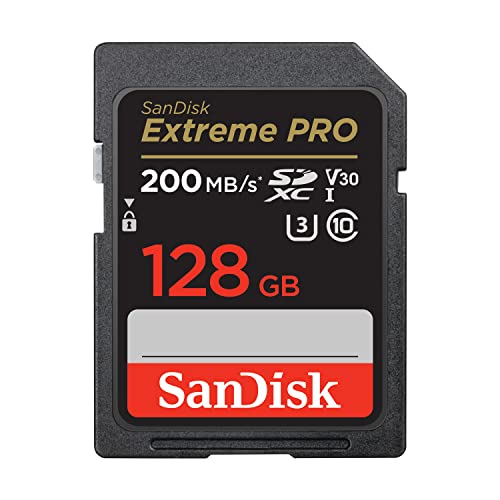
SanDisk Extreme UHS-I V30 SD Card 128GB
Best value for most users: reliable V30 performance that handles standard 4K video and everyday photography without overspending
Frequently Asked Questions
Can I use a UHS-II card in a UHS-I camera slot?
Yes, UHS-II cards are fully backward compatible with UHS-I slots. The card will simply operate at UHS-I speeds. There’s no risk of damage or compatibility issues. You just won’t benefit from the faster bus speed until you upgrade to a camera with a UHS-II slot.
What do the V30, V60, and V90 ratings mean?
The “V” rating stands for Video Speed Class and indicates the card’s minimum sustained write speed in megabytes per second. V30 guarantees

James Kennedy is a writer and product researcher at Drives Hero with a background in IT administration and consulting. He has hands-on experience with storage, networking, and system performance, and regularly improves and optimizes his home networking setup.