RAID 0 vs RAID 1 vs RAID 5: Which RAID Setup Should You Use?
Choosing between RAID 0, RAID 1, and RAID 5 can feel overwhelming, especially when each level promises something different. One prioritizes raw speed, another focuses on keeping your data safe, and the third tries to balance both. Picking the wrong one could mean losing irreplaceable files or leaving performance on the table.
This guide breaks down exactly how each RAID level works, what you gain, what you sacrifice, and which one makes sense for your specific situation.
How Each RAID Level Works
RAID 0: Striping for Pure Speed
RAID 0 splits your data across two or more drives in alternating blocks. When you read or write a file, all drives work simultaneously, which roughly multiplies your throughput by the number of drives in the array.
Drive A:  [Block 1] [Block 3] [Block 5]
Drive B:  [Block 2] [Block 4] [Block 6]
Usable capacity: 100% of total drive space. Two 4TB drives give you 8TB.
Speed: Roughly 2x read/write with two drives.
Redundancy: Zero. If either drive fails, you lose everything.
RAID 0 is the fastest and riskiest option. There’s no safety net at all. If you’ve ever experienced clicking sounds from a failing hard drive, you know how suddenly a drive can die. With RAID 0, that single failure wipes out the entire array.
RAID 1: Mirroring for Maximum Safety
RAID 1 writes identical copies of your data to two (or more) drives simultaneously. Every file exists in duplicate, so if one drive dies, the other has a perfect copy ready to go.
Drive A:  [Block 1] [Block 2] [Block 3]  (complete copy)
Drive B:  [Block 1] [Block 2] [Block 3]  (complete copy)
Usable capacity: 50% of total drive space. Two 4TB drives give you only 4TB.
Speed: Slightly faster reads (the controller can pull from both drives), but writes are the same as a single drive.
Redundancy: Survives one drive failure with zero data loss.
RAID 1 is the simplest form of protection and the easiest to recover from. If you’re building a budget home NAS, RAID 1 with two drives is often the smartest starting point.
RAID 5: Striping with Parity
RAID 5 requires at least three drives. It stripes data across all of them (like RAID 0) but also distributes parity information, a mathematical checksum that can rebuild any single drive’s data if it fails.
Drive A:  [Block 1]  [Block 4]  [Parity C]
Drive B:  [Block 2]  [Parity B] [Block 5]
Drive C:  [Parity A] [Block 3]  [Block 6]
Usable capacity: Total capacity minus one drive. Three 4TB drives give you 8TB.
Speed: Fast reads (striped across drives), slower writes due to parity calculations.
Redundancy: Survives one drive failure. Two simultaneous failures will destroy the array.
RAID 5 hits a sweet spot between storage efficiency and protection, which is why it’s popular in small business servers and multi-bay NAS units.
Quick Comparison Table
| Feature | RAID 0 | RAID 1 | RAID 5 |
|---|---|---|---|
| Min. Drives | 2 | 2 | 3 |
| Usable Space | 100% | 50% | (N-1)/N |
| Read Speed | Excellent | Good | Very Good |
| Write Speed | Excellent | Average | Moderate |
| Drive Failure Tolerance | None | 1 drive | 1 drive |
| Best For | Scratch disks, caches | Critical backups | File servers, NAS |
Which RAID Level Should You Pick?
Choose RAID 0 if you need maximum speed for temporary, replaceable data. Video editors working with scratch files or gamers wanting faster load times from spinning drives are good candidates. Just make sure you have backups elsewhere, because a single drive failure means total data loss.
Choose RAID 1 if protecting your data matters more than anything else and you only have two drive bays. It’s ideal for home NAS setups, small office file shares, and anyone who wants dead-simple redundancy. If you’re just getting started, our NAS setup guide for beginners walks through the whole process.
Choose RAID 5 if you have three or more drives and want a good balance of speed, capacity, and fault tolerance. It’s the go-to for home media servers and small business storage where losing 50% of your capacity to mirroring feels wasteful.
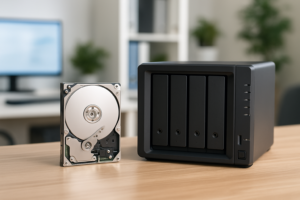
For a multi-bay NAS enclosure that supports all three RAID levels, the Synology DS423 or QNAP TS-464 are excellent choices with flexible RAID configuration built into their software.

Synology 4-Bay DiskStation DS423 NAS
Supports RAID 0, 1, 5, and SHR with an intuitive web interface perfect for home and small business use.
Whichever RAID level you choose, remember that RAID is not a backup. It protects against drive failure, not accidental deletion, ransomware, or fire. You should still maintain a separate backup strategy. For a deeper look at the costs of different approaches, check out our cloud backup vs. local NAS cost comparison. And once you’ve set up your NAS, automating your backups takes under 30 minutes.
Frequently Asked Questions
Can I use SSDs in a RAID array instead of hard drives?

James Kennedy is a writer and product researcher at Drives Hero with a background in IT administration and consulting. He has hands-on experience with storage, networking, and system performance, and regularly improves and optimizes his home networking setup.