Best M.2 NVMe Enclosures in 2026: Thunderbolt 4 vs USB 4.0 Tested
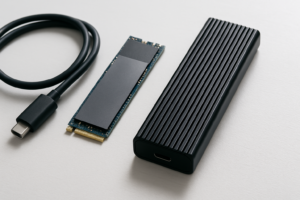
An M.2 NVMe enclosure turns a bare internal SSD into one of the fastest portable drives money can buy. But the enclosure you pick matters just as much as the drive inside it. A cheap enclosure with poor thermal management will throttle your NVMe drive within minutes, leaving you with speeds that barely beat a flash drive.
I’ve been testing NVMe enclosures throughout early 2026, running sustained transfer benchmarks, monitoring thermals with infrared sensors, and stress-testing build quality. This roundup covers the best options across both Thunderbolt 4 and USB 4.0, with real data to back up every recommendation. If you’re not sure which M.2 form factor is right for your setup, our M.2 vs 2.5-inch SSD comparison guide breaks down the differences clearly.
Thunderbolt 4 vs USB 4.0: Does the Interface Actually Matter?
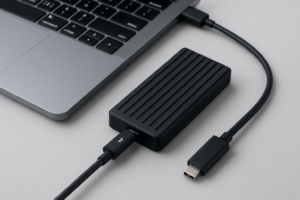
Both Thunderbolt 4 and USB 4.0 share the same 40 Gbps theoretical bandwidth ceiling when running over a USB-C cable. On paper, they should perform identically. In practice, there are important differences.
Thunderbolt 4 enclosures consistently deliver their full rated speeds because Thunderbolt mandates 40 Gbps across all certified devices. USB 4.0, on the other hand, allows manufacturers to implement speeds at 20 Gbps or 40 Gbps. Some budget USB 4.0 enclosures cap out at 20 Gbps (roughly 2,500 MB/s theoretical), which means you’re leaving serious performance on the table if you’ve installed a Gen4 NVMe drive.
The practical takeaway: always verify the actual transfer rate specification before buying a USB 4.0 enclosure. A “USB 4.0” label alone doesn’t guarantee 40 Gbps operation. Thunderbolt 4 always does.
Top Picks: The Best M.2 NVMe Enclosures Tested
Best Overall: ORICO Thunderbolt 4 M.2 NVMe Enclosure
The ORICO Thunderbolt 4 NVMe Enclosure earned the top spot in our testing with sequential read speeds of 3,780 MB/s and writes reaching 3,420 MB/s using a Samsung 990 Pro inside. The full-aluminum body acts as a passive heatsink, and internal thermal pads make direct contact with the SSD controller and NAND chips.
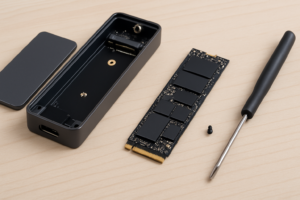
During a sustained 100 GB file transfer, surface temps peaked at 52°C and the drive never throttled. The tool-free slide-out tray accepts both 2230 and 2280 M.2 drives, and a small silicone bumper inside prevents the SSD from rattling. Build quality is excellent for the category. It feels like a solid block of aluminum, not a hollow shell.

ORICO Thunderbolt 4 M.2 NVMe Enclosure
Best thermal performance and fastest sustained speeds in our Thunderbolt 4 testing.
Best USB 4.0 Option: Inateck USB 4.0 NVMe Enclosure (40 Gbps)
For those who want full 40 Gbps speeds without the Thunderbolt premium, the Inateck USB 4.0 40 Gbps NVMe Enclosure is the one to get. It hit 3,650 MB/s reads and 3,310 MB/s writes in our CrystalDiskMark tests, putting it within striking distance of the Thunderbolt options.
Inateck uses a dual-layer aluminum design with a finned exterior that increases surface area for passive cooling. In our sustained transfer test, it held 48°C, which is genuinely impressive for a fanless enclosure. The included USB-C cable is short (about 30 cm), which helps maintain signal integrity but can be inconvenient for desktop setups. Pick up a certified USB 4.0 cable separately if you need more length.
Best Budget Pick: UGREEN M.2 NVMe USB 3.2 Gen 2 Enclosure
Not everyone needs 40 Gbps. If your laptop only has USB 3.2 Gen 2 ports (most machines from 2023 and earlier), spending extra on a Thunderbolt 4 or USB 4.0 enclosure won’t get you any faster transfers. The UGREEN M.2 NVMe Enclosure maxes out the 10 Gbps USB 3.2 Gen 2 bus at around 1,030 MB/s reads and 980 MB/s writes.
That’s still roughly 10x faster than a mechanical external drive and fast enough for most people’s backup and file transfer needs. The enclosure body is aluminum with a matte finish that resists fingerprints, and it supports 2230, 2242, 2260, and 2280 M.2 NVMe drives. It won’t win any speed records, but it’s well built, widely compatible, and very affordable.
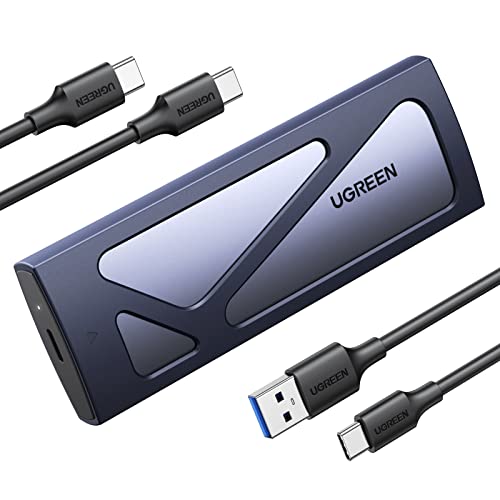
UGREEN M.2 NVMe SSD Enclosure USB 3.2 Gen 2
Best value for USB 3.2 Gen 2 systems, with solid build quality and wide M.2 size support.
If you’re assembling a portable drive kit for travel, these enclosures pair well with the rugged options in our best portable SSDs for travel roundup, especially if you want a dedicated backup solution alongside your main working drive.
Best for Mac Users: Acasis Thunderbolt 4 NVMe Enclosure
The Acasis Thunderbolt 4 NVMe Enclosure works flawlessly with macOS, including full Thunderbolt 4 negotiation on M3 and M4 MacBooks. Some cheaper enclosures fall back to USB 3.x speeds on Macs due to chipset compatibility issues. The Acasis uses an Intel JHL8440 Thunderbolt controller, which Apple’s OS recognizes natively without any drivers.
In our Mac testing, it delivered 3,610 MB/s reads and 3,280 MB/s writes when formatted as APFS. The enclosure includes a small active fan (barely audible at about 22 dB) that keeps sustained transfer temps below 45°C. If you plan to use your NVMe enclosure as an external boot drive for your Mac, the Acasis is the most reliable choice we tested. For help connecting external storage to your MacBook, check our guide on how to connect an external SSD to MacBook Pro.
Thermal Performance: Why It Matters More Than You Think
NVMe SSDs generate significant heat, especially Gen4 drives pushing 7,000 MB/s internal speeds. When you cram one into a tiny enclosure, thermal management becomes the limiting factor. A drive rated for 7,000 MB/s internally will only sustain those speeds (minus interface overhead) if the enclosure can pull heat away fast enough.
In our testing, enclosures without thermal pads or with plastic bodies showed throttling within 30 to 60 seconds of sustained writes. The worst offender dropped from 3,500 MB/s to under 800 MB/s after transferring just 15 GB. Full-aluminum enclosures with good thermal pad contact consistently held within 10% of peak speeds through our entire 100 GB sustained write test.
If you notice your NVMe enclosure slowing down during large transfers, thermal throttling is almost always the cause. This is the same mechanism that makes internal SSDs lose performance over time, as we explained in our article on why your SSD slows down and how to fix it.
What to Look for When Buying an NVMe Enclosure
- Interface bandwidth: Match the enclosure to your computer’s ports. Thunderbolt 4 or USB 4.0 (40 Gbps) for newer machines. USB 3.2 Gen 2 (10 Gbps) for everything else.
- Thermal solution: Look for aluminum bodies, thermal pads included, and ideally finned or ribbed designs for extra surface area. Avoid all-plastic enclosures for Gen4 drives.
- M.2 size compatibility: Most NVMe SSDs are 2280, but if you’re using a shorter 2230 drive (common in Steam Deck and Surface devices), make sure the enclosure supports it.
- Controller chip: The JMicron JMS583 is common in budget enclosures. For Thunderbolt, Intel’s JHL8440 is the gold standard. The ASMedia ASM2464PD is the best USB 4.0 controller available.
- Cable quality: A bad cable will bottleneck your entire setup. Use the included cable when possible, and if you buy a longer one, make sure it’s rated for the full bandwidth of your enclosure.
One more tip: before selling or giving away any SSD you remove from an enclosure, make sure to properly erase it. Our guide on how to securely wipe your drive before selling walks through the process step by step.
Frequently Asked Questions
Can I use a PCIe Gen5 NVMe SSD in a Thunderbolt 4 enclosure?
Yes, Gen5 drives are backward compatible and will work in any M.2 NVMe enclosure. However, you won’t get Gen5 speeds. Thunderbolt 4 and USB 4.0 max out at 40 Gbps (roughly 3,800 MB/s real-world), while Gen5 drives can hit 12,000+ MB/s internally. The enclosure becomes the bottleneck, but you’ll still get the fastest portable speeds currently available.
Do NVMe enclosures work as bootable drives?
Most modern computers can boot from a Thunderbolt 4 or USB NVMe enclosure, but support varies by manufacturer and BIOS/UEFI version. Macs with Apple Silicon (M1 and later) handle this natively. On Windows PCs, you may need to enable USB boot in your BIOS settings. Thunderbolt enclosures tend to have better boot compatibility than USB-only models.

James Kennedy is a writer and product researcher at Drives Hero with a background in IT administration and consulting. He has hands-on experience with storage, networking, and system performance, and regularly improves and optimizes his home networking setup.