Best Thunderbolt Docking Stations with Built-In Storage Bays
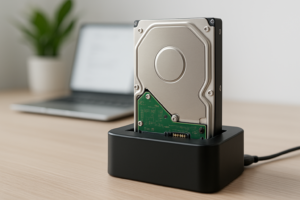
If you’re tired of juggling a rats’ nest of cables, adapters, and loose external drives every time you sit down at your desk, a Thunderbolt docking station with a built-in storage bay might be exactly what your setup needs. These docks combine port expansion and local storage into a single unit, giving you fast NVMe or SATA access right where you plug in your laptop.
I’ve spent time evaluating the best options on the market, and the differences between them matter more than you’d think. Here’s what to look for and which models deserve your attention.
Why a Dock With Built-In Storage Makes Sense
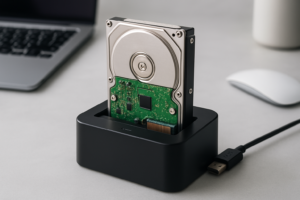
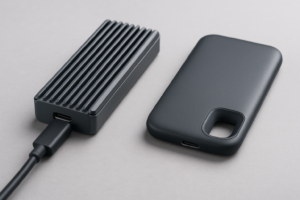
Most creative professionals and power users already have a Thunderbolt dock on their desk. And most of them also have at least one external SSD sitting next to it. A dock with an integrated NVMe or SATA bay eliminates that extra device entirely. One cable to your laptop handles power delivery, display output, USB peripherals, networking, and fast local storage.
This is especially useful for video editors working with large project files, developers managing containers and VMs, or anyone who wants a dedicated local backup target. If you’re weighing local storage against cloud options, our cost comparison of cloud backup vs. local NAS breaks down the financial side of that decision.
Top Thunderbolt Docking Stations With Storage Bays
OWC Thunderbolt Go Dock (with Built-In SSD Slot)
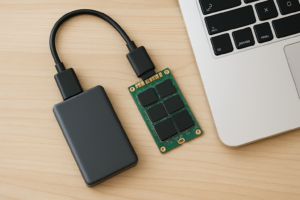
OWC has long been a favorite among Mac users, and the OWC Thunderbolt Go Dock delivers a solid mix of portability and connectivity. It features an M.2 NVMe slot accessible from the bottom of the unit, 11 ports including HDMI, USB-A, USB-C, Ethernet, and an SD card reader, plus up to 96W of power delivery. The NVMe bay supports standard 2280 drives, so you can drop in whatever capacity you need. If you’re unfamiliar with the M.2 form factor, our M.2 vs 2.5-inch SSD comparison guide is a helpful primer.

OWC Thunderbolt Go Dock
Excellent all-rounder with M.2 NVMe bay, 11 ports, and strong Mac compatibility.
Satechi Thunderbolt 4 Dock with NVMe Enclosure
The Satechi Thunderbolt 4 Dock is a sleek aluminum unit that fits right in with Apple hardware. It includes a tool-free M.2 NVMe slot, dual Thunderbolt 4 downstream ports, USB-A 3.2, Gigabit Ethernet, and UHS-II SD/microSD readers. Display support covers dual 4K or single 8K output. The NVMe bay runs over USB 3.2 Gen 2 internally, so you’ll see speeds around 10 Gbps rather than full Thunderbolt bandwidth on the storage side. For most workflows, that’s still plenty fast.
Ugreen Thunderbolt 4 Docking Station with SSD Enclosure
Ugreen has been quietly making some of the best value docks available. Their Thunderbolt 4 model with SSD enclosure includes a built-in M.2 NVMe/SATA combo bay (supporting both protocols), triple display output, and 16 ports total. It also offers 98W power delivery. The combo bay is a nice touch because you can use an older SATA M.2 drive you already own, or upgrade to NVMe whenever you’re ready. Check Amazon for current pricing, as Ugreen’s docks are typically competitive in this category.

Ugreen Thunderbolt 4 Docking Station SSD Enclosure
Best value pick with NVMe/SATA combo bay and 16 ports including triple display support.
What to Look for When Choosing
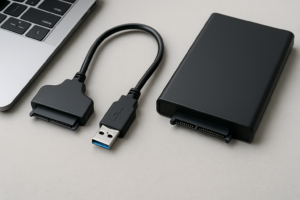
- NVMe vs. SATA bay: NVMe bays are faster (up to 10 Gbps+ over USB 3.2 Gen 2). SATA bays max out around 6 Gbps. Some docks support both, which adds flexibility.
- Internal bus speed: Even though the dock connects via Thunderbolt 4 (40 Gbps), the storage bay often runs through an internal USB controller. Check whether the SSD bay uses USB 3.2 Gen 2 (10 Gbps) or a full Thunderbolt channel.
- Power delivery: If you’re running a MacBook Pro 16″ or a power-hungry Windows ultrabook, you’ll want at least 90W PD. Some docks top out at 60W, which may not keep up with heavy workloads.
- Display outputs: Confirm the dock supports your monitor setup. Dual 4K@60Hz is standard; single 8K or triple display support varies by model.
One important reminder: over time, SSDs can lose performance as they fill up with data. If you notice your dock’s built-in storage getting sluggish, our guide on why SSDs slow down over time and how to fix it covers practical solutions like TRIM and over-provisioning.
And if you ever plan to remove an SSD from one of these docks to repurpose, sell, or recycle it, make sure you securely wipe the drive first to protect your data.
Frequently Asked Questions
Can I use any NVMe SSD in a Thunderbolt dock’s storage bay?
Most docks with M.2 bays support standard 2280-size NVMe drives. Some also accept shorter 2242 or 2230 sizes, but you’ll want to check the dock’s specs. If the bay is labeled “NVMe/SATA combo,” it will work with both M.2 NVMe and M.2 SATA drives. PCIe Gen 4 NVMe drives are compatible, though speeds will be limited by the dock’s internal USB controller, not the drive itself.
Will the built-in SSD bay run at full Thunderbolt speeds?
In most cases, no. The storage bay in these docks typically connects through an internal USB 3.2 Gen 2 controller, capping transfer speeds around 10 Gbps (roughly 1,000 MB/s real-world). That’s fast enough for video editing scratch disks, Time Machine backups, and large file transfers, but it won’t saturate a high-end NVMe drive the way a direct Thunderbolt-to-NVMe enclosure would. For most desk-based workflows, the convenience of integration outweighs the speed tradeoff.

James Kennedy is a writer and product researcher at Drives Hero with a background in IT administration and consulting. He has hands-on experience with storage, networking, and system performance, and regularly improves and optimizes his home networking setup.