USB-to-SATA Adapters vs Full Enclosures: Which Should You Buy?
You’ve got a bare internal drive sitting on your desk, maybe pulled from an old laptop or bought on sale, and you need a way to connect it to your computer over USB. Two products exist for this exact purpose: a simple USB-to-SATA adapter cable and a full hard drive enclosure. They both technically do the same thing, but the experience of using each one is very different.
Choosing the wrong one can mean a drive that overheats, gets knocked off your desk and dies, or a setup that’s way more bulky than it needs to be. I’ve used both options extensively for drive cloning, data recovery, backups, and everyday portable storage. Here’s how they actually compare and which one makes sense for your situation.
What Each Option Actually Is
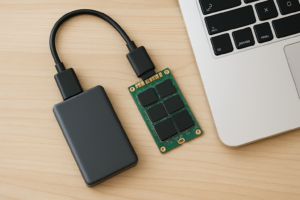
A USB-to-SATA adapter is essentially a cable with a SATA connector on one end and a USB plug on the other. Some look like a small circuit board with exposed connectors, while others are a simple dock-style cable. You plug your bare 2.5-inch or 3.5-inch drive directly into the SATA end, connect the USB end to your computer, and you’re good to go. The drive sits exposed on your desk with no protective housing.
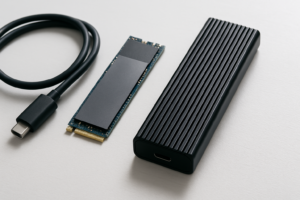
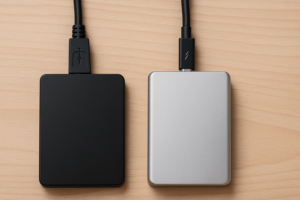
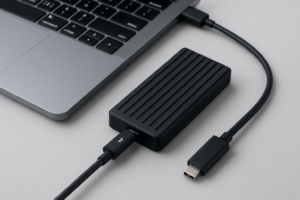
A full enclosure is a protective case (usually plastic or aluminum) that your drive slides into. It has the same USB-to-SATA bridge chip inside, but the drive is fully enclosed and protected. Once assembled, it looks and functions just like any retail external hard drive. Most 2.5-inch enclosures are tool-free, meaning you just snap them together without a screwdriver.
Convenience: Adapters Win for Quick Jobs
If you’re doing one-off tasks like cloning a hard drive, pulling files off an old laptop drive, or securely wiping a drive before selling it, an adapter cable is the faster option. There’s no assembly. You plug the drive in, do your work, and disconnect. The whole process takes seconds.
Adapters are also better when you’re working with multiple drives. IT professionals and data recovery specialists often swap through a dozen drives in a session. Popping drives on and off a bare adapter is much faster than sliding them in and out of enclosures. The Sabrent USB 3.0 to SATA adapter is one of the most popular options here, and it handles both 2.5-inch and 3.5-inch drives reliably.

Sabrent USB 3.0 to SATA Adapter
A reliable, widely compatible adapter that works with both 2.5-inch and 3.5-inch SATA drives for quick connections.
Enclosures require a bit more effort up front. You need to open the case, seat the drive on the connector, close it back up, and sometimes tighten a screw. It’s not difficult, but when you’re cycling through multiple drives, those extra minutes add up.
Protection: Enclosures Win for Everyday Use
Here’s where enclosures pull ahead significantly. A bare drive sitting on an adapter cable is completely exposed. One bump off the edge of a desk, one coffee spill, or one accidental yank on the cable and you could be looking at a dead drive. If you’ve ever dealt with clicking sounds from a damaged hard drive, you know that’s not a situation you want to create.
An enclosure wraps the drive in a protective shell that absorbs minor impacts, shields against dust, and keeps the SATA connector from wiggling loose. For any drive you plan to carry around, store on a shelf as a backup, or leave connected to your desk for ongoing use, an enclosure is the only responsible choice.
Aluminum enclosures offer another benefit: passive cooling. Metal cases act as a heatsink, drawing heat away from the drive. This matters more than you’d think, especially for HDDs that generate more heat than SSDs during sustained read/write operations. The ORICO aluminum 2.5-inch enclosure is a solid pick that keeps drives cool without adding much bulk.

ORICO 2.5 inch Aluminum USB 3.0 Hard Drive Enclosure
Affordable aluminum enclosure with good thermal dissipation, tool-free design, and UASP support for faster transfers.
Speed: It Depends on the Bridge Chip
Both adapters and enclosures use a USB-to-SATA bridge chip to translate between the two interfaces, and your transfer speeds depend almost entirely on which chip is inside. A cheap adapter with an outdated chipset can bottleneck even a fast SSD. A quality enclosure with an ASMedia ASM235CM or JMicron JMS583 chip will let your drive perform closer to its potential.
For 2.5-inch SATA SSDs, look for adapters or enclosures that support UASP (USB Attached SCSI Protocol). UASP significantly reduces CPU usage during transfers and can boost speeds by 20-30% compared to the older BOT (Bulk Only Transport) protocol. Most modern USB 3.0 and USB 3.1 products support UASP, but double-check the specs before buying.
If you’re connecting a SATA SSD via USB 3.0, expect real-world speeds around 400-450 MB/s with UASP enabled. USB 3.1 Gen 2 (10 Gbps) enclosures can push that closer to the SATA III ceiling of roughly 550 MB/s. For traditional HDDs, the USB interface won’t be a bottleneck regardless of which option you choose, since mechanical drives top out well below USB 3.0’s bandwidth. If you’re noticing your SSD isn’t performing as expected, it might be worth checking out why SSDs slow down over time and how to fix it.
Which Should You Buy? Recommendations by Use Case
Your choice should be based on what you’re actually doing with the drive. Here’s my breakdown:
Buy an adapter if:
- You’re doing data recovery or drive cloning. Quick access to bare drives is what matters, not long-term protection.
- You’re testing or diagnosing drives. Adapters let you swap drives in seconds without fiddling with enclosures.
- You need a one-time file transfer. Pulling photos off an old laptop drive doesn’t require a permanent setup.
- You work with multiple drives regularly. A docking station-style adapter is even better for this workflow.
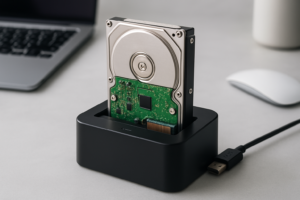
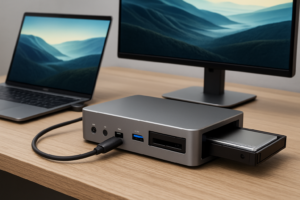
For anyone juggling multiple drives frequently, a dual-bay docking station from Inateck combines the convenience of an adapter with the stability of a proper dock. You just drop drives in from the top.
Buy an enclosure if:
- You’re turning an internal drive into a portable external drive. This is the classic use case, and enclosures are built for it.
- You’re creating a dedicated backup drive. A protected drive is essential for something you’ll rely on when things go wrong. Consider pairing it with automated backups to a NAS for even better coverage.
- You want something to travel with. Exposed drives and adapter cables don’t survive well in a backpack.
- You plan to leave the drive connected long-term. Enclosures look cleaner on a desk and keep the drive cooler.

Inateck USB 3.0 Dual Bay Hard Drive Docking Station
Ideal for IT pros or anyone who frequently swaps between multiple 2.5-inch and 3.5-inch SATA drives.
My overall recommendation
If you can only buy one, get an enclosure. Most people end up using their repurposed drive as ongoing storage, and an adapter cable just isn’t practical for that. An enclosure gives you a complete, finished product that protects your data and looks decent sitting next to your monitor. If your drive ever stops being recognized, having a stable enclosure also makes troubleshooting connection issues much easier, since you can rule out loose cables and bad contacts.
For power users and tech workers, keep a cheap adapter cable in your toolkit alongside an enclosure or two. They serve different purposes, and both are affordable enough that owning one of each makes sense.
Frequently Asked Questions
Can I use a USB-to-SATA adapter with a 3.5-inch desktop hard drive?
Yes, but you’ll need an adapter that includes external power. 2.5-inch laptop drives can pull enough electricity through USB, but 3.5-inch desktop drives require a separate 12V power supply. Most adapter kits designed for 3.5-inch drives include an AC adapter in the box. Check the product listing carefully, because many budget adapters only support 2.5-inch drives.
Will an enclosure slow down my SSD compared to installing it internally?
Slightly, yes. An internal SATA SSD connected directly to your motherboard can hit the full 550 MB/s of SATA III. Through a USB 3.0 enclosure, you’ll typically see 400-450 MB/s. With USB 3.1 Gen 2, you’ll get much closer to full speed. For most tasks like file transfers, backups, and media playback, you won’t notice the difference. Gaming and OS boot times are where the gap becomes more apparent.
Do USB-to-SATA adapters work for drive cloning?
Absolutely. Connecting a bare drive via a USB-to-SATA adapter is one of the most common methods for cloning. Software like Macrium Reflect, Clonezilla, and Samsung Data Migration will all recognize a drive connected through USB. Just make sure you’re using a USB 3.0 or newer adapter so the cloning process doesn’t take hours longer than necessary.
This article contains affiliate links. We may earn a small commission at no extra cost to you.

James Kennedy is a writer and product researcher at Drives Hero with a background in IT administration and consulting. He has hands-on experience with storage, networking, and system performance, and regularly improves and optimizes his home networking setup.