Best Hard Drive Docks for Cloning and Backup
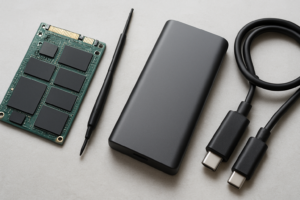
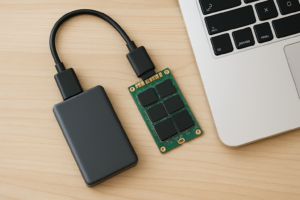
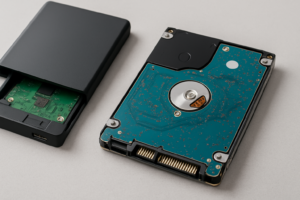
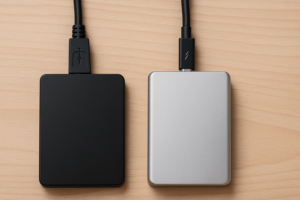
A hard drive dock turns any bare SATA drive into an instantly accessible external drive. Pop a drive in, read your files, run a backup, or clone an entire disk without ever opening your PC. If you’ve got a pile of old drives sitting in a drawer or you regularly swap storage between machines, a quality docking station is one of the most useful tools you can own.
But not all docks are created equal. Some offer standalone cloning without a computer, others include built-in drive diagnostics, and multi-bay models let you work with several drives at once. Here’s what actually matters when picking one, along with specific models worth your money.
Best Single-Bay Dock: Keep It Simple
If you just need to access bare drives occasionally, read data off old HDDs, or run quick backups, a single-bay USB 3.0 dock is all you need. These are compact, affordable, and work with both 2.5-inch and 3.5-inch SATA drives.
The Sabrent USB 3.0 SATA Docking Station is a solid budget pick. It’s tool-free, supports drives up to 16TB, and transfers data at USB 3.0 speeds (up to 5 Gbps). For most people doing occasional drive access or running backup software, this gets the job done without any fuss.
A single-bay dock is also perfect for securely wiping drives before selling or recycling them. Plug the bare drive in, run your wipe utility, and you’re done in minutes.
Best Dual-Bay Dock with Offline Cloning
This is where docking stations really shine. A dual-bay dock with offline cloning lets you duplicate an entire drive to another drive with the press of a button. No computer, no software, no operating system required. You insert the source drive in one bay, the destination drive in the other, press the clone button, and walk away.
The Inateck Dual-Bay USB 3.0 Docking Station handles offline cloning reliably and supports both HDD and SSD drives. It’s a great middle ground between price and functionality. For a more feature-rich option, the Sabrent Dual-Bay Docking Station with Offline Cloning adds LED progress indicators so you can monitor the clone without guessing.

Sabrent Dual-Bay Docking Station with Offline Cloning
Reliable dual-bay dock with one-button offline cloning, USB 3.0 speeds, and support for drives up to 16TB per bay.
Offline cloning is incredibly useful when you’re migrating from an old hard drive to a new SSD. If you want a deeper walkthrough of the process, our guide on how to clone your hard drive without losing data covers the software side and common pitfalls. Speaking of that upgrade decision, if you’re still weighing whether to go with an SSD or stick with a traditional hard drive, our SSD vs HDD comparison breaks down the real-world differences.
Best Multi-Bay Dock for Backup Workflows and Drive Testing
IT professionals, data hoarders, and anyone managing multiple drives should consider a four-bay station. These let you access several drives simultaneously, which is ideal for consolidating data from old machines, running batch backups, or testing drives for errors before deploying them.
The Sabrent 4-Bay Docking Station (DS-4SSD) supports four drives at once with independent access to each. You can copy files between bays, run diagnostics with tools like CrystalDiskInfo, or use backup software to image multiple drives in a single session.

Sabrent 4-Bay Hard Drive Docking Station
Four independent bays for managing multiple drives simultaneously, perfect for IT workflows, batch backups, and drive diagnostics.
For drive testing, dock your drive and use free tools like CrystalDiskInfo (for SMART data) or HD Tune (for surface scans). This is especially useful if you’re hearing clicking sounds from a hard drive and want to check its health before trusting it with important data. A multi-bay dock also pairs well with a NAS-based backup strategy. If you’ve been thinking about setting up automated backups to a NAS, a dock gives you a fast way to prepare and test drives before slotting them into your NAS enclosure.
What to Look for When Buying a Hard Drive Dock
- USB 3.0 or USB-C: USB 3.0 (5 Gbps) is the minimum. USB-C or USB 3.1 Gen 2 (10 Gbps) models are faster, especially for SSD cloning.
- Offline cloning: If you want to clone drives without a PC, make sure this feature is explicitly listed. Not all dual-bay docks include it.
- Drive size support: Most docks handle both 2.5-inch and 3.5-inch SATA drives. Confirm capacity limits if you’re using large 16TB+ drives.
- UASP support: This protocol boosts transfer speeds on compatible systems. Most modern docks include it, but double-check on budget models.
- Build quality: A dock with a solid base and snug drive fit prevents accidental disconnections during long clone operations.
Frequently Asked Questions
Can I clone a larger drive to a smaller drive using a docking station?
With offline (hardware) cloning, the destination drive must be equal to or larger than the source drive. The dock copies sector by sector and doesn’t know which sectors contain actual data. If you need to clone to a smaller drive, you’ll need software-based cloning (like Macrium Reflect or Clonezilla) connected through the dock to your PC, which can intelligently resize partitions during the process.
Do hard drive docks work with SSDs?
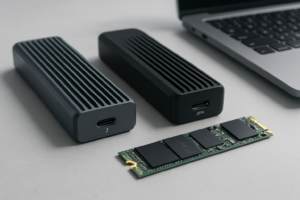
Yes. Any 2.5-inch SATA SSD works in a standard docking station, and you’ll actually see faster transfer and clone speeds compared to mechanical hard drives. Keep in mind that M.2 NVMe SSDs use a different connector and won’t fit in a standard SATA dock. You’d need an M.2-specific dock or adapter for those.
This article contains affiliate links. We may

James Kennedy is a writer and product researcher at Drives Hero with a background in IT administration and consulting. He has hands-on experience with storage, networking, and system performance, and regularly improves and optimizes his home networking setup.