Google Drive vs OneDrive vs Dropbox vs iCloud: Which Cloud Storage Is Best?
Picking a cloud storage service feels like choosing a phone carrier. They all promise the same thing, they all have annoying fine print, and switching later is a pain. Google Drive, OneDrive, Dropbox, and iCloud each have real strengths, but they also have blind spots that could waste your money or leave you frustrated.
I’ve used all four extensively across personal and work setups. After comparing their free tiers, paid plans, file-sharing features, platform compatibility, and real-world performance, I have clear opinions on which one you should pick based on what you actually need. Let’s break it all down.
Free Storage: What You Get Without Paying a Dime
Every cloud service offers a free tier, but the generosity varies wildly. Google Drive gives you 15 GB free, which sounds great until you realize that’s shared across Gmail, Google Photos, and Drive itself. If you’ve had a Gmail account for years, you might already be bumping up against that limit.
OneDrive offers 5 GB free. It’s modest, but Microsoft sometimes runs promotions that bump this up. Dropbox is the stingiest of the group with just 2 GB free, which is barely enough for a handful of documents. iCloud also starts at 5 GB, and considering your iPhone backups eat into that allowance, it fills up fast.
Winner for free storage: Google Drive, by a wide margin. 15 GB is three times what most competitors offer, and it’s genuinely usable for lightweight needs.
Paid Plans and Value Comparison
Free storage only gets you so far. Most people eventually need to upgrade, and this is where the pricing structures diverge significantly.
Google One
Google’s paid storage plans come under the Google One brand. You can get 100 GB, 200 GB, or 2 TB tiers. The 2 TB plan includes a VPN, extra Google Photos editing features, and the ability to share storage with up to five family members. For the price, the 2 TB tier is one of the best values in cloud storage.
Microsoft 365 (OneDrive)
Microsoft bundles OneDrive storage with its Office suite, which makes it an unusual value proposition. The Microsoft 365 Personal plan includes 1 TB of OneDrive storage plus full access to Word, Excel, PowerPoint, and Outlook. The Family plan bumps that to 6 TB total (1 TB per person, up to six users). If you already need Microsoft Office, this bundled approach is extremely compelling because you’re essentially getting cloud storage as a bonus.
Dropbox
Dropbox Plus gives you 2 TB of storage, and Dropbox Professional bumps that to 3 TB with extra features like Smart Sync and full-text search. Dropbox tends to be the most expensive option per terabyte. The company justifies this with productivity features like Dropbox Paper, document scanning, and electronic signatures, but casual users probably won’t find enough value to justify the premium.
iCloud+
Apple’s paid iCloud+ plans come in 50 GB, 200 GB, and 2 TB tiers. All paid tiers include iCloud Private Relay (a limited VPN-like feature for Safari), Hide My Email, and custom email domain support. Family Sharing lets you split storage with up to five other people. The pricing is competitive, though Apple recently added 6 TB and 12 TB tiers for power users and professionals who keep massive photo and video libraries.
Winner for paid value: Microsoft 365, if you need Office apps. The bundled deal is unmatched. For pure storage value, Google One’s 2 TB plan is the best standalone option.
Platform Compatibility and Ecosystem Lock-In
This is where things get personal, and where most people should start when making their decision.
Google Drive works well everywhere. It has native apps for Windows, macOS, Android, and iOS, plus a strong web interface. Google’s productivity suite (Docs, Sheets, Slides) runs entirely in the browser, so you can access your work from virtually any device. It’s the most platform-agnostic option.
OneDrive is deeply baked into Windows 10 and 11. It’s pre-installed, integrated into File Explorer, and syncs your Desktop, Documents, and Pictures folders by default. On macOS it works fine but feels like a third-party app. On mobile, it’s solid across both Android and iOS. The tight Windows integration is its biggest selling point, and also its biggest limitation if you’re not on Windows.
Dropbox pioneered the folder-sync model that everyone else copied. It works consistently across all platforms, and its desktop sync client remains the most reliable of the bunch. Dropbox doesn’t have a native productivity suite, but it integrates with Google Docs, Microsoft Office, and dozens of other tools. It’s the best choice if you work across many different platforms and need things to “just work.”
iCloud is designed for Apple users, full stop. On Mac and iPhone, it’s invisible in the best way. Your files, photos, messages, and device backups all sync without thinking about it. On Windows, Apple offers an iCloud app, but it’s historically been buggy and limited. On Android, there’s no native app at all. If you’re an all-Apple household, iCloud is magical. If you use a mix of devices, it’s frustrating.
Winner for cross-platform use: Google Drive. Winner for ecosystem integration: iCloud for Apple users, OneDrive for Windows/Microsoft users.
File Syncing, Sharing, and Collaboration
Cloud storage isn’t just about parking files online. How well the service handles syncing, sharing, and real-time collaboration matters just as much.
Syncing Speed and Reliability
Dropbox consistently leads in sync speed tests. Its block-level sync technology means that when you change part of a large file, only the modified blocks get uploaded rather than the entire file. This makes a noticeable difference when working with large Photoshop files, videos, or databases. Google Drive and OneDrive use full-file syncing for most file types, which can be slower for large files. iCloud’s syncing is generally reliable on Apple devices but can be unpredictable when handling large volumes of files.
Sharing and Collaboration
Google Drive dominates collaborative work. Google Docs, Sheets, and Slides offer real-time collaboration that’s smooth, reliable, and free. You can share files with anyone via link, set granular permissions (view, comment, edit), and track version history for 30 days (or indefinitely on paid plans).
OneDrive pairs with Microsoft 365’s web apps for real-time collaboration on Word, Excel, and PowerPoint files. It’s gotten much better over the years, though the experience still isn’t quite as fluid as Google’s web apps. The desktop versions of Office apps can sometimes cause sync conflicts when multiple people edit simultaneously.
Dropbox offers Dropbox Paper for collaborative documents and integrates with other tools, but it doesn’t have a native office suite. Sharing individual files and folders is simple and clean. iCloud’s sharing features are the most limited of the four. You can share folders and files with other iCloud users, but there’s no real collaborative editing built in.
Winner for collaboration: Google Drive. It’s not even close for team-based work.
Security and Privacy
All four services encrypt your files in transit (TLS) and at rest (AES 256-bit). But there are important differences in how they handle your data and who can access it.
Google scans your files to provide features like search, image recognition in Google Photos, and spam filtering in Gmail. This also means Google’s systems can “see” your content. Microsoft takes a similar approach with OneDrive, scanning files for malware and prohibited content.
Dropbox offers zero-knowledge encryption on its higher-tier business plans, meaning even Dropbox can’t read your files. On consumer plans, though, Dropbox employees can technically access your data in limited circumstances. iCloud uses end-to-end encryption for many categories of data (including iCloud Keychain, Health data, and Messages), and with Advanced Data Protection enabled, nearly everything in iCloud becomes end-to-end encrypted.
Winner for privacy: iCloud with Advanced Data Protection enabled. Apple’s track record on user privacy is the strongest among these four companies.
Regardless of which cloud service you use, keeping local backups is still smart practice. If you’re weighing the costs between keeping everything online versus maintaining local storage, our cloud backup vs. local NAS cost comparison breaks down the real numbers.
Offline Access and Storage Management
Cloud storage is useless without internet access unless you plan ahead. Each service handles offline access differently.
Google Drive lets you mark specific files and folders as “Available offline” on both desktop and mobile. The desktop app can mirror your entire Drive locally or use file streaming to save space. OneDrive’s “Files On-Demand” feature works similarly, showing placeholder files in File Explorer that download only when you open them. It’s well implemented on Windows.
Dropbox’s Smart Sync (available on Plus and higher plans) works the same way, keeping files as online-only placeholders until you need them. It’s the most polished implementation of this concept. iCloud’s “Optimize Mac Storage” feature automatically offloads older files to the cloud when your local drive fills up, which is convenient but sometimes unpredictable.
If you frequently work offline, consider pairing your cloud storage with a reliable portable drive. A fast external SSD ensures you always have critical files available, even without an internet connection. Check out our list of the best portable SSDs for travel if you want something rugged and quick.

Samsung T7 Shield Portable SSD 1TB
Rugged, fast, and compact enough to keep in your bag as a cloud storage backup for offline access
Which Cloud Storage Should You Actually Pick?
After testing all four services extensively, here’s my opinionated take on who should use what.
Pick Google Drive If…
You’re an Android user, you rely on Google’s productivity apps, or you need the most generous free tier. Google Drive is also the best choice for collaborative work with people outside your organization, since everyone has a Google account. Families benefit from Google One’s family sharing at the 2 TB tier.
Pick OneDrive If…
You’re a Windows user who needs Microsoft Office. The Microsoft 365 bundle is an incredible value, and OneDrive’s deep Windows integration makes it feel like a natural extension of your PC. Students and professionals who live in Excel, Word, and PowerPoint should start here.
Pick Dropbox If…
You work across multiple platforms and need the most reliable syncing experience. Creative professionals who handle large files (video editors, designers, photographers) will appreciate Dropbox’s block-level sync. Dropbox also plays nicely with the most third-party apps and integrations. Just know you’ll pay a premium for it.
Pick iCloud If…
You’re fully in the Apple ecosystem with a Mac, iPhone, iPad, and maybe an Apple Watch. iCloud’s invisible integration across Apple devices is unmatched. If privacy is a top priority, enabling Advanced Data Protection gives you the strongest encryption of any mainstream cloud service. Just be aware that working with non-Apple devices will be a constant friction point.
For Mac users specifically, pairing iCloud with a good external drive covers both your cloud and local backup needs. Our guide to the best external hard drives for Mac can help you find the right match.
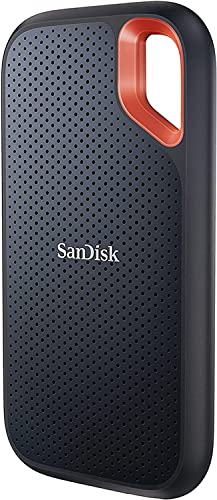
SanDisk Extreme Portable SSD 2TB
Excellent companion to any cloud service for fast local backups of your most important files
The Hybrid Approach: Cloud Plus Local Storage
Here’s what I actually recommend for most people: don’t rely on just one solution. Use cloud storage for convenience, sharing, and anywhere-access, but keep a local backup of your most important files.
Cloud services can change their terms, raise prices, or suffer outages. A single cloud account shouldn’t be the only place your irreplaceable family photos or critical work files live. The 3-2-1 backup rule (three copies, two different media types, one offsite) still holds up.
If you want to take local backups seriously, setting up a NAS at home gives you your own private cloud that you control completely. You can configure automatic backups from your computers and phones, and many NAS devices can even sync with Google Drive, OneDrive, or Dropbox for an extra layer of redundancy.
And before you repurpose an old drive for local backups, make sure you securely wipe it first if it previously held someone else’s data.
Frequently Asked Questions
Can I use multiple cloud storage services at the same time?
Absolutely. Many people use Google Drive for work collaboration, iCloud for phone backups, and Dropbox for specific projects. The only downside is managing multiple apps and remembering where you put things. Tools like MultCloud or native OS features can help you keep track of files across services.
Is cloud storage safe enough for sensitive documents?
All four major providers use strong encryption, but none of them offer zero-knowledge encryption by default on consumer plans (meaning the provider can technically access your files). For truly sensitive documents, consider encrypting files locally with a tool like Cryptomator or Veracrypt before uploading them. iCloud with Advanced Data Protection comes closest to full zero-knowledge on a consumer plan.
What happens to my files if I stop paying for a cloud storage plan?
Your files won’t be deleted immediately. All four services give you a grace period (usually 30 to 90 days) to download your data or renew your plan. After that, they may start deleting files to bring your account back under the free storage limit, typically starting with the most recent uploads. You’ll receive email warnings before any deletions happen.
Which cloud storage is best for backing up photos and videos?
Google Photos (part of Google Drive’s storage) is excellent for photo management with strong search and automatic organization. iCloud Photos integrates perfectly if you’re on Apple devices. For raw video files and large media libraries, Dropbox’s faster sync speeds make uploads less painful. OneDrive also offers a good photo experience with its automatic camera roll backup on mobile.
This article contains affiliate links. We may earn a small commission at no extra cost to you.

James Kennedy is a writer and product researcher at Drives Hero with a background in IT administration and consulting. He has hands-on experience with storage, networking, and system performance, and regularly improves and optimizes his home networking setup.