How to Back Up Photos and Videos to the Cloud Without Overspending
Your phone’s camera roll is probably your most irreplaceable possession. Not the phone itself, but the thousands of photos and videos stored on it. Birthday parties, vacations, your kid’s first steps, that perfect sunset you’ll never see again. Losing them would be devastating, and yet most people’s backup strategy is basically “hope nothing goes wrong.”
Cloud backup solves this problem, but it can also drain your wallet if you’re not careful. Between Google Photos, iCloud, Amazon Photos, and dedicated backup services like Backblaze, the options are overwhelming. I’ve tested all four extensively, and I’m going to break down exactly which one makes sense for your situation and how to keep costs as low as possible.
The Big Four: A Head-to-Head Comparison
Each of these services takes a fundamentally different approach to photo and video backup. Understanding those differences will save you from paying for features you don’t need.
Google Photos
Google Photos gives you 15 GB free, shared across Gmail, Google Drive, and Photos. After that, Google One plans start at 100 GB and scale up to 2 TB. The killer feature here is Google’s AI-powered search. You can type “beach sunset 2023” or “photos with Mom” and it actually finds what you’re looking for. The automatic organization, face recognition, and memory highlights are genuinely impressive.
The catch is that 15 GB fills up fast, especially if you’re also using Gmail heavily. Google used to offer unlimited “high quality” (compressed) photo storage, but that ended in June 2021. Every photo and video now counts against your quota.
iCloud
If you’re deep in the Apple ecosystem, iCloud is the path of least resistance. It integrates directly with the Photos app on your iPhone, iPad, and Mac. The “Optimize iPhone Storage” feature is genuinely useful: it keeps full-resolution originals in the cloud and smaller versions on your device, freeing up local storage automatically.
Apple gives you a meager 5 GB for free, which is borderline useless. iCloud+ plans go up to 12 TB, and family sharing lets up to five people split storage. The downside is that iCloud is heavily Apple-centric. Accessing your photos from a Windows PC or Android device works but feels like an afterthought.
Amazon Photos
This is the sleeper pick that most people overlook. If you have an Amazon Prime membership, you already get unlimited full-resolution photo storage included. Unlimited. No compression, no quality loss, no cap. For photos specifically, this is the best deal going.
Videos, however, are limited to 5 GB on the free/Prime tier, with paid plans available for more. If your library is mostly photos with occasional video clips, Amazon Photos is incredibly hard to beat. The app and web interface aren’t as polished as Google Photos, and the search features lag behind, but free unlimited photo storage at original quality is a major advantage.
Backblaze
Backblaze takes a completely different approach. Instead of syncing specific folders, it backs up your entire computer continuously in the background. Every photo, every video, every document. It’s true backup rather than selective sync, and the pricing is simple: one flat fee per computer, unlimited storage.
For photographers and videographers with massive libraries stored on external drives, Backblaze also backs up connected external drives at no extra charge. If you’re weighing the broader costs of cloud backup versus a local NAS setup, Backblaze often comes out ahead for pure simplicity. The main limitation is that it’s computer-only. There’s no mobile app for backing up your phone’s camera roll directly.
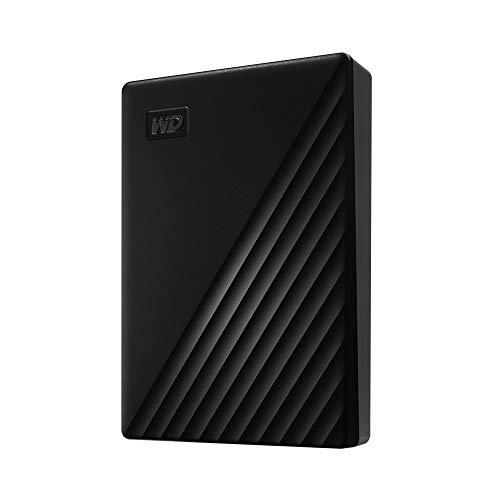
WD My Passport 4TB Portable External Hard Drive
Perfect companion for Backblaze since it backs up connected external drives automatically at no extra cost
Compression and Quality: What You’re Actually Storing
Not all cloud storage is created equal when it comes to what happens to your files after upload. This matters a lot if you care about image quality.
Google Photos offers two upload modes. “Original quality” keeps your files exactly as shot but counts fully against your storage quota. “Storage saver” compresses photos to 16 MP and videos to 1080p, which is fine for casual snapshots but a real problem for anyone who shoots in RAW or records 4K video.
iCloud always stores originals at full quality. No compression, no downsizing. What you upload is what you get back. Amazon Photos also stores photos at original quality with no compression, though video uploads may be subject to some format conversion.
Backblaze stores exact byte-for-byte copies of your files. No processing, no compression, no surprises. For photographers working with RAW files or editors with large ProRes video projects, this is a significant advantage.
My recommendation: if you’re a casual photographer shooting on your phone, Google Photos’ storage saver mode is perfectly fine and stretches your free tier much further. If you shoot RAW or care about archival-quality preservation, stick with Amazon Photos for stills and Backblaze for everything else.
How to Build a Low-Cost Backup Strategy
The smartest approach isn’t picking one service. It’s layering them strategically.
Tier 1: Automatic phone backup. Set up Google Photos or iCloud (depending on your phone) to auto-upload every photo and video you take. This is your safety net for everyday captures. Use the compressed/optimized storage options to stretch your free or low-cost storage.
Tier 2: Full-quality archive. If you have Amazon Prime, install Amazon Photos and configure it to upload originals. This gives you a second copy of every photo at full resolution, at no additional cost beyond your existing Prime membership.
Tier 3: Complete computer backup. Install Backblaze on your main computer where you store and edit your photos. This backs up everything, including files your phone-based cloud services might miss: edited exports, RAW files, video projects, and anything stored on connected external drives.
This three-tier approach gives you redundancy without paying three separate premium subscriptions. Most of the heavy lifting is done by your existing Prime membership and one Backblaze subscription.
Practical Tips to Cut Storage Costs
Beyond choosing the right services, a few habits can dramatically reduce how much storage you actually need.
- Delete duplicates regularly. Apps like Gemini Photos (iOS) or Files by Google (Android) can identify and remove duplicate and blurry photos. Most people have 10-20% duplicate content in their camera rolls.
- Review burst shots. If you use burst mode, you might have 30 nearly identical frames from a single moment. Keep one or two and delete the rest.
- Offload finished videos. Large video files eat storage fastest. Once you’ve edited and exported a final version, consider moving the raw footage to a dedicated backup drive. A 4TB external drive built for video editing gives you fast local access and can be backed up to Backblaze automatically.
- Use HEIF/HEVC formats. Modern phones can shoot in HEIF (photos) and HEVC (video) formats that are roughly 50% smaller than JPEG and H.264 with no visible quality loss. On iPhone, go to Settings > Camera > Formats > High Efficiency. On most Android phones, this is the default.
- Set up automatic cleanup rules. Both Google Photos and iCloud can automatically remove device copies of photos that are safely stored in the cloud, freeing up local phone storage without losing anything.
If you’re running low on storage across devices and considering hardware upgrades, it’s worth understanding the tradeoffs between 1TB and 2TB SSDs before buying a new internal drive for your editing machine.

SanDisk Extreme Portable SSD 2TB
Fast and rugged local backup for photos and video before uploading to the cloud
My Recommendation: Who Should Use What
Casual phone photographers: Google Photos (storage saver mode) plus Amazon Photos if you have Prime. This covers you with zero to minimal monthly cost.
Apple-only households: iCloud+ with family sharing. Split the cost with family members and enjoy the tight integration across all your devices. Supplement with Amazon Photos for a free full-quality backup.
Serious photographers and videographers: Amazon Photos for unlimited original-quality photo backup, plus Backblaze for full computer and external drive backup. This combo covers your phone, your editing workstation, and all connected drives. To keep your editing setup fast, make sure you’re also using an SSD and HDD together effectively on your PC.
Families with mixed devices: Google Photos with Google One family sharing is the most flexible option. Everyone gets their own private storage space, it works on both iOS and Android, and the shared family albums make it easy to collect photos from group events.
Whatever combination you choose, the critical rule is to have at least two copies of your photos in two different places. One cloud service and one local backup is the bare minimum. If your external drive ever fails, knowing how to recover data from a failed external drive could save you, but prevention is always better than recovery.
Frequently Asked Questions
Will uploading photos to the cloud reduce their quality?
It depends entirely on the service and settings you choose. Amazon Photos, iCloud, and Backblaze all store your files at original quality with no compression. Google Photos offers a “storage saver” option that compresses images to 16 MP and caps video at 1080p, but you can also choose “original quality” if you want exact copies. Always check your upload settings before assuming your files are being stored unaltered.
Can I use multiple cloud services at the same time?
Absolutely, and I’d encourage it. Running Google Photos and Amazon Photos simultaneously on your phone gives you two independent cloud backups with minimal effort. Each app uploads in the background, and they don’t interfere with each other. Pairing a phone-based cloud service with Backblaze on your computer adds a third layer of protection for your full library.
What happens to my photos if I cancel a paid cloud storage plan?
Most services won’t delete your files immediately, but they will stop syncing and may prevent you from uploading anything new once you exceed the free tier limit. Google gives you about two years before potentially deleting content on accounts that stay over quota. iCloud gives you 30 days after downgrading to download your files. Amazon Photos reverts to a 5 GB limit if you cancel Prime, but gives you a grace period to download originals. Always download your files before canceling any service.
This article contains affiliate links. We may earn a small commission at no extra cost to you.

James Kennedy is a writer and product researcher at Drives Hero with a background in IT administration and consulting. He has hands-on experience with storage, networking, and system performance, and regularly improves and optimizes his home networking setup.