How Much Cloud Storage Do You Actually Need?
Most people sign up for a cloud storage plan, toss a few folders into it, and then forget about it until they get the dreaded “You’ve run out of storage” notification. At that point, you’re scrambling to upgrade, delete files, or move things around. It’s a frustrating cycle, and it’s completely avoidable with a little upfront planning.
The truth is, figuring out how much cloud storage you need isn’t complicated. But it does require you to think about what you’re actually storing, how fast your data grows, and whether cloud is your primary backup or just one layer in a larger strategy. Let’s break this down so you can pick the right plan and stop paying for space you don’t need, or worse, running out at the worst possible time.
Step 1: Audit What You Already Have
Before you can figure out how much cloud storage you need, you have to know how much data you currently own. This sounds obvious, but most people have never actually checked. Files are scattered across laptops, phones, external drives, and old SD cards stuffed in a drawer.
Start with your main devices. On Windows, right-click your user folder (Documents, Pictures, Videos, Downloads) and check the total size. On Mac, click the Apple menu, go to “About This Mac,” and check the Storage tab. On your phone, head to Settings and look at Storage. Write down each number.
Don’t forget external drives. If you’ve been hoarding photos and videos on an external hard drive, those files count toward your total. Same goes for any NAS devices. A quick folder scan will give you the total in minutes.
Here’s a rough breakdown of common file sizes to help you estimate:
- Documents (Word, PDF, spreadsheets): 1-5 MB each. A thousand documents might take up 2-5 GB total.
- Photos (JPEG, phone camera): 3-8 MB each. 10,000 photos equals roughly 30-80 GB.
- RAW photos (DSLR/mirrorless): 25-60 MB each. 10,000 RAW files can eat 250-600 GB.
- Music files (MP3/AAC): 3-10 MB per song. A library of 5,000 songs runs about 15-50 GB.
- Video (1080p): 1-3 GB per hour of footage.
- Video (4K): 5-15 GB per hour, depending on codec and bitrate.
Add up everything across all your devices. This is your baseline, and it’s the foundation for picking the right plan.
Step 2: Identify What Actually Needs to Be in the Cloud
Just because you have 2 TB of data doesn’t mean all of it needs to live in cloud storage. Some files are critical and irreplaceable (family photos, tax documents, creative projects). Others are easily re-downloadable or disposable (game installers, cached files, old downloads you’ll never open again).
Break your data into three categories:
- Must-backup (irreplaceable): Photos, videos, financial records, work projects, personal documents. These absolutely need cloud protection.
- Nice-to-backup (convenient but replaceable): Music libraries, app installers, system images. You could reconstruct these, but it’d be tedious.
- Skip it (don’t waste space): Downloaded movies you’ve already watched, temporary files, duplicate photos, old cache folders.
Before uploading everything, spend 30 minutes cleaning up. Delete duplicates, empty your trash, and clear out downloads. You’d be surprised how much space you recover. If you’re planning to repurpose or sell an old drive after migrating to the cloud, make sure to securely wipe your drive before selling it to protect your personal data.
For most individuals, the “must-backup” category alone determines the minimum cloud plan you need. Everything else is a bonus if your plan has room.
Step 3: Factor In Your Growth Rate
Your storage needs today won’t match your needs in a year. Data accumulates faster than most people realize, especially as phone cameras keep improving and file sizes keep climbing. A modern iPhone or Samsung flagship shoots photos at 12-50 MP and records 4K video by default. That adds up fast.
Here’s a simple way to estimate your annual growth:
- Light user (documents, email, occasional photos): 5-20 GB per year
- Average user (regular photos, some video, work files): 50-150 GB per year
- Heavy user (lots of video, RAW photography, large projects): 300 GB-1 TB+ per year
- Professional/creative (video editing, design work, client files): 1-5 TB+ per year
When choosing a plan, don’t just pick one that fits your current data. Pick one that gives you at least 1-2 years of growth headroom. Upgrading plans later is easy, but constantly running near your limit means sync errors, failed backups, and missed files.
If you’re a video editor or photographer generating terabytes of data annually, you might want to consider whether cloud storage alone makes financial sense. Our cloud backup vs. local NAS cost comparison breaks down where the break-even point sits for heavy storage users.
Step 4: Choose Your Backup Strategy (It Changes Everything)
How you use cloud storage dramatically affects how much you need. There’s a big difference between using cloud as your primary storage, a sync folder, or a pure backup destination.
Cloud as Primary Storage
If you’re going all-in on cloud (think Google Drive or iCloud as your main filing system), you need enough space for every file you actively use, plus backups and version history. This approach works well for people with smaller data sets or those who work across multiple devices. For most people using cloud as primary storage, 200 GB to 2 TB covers things comfortably.
Cloud as a Sync Layer
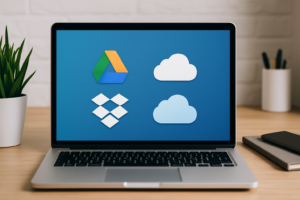
Services like Dropbox, OneDrive, and Google Drive sync specific folders across your devices. You’re not backing up your entire system, just keeping key folders accessible everywhere. This typically requires less space, usually 100-500 GB for most users, because you’re only syncing active working files.
Cloud as a Backup Destination
This is where services like Backblaze, Carbonite, or Acronis come in. They back up your entire computer (or selected drives) to the cloud. Many of these offer unlimited storage for a flat rate, which makes them appealing for large data sets. If you choose this route, the storage calculation becomes simpler because the service handles it for you.
A solid approach combines local and cloud backups. Keep a local backup on a NAS or external drive for fast recovery, and use cloud backup as your offsite safety net. If you’re interested in that hybrid approach, our guide on setting up automated backups to your NAS walks you through the local side of things.
Cloud Storage Tiers: What You Actually Get
Most major cloud providers offer similar tier structures. Here’s how they typically break down and who each tier fits best:
Free Tier (5-15 GB)
Google gives you 15 GB free. Apple gives 5 GB. Microsoft gives 5 GB. These free tiers are fine for documents and a handful of photos, but they fill up fast. If you’re using an iPhone and haven’t upgraded from the default 5 GB iCloud plan, you’ve almost certainly seen the “iCloud Storage Full” message. Free tiers are useful as a secondary sync tool, not a real backup solution.
100-200 GB
This is the sweet spot for light users who mainly store documents, some photos, and keep their phone backed up. If you’re not a photographer or videographer and you clean up your files periodically, this tier can last years.
1-2 TB
This is the most popular tier for individuals and families. It handles a large photo library, years of phone backups, documents, and moderate video. Google One’s 2 TB plan and Microsoft 365’s 1 TB plan (which bundles Office apps) both live in this range. For most households, 2 TB is the right call.
5-10 TB
Professionals, creative workers, and data hoarders live here. If you shoot RAW photos, edit video, or run a small business with significant file storage needs, you’ll want this level. Some providers (like Dropbox Advanced or Google One’s higher tiers) offer plans in this range.
Unlimited (Backup Services)
Backblaze Personal Backup offers unlimited storage for a single computer. If you have multiple terabytes of data on one machine, this is often the most economical backup-only solution. It doesn’t replace a sync service like Dropbox, but for pure backup purposes, it’s hard to beat.
When a Physical Backup Makes More Sense
Cloud storage has its limits. Upload speeds, monthly costs, and privacy concerns mean that for very large data sets, a local storage solution might be more practical, at least as your primary copy.
Consider keeping a local backup if:
- You have more than 4-5 TB of data (cloud costs add up, and initial uploads can take weeks)
- You need fast access to large files (downloading a 50 GB project folder from the cloud is slow)
- You work with sensitive data and prefer physical control over your files
- Your internet connection has slow upload speeds (under 10 Mbps up makes cloud backup painful)
For local backup, a dedicated external drive or a small NAS gives you fast, reliable storage at home. If you’re curious about building your own, check out our guide on building a budget home NAS for an affordable starting point.
A WD My Passport 4TB works great as a simple plug-and-play backup drive, and it’s small enough to store in a fireproof safe for extra protection.
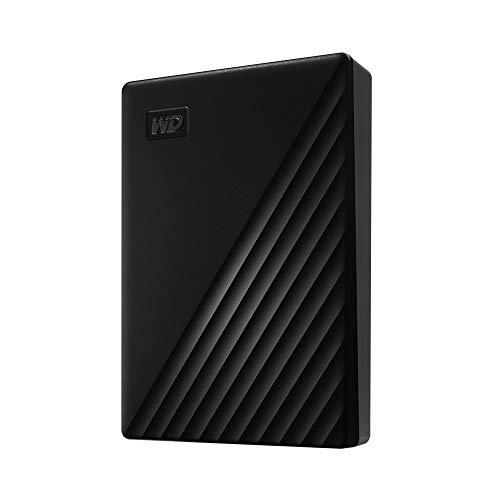
WD My Passport 4TB External Hard Drive
A compact, reliable portable drive perfect for local backups alongside your cloud storage plan
For even more storage capacity with redundancy, a two-bay NAS like the Synology DS224+ paired with a couple of drives gives you local network storage that the whole household can use.

Synology DS224+ NAS
An excellent two-bay NAS for home users who want local backup alongside cloud storage
The ideal strategy for most people is a hybrid: use cloud for offsite protection and a local drive or NAS for fast, convenient access. This follows the 3-2-1 backup rule (three copies, two different media types, one offsite), which is the gold standard for data protection.
A Quick Formula to Calculate Your Needs
If you want a simple formula, here it is:
Recommended Cloud Storage = (Current Data to Backup) + (Annual Growth Rate × 2 years) + 20% buffer
Let’s walk through an example. Say you have 350 GB of photos, documents, and videos you want backed up. You estimate you add about 100 GB per year. Here’s the math:
- Current data: 350 GB
- Two years of growth: 200 GB
- Subtotal: 550 GB
- 20% buffer: 110 GB
- Total: 660 GB
In this scenario, a 1 TB plan covers you with room to spare. You won’t need to upgrade for at least two years, and you’ll have breathing room for unexpected large files.
For a family of four where everyone’s backing up phones and laptops, the numbers shift quickly. Four phones generating 50 GB each per year, plus shared documents and a couple of laptops, can easily push you into the 2 TB tier within the first year.
Frequently Asked Questions
Is 100 GB of cloud storage enough for most people?
For someone who mainly stores documents, a moderate photo collection, and a phone backup, 100-200 GB can work. But if you take lots of photos or any video at all, you’ll outgrow this tier quickly. Most users are better served by a 1-2 TB plan, which provides meaningful breathing room and usually costs only a small amount more per month.
Should I use cloud storage or an external hard drive for backups?
Both. Cloud storage protects you from physical disasters like fire, theft, or drive failure. A local external drive gives you fast recovery when you accidentally delete something. The 3-2-1 backup strategy (cloud plus local) is the safest approach. If you want to compare the long-term costs of each option, our cloud backup vs. NAS cost analysis lays it all out.
Do photos and videos really take up that much cloud storage?
Yes, and it’s getting worse every year. A single 4K video clip from your phone can be 500 MB or more for just a few minutes of footage. If you record your kids’ soccer games or vacations in 4K, you can burn through 50-100 GB in a single trip. RAW photos from a mirrorless camera average 25-60 MB each. Video and photo storage is the number one reason people run out of cloud space.
Can I reduce my cloud storage needs without deleting important files?
Absolutely. Start by removing duplicates, which are surprisingly common when you’ve migrated files between phones and computers over the years. Use a tool like dupeGuru (free, cross-platform) to find and eliminate duplicate photos and files. You can also compress video files using HandBrake without a noticeable quality loss. And move files you rarely access to a cheaper archival storage tier or a local drive to keep your active cloud usage lean.
This article contains affiliate links. We may earn a small commission at no extra cost to you.

James Kennedy is a writer and product researcher at Drives Hero with a background in IT administration and consulting. He has hands-on experience with storage, networking, and system performance, and regularly improves and optimizes his home networking setup.