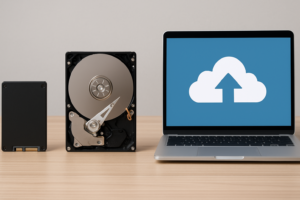
Cloud Storage vs External Hard Drive for Backup: Which Is Safer?
You’ve got irreplaceable photos, critical work documents, and years of personal files sitting on your computer right now. If that machine dies tomorrow, where does all of it go? This is the question that leads most people to one of two backup solutions: cloud storage or an external hard drive. Both can protect your data, but they work in fundamentally different ways, and each comes with tradeoffs that could leave you exposed if you pick the wrong one.
I’ve spent years testing storage solutions, recovering lost data, and watching people make preventable mistakes with their backups. After all of that experience, I’m convinced that the “cloud vs. local” debate is the wrong framing entirely. But before I explain why, let’s break down exactly what each option offers so you can make an informed decision.
Reliability: Which Backup Method Is Less Likely to Fail?
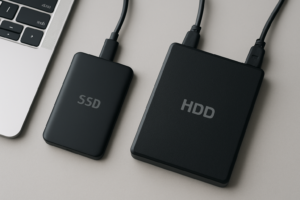
External hard drives are physical objects, and physical objects break. Traditional spinning hard drives (HDDs) have mechanical platters and read/write heads that can fail from drops, vibration, power surges, or simply wearing out over time. The average desktop HDD has a lifespan of 3 to 5 years under regular use, though many last longer. If your drive starts making clicking sounds, that’s often a sign the end is near.
External SSDs are considerably more durable since they have no moving parts. They handle drops and vibration much better, and they generally last longer than HDDs in terms of physical resilience. If you want to explore the differences between these two types of drives in detail, our SSD vs HDD comparison covers the full picture. Still, even SSDs can fail from controller issues, firmware bugs, or simply reaching their write endurance limits.
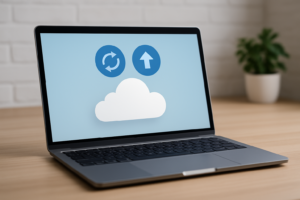
Cloud storage, on the other hand, distributes your data across multiple servers in different geographic locations. Major providers like Backblaze, Google, and iDrive use redundant storage systems, meaning your files exist in several copies simultaneously. A single server failure won’t touch your data. This is a significant reliability advantage. Cloud providers report annual data durability ratings of 99.999999999% (eleven nines), which means the odds of losing a file are astronomically small.
The catch with cloud reliability is that it depends on the provider staying in business and maintaining their infrastructure. Smaller cloud companies have shut down with limited notice. If you’re trusting a cloud service, stick with established providers that have been around for at least a decade.
Winner: Cloud storage. Redundant, geographically distributed copies beat a single physical device every time when it comes to raw data durability.
Cost: Short-Term Savings vs. Long-Term Expenses
This is where the comparison gets interesting, because the cheapest option depends entirely on how much data you need to back up and how long you plan to keep it.
An external hard drive is a one-time purchase. A WD Elements 4TB gives you massive storage capacity for a single upfront cost with no recurring fees. You own it outright. If you only need to back up a few terabytes and you replace the drive every 4 to 5 years, the total cost of ownership stays relatively low.
Cloud storage works on a subscription model. Services like Backblaze charge a monthly or annual fee, while Google One and iCloud offer tiered plans based on storage capacity. For users with modest backup needs (under 500GB), cloud storage can be quite affordable on a monthly basis. But those fees compound over time. Over a 5-year period, you may end up paying significantly more than the cost of a physical drive.
For a deeper cost analysis between cloud solutions and local network storage, take a look at our breakdown of cloud backup vs. local NAS costs, which compares the numbers over multiple years.
If you have more than 2TB of data to back up, local storage almost always wins on cost over time. Below 500GB, cloud storage is often the better deal when you factor in convenience. Between those two ranges, it’s a toss-up.
Winner: It depends on your data volume. Small backups favor cloud. Large backups favor local drives.
Accessibility: Getting to Your Files When You Need Them
Cloud storage wins this category by a wide margin. Your files are available from any device with an internet connection, whether you’re on your phone at a coffee shop, your laptop at a hotel, or a borrowed computer at a friend’s house. Most cloud services offer apps for Windows, macOS, iOS, and Android, making file access nearly universal.
An external hard drive, by contrast, requires physical access. You need to plug it in, your device needs the right port (USB-A, USB-C, Thunderbolt), and you need the appropriate file system compatibility. Mac users who’ve dealt with NTFS-formatted drives or Windows users encountering APFS volumes know how frustrating this can be. For Mac-specific recommendations, we’ve tested a range of options in our best external hard drives for Mac guide.
Speed is another factor. Restoring a large backup from the cloud can take hours or even days depending on your internet connection. If you need to recover 2TB of data, you’re looking at roughly 50 hours on a 100 Mbps connection. An external SSD connected via USB 3.2 Gen 2 can transfer that same amount in under two hours.
There’s also the matter of internet dependency. If your internet goes down or you’re in a location with poor connectivity, cloud backups become inaccessible. Local drives work regardless of network conditions.
Winner: Cloud for remote access and convenience. Local drives for speed and offline availability.
Security: Protecting Your Data from Threats
Cyber Threats
Cloud storage is exposed to the internet by design, which means it’s a potential target for hackers, credential theft, and data breaches. Major providers encrypt your data both in transit and at rest, but if someone compromises your account password (especially without two-factor authentication), they can access everything.
Ransomware is a growing concern for both methods. Cloud-synced files can be encrypted by ransomware on your local machine, with the corrupted versions then syncing up to the cloud. Good cloud backup services (as opposed to simple sync services like Dropbox) maintain version history, letting you roll back to pre-attack copies. This distinction between “backup” and “sync” is critical, and many people get it wrong.
An external hard drive that stays disconnected from your computer when not in use is essentially immune to remote cyber attacks. Ransomware can’t encrypt a drive that isn’t plugged in. This “air-gapped” approach is one of the strongest defenses against malware.
Physical Threats
External drives are vulnerable to theft, fire, floods, and accidental damage. If your house burns down and your backup drive is in the desk drawer, you’ve lost both your computer and your backup simultaneously. This is the single biggest weakness of local-only backup strategies.
Cloud storage is inherently protected against local disasters since your data lives in remote data centers, often across multiple regions. A flood in your city won’t affect servers in another state.
Privacy Concerns
When you upload files to a cloud service, you’re trusting a third party with your data. Most major providers can technically access your files unless the service uses zero-knowledge encryption (where only you hold the decryption key). Services like Tresorit and SpiderOak offer true zero-knowledge encryption. Backblaze allows you to set a personal encryption key as well.
With a local external drive, your data never leaves your physical control. If you encrypt the drive (using BitLocker on Windows or FileVault on Mac), your files are protected even if the drive is stolen. If you ever decide to sell or repurpose an old drive, make sure to securely wipe it first to prevent data recovery.
Winner: Tie, but for different reasons. Cloud protects against physical disasters. Local drives protect against cyber threats and privacy concerns. The ideal setup uses both.
The Hybrid Approach: Why You Should Use Both
This is where I get opinionated: using only cloud storage OR only an external drive is a mistake. The safest backup strategy uses both, and it follows what’s known as the 3-2-1 rule.
The 3-2-1 rule means keeping 3 copies of your data, on 2 different types of storage media, with 1 copy stored offsite. Here’s what that looks like in practice:
- Copy 1: Your original files on your computer’s internal drive.
- Copy 2: A local backup on an external hard drive or SSD, kept at home.
- Copy 3: A cloud backup with a reputable service, stored offsite automatically.
This way, if your computer’s internal drive fails, you’ve got the external drive for fast local recovery. If your house floods or your external drive gets stolen, you’ve got the cloud backup. If the cloud service gets hacked, you’ve still got the local copy. No single point of failure can wipe out all your data.
My Recommended Hybrid Setup
For local backup, I recommend a reliable external drive with enough capacity to hold your full backup plus room for versioning. The Seagate Backup Plus Portable 5TB is a solid choice for most people, offering plenty of space in a compact form factor.
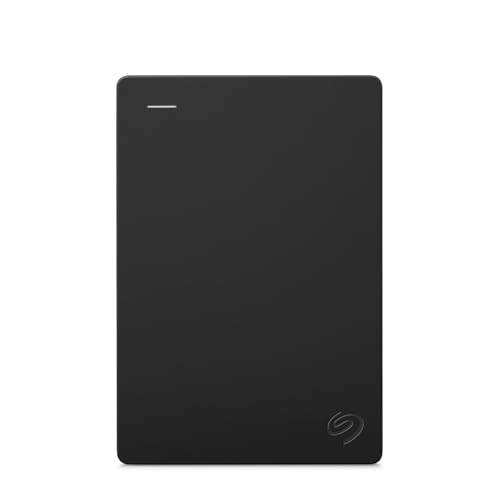
Seagate Backup Plus Portable 5TB
Reliable, compact, and high-capacity portable drive ideal for full-system local backups.
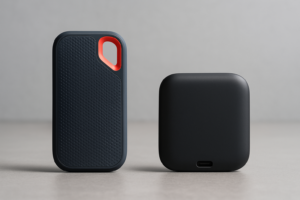
If you prefer the speed and durability of an SSD for your local backup, the Samsung T7 Portable SSD is excellent. It’s fast enough to complete backups quickly, small enough to store in a fireproof safe, and tough enough to survive being tossed in a bag. You can read more about similar options in our best portable SSDs for travel roundup.
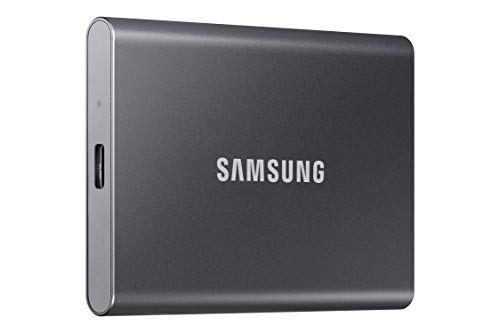
Samsung T7 Portable SSD 2TB
Fast, durable, and compact SSD backup drive with hardware encryption built in.
For the cloud component, Backblaze is my top recommendation for personal backup. It offers unlimited storage, automatic background backups, and 30-day version history (extendable to one year). If you’re more of a DIY person, setting up a local NAS with cloud sync capabilities gives you even more control. Our guide to setting up automated NAS backups walks through the entire process.
Common Backup Mistakes to Avoid
Even with a good strategy, people sabotage their own backups in predictable ways. Here are the most common mistakes I see:
- Never testing restores. A backup you’ve never tested is a backup you can’t trust. At least once a year, try restoring a few files from both your local and cloud backups to verify everything works.
- Leaving the external drive permanently connected. If your backup drive is always plugged in, ransomware can encrypt it alongside your main drive. Connect it for scheduled backups, then disconnect and store it safely.
- Using sync instead of backup. Dropbox, Google Drive, and OneDrive primarily sync files. If you delete a file locally, it gets deleted from the cloud too. A true backup service maintains independent copies and version history.
- Ignoring drive health. External drives degrade over time. If your drive starts disconnecting randomly, don’t ignore it. Replace the drive before it fails completely.
- Backing up only some files. Many people back up documents but skip application settings, browser bookmarks, email archives, and system configurations. Do a full-system backup whenever possible.
For a broader look at data protection pitfalls, our article on costly hard drive mistakes covers several more scenarios that can lead to permanent data loss.
Who Should Prioritize Which Method?
While the hybrid approach is the gold standard, your specific situation might make one method more important than the other as your primary backup.
Prioritize cloud backup if: You travel frequently, work from multiple devices, live in an area prone to natural disasters, or have less than 1TB of critical data. Cloud backup ensures your data survives no matter what happens to your physical location.
Prioritize local external drives if: You work with very large files (video editors, photographers, designers), have slow or capped internet, need fast restore times, or handle sensitive data you don’t want on third-party servers. A high-speed external SSD can back up and restore terabytes of data in a fraction of the time cloud services require.
Prioritize a NAS setup if: You have multiple computers or family members who need backup, you want local cloud-like accessibility within your home network, or you want more control over your backup infrastructure. A NAS can serve as both a local backup target and a personal cloud. Check our NAS setup guide for beginners if this route interests you.
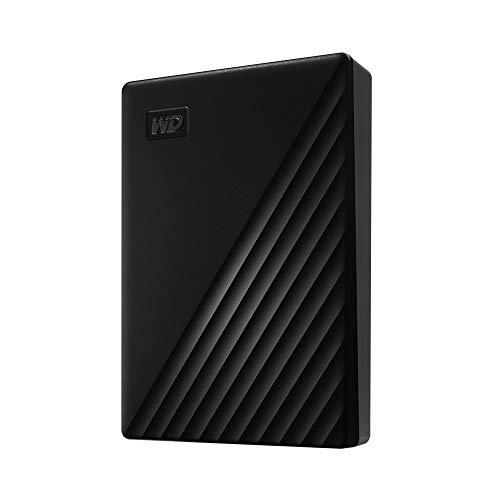
WD My Passport 4TB External Hard Drive
Budget-friendly, hardware-encrypted portable drive that works out of the box for PC and Mac backups.
Frequently Asked Questions
Can cloud storage replace an external hard drive completely?
For small amounts of data (under 500GB), cloud storage can serve as your primary backup if you use a true backup service with versioning, not just a sync tool. But for larger datasets or situations where you need fast restore speeds, an external drive is still essential. A single backup destination of any kind is a risk. Two copies in different locations is always better than one copy in the “best” location.
How often should I back up to an external hard drive?
For most people, a weekly full backup to an external drive is sufficient. If you create or modify important files daily, consider nightly backups or using built-in tools like Windows Backup or macOS Time Machine, which can run incremental backups automatically whenever the drive is connected. Cloud backup services typically run continuously in the background, catching changes as they happen.
Is my data really safe with cloud providers?
Major cloud backup providers use strong encryption (typically AES-256) both during transfer and while stored on their servers. The biggest vulnerability is your account credentials. Use a strong, unique

James Kennedy is a writer and product researcher at Drives Hero with a background in IT administration and consulting. He has hands-on experience with storage, networking, and system performance, and regularly improves and optimizes his home networking setup.