Best Budget Internal SSDs for Everyday Use in 2026
Upgrading to an SSD is the single best thing you can do for an aging computer, and you don’t need to spend a fortune to get something reliable. If you’re still running a mechanical hard drive, or even an older SSD that’s starting to feel sluggish, a modern budget drive will transform your experience for surprisingly little money. We’re talking faster boot times, snappier app launches, and a system that just feels responsive again.
But with dozens of budget SSDs on the market, picking the right one can be overwhelming. Some cheap drives cut corners on components that affect longevity, while others deliver flagship-level reliability at a fraction of the cost. This guide focuses on internal SSDs that balance value with dependability, because a drive that dies after 18 months isn’t a deal no matter how little you paid for it. If you’re still weighing whether to choose an SSD over an HDD, the short answer in 2026 is: yes, always, especially at these prices.
What to Look for in a Budget SSD
Before jumping into specific models, it helps to know which specs actually matter for everyday use and which ones are just marketing noise.
NAND type matters more than speed ratings. Most budget SSDs use TLC (Triple-Level Cell) NAND, which offers a good balance between cost and endurance. Some ultra-cheap drives use QLC (Quad-Level Cell), which packs more data per cell but wears out faster under heavy writes. For a boot drive or general use, TLC is the sweet spot. Avoid any drive that doesn’t clearly state its NAND type.
DRAM cache is a bonus, not a requirement. A few years ago, DRAM-less SSDs had serious performance issues. Modern controllers with HMB (Host Memory Buffer) technology have largely closed that gap for typical workloads. You’ll still want DRAM for sustained write-heavy tasks, but for web browsing, office work, and light gaming, HMB drives perform just fine.
Endurance ratings (TBW) tell you how long a drive should last. A drive rated at 300 TBW (Terabytes Written) means you can write 300 terabytes of data over its lifetime before cells start degrading. For context, most home users write between 10 and 30 TB per year. Even a modest 150 TBW rating will last five or more years of normal use. For a deeper look at how SSDs age, check out our breakdown of SSD lifespan and real-world data.
SATA vs. NVMe depends on your hardware. If your PC has an M.2 slot with NVMe support, go NVMe. If you’re upgrading a laptop that only has a 2.5-inch bay, SATA is your only option. Not sure which form factor fits your machine? Our M.2 vs. 2.5-inch SSD comparison covers everything you need to know.
Best Budget SATA SSDs
SATA drives max out around 550 MB/s, which is a fraction of what NVMe can deliver. But for everyday computing, you’ll rarely notice the difference. These drives are perfect for older laptops, secondary storage, or any system without an M.2 slot.
Samsung 870 EVO (500GB / 1TB)
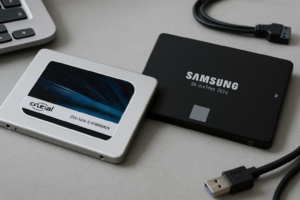
The Samsung 870 EVO remains the gold standard for SATA SSDs, even years after launch. It uses Samsung’s own V-NAND and MKX controller, which means excellent sustained performance without the slowdowns that plague some competitors. The 1TB model is rated at 600 TBW, which is exceptional for this class.
Samsung’s Magician software is also genuinely useful, offering drive health monitoring, firmware updates, and performance optimization. It’s one of the few manufacturer tools that’s worth installing.

Samsung 870 EVO 1TB
The most reliable SATA SSD you can buy, with best-in-class endurance and consistent performance for everyday use.
Crucial MX500 (500GB / 1TB)
The Crucial MX500 is the other heavy hitter in the budget SATA space. It includes a DRAM cache, which helps maintain performance during extended file transfers. Micron’s own TLC NAND is proven and reliable, and the MX500 has one of the longest track records of any consumer SSD on the market.
One nice bonus: Crucial includes free cloning software through Acronis, making it simple to migrate from your old drive. If you need step-by-step guidance on that process, we’ve got a full guide on how to clone your hard drive without losing data.
Kingston A400 (480GB)
The Kingston A400 is the cheapest option worth considering. It’s DRAM-less and has a lower endurance rating (160 TBW for the 480GB), but it’s perfectly adequate as a boot drive for a family PC or an older laptop you want to keep in service for another couple of years. Don’t expect sustained write performance miracles, but for the price, it gets the job done.
Best Budget NVMe SSDs
NVMe drives connect through the M.2 slot and offer dramatically faster sequential speeds. For most everyday tasks, the difference between a budget NVMe drive and a premium one is negligible, so you can save quite a bit here without any real penalty.
WD Blue SN580 (500GB / 1TB)
The WD Blue SN580 is Western Digital’s answer to the budget NVMe question, and it’s a compelling one. It’s a PCIe Gen 4 drive that delivers up to 4,150 MB/s sequential reads, which is more than enough for any general computing task. It uses a DRAM-less design with HMB, keeping costs down while maintaining responsive everyday performance.
The SN580 runs cool and draws very little power, making it an excellent choice for laptops where thermals and battery life matter. WD rates the 1TB model at 600 TBW, which is generous for this segment.

WD Blue SN580 1TB
Our top pick for budget NVMe, with Gen 4 speeds, low thermals, and strong endurance ratings.
Kingston NV2 (500GB / 1TB)
The Kingston NV2 is one of the most affordable NVMe drives available. It supports PCIe Gen 4 and delivers respectable performance for light workloads. One thing to be aware of: Kingston uses different NAND and controller combinations across batches, so performance can vary slightly. For a simple boot drive or app storage, this won’t matter. For sustained write-heavy workloads, you’d want to look elsewhere.
Crucial P3 (500GB / 1TB)
The Crucial P3 rounds out the budget NVMe options nicely. It uses QLC NAND, which means write endurance is lower than TLC-based competitors (220 TBW for the 1TB model). For a secondary drive or a system that mostly reads data rather than writing constantly, this is a solid pick. Crucial backs it with a 5-year warranty, which adds confidence.
If you’re curious about how SATA and NVMe drives compare in real-world gaming scenarios specifically, our SATA vs. NVMe gaming benchmarks break down where NVMe actually makes a visible difference and where it doesn’t.
Installation Tips for First-Timers
Installing an internal SSD is one of the easiest hardware upgrades you can do. For 2.5-inch SATA drives, you’ll just connect a SATA data cable and a SATA power cable from your power supply. Most cases have dedicated SSD mounting brackets, though many people just secure them with double-sided tape (it works, no judgment).
For M.2 NVMe drives, the process is even simpler: insert the drive into the M.2 slot at an angle, press it flat, and secure it with the included screw. The whole process takes about five minutes. If you’d like a visual walkthrough, our guide on how to install an NVMe SSD in 15 minutes covers each step with photos.
After installation, you’ll want to either clone your existing drive or do a fresh OS install. A fresh install is always cleaner and faster, but cloning saves time if you have a lot of software configured. Either way, don’t forget to back up your important files first.
Our Top Recommendations
Here’s the quick summary if you want to skip straight to buying:
- Best SATA SSD overall: Samsung 870 EVO 1TB for its unmatched reliability and endurance.
- Best budget SATA: Crucial MX500 for the DRAM cache and free cloning software.
- Best NVMe SSD overall: WD Blue SN580 1TB for the best combination of speed, thermals, and endurance.
- Cheapest worthwhile option: Kingston A400 480GB if you’re on the tightest possible budget.
For a broader look at SSDs across all price ranges, including

James Kennedy is a writer and product researcher at Drives Hero with a background in IT administration and consulting. He has hands-on experience with storage, networking, and system performance, and regularly improves and optimizes his home networking setup.