How to Choose the Right SSD: A Complete Buying Guide
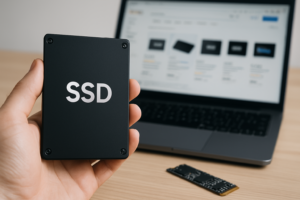
Shopping for an SSD feels a lot like ordering coffee in 2026. There are dozens of options, a confusing menu of acronyms, and the very real risk of paying extra for something you don’t actually need. SATA or NVMe? M.2 or 2.5-inch? Gen 3, Gen 4, Gen 5? The terminology alone is enough to make your eyes glaze over.
This guide cuts through all of that. I’ll walk you through every decision you need to make, in order, so you end up with the right SSD for your specific situation. Not the most expensive one. Not the one with the flashiest marketing. The one that actually makes sense for how you use your computer.
Step 1: Figure Out What Your Computer Actually Supports
Before you spend a single minute comparing specs, you need to know what your motherboard or laptop can physically accept. Buying a blazing-fast Gen 5 NVMe drive is pointless if your system only has a SATA port. Here’s how to check.
For Desktop PCs
Look up your motherboard model (it’s printed on the board itself, or you can find it in System Information on Windows). Check the manufacturer’s spec page for the number and type of M.2 slots, and whether they support NVMe, SATA, or both. Also note how many 2.5-inch SATA bays your case has available.
For Laptops
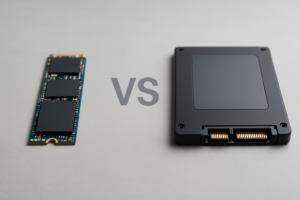
Laptop storage is more restrictive. Many modern laptops only have a single M.2 slot and nothing else. Older laptops (pre-2016 or so) may use a 2.5-inch SATA bay instead. Your laptop’s service manual or a quick search on Crucial’s compatibility tool will tell you exactly what fits. For a deeper comparison of these two physical sizes, check out our M.2 vs 2.5-inch SSD form factor guide.
Quick Compatibility Cheat Sheet
- M.2 NVMe slot (keyed for M key): Accepts NVMe SSDs. Some also accept M.2 SATA drives, but not always.
- 2.5-inch SATA bay: Accepts 2.5-inch SATA SSDs only. Cannot use NVMe drives.
- PCIe Gen 3 vs Gen 4 vs Gen 5 M.2 slot: Gen 4 drives work in Gen 3 slots (just at Gen 3 speeds). Gen 5 drives work in Gen 4 slots the same way. Backward compatibility is your friend here.
Step 2: Choose Your Interface (SATA vs NVMe)
This is the single biggest decision in your SSD purchase, because it determines both your speed ceiling and your budget range. If you’re still debating whether an SSD is worth it at all compared to a traditional hard drive, our SSD vs HDD comparison covers that in detail.
SATA SSDs
SATA SSDs max out at around 550 MB/s for both reads and writes. That might sound slow compared to NVMe numbers, but it’s still roughly 5x faster than a traditional hard drive. For everyday use (web browsing, office work, light photo editing), you genuinely will not notice the difference between SATA and NVMe in daily tasks.
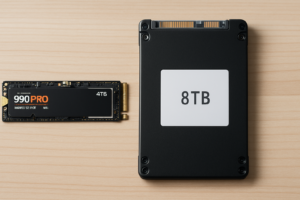
SATA drives come in two physical forms: the familiar 2.5-inch form factor (great for older laptops and desktop builds) and M.2 2280 (the stick-of-gum shape). An M.2 SATA drive performs identically to a 2.5-inch SATA drive. The only difference is the physical connector.
The Samsung 870 EVO remains one of the most reliable SATA drives on the market, with excellent endurance ratings and consistent performance. The Crucial MX500 is another proven option that tends to be slightly more affordable.
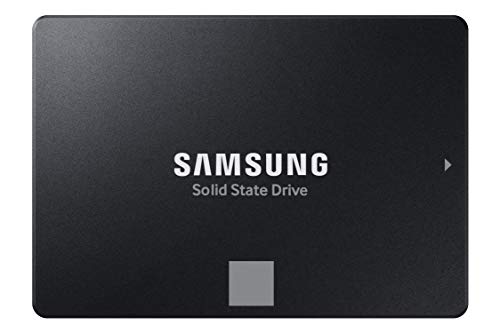
Samsung 870 EVO 1TB
The gold standard for SATA SSDs with excellent endurance, consistent performance, and a 5-year warranty.
NVMe SSDs
NVMe drives connect through the PCIe bus instead of SATA, and the speed difference is massive. A Gen 3 NVMe drive hits around 3,500 MB/s. Gen 4 pushes to 7,000 MB/s. Gen 5 doubles that again to roughly 14,000 MB/s on sequential reads.
Here’s where you need to be honest with yourself, though. Those jaw-dropping sequential speeds only matter for specific workloads: transferring huge video files, working with large databases, or compiling massive code projects. For gaming, the difference between Gen 3 and Gen 5 NVMe is almost undetectable in load times. We tested this extensively in our SATA vs NVMe gaming performance comparison, and the results surprised a lot of readers.
For most people, a Gen 4 NVMe drive is the sweet spot right now. Gen 3 drives are still perfectly capable for general use. Gen 5 is overkill unless you’re doing professional video editing with 8K footage or similarly demanding work.
Step 3: Pick the Right Capacity
This is where a lot of people either overspend or, more commonly, buy too small and regret it within a year. Here’s my honest capacity recommendation by use case:
- 250GB: Only if you’re on a very tight budget and use cloud storage for almost everything. Windows and a handful of apps will eat half of this.
- 500GB: Adequate for a light user who doesn’t install many games or work with large media files. You’ll need to be mindful of storage management.
- 1TB: The sweet spot for most people. Enough for your OS, a solid library of apps and games, and a reasonable collection of photos and documents. This is what I recommend as a default.
- 2TB: Ideal for gamers with large libraries, photographers, or anyone who doesn’t want to think about storage for a few years. If you’re torn between 1TB and 2TB, we break down that decision in our 1TB vs 2TB SSD capacity guide.
- 4TB+: Video editors, music producers, and data hoarders. The per-gigabyte cost is higher at these capacities, but the convenience of having everything on one fast drive is real.
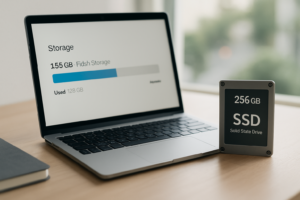
One important note: SSDs perform best when they’re not completely full. Try to keep at least 10-15% of your drive’s capacity free. This gives the controller room for wear leveling and garbage collection, which directly affects long-term speed. If you’ve noticed your current SSD getting sluggish, our guide on why SSDs slow down over time explains exactly what’s happening and how to fix it.
Step 4: Understand the Specs That Actually Matter
SSD spec sheets are packed with numbers, and not all of them are equally important. Here’s what to focus on and what you can mostly ignore.
Sequential Read/Write Speeds
These are the big headline numbers (e.g., “7,000 MB/s read”). They measure how fast the drive handles large, continuous data transfers. Important for video editors and people who move huge files regularly. Less meaningful for everyday computing.
Random Read/Write IOPS
This spec measures how quickly a drive handles lots of small, scattered data requests, which is actually what your computer does most of the time. A drive with high random IOPS will feel snappier in daily use than one with higher sequential speeds but lower random performance. Look for drives with random read IOPS above 500K for NVMe and above 90K for SATA.
TBW (Terabytes Written) and Endurance
TBW tells you how much data you can write to the drive before the manufacturer expects the flash cells to wear out. A typical 1TB NVMe drive has a TBW rating between 300 and 600 TBW. For context, most consumers write somewhere between 10 and 35 TB per year, so even a 300 TBW drive would last well over a decade of normal use. Our SSD lifespan data analysis digs into the real-world numbers.
DRAM Cache vs DRAM-less (HMB)
Higher-end SSDs include a DRAM cache chip that stores the drive’s mapping table, making lookups faster. Budget drives often skip this and use Host Memory Buffer (HMB), which borrows a small portion of your system RAM instead. For a boot drive or primary storage, DRAM cache is worth having. For a secondary storage drive, HMB is perfectly fine.
Controller and NAND Type
The controller is the drive’s brain. Phison, Samsung (in-house), and Silicon Motion are the dominant controller manufacturers. For NAND flash, TLC (Triple-Level Cell) is the standard across almost all consumer drives. QLC (Quad-Level Cell) is cheaper but has lower endurance and can slow down during sustained writes. I’d recommend TLC for your primary drive and QLC only for bulk storage where endurance isn’t critical.
Step 5: My Top Picks by Use Case
I’ve tested and researched dozens of drives. Here are my specific recommendations based on what you’re actually doing with your computer.
Best All-Around NVMe SSD
The WD Black SN770 is my default recommendation for most people. It’s a Gen 4 drive with excellent random performance, a solid 600 TBW endurance rating at 1TB, and it runs cool without a heatsink. It uses an HMB design (no DRAM cache), but its real-world performance is so close to DRAM-equipped competitors that the difference is academic for consumer workloads.

WD Black SN770 1TB
Excellent Gen 4 performance with low thermals and strong endurance, ideal as a primary boot drive for most users.
Best for Content Creators and Professionals
If you’re editing 4K or 8K video, working with large RAW photo libraries, or compiling massive projects, you want sustained write performance that doesn’t crater after the cache fills. The Samsung 990 Pro delivers exactly that, with a DRAM cache, an excellent in-house controller, and some of the best sustained write speeds in its class. We put it head-to-head against another top-tier option in our Samsung 990 Pro vs WD_BLACK SN850X showdown.
Best Budget Pick
The Kingston NV2 and the Teamgroup MP34 are both solid options if you’re watching your spending closely. The MP34 uses TLC NAND with a DRAM cache, which is unusual at this end of the market. For budget SATA options, check our best budget SSDs performance analysis.
Best for Gaming
Gamers should prioritize capacity over raw speed, because modern games are enormous (50-100+ GB each) and load time differences between Gen 3 and Gen 5 are negligible. A 2TB WD Black SN770 or a 2TB Crucial P3 Plus will serve you well. PS5 owners should grab a Gen 4 drive with a heatsink (or buy a separate heatsink) since the console requires it.

Samsung 990 Pro 2TB
Top-tier sustained write performance and endurance for video editors, photographers, and professional workloads.
Best for Portable/External Use
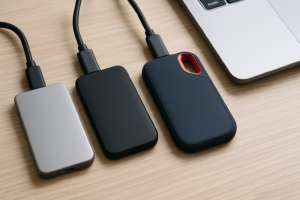
If you need fast external storage, a portable SSD is the way to go. We maintain a separate guide covering the best portable SSDs for travel, complete with durability testing. The Samsung T7 Shield and SanDisk Extreme Portable SSD V2 are both excellent picks with IP65 water and dust resistance.
Step 6: The Decision Tree
Still not sure? Follow this flowchart in your head:
- Does your system have an M.2 NVMe slot? If no, get a 2.5-inch SATA SSD (Samsung 870 EVO or Crucial MX500). If yes, continue.
- Is this your primary boot drive? If yes, get at least 1TB NVMe with TLC NAND. If it’s a secondary storage drive, QLC is acceptable and the capacity-per-dollar is better.
- Do you work with large files professionally (video, audio, databases)? If yes, get a Gen 4 NVMe with DRAM cache

James Kennedy is a writer and product researcher at Drives Hero with a background in IT administration and consulting. He has hands-on experience with storage, networking, and system performance, and regularly improves and optimizes his home networking setup.