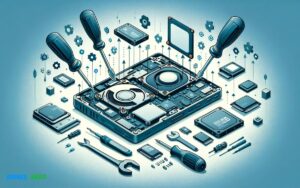
Can I Upgrade Emmc to Ssd? Yes!
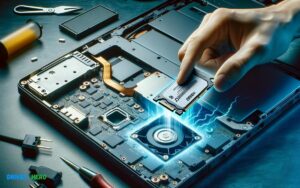
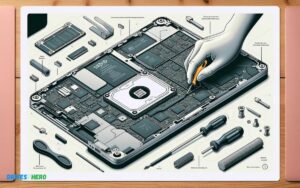
Yes, you can upgrade eMMC to SSD, provided your device has the necessary interface, such as an available SATA or PCIe slot, and physical space to accommodate the upgrade.
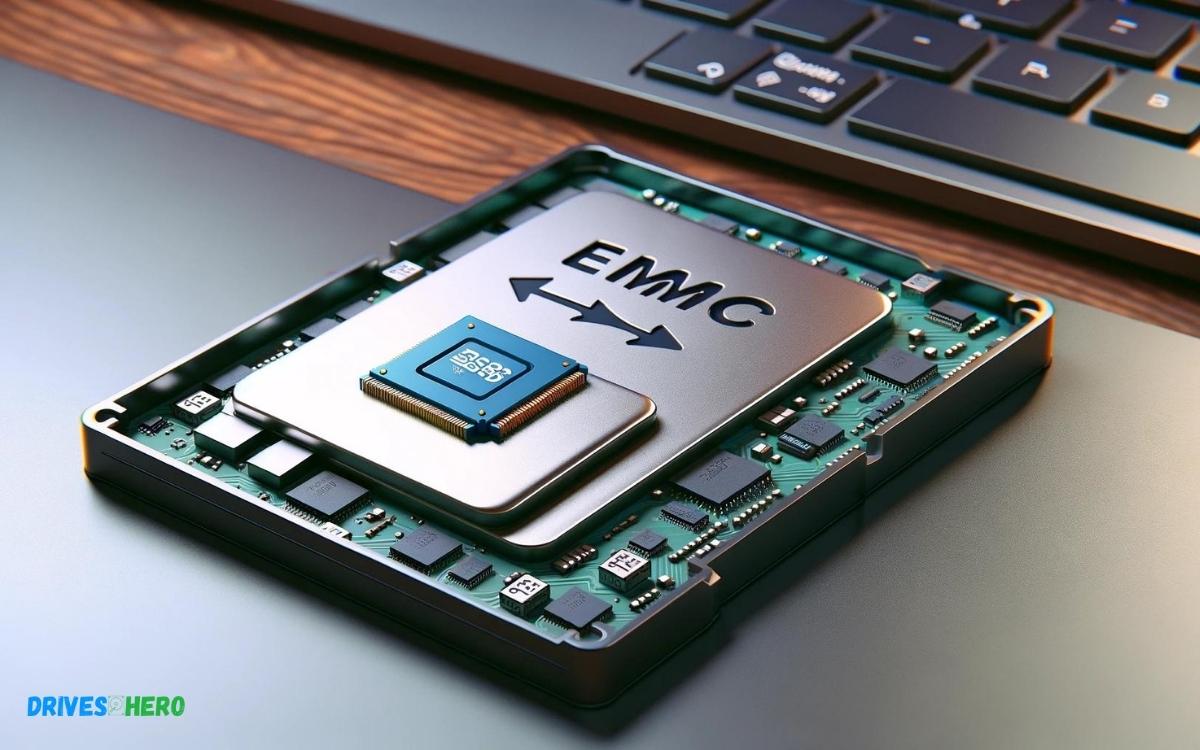
eMMC, which stands for Embedded MultiMediaCard, is a type of solid-state storage commonly found in budget tablets, laptops, and netbooks. It’s soldered directly onto the device’s motherboard.
SSDs (Solid State Drives), on the other hand, are larger, faster, and more robust storage devices that are typically found in higher-end laptops and desktops.
Upgrading from eMMC to SSD can be beneficial as SSDs offer:
However, whether you can make this upgrade depends on your device’s design. Many devices with eMMC storage are not designed to be upgraded as the storage is often soldered onto the motherboard, and there might not be space to add an SSD.
In cases where there is an additional SSD slot or when using a device like a convertible laptop with both eMMC and a free SATA or PCIe slot, an upgrade can be possible.
Key Takeaway
Understanding Emmc And Ssd Storage Technologies
When it comes to upgrading your device’s storage, understanding the different technologies available is crucial. eMMC and SSD storage are two types of memory commonly found in electronic devices, each with its unique attributes and performance levels.
For those considering a storage upgrade, it’s important to comprehend the intricacies of eMMC and SSD to make an informed decision that best suits your needs.
Defining Emmc: Characteristics And Common Uses
Embedded MultiMediaCard (eMMC) refers to a type of flash storage that you’ll often find in budget smartphones, tablets, and even some lower-end laptops.
This storage technology is known for being cost-effective and compact, making it a suitable solution for devices where space is at a premium.
Here are key characteristics of eMMC:
- Integrated Design: eMMC incorporates the memory and controller into one package, simplifying the design of the host device.
- Cost-Effectiveness: It tends to be less expensive than other types of storage, ideal for keeping device costs down.
- Performance: While eMMC offers reasonable read and write speeds for everyday tasks, it’s generally slower than SSDs.
Common uses for eMMC include:
- Entry-level smartphones
- Budget tablets
- Basic computing devices
Exploring Ssds: Benefits And Varieties
Solid-State Drives (SSDs) are the preferred storage solution in modern computing for their superior speed, reliability, and durability over traditional hard drives and even eMMC.
SSDs come in various form factors and interfaces suitable for different applications, such as:
| SSD Type | Form Factor | Interface |
|---|---|---|
| SATA SSD | 2.5-inch, mSATA | SATA III |
| NVMe SSD | M.2, U.2 | PCIe |
Benefits of SSDs include:
- Speed: Faster data transfer rates provide quick boot times and efficient application loading.
- Reliability: Lack of moving parts leads to less wear and tear and data corruption risks.
- Vibration Resistance: SSDs can withstand physical shocks, making them ideal for laptops and mobile devices.
Comparing Emmc And Ssd: Performance And Durability
Comparing eMMC and SSD technologies requires a look at two key aspects: performance and durability.
Performance: SSDs unequivocally outperform eMMCs in terms of read/write speeds, which directly influences system responsiveness and multitasking capabilities.
With SSDs’ advanced NAND flash memory and efficient interfaces like PCIe, they provide the bandwidth required for high-end computing tasks.
Durability: SSDs also surpass eMMCs in endurance. The absence of moving components makes SSDs more robust against physical shocks.
SSDs have higher TBW (Total Bytes Written) ratings, indicating a longer lifespan before the flash cells wear out.
While eMMC might be embedded into your device, limiting upgrade possibilities, SSDs offer a clear path toward enhanced performance, particularly for those with an accessible storage expansion slot or interface.
Upgrading to an SSD can breathe new life into your system, amplifying speed, efficiency, and durability.
Feasibility Of Upgrading From Emmc To Ssd
Many laptop users ponder the potential to boost their device’s performance by switching from eMMC storage to the notably faster SSD. This upgrade promises quicker boot times, more responsive applications, and overall enhanced system efficiency.
However, the transition from eMMC to SSD is not always straightforward and depends on several key factors that determine the feasibility of such an upgrade.
Hardware Compatibility: Sockets And Interfaces
Hardware compatibility plays a pivotal role in determining the possibility of upgrading from eMMC to an SSD. eMMC and SSD storage use different sockets and interfaces, and not all devices are built with the flexibility to accommodate these changes.
- eMMC: often soldered directly onto the motherboard, making it non-upgradeable
- SSD Connectors: typically require a SATA or NVMe interface, which may not be available on devices originally equipped with eMMC
Before contemplating an upgrade, it’s crucial to check if your device houses a spare SATA or NVMe slot. Without this, the addition of an SSD may not be possible.
The Role Of Motherboard Configurations In Upgrade Capability
The motherboard configuration is the foundation that determines upgrade capabilities. Devices with fixed eMMC storage lack the necessary connectors for SSDs, thereby standing as a roadblock for enhancement.
On the other hand, some models feature motherboards with both eMMC and an available expansion slot, permitting an upgrade without displacing the existing eMMC.
Identifying your motherboard’s specifications is a vital step to evaluate whether an SSD addition can move forward.
Understanding The Limitations Of Embedded Storage
Being cognizant of the intrinsic limitations associated with embedded eMMC storage is essential.
Designed predominantly for cost efficiency and compactness in devices like budget laptops, tablets, and Chromebooks, eMMC may be sufficient for basic computing needs but pales in comparison to the prowess of SSDs regarding storage capacity and speed.
- Speed: SSDs offer significantly higher read/write speeds than eMMC.
- Storage Capacity: SSDs are available in larger capacities, providing more space for files and applications.
- Durability: SSDs generally have better longevity and are less prone to damage due to the lack of moving parts.
While the benefits of SSDs are undeniable, the practicality of upgrading hinges on the limitations set by the embedded nature of eMMC storage.
Guide To Upgrading Your Storage
Exploring the possibility of upgrading your device’s storage from eMMC to SSD can breathe new life into your system. As technology evolves, the need for faster and more robust storage solutions becomes crucial.
Step-by-step Process To Assess Upgrade Possibility
Before considering an upgrade, it’s essential to determine if your device supports the transition from eMMC to SSD.
Here’s a process to guide you:
- Identify Your Device Model: Check the specifications of your device to understand the existing storage setup.
- Research Compatibility: Look for information regarding your device’s motherboard to confirm if there’s an available SSD slot or if the eMMC is soldered onto the board.
- Consult the Manufacturer: Reach out to the device manufacturer or refer to the user manual for detailed information on upgradability.
- Evaluate Warranty Implications: Understand how upgrading your device impacts the warranty to avoid any surprises.
Choosing The Right Ssd For Your System
Selecting the right SSD is critical for the upgrade process:
- Form Factor: Ensure the SSD dimensions are compatible with your device, choosing between 2.5-inch, M.2, or mSATA based on the available slot.
- Storage Capacity: Decide on how much storage you need, balancing cost with your requirements.
- Read and Write Speeds: Look for SSDs with higher read/write speeds for faster performance.
- Brand and Quality: Opt for reputable brands that promise reliability and durability.
Data Migration Strategies: Cloning Vs. Fresh Installation
With the right SSD chosen, the next step is to migrate your data:
| Cloning | Fresh Installation |
|---|---|
| Creates an exact copy of your existing drive, including the operating system, applications, and files. | Installs a new operating system and applications, providing a clean start with no carryover from the old drive. |
| Suitable for those who want a seamless transition without reconfiguring settings or reinstalling programs. | Recommended for users who prefer to clean out any bloatware or accumulated clutter. |
| Requires cloning software and may need additional hardware like a USB to SATA adapter. | Requires installation media (such as a USB flash drive) and valid operating system license keys if necessary. |
Potential Challenges And Solutions
Upgrading the storage in your device from eMMC to SSD can bring about a remarkable boost in performance. However, it’s not without its obstacles. Potential challenges may arise, causing inconvenience to the less experienced.
Navigating Common Pitfalls In Storage Upgrades
Initiating a storage upgrade from eMMC to SSD involves several technical considerations that can trip up even savvy users.
You should be aware of compatibility issues, as not all systems support direct upgrades. Data loss is a critical concern if the migration process isn’t handled meticulously.
- Verify compatibility of SSD with your device beforehand.
- Utilize cloning software to transfer data efficiently.
- Ensure backup of all important files to prevent data loss.
- Understand the BIOS settings as they may need adjustment after an upgrade.
Professional Vs. Diy Upgrades: Evaluating Your Options
Confronted with the decision on whether to delegate this task to a professional or undertake a DIY approach? Weigh the complexity of the upgrade versus your technical aptitude.
Professionals mitigate the risk of damaging delicate components, yet a DIY route can be more cost-effective and enlightening.
| Professional Upgrade | DIY Upgrade |
|---|---|
| Lowers risk of component damage | More cost-effective |
| Assurance of a job well done | Provides learning experience |
| Time saving | Full control over the process |
Long-term Maintenance And Care For Your Upgraded Ssd
After the upgrade, it is imperative to maximize the lifespan of your new SSD with proper maintenance and care. The longevity of your SSD hinges on how well you treat it.
Here are critical points to secure your investment:
- Regularly update the SSD’s firmware to ensure optimum performance.
- Avoid maxing out the SSD’s storage capacity, as this may degrade its lifespan.
- Run disk cleanup and optimization tools periodically.
- Ensure adequate cooling within your device to prevent overheating.
Conclusion
Upgrading from eMMC to SSD can breathe new life into your device. It enhances speed, storage, and overall performance. Remember, compatibility is key; check your device’s specifications before making a switch.
For optimal results, consider professional assistance with the upgrade, and soon you’ll enjoy the swift, responsive computing you seek.

Harold Williams is a senior writer and technical editor at Drives Hero with 20+ years of experience in IT administration. He specializes in storage systems, SSD reviews, and performance testing, bringing real-world insight to every guide.