How to Upgrade Ssd on Acer Nitro 5
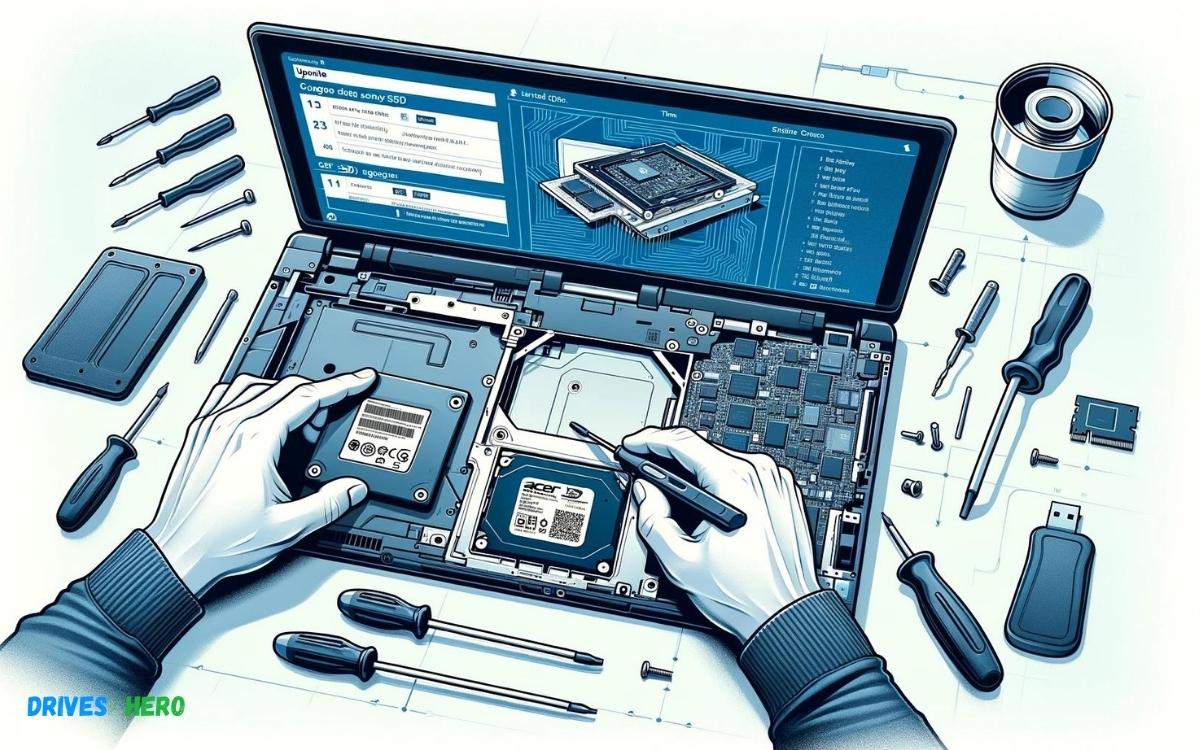
To upgrade the SSD on an Acer Nitro 5, first power off the laptop and remove the back panel. Next, locate the SSD compartment, unscrew the existing drive, and replace it with the new SSD.
Upgrading the solid-state drive (SSD) in an Acer Nitro 5 laptop breathes new life into your system by enhancing storage capacity and improving performance. Gamers and professionals alike seek this boost to ensure a seamless experience. Opening the back of your Nitro 5 involves removing a few screws, which then exposes the internals.
Carefully proceed with the upgrade, keeping track of screws and being mindful of sensitive components. A successful SSD upgrade leads to faster boot times, more robust storage solutions, and an overall more responsive computer. Always remember to back up your data before starting any hardware modification to safeguard against potential data loss.
Key Takeaway
Introduction To Upgrading Ssds On Gaming Laptops
Gaming laptops like the Acer Nitro 5 are renowned for their power and speed, key traits that any gamer values. However, as game sizes expand and software demands increase, the need for additional storage and quicker load times becomes evident. Upgrading to a Solid State Drive (SSD) is a significant boost to performance, providing lightning-fast boot times, reduced loading screens, and smooth multi-tasking capabilities.
Understanding The Benefits Of Ssd Upgrades
The switch from a traditional HDD to an SSD can feel like a leap into the future for many gamers. Here are several advantages:
- Enhanced Speed: SSDs offer quicker data access times, improving loading times for games and applications.
- Durability: With no moving parts, SSDs are less likely to fail due to physical shock or wear over time.
- Efficiency: SSDs consume less power, contributing to better battery life for laptops.
Why Acer Nitro 5 Is A Popular Choice For Upgrades
The Acer Nitro 5 stands out as a prime candidate for SSD upgrades. Its robust hardware paired with the ease of upgradeability makes it an ideal match for gamers seeking enhanced performance. The Nitro 5 is known for its:
- Accessible design, allowing easy access to internal components.
- Support for dual storage, with slots for both an SSD and a HDD.
- Practical balance between cost and performance, making it a smart investment.
Key Considerations Before Starting An Ssd Upgrade
Before proceeding with an SSD upgrade on your Acer Nitro 5, it is critical to consider the following:
| Consideration | Detail |
|---|---|
| Compatibility | Verify the size (2.5-inch or M.2) and interface (SATA or NVMe). |
| Storage Capacity | Decide on storage space based on gaming and other needs. |
| Data Migration | Plan for the transfer of existing data to the new SSD. |
| Warranty Concerns | Ensure the upgrade does not void your laptop’s warranty. |
Preparing For The Ssd Upgrade
Welcome to the preparatory phase of supercharging your Acer Nitro 5 with a new Solid State Drive (SSD)! Not only does upgrading to an SSD offer significant improvements in boot-up time and data access speeds, but it also provides a general performance boost that enhances your overall computing experience. Before diving into the swap, there are certain steps you must follow to ensure a successful upgrade. From gathering the necessary tools to understanding the potential risks, here’s what you need to know.
Gathering The Necessary Tools And Equipment
First things first, to perform an SSD upgrade, you’ll need a few basics:
- Small Phillips-head screwdriver: Essential for removing the screws from your Acer Nitro 5.
- USB flash drive: Required if you opt to create a recovery drive before initiating the upgrade.
- Anti-static wrist strap (optional): Helps to prevent static electricity from damaging the laptop’s internal components.
- External enclosure or SSD to USB adapter (optional): Useful for cloning your current drive to the new SSD.
Choosing The Right Ssd For Acer Nitro 5
Selecting the perfect SSD for your system is crucial. Acer Nitro 5 laptops vary in their compatibility, depending on the model and the initial configuration. Generally, you’ll want to ensure the following:
- Size: Make sure the SSD is 2.5-inch or M.2 format, depending on your laptop’s specifications.
- Capacity: Decide how much storage you’ll need. More storage often means additional cost.
- Performance: Look for SSDs with high read/write speeds for the best performance.
Backing Up Data And Creating A Recovery Drive
Preserving your data is essential. Before you proceed with the hardware change, back up all important files. Use an external hard drive or cloud storage for this task. Furthermore, creating a recovery drive is advisable; this will assist you in reinstalling Windows post-installation. The steps to create a recovery drive are as follows:
- Insert a USB flash drive into your computer.
- Search for ‘Create a recovery drive’ in the Windows search bar and follow the on-screen instructions.
When completed, you’ll have a bootable USB drive that allows you to restore your operating system on your new SSD.
Understanding The Risks And Warranty Implications
Upgrading your SSD can lead to risks such as data loss or potential hardware damage. It is vital to carefully handle your device throughout the process. Moreover, be aware that upgrading your SSD may void the warranty of your Acer Nitro 5. It’s advised to check Acer’s warranty terms before you proceed. If your laptop is still under warranty and you are uncomfortable with the possibility of voiding it, consider seeking professional assistance for the upgrade.
Step-by-step Guide To Upgrading The Ssd
Are you ready to take your Acer Nitro 5 to the next level with a high-performing SSD upgrade? Whether for gaming, video editing, or simply to speed up your system, an SSD upgrade is a proven way to enhance your laptop’s performance. This step-by-step guide will walk you through the process, showing you exactly how to revamp your gadget without a hitch. Let’s boost your Acer Nitro 5’s speed and storage capacity by fitting it with a fresh, swift SSD!
Shutting Down And Dismantling The Acer Nitro 5
- Power off your laptop and disconnect all cables.
- Place the laptop on a soft, clean surface to prevent scratching.
- Remove the back cover screws using the appropriate screwdriver.
- Gently lift the cover, starting from one corner and working your way around.
Locating And Removing The Existing Ssd
With the back cover off, locate the SSD, typically housed in a slot marked with an SSD symbol or label. It may also be under a metal shield or heat spreader.
- Unscrew the retention screw holding the SSD in place.
- Remove the existing SSD by gently sliding it out of the slot.
- Static electricity can damage components, so ground yourself before handling the SSD.
Installing The New Ssd Into The Slot
- Align the new SSD with the notch in the slot – it only fits one way.
- Insert the SSD at a slight angle, then press down until it sits flush.
- Secure the SSD with the retention screw you removed earlier.
Reassembling The Laptop And Managing Cables
- Before replacing the cover, make sure all cables are properly managed and tucked away.
- Replace the back cover, ensuring it snaps into place correctly.
- Screw in the back cover screws, applying even pressure but not over-tightening.
- Reconnect any cables and peripherals, and you’re set to experience enhanced performance.
Your Acer Nitro 5 now boasts a brand-new SSD, promising faster boot times, quicker file access, and overall improved system responsiveness. Enjoy the seamless operation of your upgraded laptop!
Post-installation Steps
Congratulations on successfully upgrading your Acer Nitro 5 with a spanking new SSD! But upgrading the hardware is only half the battle. To leverage the full potential of your high-speed storage and ensure everything runs smoothly, certain post-installation steps are essential. From fine-tuning BIOS settings to data restoration, let’s journey through critical actions that will set you up for a seamless computing experience.
Booting Up And Configuring Bios Settings
First things first: powering up your device. When you turn on your Acer Nitro 5 after installing your SSD, you need to enter the BIOS. To do this, repeatedly tap the F2 key as soon as the Acer logo appears. Once in the BIOS, ensure the following:
- Boot priority is set to your new SSD.
- SATA Mode is switched to
AHCImode to take full advantage of SSD speeds. - Secure Boot is disabled if you plan on installing an operating system that might not be supported by default.
Save and exit the BIOS settings.
Installing Or Cloning The Operating System
With the SSD now set as the primary boot device, you have two routes to choose from:
- Fresh Operating System Installation
Insert your bootable USB drive with the OS installer, reboot your system, and follow the on-screen instructions to install a fresh copy of your OS. - Cloning Your Old Drive
If you choose to clone your existing drive, ensure that the cloning software used is compatible with your SSD. The clone operation will replicate your old drive’s contents, negating the need for a fresh installation.
Restoring Data From Backup
Did you back up your data before the upgrade? It’s time to
- restore your personal files and applications from that backup.
- Connect your backup drive or access your cloud storage.
- Use your operating system’s restore utility or simply copy files manually to the new SSD.
Optimizing Ssd Performance And Maintenance Tips
Your SSD is fast, but let’s make it run at its peak. Here are some tips to keep your SSD in top condition:
| Optimization | Action |
|---|---|
| System Trim | Ensure the TRIM command is enabled in your OS for optimal SSD performance. |
| Software Updates | Regularly update your firmware and drivers to the latest version. |
| Avoid Defragmentation | Unlike HDDs, SSDs don’t need defragmentation, and it can reduce the lifespan of the SSD. |
| Over-Provisioning | Set aside some of your SSD space to extend its life and maintain speed. |
Lastly, regularly monitor your SSD’s health with dedicated software to avoid any unwelcome surprises.
Troubleshooting Common Ssd Upgrade Issues
Upgrading the SSD in your Acer Nitro 5 can dramatically improve performance, but what happens if you encounter issues post-upgrade? Fear not! We’ll tackle common problems and their solutions to get your laptop running smoothly with its new SSD. Let’s troubleshoot the challenges that may arise to ensure a successful upgrade.
Dealing With Bios Not Recognizing New Ssd
When your BIOS fails to recognize your new SSD, it can feel like a major roadblock. Begin with these steps:
- Check the SSD connection: Ensure the SSD is properly seated and connected in the slot.
- Update BIOS: Sometimes, outdated BIOS may not support the new drive, so updating to the latest version can resolve this issue.
- Change Boot Order: Adjust the boot sequence in BIOS settings to prioritize the new SSD.
- BIOS Settings Reset: If issues persist, reset the BIOS settings to default and try again.
Resolving Data Transfer And Cloning Errors
Encountering errors during data transfer or drive cloning can be frustrating. Consider the following:
- Use Reliable Software: Employ trusted cloning tools that are compatible with Acer Nitro 5.
- Check Source Disk Health: Ensure the original drive is free from errors or bad sectors before cloning.
- Verify Disk Space: Confirm there’s enough space on the new SSD for the cloning process to complete.
Should errors persist, it may be beneficial to perform a fresh OS installation on the new SSD instead of cloning.
Addressing Slow Performance Or Instability After Upgrade
After installing a new SSD, slow performance or system instability can sometimes occur. Address these potential culprits:
- SSD Firmware: Ensure the SSD firmware is up to date for optimal compatibility and performance.
- Drivers Update: Install the latest drivers for your Acer Nitro 5, especially the chipset and storage controller drivers.
- System Optimizations: Adjust power settings for high performance and enable ‘AHCI’ mode in BIOS if available.
Seeking Professional Help And Support Resources
If the above steps don’t resolve the issues, seeking professional help may be your best course of action. You can reach out to:
| Support Resource | Details |
|---|---|
| OEM Support | Contact Acer Customer Support for assistance specific to your Nitro 5 model. |
| Online Forums | Join discussions and seek help from the Acer community and tech enthusiasts. |
| Local Tech Experts | Consult with a reputable local computer repair service for hands-on assistance. |
Conclusion: Enhancing Your Acer Nitro 5 With An Ssd Upgrade
Upgrading the storage on your Acer Nitro 5 by introducing an SSD is a step towards embracing both speed and reliability. This critical enhancement breathes new life into your gaming laptop, reduces load times, and offers a more responsive system overall. Let’s take a moment to reflect on this transformative process and its impact on your computing experience.
Reflecting On The Upgrade Process And Its Benefits
The SSD upgrade process may have initially seemed daunting, but the benefits you reap post-installation make every step worthwhile. You’ve not only boosted your laptop’s performance but also insured its relevance against the rapid pace of technology. What can you expect from this upgrade?
- Dramatic decrease in boot-up and data access times.
- Enhanced durability as SSDs are more resistant to physical shock.
- Lower energy consumption, which is a boon for battery life.
- Better gaming experiences with swift load times for levels and textures.
Considering Future Upgrades And Tech Evolutions
As you revel in the newfound performance, it’s wise to consider how future tech evolutions may shape additional upgrades. RAM expansion or even next-gen connectivity options like Thunderbolt could be on the horizon as you continue to tailor your Acer Nitro 5 to emerging gaming demands and productivity needs.
| Future Upgrade | Benefits |
|---|---|
| RAM Expansion | Improves multitasking and resource-intensive applications processing. |
| Thunderbolt Port | Enables lightning-fast data transfer and the ability to connect to high-resolution displays. |
Keeping an eye on future enhancements ensures your laptop maintains its competitive edge.
Final Thoughts On Maximizing The Potential Of Acer Nitro 5
An SSD upgrade is undoubtedly a game changer for your Acer Nitro 5, delivering a significant performance boost. You’re now equipped to handle anything from the latest games to intensive productivity tasks with ease. This upgrade solidifies your laptop’s position as a versatile and powerful tool.
By staying informed about technological advancements and understanding the value of timely upgrades, you maximize the potential of your Acer Nitro 5, ensuring it continues to serve as a stalwart companion for all your computing adventures. Happy gaming, and here’s to even faster load times!
Conclusion
Upgrading the SSD on your Acer Nitro 5 doesn’t have to be daunting. With the right tools and a careful approach, you can significantly boost your laptop’s performance. Remember, safety first: always back up your data before beginning. Once installed, relish the faster load times and improved efficiency.
Embrace the change and enjoy a more responsive gaming experience!

Harold Williams is a senior writer and technical editor at Drives Hero with 20+ years of experience in IT administration. He specializes in storage systems, SSD reviews, and performance testing, bringing real-world insight to every guide.