How to Transfer Laptop Hard Drive to Ssd? 8 Steps!
Upgrading your laptop’s storage from a traditional hard drive to a lightning-fast SSD (Solid State Drive) is a game-changer in terms of speed and responsiveness.
Check out this helpful video on the topic:
If you’re ready to breathe new life into your laptop, transferring your existing hard drive data to an SSD is the first step.
We’ll walk you through the process of seamlessly migrating your laptop’s hard drive to an SSD, ensuring a smooth transition and maximizing the benefits of your upgrade.
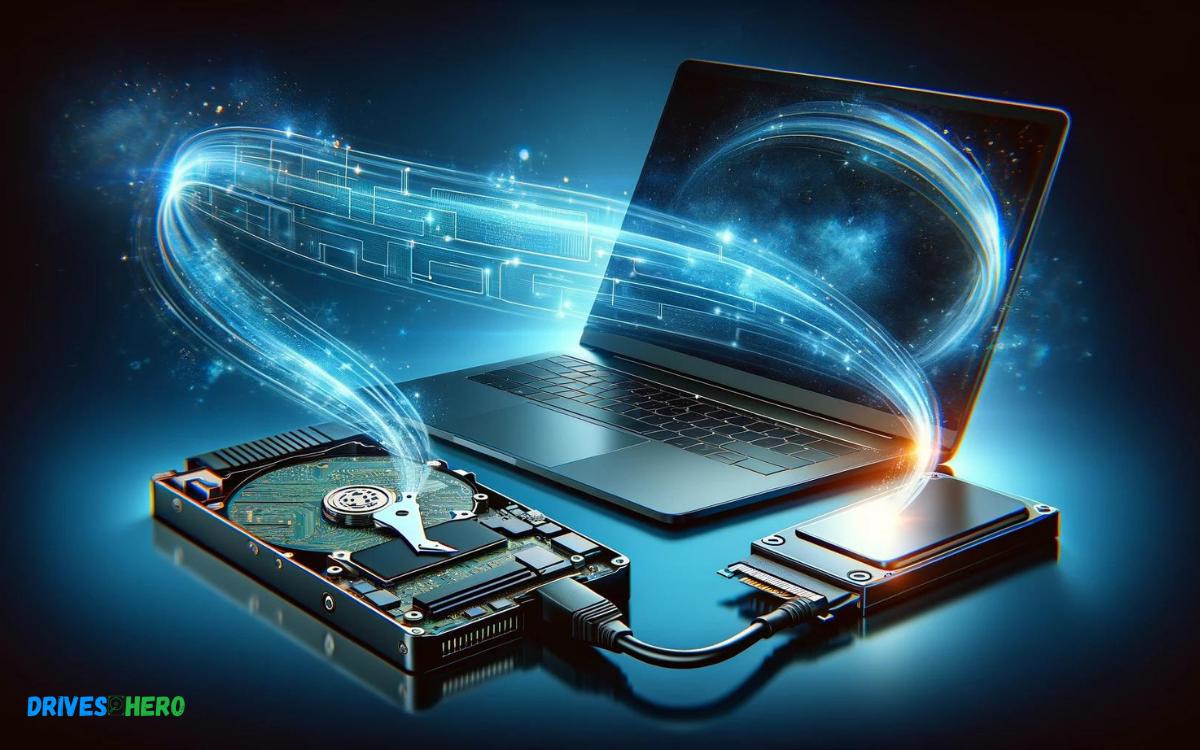
Key Takeaway
Step-by-Step Guide: Transferring Laptop Hard Drive to SSD
Step 1: Backup Your Data
- Before beginning the process, make sure to back up all your important files and documents to an external hard drive or cloud storage.
Step 2: Gather Your Equipment
- Collect your laptop, SSD, screwdriver, and SATA-to-USB cable.
Step 3: Connect the SSD
- Use the SATA-to-USB cable to connect the SSD to your laptop.
Step 4: Clone Your Hard Drive
- Download and install disk cloning software onto your laptop.
- Open the cloning software and select your laptop’s hard drive as the source disk and the SSD as the target disk.
- Follow the prompts to clone the hard drive to the SSD.
Step 5: Physically Replace the Hard Drive
- Shut down your laptop and disconnect all cables.
- Locate the hard drive compartment on your laptop, usually found on the bottom.
- Remove the screws securing the hard drive cover and carefully take out the hard drive.
- Install the SSD into the same compartment and secure it with screws.
Step 6: Boot from the SSD
- Restart your laptop and enter the BIOS/UEFI settings by pressing the designated key during boot (usually F2, F12, or Del).
- Set the SSD as the primary boot device.
- Save changes and exit BIOS/UEFI settings.
Step 7: Verify the SSD
- Once your laptop boots up, ensure it’s running from the SSD.
- Check to make sure all your data and applications are intact on the SSD.
Step 8: Enjoy Your Upgraded Laptop
- Your data is now successfully transferred to the SSD. Enjoy the improved performance of your laptop!
By following these straightforward steps, you can seamlessly transfer your laptop’s hard drive to an SSD, enhancing its speed and efficiency.
SSD Vs. Hdd: Understanding The Basics
When considering a laptop upgrade, the choice between HDD (Hard Disk Drive) and SSD (Solid State Drive) is crucial. It’s not just about boosting storage space; it’s about revolutionizing the way your laptop operates.
Delving into the SSD vs. HDD debate reveals stark differences in performance and durability, often making the SSD a clear winner for many users.
Understanding these differences can inform your choice and reshape your computing experience.
Differences In Performance And Durability
The stark contrast between SSDs and HDDs lies in their performance and durability.
Below, crucial differences are outlined:
- Speed: SSDs boast faster data access times. They enable rapid boot times and swift file transfers, in stark contrast to HDDs.
- Energy Efficiency: SSDs consume less power, benefiting laptop battery life significantly.
- Shock Resistance: With no moving parts, SSDs can withstand physical shock better than HDDs, reducing the risk of data loss due to drops or bumps.
- Heat Production: SSDs produce less heat, ensuring a cooler running system.
- Operation Sound: SSDs operate silently, whereas HDDs emit a noticeable sound during use.
- Lifespan: While SSDs have a finite number of write cycles, they often last longer than the moving parts of HDDs in real-world scenarios.
Benefits Of Upgrading To An Ssd
Upgrading from an HDD to an SSD can breathe new life into your laptop:
- Performance Boost: Experience dramatically faster system boot-up, file access, and application load times.
- Reliability: With no moving mechanical parts, SSDs are less prone to failure compared to traditional HDDs.
- Energy Savings: Increased energy efficiency of SSDs leads to longer battery life for laptops.
- Noise Reduction: SSDs operate almost silently, creating a quieter work environment.
- Durability: Built to last, SSDs offer greater resistance to drops, shocks, and overall wear and tear.
Preparing For The Transfer Process
Setting up your new SSD for a seamless laptop hard drive transfer involves a careful backup of your data and ensuring compatibility. Equip yourself with the right tools and software to clone your existing drive and make the switch efficiently.
Backup Strategies For Data Protection
- Full System Backup: Use a reliable software program to create an image of your entire system, which can be restored if needed.
- File-Based Backup: Manually select important files and folders for backup to an external hard drive or cloud service.
- Incremental Backups: After the initial full backup, regularly back up new or changed files to keep your backup up-to-date.
Remember, multiple backup methods will ensure that you have a fail-safe in place and can quickly recover your data.
Necessary Tools And Materials For The Transfer
To facilitate a smooth and efficient transfer from a hard drive to an SSD, you’ll need the right set of tools and materials.
Here’s a list to guide your preparation:
| Tools and Materials | Description |
|---|---|
| SSD | Select an SSD with adequate storage space to accommodate your data and fit your laptop. |
| Screwdriver Set | A set of precision screwdrivers for opening the laptop and securing the SSD. |
| SATA to USB Cable | Required for cloning your existing hard drive to the SSD if the laptop only has one drive bay. |
| Cloning Software | Essential for duplicating the content of your old drive onto the new SSD. |
| External Storage | For additional backup or temporary data storage during the transfer. |
| Anti-Static Wrist Strap | To prevent electrostatic discharge which could damage laptop components. |
Gather these items before you start the transfer to ensure a non-disruptive and successful upgrade to your SSD.
Cloning Your Laptop Hard Drive
Transferring a laptop hard drive to an SSD boosts speed and reliability. This straightforward process involves cloning your current drive onto a new SSD, ensuring a seamless transition and immediate performance enhancement.
Step-by-step Guide To Clone The Hard Drive To Ssd
Cloning may seem daunting, but following these simple steps can make the process straightforward:
- Prepare the SSD: Ensure the SSD is properly connected to your laptop, using an external enclosure or adapter if necessary.
- Initialize the SSD: If the SSD is new, you might need to initialize it. This step can usually be done through the Disk Management tool in Windows.
- Launch Cloning Software: With the cloning software installed, open the application and select the ‘Clone’ feature.
- Select Source and Target Drives: Choose your current hard drive as the source and the SSD as the target for cloning.
- Review Cloning Options: Adjust any cloning parameters as required by your specific scenario or preferences.
- Start the Cloning Process: Once you’re ready, initiate the cloning process. The time required will depend on the amount of data being transferred.
- Boot from the SSD: After a successful clone, disconnect the old hard drive and set the SSD as the primary boot device in the BIOS settings.
Installing The Ssd Into Your Laptop
Swapping out a laptop hard drive for a speedier, more reliable SSD can breathe new life into an older machine. This upgrade can significantly improve boot times, application loading, and overall system responsiveness.
If you’re ready to take the plunge and upgrade to an SSD, the following steps will guide you through the hardware installation process.
Disassembling The Laptop
- Locate the hard drive compartment, which is typically on the underside of the laptop and may be marked with an HDD or SSD icon.
- Remove the screws securing the compartment cover.
- Gently lift the cover off and set it aside.
- Inside, you will find the old hard drive. Unscrew any brackets or additional screws holding the drive in place.
- Carefully disconnect the drive from the interface connector.
- Remove the old hard drive from the laptop.
Proper Installation Of The Ssd
Once the old drive is out, you’re set to install the new SSD. This stage is critical because the proper installation ensures that your laptop will recognize the new drive and can boot from it without issues.
- Align the SSD with the interface connector and carefully attach it. The connectors should slide together with little resistance.
- If required, secure the SSD with the bracket or screws that held the old drive.
- Before closing the compartment, double-check that the SSD is firmly connected and secured in place.
- Replace the cover of the hard drive compartment and screw it back in.
- Re-insert the battery if you removed it, and reconnect any cables or devices that were disconnected.
With these steps completed, your laptop is now equipped with a fresh SSD, ready for partitioning and operating system installation.
Remember, the hardware swap is just the beginning; preparing and cloning your data to the new drive is the next important phase for a seamless transition.
Data Migration And Optimization
Transferring data from a laptop hard drive to an SSD enhances performance and speed. The process involves cloning existing data and requires the right tools for a smooth transition, safeguarding your valuable files during the upgrade.
Transferring Data And Settings
The transition from an old hard drive to a new SSD begins with the transfer of your existing data and settings.
There are several methods to clone your hard drive’s content to your new SSD:
- Cloning Software: Utilize reliable cloning software to create an exact copy of your hard drive on the SSD.
- Manual Transfer: Manually copy your important files and reinstall applications on the SSD.
- Backup and Restore: Use the Windows backup feature to create a system image and restore it on the SSD.
Before initiating the transfer, ensure you have a backup of your important data to prevent any potential loss.
Clean up your current hard drive to remove unnecessary files, which will speed up the process and start your SSD experience with only the essential data.
Optimizing Ssd For Better Performance
Following a successful data migration, optimize your SSD by:
- Enabling TRIM: TRIM command tells your system which blocks of data are no longer considered in use and can be wiped internally, which is essential for maintaining SSD performance over time.
- Updating Firmware: Ensure your SSD is running on the latest firmware for maximum efficiency and stability.
- Adjusting Settings: Some modifications in system settings can help maintain SSD performance such as disabling defragmentation, enabling write caching, and turning off indexing.
Remember to also check for any BIOS updates that might be available for your laptop, which can further improve the compatibility and performance of your new SSD.
Verifying The Transfer And Post-transfer Tasks
After successfully transferring your laptop’s hard drive data to an SSD, ensure the system boots correctly from the new drive. Next, double-check that all files are intact and the SSD functions as expected, completing the migration process.
Running Diagnostic Tests
- Using Software Tools: Use the built-in tools from your SSD’s manufacturer or third-party software designed for SSD health checking.
- Checking System Reports: Look into system-generated reports that could indicate issues related to the SSD.
- Boot Test: Restart your machine to ensure the new SSD boots correctly and seamlessly.
Post-transfer Maintenance And Troubleshooting
- Operating System Optimization: Tweak your OS settings for better performance with an SSD, including enabling TRIM, adjusting for correct alignment, and disabling defragmentation.
- Driver Updates: Make sure all the necessary drivers are up to date for optimum SSD operation.
- Space Management: Since SSDs typically offer less space than HDDs, managing storage becomes more crucial. Remove any unnecessary files that weren’t sorted prior to transfer.
- Error Checking: Run regular error checks to ensure the SSD does not develop faults over time.
Conclusion
Upgrading to an SSD is a game-changer for laptop performance. By following the steps outlined, you’ll enjoy faster boot times, quicker file access, and an overall boost in system responsiveness.
Remember to back up your data and handle your hardware with care. Take the plunge now and revitalize your laptop with the power of solid-state technology!

Harold Williams is a senior writer and technical editor at Drives Hero with 20+ years of experience in IT administration. He specializes in storage systems, SSD reviews, and performance testing, bringing real-world insight to every guide.