The 3-2-1 Backup Strategy: How to Set It Up on a Budget in 2026
Losing data feels a lot like losing a wallet. There’s the initial panic, the frantic searching, and then the slow, sinking realization that everything inside might be gone for good. Photos from your kid’s first birthday, freelance projects you spent months on, tax documents you’ll definitely need later. All of it, vanished because a single hard drive decided to quit.
The 3-2-1 backup strategy exists specifically to prevent that nightmare. It’s been the gold standard in data protection for decades, and in 2026, it’s easier and more affordable than ever to set up. You don’t need enterprise-grade equipment or a massive budget. A couple of drives, a cloud subscription, and about an hour of your time will get you there.
What Is the 3-2-1 Backup Rule?
The concept is simple. You keep 3 copies of your data, stored on 2 different types of media, with 1 copy stored offsite. That’s it. Three numbers, one incredibly effective strategy.
Here’s what that looks like in practice:
- Copy 1: Your original data, living on your computer’s internal drive.
- Copy 2: A local backup on an external hard drive or NAS device in your home.
- Copy 3: An offsite backup, typically in the cloud, stored somewhere physically separate from your home.
The logic behind this layered approach is about eliminating single points of failure. Your internal drive can crash (and eventually will). Your external backup can get fried in a power surge or stolen in a break-in. But the odds of all three failing simultaneously? Astronomically small. Each layer covers the weaknesses of the others.
Choosing Your Hardware: Local Backup on a Budget
Your local backup is your first line of defense and the one you’ll rely on most often. When you accidentally delete a file or your laptop’s drive dies, this is what saves you in minutes rather than hours.
For most people, a simple external hard drive is the most cost-effective option. You want something with enough capacity to hold at least one full copy of your data, ideally with room to spare for versioning. If your computer holds 1TB of data, aim for a 2TB external drive.
The WD Elements 4TB is a reliable, budget-friendly workhorse that’s been a go-to recommendation for years. It’s bus-powered (no wall plug needed), uses USB 3.0, and has a solid track record for longevity. For anyone primarily backing up documents, photos, and moderate video files, this is plenty.
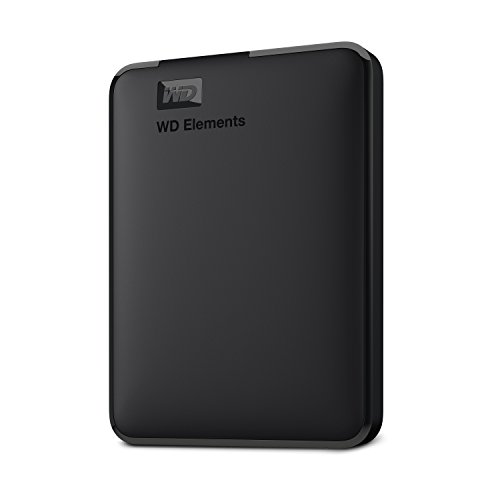
WD Elements 4TB External Hard Drive
A dependable, affordable external drive with enough capacity for most personal backup needs.
If you want faster transfer speeds and don’t mind spending a bit more, consider a portable SSD like the Samsung T7 2TB. It’s compact, shock-resistant, and reads data significantly faster than a spinning drive. We’ve tested several portable SSDs for durability and speed in our roundup of the best portable SSDs for travel in 2026, and the T7 consistently performs well.
Not sure whether to go with an SSD or a traditional hard drive for your backup? Our detailed SSD vs HDD comparison breaks down the pros and cons of each for different use cases.
The NAS Option
If you’re backing up multiple computers in your household, or you want your backup available over your local network, a NAS (Network Attached Storage) device is worth considering. A budget NAS like the Synology DS223 paired with a couple of hard drives gives you centralized, always-on backup storage for your entire family.
We’ve put together a full walkthrough for building a budget home NAS if you want to go this route. It’s more involved than plugging in an external drive, but the long-term convenience is significant. For a deeper look at the cost tradeoffs between NAS and cloud storage, check our cloud backup vs local NAS cost comparison.
Choosing Your Cloud Service: The Offsite Piece
The offsite copy is your insurance against the worst-case scenarios: house fires, floods, theft, or a power surge that takes out everything plugged into your wall. Cloud backup handles this automatically, running in the background while you work.
Here are three solid cloud backup options at different levels:
- Backblaze Personal Backup: Unlimited storage for a single computer at a very competitive monthly or annual rate. It’s hands-down the simplest option for individual users. Set it up once, and it continuously backs up everything on your machine.
- iDrive: Supports multiple devices (including phones and tablets) on a single plan and offers up to 10TB of storage. Great for families or anyone with several devices to protect.
- Google Drive / Microsoft OneDrive: If you already pay for Google One or Microsoft 365, you’ve got 1TB or more of cloud storage included. Not a true “backup” service by default, but with the right folder sync settings, it works well for critical files.
For pure backup simplicity, Backblaze is hard to beat. It’s the service I recommend to anyone who just wants to set something up and forget about it. iDrive earns its spot when you need to cover a whole household of devices under one subscription.
Step-by-Step Setup Guide
Let’s walk through setting up a complete 3-2-1 backup system from scratch. This assumes you’re using a Windows or Mac computer, an external hard drive, and a cloud backup service.
Step 1: Connect and Format Your External Drive
Plug your external hard drive into your computer. If it doesn’t show up, take a look at our guide for fixing undetected external drives before moving forward. For Mac users, you’ll likely need to format the drive to APFS or Mac OS Extended using Disk Utility. Windows users can stick with NTFS.
Step 2: Set Up Automated Local Backups
On Windows: Open Settings > Update & Security > Backup. Click “Add a drive” and select your external drive. Turn on “Automatically back up my files.” Windows File History will begin saving copies of your files on a regular schedule. You can click “More options” to adjust how often it runs and which folders it covers.
On Mac: When you connect your external drive, macOS will typically ask if you want to use it with Time Machine. Click “Use as Backup Disk.” Time Machine will run hourly backups automatically, keeping hourly snapshots for the past 24 hours, daily backups for the past month, and weekly backups for older data.
Both built-in tools handle versioning, meaning you can recover not just the latest version of a file, but older versions too. This is incredibly useful when you overwrite something by mistake.
Step 3: Install and Configure Cloud Backup
Download and install your chosen cloud backup client. Using Backblaze as an example:
- Create an account at backblaze.com and start your trial or subscription.
- Download the Backblaze installer and run it.
- The software will automatically scan your computer and begin uploading everything. The initial backup can take several days depending on how much data you have and your upload speed.
- Once the initial backup completes, Backblaze monitors for new and changed files continuously.
One important tip: don’t throttle your initial upload unless you absolutely have to. Let it run overnight or over a weekend to get that first full backup done as quickly as possible. Until it’s complete, you don’t have your offsite copy.

Seagate Portable 2TB External Hard Drive
A compact, affordable option if you need a smaller-capacity drive for backing up a single laptop.
Step 4: Verify Your Backups
This is the step everyone skips, and it’s the most important one. A backup you’ve never tested is a backup you can’t trust.
- Local backup: Navigate to your external drive and open a few backed-up files. On Mac, enter Time Machine and try restoring a test file. On Windows, go to File History and restore a random document.
- Cloud backup: Log into your cloud backup’s web interface and download a file or two. Make sure they open correctly and aren’t corrupted.
Set a calendar reminder to test your backups every three months. It takes five minutes and can save you from discovering a problem at the worst possible time.
Maintenance Tips to Keep Your Backups Healthy
A backup system only works if it’s actually running. Here are a few things to keep an eye on:
- Keep your external drive connected regularly. If you’re using a desktop, leave it plugged in. Laptop users should connect it at least weekly. You can also automate backups to a NAS if you want something always available on your network.
- Monitor your cloud backup status. Most cloud services have a dashboard or system tray icon that shows when the last backup completed. If it’s been stuck for days, investigate.
- Replace aging drives. External hard drives typically last 3 to 5 years with regular use. If yours is getting old, replace it proactively rather than waiting for failure. Clicking or grinding sounds are warning signs you shouldn’t ignore.
- Encrypt sensitive data. Both Backblaze and iDrive offer encryption options. Enable them during setup, and keep your encryption key stored somewhere safe (like a password manager).
Frequently Asked Questions
How often should I run my local backups?
Ideally, your local backups should run automatically every day, or even more frequently. Both Windows File History and macOS Time Machine handle this without any input from you once configured. The key is to keep your external drive connected so the software can actually do its job. If you only connect your backup drive once a month, you could lose up to a month of work in a failure scenario.
Can I use two external drives instead of an external drive plus cloud storage?
Technically, yes, but you’d need to store one of those drives offsite, like at a friend’s house or in a safe deposit box, and swap it regularly. This is how people did offsite backup before cloud services existed. It works, but it requires discipline and physical effort that most people eventually stop doing. Cloud backup is more practical for the offsite piece because it runs automatically in the background.
Do I really need 3-2-1 if I already use Google Drive or Dropbox?
Sync services like Google Drive and Dropbox

James Kennedy is a writer and product researcher at Drives Hero with a background in IT administration and consulting. He has hands-on experience with storage, networking, and system performance, and regularly improves and optimizes his home networking setup.