What Does TRIM Do on an SSD?
If you’ve owned an SSD for more than a few months, you’ve probably come across the term “TRIM” in a settings menu or a troubleshooting article. It sounds technical, but the concept is surprisingly simple. TRIM is the single most important maintenance feature keeping your SSD fast and healthy over its entire lifespan. Here’s exactly what it does and how to make sure it’s working on your system.
How SSDs Handle Deleted Data (And Why It’s a Problem)
When you delete a file on a traditional hard drive, the operating system just marks that space as available. The old data sits there until something new overwrites it. Hard drives don’t care because they can overwrite data in place.
SSDs can’t do that. Flash memory cells must be erased before they can be written to again. And SSDs can’t erase individual cells. They erase in large chunks called “blocks,” which might contain dozens of pages of data. This means that when your SSD needs to write new data to a space that still holds old, deleted files, it first has to read the entire block, erase it, and then write the new data back along with any valid data from that block. This process is called write amplification, and it slows things down considerably.
If you’ve ever noticed your SSD getting sluggish after months of heavy use, this is almost certainly why. We covered the full mechanics in our guide on why your SSD slows down over time and how to fix it.
What TRIM Actually Does
TRIM is a command that your operating system sends to the SSD whenever you delete a file. It tells the drive, “Hey, these specific blocks aren’t needed anymore. You can erase them whenever you’re ready.”
This lets the SSD’s controller proactively clean up unused blocks during idle time, rather than scrambling to erase and rewrite blocks in the middle of an active write operation. The result is consistently faster write speeds, less write amplification, and reduced wear on the NAND flash cells. That last point directly affects how long your SSD will actually last.
Think of it like busing tables at a restaurant. Without TRIM, dirty dishes pile up and the staff has to frantically clear a table only when a new customer sits down. With TRIM, tables get cleared during slow periods so everything is ready when the next rush hits.
How to Check If TRIM Is Enabled
Most modern operating systems enable TRIM by default, but it’s worth a quick check.
Windows 10/11
- Open Command Prompt as Administrator (search “cmd,” right-click, select “Run as administrator”).
- Type: fsutil behavior query DisableDeleteNotify
- If the result shows DisableDeleteNotify = 0, TRIM is enabled. If it shows 1, TRIM is disabled.
- To enable it, type: fsutil behavior set DisableDeleteNotify 0
Windows should also recognize your SSD in the built-in “Optimize Drives” tool (search “Defragment and Optimize Drives”). Your SSD should appear as “Solid state drive” and show scheduled optimization, which includes TRIM.
macOS
Apple enables TRIM automatically for all Apple-branded SSDs. If you’ve installed a third-party SSD in an older MacBook, open Terminal and type: system_profiler SPSerialATADataType | grep TRIM. You should see “TRIM Support: Yes.” For NVMe drives, check under the NVMe section in System Information.
Linux
Most modern Linux distributions support TRIM. You can run a manual TRIM with sudo fstrim -av or set up a scheduled service. Many distros include a fstrim.timer systemd service that runs weekly. Enable it with: sudo systemctl enable fstrim.timer
One Important TRIM Caveat
Because TRIM tells the SSD to erase deleted data proactively, it makes data recovery from an SSD much harder (sometimes impossible). On an HDD, deleted files often linger for weeks or months. On a TRIM-enabled SSD, the data may be physically erased within minutes. This is actually useful if you’re planning to securely wipe a drive before selling it, but it’s something to keep in mind if you accidentally delete a file. Act fast, and don’t count on recovery tools working the way they would on a hard drive.
If you’re still deciding between solid-state and traditional drives for your setup, our SSD vs HDD comparison breaks down the practical differences.
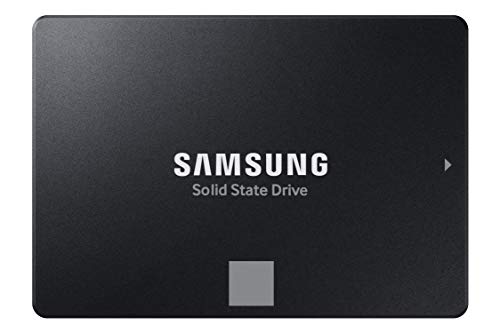
Samsung 870 EVO 1TB SATA SSD
Excellent TRIM support, consistent long-term performance, and one of the most reliable SATA SSDs available.
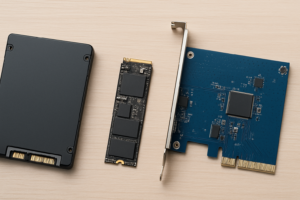
For NVMe drives, the Samsung 990 Pro handles TRIM and garbage collection exceptionally well, maintaining near-factory speeds even after extended use. You can also manage TRIM and monitor drive health through Samsung’s free Magician software.
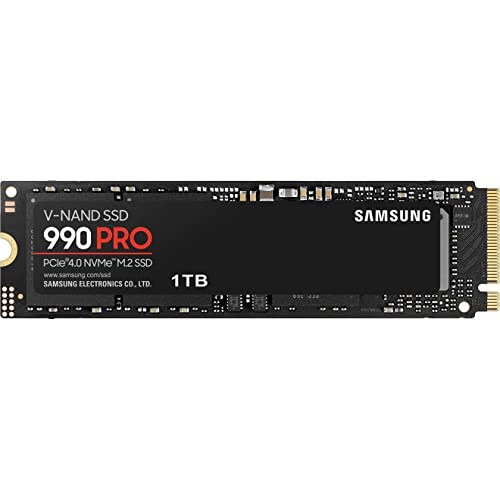
Samsung 990 Pro 1TB NVMe SSD
Top-tier NVMe drive with outstanding garbage collection and TRIM optimization for sustained performance.
Frequently Asked Questions
Does TRIM work on external SSDs connected via USB?
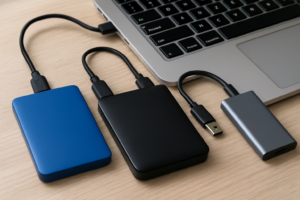
It depends on the USB enclosure. TRIM commands need to pass through the USB-to-SATA or USB-to-NVMe bridge chip, and not all enclosures support this. Enclosures using the ASMedia ASM2362 or JMicron JMS583 chipsets typically support TRIM passthrough. If you’re using an external SSD as a primary work drive, it’s worth verifying this before buying an enclosure. Many portable SSDs from major brands have TRIM support built in.
Can I run TRIM manually if I want to?
Yes. On Windows, open “Optimize Drives” and click “Optimize” with your SSD selected. On Linux, use the sudo fstrim -av command. On macOS with Apple SSDs, the OS handles it automatically and there’s no manual override needed. Running a manual TRIM once in a while won’t hurt anything, but if automatic TRIM is enabled, you don’t need to bother. Your OS is already sending the commands every time you delete a file.
This article contains affiliate links. We may earn a small commission at no extra cost to you.

James Kennedy is a writer and product researcher at Drives Hero with a background in IT administration and consulting. He has hands-on experience with storage, networking, and system performance, and regularly improves and optimizes his home networking setup.