What Is DRAM Cache and Why Does It Matter for SSD Speed?
You’re shopping for an SSD, and you notice two drives with similar storage capacities and speed ratings. One costs noticeably more than the other. You check the spec sheets and spot the difference: one has a DRAM cache, and the other doesn’t. But what does that actually mean for your daily experience, and is it worth the extra money?
DRAM cache is one of those under-the-radar specs that rarely makes it into marketing headlines, yet it can make a significant difference in how your SSD performs, especially under sustained workloads. Let’s break down exactly what it does, why some manufacturers skip it, and when you should care.
What Is DRAM Cache on an SSD?
Every SSD needs to keep track of where your data is stored on its NAND flash chips. This mapping information is called the Flash Translation Layer (FTL), and it’s essentially a giant lookup table. Every time your system reads or writes data, the SSD controller consults this table to figure out which physical memory cell to access.
A DRAM cache is a small chip of fast volatile memory (the same type used in your computer’s RAM) mounted directly on the SSD’s circuit board. Its primary job is to store a copy of that FTL mapping table so the controller can access it almost instantly, rather than having to read it from the much slower NAND flash.
Think of it like a librarian who has memorized the entire catalog system versus one who needs to walk to the filing cabinet every time you ask where a book is. Both can find your book, but one is dramatically faster at looking things up.
How Much DRAM Do SSDs Typically Have?
Most DRAM-equipped SSDs include roughly 1 MB of DRAM per 1 GB of storage. A 1TB SSD will typically have 1 GB of DRAM cache, while a 2TB model gets 2 GB. Some high-end drives, like the Samsung 990 Pro, include generous DRAM allocations that help maintain consistent performance even during heavy mixed workloads. If you’re curious about how that drive stacks up against competitors, we’ve compared it head-to-head in our Samsung 990 Pro vs WD_BLACK SN850X showdown.
What Happens Without DRAM (DRAMless SSDs)
DRAMless SSDs don’t have that dedicated memory chip. Instead, they rely on two alternative approaches to handle the FTL mapping table.
Host Memory Buffer (HMB): Most modern DRAMless NVMe SSDs use a small portion of your computer’s system RAM to cache the mapping table. The SSD controller borrows a few megabytes (typically 32-64 MB) from your PC’s RAM over the NVMe protocol. This works reasonably well for light workloads, but it adds latency since the controller has to go through the PCIe bus to reach that data instead of accessing onboard memory directly.
On-NAND caching: Older or cheaper DRAMless SATA SSDs that can’t use HMB may store frequently accessed FTL data in a small portion of the NAND flash itself. This is considerably slower than either DRAM or HMB.
For basic tasks like booting your OS, opening applications, or browsing the web, a decent DRAMless SSD with HMB support can feel nearly identical to a DRAM-equipped drive. The differences start showing up when you push the drive harder.
Where DRAM Cache Actually Makes a Difference
If DRAM and DRAMless drives feel similar in light use, when does the DRAM advantage become noticeable? Several scenarios expose the gap clearly.
Sustained Write Performance
Copying large files, installing big games, or working with video projects means your SSD is writing continuously for extended periods. A DRAM-equipped drive can keep its mapping table lookups fast throughout the entire operation. DRAMless drives tend to slow down more aggressively once their SLC write cache fills up, partly because the controller is now juggling data writes alongside FTL lookups on the same NAND flash.
Random Read/Write with High Queue Depths
When your system is doing lots of small, random operations simultaneously (think: running a database, compiling code, or operating a busy virtual machine), the FTL table gets hammered with lookup requests. Onboard DRAM handles this without breaking a sweat. HMB adds a few microseconds of latency per lookup, which compounds quickly across thousands of operations per second.
Drive Endurance and Long-Term Consistency
As an SSD fills up and ages, its controller has to work harder to manage data placement, garbage collection, and wear leveling. DRAM gives the controller a fast workspace for all these background housekeeping tasks. This is partly why SSDs slow down over time, and having DRAM helps mitigate that degradation. For a deeper look at that issue, check out our guide on why your SSD slows down over time and how to fix it.
Use as a Boot or OS Drive
Your operating system constantly reads and writes small files, logs, caches, and temporary data. A DRAM-equipped SSD handles these constant random operations more smoothly. You probably won’t notice a difference in boot time itself (that’s a largely sequential operation), but general system responsiveness throughout the day can be slightly snappier with DRAM, especially if your system is under moderate load.
Why DRAMless SSDs Exist (and When They’re Fine)
Manufacturers don’t skip DRAM just to be cheap. Well, cost is a major factor, but there are legitimate engineering and market reasons for DRAMless designs.
A DRAM chip adds to the bill of materials, increases PCB complexity, and draws additional power. Removing it lets manufacturers offer more affordable SSDs with smaller physical footprints and better battery efficiency in laptops. For budget-conscious buyers, the savings can be significant.
The Kingston NV2 is a popular DRAMless NVMe drive that performs perfectly well for everyday computing. If you’re building a basic home PC, using the SSD as secondary game storage, or putting together a simple file server, a DRAMless drive with HMB support will serve you just fine.
DRAMless SSDs are also a solid pick when you need a secondary storage drive that won’t serve as your boot device. If it’s just holding your game library or media files, the lack of DRAM rarely matters in practice. We covered several affordable options in our roundup of the best budget SSDs and how their performance compares.

Kingston NV2 1TB NVMe SSD
An excellent budget DRAMless NVMe drive with HMB support that handles everyday computing tasks without issue.
DRAM vs DRAMless: Real-World Performance Numbers
Synthetic benchmarks can overstate the difference, so let’s focus on what you’d actually feel. In testing across multiple review sources, here’s what the data generally shows:
- Sequential reads/writes: Nearly identical. Both DRAM and DRAMless NVMe drives can saturate their PCIe bandwidth. You won’t see a meaningful difference copying a single large file.
- Random 4K reads (low queue depth): DRAM drives are typically 5-15% faster. Noticeable in snappy OS interactions, but subtle.
- Random 4K reads (high queue depth): DRAM drives can be 20-40% faster. This matters for workstation and server tasks.
- Sustained writes beyond SLC cache: This is where the gap widens dramatically. A DRAMless drive might drop to 200-400 MB/s, while a DRAM-equipped drive of the same tier might maintain 800-1500 MB/s.
- Latency under mixed workloads: DRAM drives show more consistent latency. DRAMless drives can experience periodic spikes that cause brief stutters.
For most people using their PC for web browsing, office work, and some gaming, the difference between a good DRAMless NVMe SSD and a DRAM-equipped one is barely perceptible. The distinction becomes meaningful as workload intensity increases.
Best SSDs with DRAM Cache (Worth the Extra Investment)
If you’ve decided DRAM is important for your use case, here are the drives that do it best in different categories.
Best NVMe with DRAM: Samsung 990 Pro
The Samsung 990 Pro remains one of the fastest consumer NVMe drives available. It features a generous DRAM cache, Samsung’s proven controller technology, and excellent sustained write speeds. It’s an ideal choice for a primary boot drive, content creation, or any workload where consistent performance matters. We go into full detail in our Samsung 990 Pro review.

Samsung 990 Pro 2TB NVMe SSD
Top-tier Gen 4 NVMe with DRAM cache, excellent sustained performance, and a 5-year warranty from Samsung.
Best SATA SSD with DRAM: Samsung 870 EVO
If you’re upgrading an older laptop or desktop that only supports SATA, the Samsung 870 EVO is the go-to recommendation. It includes DRAM, delivers consistent SATA-speed performance, and has a proven reliability track record. For anyone comparing form factors, our M.2 vs 2.5-inch SSD comparison guide can help you figure out which style fits your system.
Best Value NVMe with DRAM: WD Blue SN580 / SK hynix P41 Platinum
The SK hynix Platinum P41 delivers near-flagship performance at a more accessible price. It’s got DRAM, excellent controller efficiency, and surprisingly strong sustained write speeds. For a general-purpose boot drive where you want DRAM without paying flagship prices, it’s hard to beat.
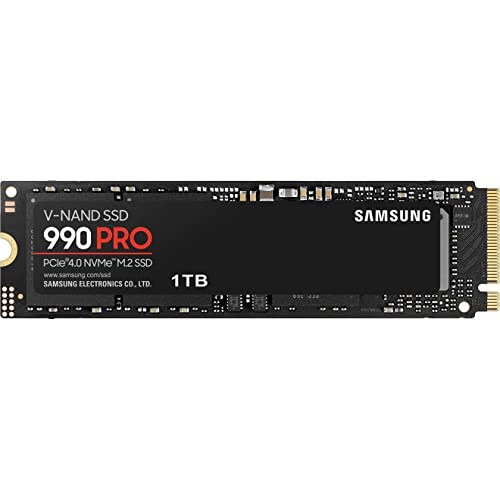
SK hynix Platinum P41 1TB NVMe SSD
Near-flagship NVMe performance with DRAM at a competitive price, great for a primary PC drive.
How to Tell If Your SSD Has DRAM
Manufacturers don’t always make this easy to find. Here are a few reliable ways to check:
- Check the spec sheet: Look for mentions of “DRAM cache,” “DRAM buffer,” or a specific DRAM chip listing (like “512 MB LPDDR4”). If the spec sheet mentions “HMB” (Host Memory Buffer) instead, it’s DRAMless.
- Use a tool like CrystalDiskInfo: While it won’t always directly tell you about DRAM, it identifies your drive’s controller. You can then look up whether that controller model typically ships with DRAM.
- Check community databases: The r/NewMaxx SSD spreadsheet on Reddit maintains a well-curated list of SSDs categorized by features, including DRAM presence.
- Look at the PCB: If you have the drive in hand and don’t mind voiding a warranty sticker, the DRAM chip is usually a separate, clearly labeled IC next to the controller. On DRAMless drives, that spot on the PCB is empty or absent entirely.
DRAM and SSD Lifespan: Is There a Connection?
DRAM itself doesn’t directly extend the rated endurance (TBW) of your SSD. The NAND flash cells still wear out at the same fundamental rate. However, DRAM indirectly helps longevity in a couple of ways.
Because the controller can manage garbage collection and wear leveling more efficiently with fast DRAM access, it may distribute writes more evenly across the NAND, preventing hotspots. Efficient write amplification management (which DRAM assists with) also means fewer unnecessary writes to the flash, which conserves endurance over time. For more on what determines how long your drive will last, our SSD lifespan analysis with real-world data covers the topic in detail.
Most modern SSDs, even DRAMless ones, will outlast the typical upgrade cycle for consumer users. The endurance benefit of DRAM is more relevant in write-intensive environments like servers or content creation workstations.
Frequently Asked Questions
Can I add DRAM to a DRAMless SSD?
No. The DRAM chip is soldered to the SSD’s circuit board at the factory, and the controller firmware is designed specifically for either a DRAM or DRAMless configuration. You can’t upgrade a DRAMless drive after purchase. If you want DRAM, you need to buy a drive that includes it from the start.
Is a DRAMless NVMe SSD still faster than a SATA SSD with DRAM?
In sequential speeds, yes, by a wide margin. A DRAMless NVMe drive on PCIe 3.0 can deliver 2,000-3,500 MB/s sequential reads, while even the best SATA SSD tops out around 550 MB/s. In random performance at high queue depths, however, a DRAM-equipped SATA drive can occasionally match or beat a low-end DRAMless NVMe drive. For most real-world use, though, the NVMe bus advantage dominates.
Do portable or external SSDs have DRAM?
Some do, but many external SSDs use DRAMless controllers to keep power consumption and heat low inside their compact enclosures. The Samsung T7 Shield, for example, uses a DRAMless design. For external drives, the USB interface is typically the bottleneck anyway, so the absence of DRAM has even less impact than it would in an internal drive. If you’re shopping for a travel companion, we tested several options in our roundup of the James Kennedy is a writer and product researcher at Drives Hero with a background in IT administration and consulting. He has hands-on experience with storage, networking, and system performance, and regularly improves and optimizes his home networking setup.