How to Transfer Data from Hdd to Ssd? 10 Steps!
Transitioning your data from a traditional HDD (Hard Disk Drive) to a lightning-fast SSD (Solid State Drive) marks a significant upgrade in performance and reliability for your system.
Check out this helpful video on the topic:
Whether you’re aiming to reduce boot times, improve application responsiveness, or simply optimize storage efficiency, transferring data to an SSD is a smart move.
We’ll outline the steps to seamlessly transfer your data from your HDD to your new SSD, ensuring a smooth transition and unlocking the full potential of your storage upgrade.
Key Takeaway
Transfer Data from HDD to SSD: Quick Guide
Step 1: Connect SSD
Connect your SSD to your computer using a compatible cable or by installing it directly into an available slot.
Step 2: Backup Important Data
Before transferring any data, ensure that all important files and documents are backed up to prevent any loss.
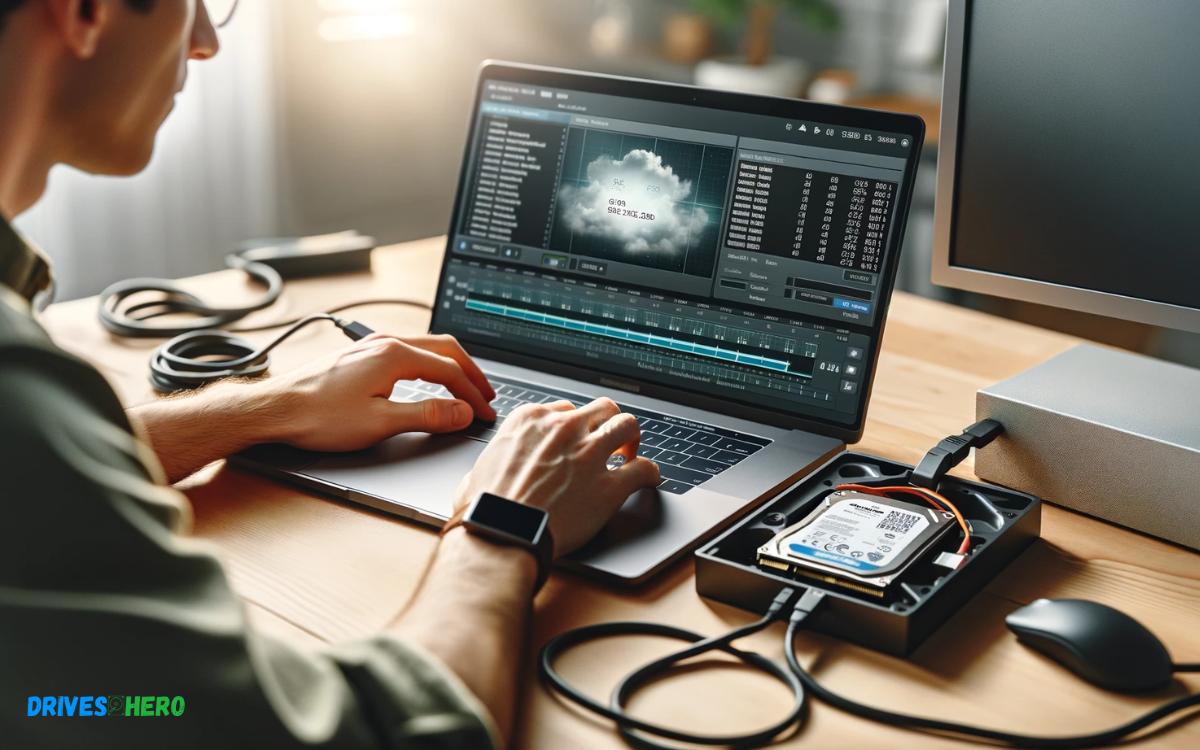
Step 3: Launch Disk Cloning Software
Use disk cloning software such as EaseUS Todo Backup, Macrium Reflect, or Clonezilla to clone your HDD to the SSD.
Step 4: Select Source and Destination Drives
In the cloning software, select your HDD as the source drive and the SSD as the destination drive.
Step 5: Start Cloning Process
Initiate the cloning process and wait for it to complete. This will copy all data from your HDD to the SSD.
Step 6: Shut Down Computer
Once the cloning process is finished, shut down your computer completely.
Step 7: Disconnect HDD (Optional)
If you’re replacing the HDD with the SSD, disconnect the HDD from your computer. If you’re keeping both drives, proceed to the next step.
Step 8: Set SSD as Boot Drive
If the SSD is not already set as the boot drive, enter the BIOS/UEFI settings and set the SSD as the primary boot device.
Step 9: Boot Up Computer
Power on your computer and verify that it boots from the SSD. You should now be running your system from the SSD.
Step 10: Verify Data Transfer
Check that all your files and documents are intact on the SSD. Test various functionalities to ensure everything works as expected.
By following these steps, you’ve successfully transferred data from your HDD to an SSD, improving your system’s performance and storage capabilities.
Understanding Hdd And Ssd
Data transfer between different types of storage devices is essential for computer upgrades or just to keep backups safe.
Before diving into the process of transferring data from an HDD (Hard Disk Drive) to an SSD (Solid State Drive), comprehension of both storage mediums is imperative for a successful and efficient movement of your digital belongings.
Difference Between Hdd And Ssd
| HDD (Hard Disk Drive) | SSD (Solid State Drive) |
|---|---|
| Uses magnetic storage to read/write data | Uses flash memory without moving parts |
| Typically lower in cost for more storage | Generally more expensive per GB |
| Slower read and write speeds | Faster access times and speeds |
| More prone to damage due to mechanical parts | Durable with less risk of physical failure |
Advantages Of Transferring Data From Hdd To Ssd
- Improved Performance: SSDs offer significantly faster data access, which can boost overall system responsiveness and reduce loading times.
- Enhanced Durability: Without any moving parts, SSDs are less vulnerable to physical damage and can be a safer home for your data.
- Energy Efficiency: SSDs consume less power, leading to energy savings and potentially longer battery life for laptops.
- Quieter Operation: The silent nature of solid-state technology means no noise from moving components, ensuring a quieter work environment.
- Reduced Heat Emission: A cooler system is often a byproduct of an SSD’s efficiency, which may lead to longer component lifespans.
Factors To Consider Before Transfer
Embarking on the journey to transfer data from an old hard disk drive (HDD) to a new solid-state drive (SSD) can be both exciting and nerve-wracking.
Before proceeding with the transfer, there are critical factors to consider that will ensure your upgrade is successful and free of setbacks.
Storage Capacity
| Data Usage | Suggested SSD Size |
|---|---|
| < 250GB | 256GB SSD |
| 250GB – 500GB | 512GB SSD |
| 500GB – 1TB | 1TB SSD |
| > 1TB | 2TB or larger SSD |
Compatibility With System
- Interface type (SATA, PCIe, NVMe)
- Form factor (2.5-inch, M.2, mSATA)
- Dimensions and physical space available in the system
- Potential need for adapters or conversion brackets
How To Prepare For Data Transfer?
Before transferring data from an HDD to an SSD, ensure a complete and current backup. Utilize reliable cloning software to seamlessly migrate your files, maintaining system integrity and minimizing downtime.
Clean Up Unnecessary Files
- Delete temporary files: Use built-in cleanup tools like Disk Cleanup in Windows to remove temporary files that may no longer be needed.
- Uninstall unused programs: Go through your installed applications and remove those that you haven’t used in a long time.
- Clear browser cache: Browsers store cache files that can take up significant space over time. Clear them out from your browser settings.
- Remove duplicate files: Use a duplicate file finder to locate and delete copies of files unnecessarily taking up space.
Backup Important Data
Backing up your important data is crucial before any transfer. This ensures you have a secure copy of your files should anything unexpected occur.
Here’s a structure to follow:
- Identify key files and documents: Decide which files are irreplaceable and prioritize them in your backup plan.
- Use an external drive or cloud service: Copy your critical files to an external hard drive or an online service like Google Drive, OneDrive, or Dropbox.
- Check the integrity of the backup: After the backup process, verify that files are accessible and intact on the backup medium.
- Create a system image: For a comprehensive backup, consider creating a full system image. This captures your entire operating system, settings, and all installed programs, allowing for a full restore if necessary.
Tools And Software For Transfer
Seamlessly migrating data from HDD to SSD requires robust cloning software. Opt for trusted tools like Acronis True Image or Samsung Data Migration to ensure a smooth transition without data loss.
Data Migration Software
Selecting the right data migration software is critical for a successful transfer from HDD to SSD. This software is designed to clone your operating system, applications, and personal files from the old drive to the new one, making the transition seamless.
- Acronis True Image: Known for its user-friendly interface and robust feature set, including disk cloning and backup.
- Clonezilla: A free, open-source option that supports multiple file systems and partitions.
- Macrium Reflect: Offers rapid cloning capabilities and free versions for personal use.
- EaseUS Todo Backup: Another user-friendly option with partition and disk cloning functions.
Select a tool that matches your needs, whether you’re a beginner looking for a straightforward solution or an advanced user requiring extensive customization options.
Steps For Using The Software
After choosing your data migration software, follow these general steps to begin the transfer process:
- Prepare the SSD: Ensure the SSD is installed in your computer and recognized by the operating system.
- Install the Software: Download and install the data migration software on your computer.
- Run the Software: Launch the program and choose the disk cloning or migration option.
- Select Source and Target Drives: Pick the current HDD as the source and the SSD as the target drive.
- Start the Transfer: Follow the software’s instructions to begin cloning your drive. This may include options to optimize for an SSD.
- Complete the Process: Once the transfer is complete, you might need to change the boot order in BIOS if you’re replacing the primary drive.
During each step, heed any specific instructions offered by your chosen software.
It’s essential to ensure that no files are in use during the cloning process, so consider performing the transfer with minimal background applications running or by booting from a separate media if supported by the software.
Troubleshooting Common Issues
Encountering issues while transferring data from an HDD to an SSD can be frustrating. Understanding how to troubleshoot common problems can save you time and ensure a smooth data migration process.
Below are the tips and steps to address some of the difficulties users often encounter during the transfer process.
Recognizing The Ssd
- Connections: Ensure the SSD is correctly connected to the power supply and motherboard.
- BIOS/UEFI settings: Access the system BIOS/UEFI and verify that the SSD is listed under connected devices.
- Drivers: Confirm you have the latest SSD drivers installed. An outdated driver can cause recognition issues.
If issues persist, try using a different port or cable, or connect the SSD to another computer to rule out hardware problems.
Data Transfer Failure
A failed data transfer can trigger a wave of concern, but there are ways to mitigate this.
Start by:
- Checking the Source Disk: Confirm there are no errors on your HDD. Running a disk check can help identify and resolve file system issues.
- Verifying Available Space: Ensure the SSD has enough storage capacity for the transfer. Data won’t copy if there’s not enough room.
- Software Complications: If using cloning software, make sure it’s compatible with your SSD and that you’re following the provided instructions precisely.
| Issue | Possible Cause | Troubleshooting Step |
|---|---|---|
| Non-Detection | Improper connection or BIOS/UEFI | Check cables and BIOS/UEFI settings |
| Slow Transfer Speed | Outdated drivers or faulty cable | Update drivers and check cables |
| Failure to Transfer | Insufficient space or software issue | Ensure adequate space and properly set up software |
Remember, patience is key. If efforts to resolve the issues don’t bear fruit, consider seeking the help of a professional. With the right approach, your data transfer to your new SSD should be successful.
Post-transfer Tips And Best Practices
Ensuring a smooth data transition from HDD to SSD requires attention to detail. Adopt best practices to maintain data integrity and boost system performance post-transfer.
Optimizing Ssd Performance
After transferring to an SSD, sit back and marvel at the speed!
To maintain this performance and extend the life of your SSD, consider the following:
- Enable TRIM: TRIM is a command that helps the SSD manage unused data blocks. This can be enabled by running a command in most operating systems.
- Check for Firmware Updates: Manufacturers sometimes release firmware updates. It’s crucial to install these to fix bugs or improve performance.
- Adjust Your Boot Priority: Ensure that your computer’s boot order prioritizes the SSD. This adjustment is made in your computer’s BIOS settings.
| Setting | Purpose |
|---|---|
| Disable indexing | Reduces write operations by preventing indexing of files for search. |
| Turn off hibernation mode | Prevents a large hibernation file from being written to the SSD. |
Properly Disposing Of The Old Hdd
After the transition to an SSD, it’s vital to handle your old HDD responsibly.
Follow these steps to ensure you do it the right way:
- Wipe the Drive: Securely erase your data to prevent unauthorized recovery. Use specialized software to overwrite the drive multiple times.
- Recycling Facilities: Don’t just throw your old HDD in the bin. Many electronics retailers offer recycling programs for old drives.
- Consider Repurposing: An old HDD can serve as a backup drive or external storage if enclosed in a hard drive enclosure.
- Destruction Services: If the drive isn’t working, consider using a destruction service to ensure the data can’t be recovered.
Conclusion
Upgrading from an HDD to an SSD is a smart move for performance and efficiency. The process can be simple with the right tools and steps.
Remember to back up data beforehand to secure your files. By following this guide, you’ll enjoy a faster and more responsive system in no time.

Harold Williams is a senior writer and technical editor at Drives Hero with 20+ years of experience in IT administration. He specializes in storage systems, SSD reviews, and performance testing, bringing real-world insight to every guide.