How to Upgrade M 2 Ssd Without Reinstalling Windows
To upgrade an M.2 SSD without reinstalling Windows, clone your current drive to the new SSD. Use a dependable cloning software to ensure a smooth transition.
Upgrading your M. 2 SSD is a straightforward process that significantly boosts your computer’s performance and storage capacity. It’s vital to select a compatible SSD that fits your motherboard’s specifications. Before initiating the upgrade, back up essential data to avoid any potential loss.
Cloning your existing drive to the new SSD preserves your operating system, applications, and files, enabling a seamless upgrade without the hassle of reinstalling Windows. Choose cloning software with a strong reputation for reliability and user-friendliness. Once the clone is complete, simply replace the old SSD with the new one and boot up your PC as usual. This method saves time and maintains your current system setup effortlessly.
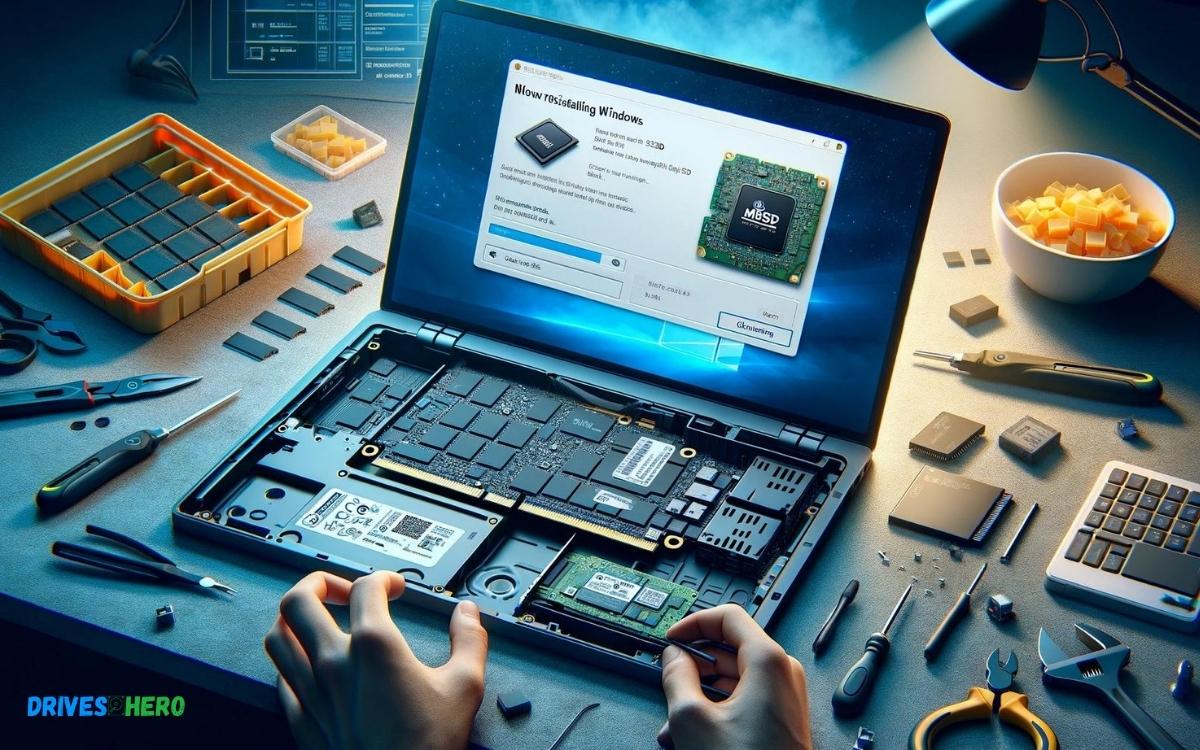
Key Takeaway
Introduction To M.2 Ssd Upgrades
Are your computer boots resembling a slow-motion scene? Does your heart sink a little every time you try to launch a high-demand application? It might be time to talk about upgrading to an M.2 Solid State Drive (SSD). An enlightened pathway to enhanced performance and faster load times, an M.2 SSD upgrade can feel like you’ve treated your computer to a slice of the future. But with great power comes great concern: the dread of a fresh Windows install. Fear not! Upgrading your M.2 SSD without the hassle of reinstalling Windows is possible and we’re here to guide you through it.
Understanding M.2 Ssds And Their Advantages
The M.2 SSD is a compact, high-performance storage solution that plugs directly into the motherboard, delivering blazing speeds and impressive responsiveness. Harnessing both NVMe (Non-Volatile Memory Express) and SATA technologies, these drives come in a variety of sizes and capacities to fit the bespoke needs of your system. Here are some of the advantages they bring to the table:
- Faster Data Transfer: M.2 SSDs often utilize NVMe protocol which can deliver read and write speeds multiple times that of traditional SATA drives.
- Enhanced Multitasking: With quicker access to data, you can run multiple applications simultaneously without a hitch.
- Compact Form Factor: The small size of M.2 SSDs makes them perfect for both desktops and laptops, contributing to better airflow and system cooling.
- Improved Battery Life: For laptops, an M.2 SSD can mean energy savings and longer use on a single charge, courtesy of their efficiency.
Reasons To Upgrade Your M.2 Ssd Without Reinstalling Windows
Why consider a straight switch to a higher capacity or faster M.2 SSD without a fresh install? The answer is rooted in convenience and continuity. Here’s why it makes sense:
- Time Savings: Reinstalling Windows and all your applications is a long and often tedious process.
- Data Integrity: Cloning your current drive to a new M.2 SSD ensures all your files and configurations remain intact.
- No Learning Curve: Everything remains where you left it, no need to relearn system locations or settings.
- License Preservation: Some software licenses are tricky, and a fresh install could imply going through the activation process again.
Arming yourself with the right information and tools can transform your M.2 SSD upgrade into a smooth transition that preserves your digital life as you know it, while turbocharging your system’s speed and response times. Follow along as we reveal the roadmap to upgrading your M.2 SSD with precision, and without the need to reinstall Windows, ensuring you stay in the fast lane of computing efficiency.
Pre-upgrade Considerations
Before diving in to the details of upgrading your M.2 SSD, a thorough preparation is paramount. Whether it’s ensuring a flawless upgrade process or preserving your valuable data, the steps you take prior to the upgrade can make a world of difference. This guide will walk you through the crucial considerations so that your transition to a newer, faster M.2 SSD is as seamless and interruption-free as possible, all without the need to reinstall Windows.
Determining Compatibility With Your System
Compatibility is the cornerstone of a successful SSD upgrade. M.2 SSDs come in various sizes and keys, which need to match your system’s specifications. To check compatibility:
- Consult your motherboard or laptop’s user manual.
- Look for the compatible M.2 size, typically expressed in millimeters (e.g., 2280).
- Identify the supported key – B, M, or B+M.
- Ensure the interface (SATA or NVMe) matches what your system supports.
Backing Up Your Data: Ensuring A Safety Net
Backing up data is a critical step to prevent any loss during the upgrade. Implementing a comprehensive backup plan will give you the peace of mind, knowing that your files are secure. Utilize reliable software to create a full system image, or manually copy your files to an external drive. Keep this safety net handy until you’ve confirmed that your new drive operates flawlessly with all your data intact.
Choosing The Right M.2 Ssd For Your Needs
Selecting the appropriate M.2 SSD hinges on both system compatibility and the goals you wish to achieve with the upgrade. Here are factors to consider:
| Requirement | Description |
|---|---|
| Storage Capacity | Decide on how much space you need based on current and future usage. |
| Speed | Choose between SATA and NVMe based on your desired read/write speeds. |
| Endurance | High-write environments benefit from SSDs with greater endurance ratings. |
| Brand Reputation & Warranty | Consider manufacturers with robust track records and warranties to protect your investment. |
Step-by-step Upgrade Process
Embarking on an SSD upgrade without the need to reinstall Windows is a thrilling voyage into the realms of both speed and efficiency. This carefully drafted guide will journey with you through the seamless transition from your existing M.2 SSD to a more robust and capacious drive. Buckle up as we dive deep into the step-by-step upgrade process that ensures a smooth, non-disruptive path to elevate your system’s storage potential.
Creating A Complete Backup Of Your Current M.2 Ssd
Before embarking on the upgrade journey, the safety of your data is paramount. Creating an impeccable backup of your existing M.2 SSD is your shield against any unforeseen data calamities. Utilize trusted backup software to forge a full image of your current drive, preserving every crucial bit and byte of your digital life.
- Select a backup solution compatible with your system.
- Ensure the backup drive has sufficient space to hold the data.
- Follow the backup software’s instructions to create a full drive image.
Cloning Your Existing M.2 Ssd To The New Drive
Transitioning your OS and data to the new SSD can be a breeze with the right cloning software. Cloning is like providing your new SSD with a fresh memory of your old drive’s essence. Ensure you select a cloning tool that aligns with your hardware for an error-free clone operation.
- Connect the new M.2 SSD to your system using a USB adapter or enclosure.
- Launch the cloning software and select the source (current SSD) and destination (new SSD) drives.
- Start the cloning process and wait for the procedure to complete.
Physically Installing The New M.2 Ssd In Your System
After the digital transfer is complete, the physical installation of the new M.2 SSD is the next critical step. Approach this process with care, and arm yourself with the necessary screwdriver to secure your new storage champion within the motherboard’s M.2 slot. Here’s how:
- Power down your machine and disconnect all power sources.
- Open your system’s case to access the motherboard.
- Remove the current M.2 SSD and replace it with the new one.
- Secure the new SSD and reassemble your system.
Boot Management And Ensuring Windows Recognizes The New Drive
With the new M.2 SSD snugly fit inside your system, it’s time to awaken your computer and direct it towards the new boot drive. Step into your system’s BIOS or UEFI settings to prioritize the new SSD as the primary boot device. In most cases, your machine will welcome the new drive with open arms. Should any hiccups occur, double-check the boot order or reconnect your drives to ensure seamless recognition.
- Restart your computer and enter the BIOS/UEFI settings.
- Navigate to the ‘Boot’ menu to change the boot drive order.
- Select your new SSD as the primary boot device.
- Save the changes and exit the BIOS/UEFI.
Post-upgrade Steps
Successfully upgrading your M.2 SSD without reinstalling Windows is a significant achievement! But there’s a crucial phase you shouldn’t overlook: the post-upgrade steps. They ensure your system runs smoothly on the new hardware. These steps involve verifying the cloning process, adjusting BIOS settings, and expanding partitions. Let’s guide you through these final stages to wrap up your SSD upgrade.
Verifying The Cloning Process And Data Integrity
After the physical swap, your first task is to ensure the cloning process was a success. Turn on your computer, and if everything boots up without a hitch, that’s a positive sign.
- Check that all files and applications are present and accounted for.
- Run a few programs to confirm they operate without issues.
- Use a disk management tool to review partition structures.
A complete data integrity check is vital to confirm that no files were corrupted or lost during the transition.
Adjusting Your Boot Order And Bios Settings If Necessary
With your data confirmed intact, it’s time to ensure your system boots from the correct drive.
- Restart your machine and enter BIOS setup (usually by pressing
F2,Del, orF10). - Navigate to the ‘Boot’ menu.
- Set your new SSD as the first boot device.
Save the changes and exit the BIOS. If done correctly, your system will now start up from your upgraded SSD each time.
Expanding Your Partitions To Utilize The New Ssd’s Full Capacity
The final step is making sure you’re using the full space of your new SSD. Go to the Windows Disk Management tool:
- Press
Windows Key + Xand select ‘Disk Management’. - Locate your new SSD, which should display unallocated space.
- Right-click on the main partition and select ‘Extend Volume…’.
- Follow the prompts to merge the unallocated space with your primary partition.
Expanding your partitions ensures that no part of your SSD’s storage is wasted.
Troubleshooting Common Post-upgrade Issues
Embarking on an M.2 SSD upgrade can significantly boost your system’s performance, but sometimes, challenges can surface post-installation. If your system is acting up after fitting in a new SSD, don’t panic. This section will walk you through some common post-upgrade hurdles and how to smoothly surmount them, ensuring you get to enjoy your speedier PC without the hassle of reinstalling Windows.
Addressing Boot Errors After Upgrading
Boot errors are a frequent occurrence after installing a new M.2 SSD. Issues like a system failing to recognize the new drive or problems accessing the boot loader can be alarming, but these glitches often have straightforward fixes. Begin by:
- Ensuring the M.2 SSD is properly seated in the slot and secured.
- Checking the BIOS settings to make sure the SSD is set as the primary boot device.
- Exploring if a BIOS update is necessary for your motherboard to support the new SSD.
If errors persist, you might consider repairing the boot loader using Windows recovery tools or third-party software designed to address boot-related issues.
Resolving Driver Conflicts And Performance Issues
After upgrading an M.2 SSD, driver conflicts and performance issues could interfere with optimal operation. To resolve these:
- Run Windows Update to download the latest drivers and patches for your system.
- Consult the SSD manufacturer’s website for dedicated driver updates and firmware revisions.
- Use the Device Manager to manually update drivers, focusing on storage controllers and disk drives.
Performance hiccups might require tweaking some settings:
- Enable AHCI mode in BIOS for improved performance.
- Ensure TRIM is enabled for SSD longevity and speed:
fsutil behavior set DisableDeleteNotify 0. - Adjust the power settings to ‘High Performance’ for the best results.
Monitoring the health and performance of your SSD with software tools can also pinpoint difficulties that could be slowing you down.
Where To Seek Help: Forums, Manufacturer Support, And Tech Experts
If troubleshooting hasn’t remedied the situation, assistance is widely available:
- Forums like Tom’s Hardware, Reddit’s r/techsupport, or the Linus Tech Tips forums are bustling with knowledgeable individuals who can offer advice.
- Manufacturer support provides the most authoritative assistance for your specific device, often through their website or customer service hotline.
- Tech experts, readily found at local computer repair shops or online tech support services, can diagnose and fix the issue, albeit typically at a cost.
Don’t hesitate to reach out. These resources can provide that crucial clue or solution that gets your system up and running after an M.2 SSD upgrade.
Maintaining Your Upgraded M.2 Ssd
Congratulations on successfully upgrading your M.2 SSD without reinstalling Windows! Now, to ensure your new investment runs smoothly for years to come, keeping an eye on its health and performance becomes paramount. Let’s navigate through the essentials of SSD maintenance, where monitoring, best practices, and future-proofing your setup will be our focal points.
Monitoring Ssd Health And Performance Post-upgrade
Post-upgrade, it’s crucial to keep track of your M.2 SSD’s health and performance. Utilize software tools that read your SSD’s SMART (Self-Monitoring, Analysis, and Reporting Technology) data. These tools provide real-time insights into your drive’s condition, indicating essential attributes like total writes, error rates, and wear leveling.
- SSD Life – Assess the estimated life span of your SSD.
- Performance Benchmark – Run periodic tests to ensure your SSD is operating at its peak capability.
- Temperature Monitoring – Maintain optimal operating temperatures to prevent thermal throttling or damage.
Best Practices For Ensuring Longevity Of Your New M.2 Ssd
To maximize the longevity of your M.2 SSD, follow these best practices:
- System Maintenance: Keep your software updated, including drivers and firmware for your SSD.
- Data Management: Regularly clear unnecessary files and defragment your drive, if it’s a non-NTFS file system.
- Optimization Settings: Enable TRIM support, which helps the SSD manage data effectively and prolongs its life.
- Backup Strategy: Always maintain regular backups to avoid data loss and ensure a smooth recovery process when needed.
Considering Future Upgrades: When To Upgrade Again
Even with a brand-new M.2 SSD, it’s smart to anticipate future upgrades. Keep abreast of technological developments and assess your storage needs periodically. Factors to consider include:
| Factor | Relevance |
|---|---|
| Storage Capacity | Upgrade when you consistently reach capacity limits. |
| Performance | If new SSD models vastly outperform yours, consider an upgrade. |
| Technology Shifts | With advancements like NVMe, staying updated can keep you ahead. |
Conclusion
Upgrading your M. 2 SSD does not have to mean starting over with Windows. Follow the steps outlined in this guide for a seamless transition. Preserve your data, maintain your settings, and enjoy the benefits of added storage and speed.
Upgrade confidently, knowing your operating system remains intact and ready for use.

Harold Williams is a senior writer and technical editor at Drives Hero with 20+ years of experience in IT administration. He specializes in storage systems, SSD reviews, and performance testing, bringing real-world insight to every guide.