How to Upgrade Macbook Air 2015 Ssd
To upgrade your MacBook Air 2015 SSD, first ensure you have the right replacement SSD and the necessary tools. Power off the computer and start by opening the back cover to access the current SSD.
Upgrading the SSD in your MacBook Air can breathe new life into an aging machine, allowing for faster data access and increased storage capacity. This process involves a few critical steps: selecting a compatible SSD, backing up your data, and carefully following a guide or tutorial to avoid damage.
Moreover, the 2015 MacBook Air comes with a proprietary SSD, which means you’ll need a specific replacement part that matches Apple’s non-standard connector. Fortunately, third-party manufacturers offer compatible SSD upgrades tailored for the MacBook Air. Before starting the upgrade, it’s essential to prepare the proper Pentalobe screwdriver to remove the screws from the bottom of the chassis. Perform this upgrade with care to ensure a smooth transition to a more powerful state for your MacBook Air.
Key Takeaway
Introduction To The Macbook Air 2015 Ssd Upgrade
Introduction to the MacBook Air 2015 SSD Upgrade: Breathe new life into your MacBook Air 2015 with an SSD upgrade that promises a revamp in performance and reliability. The MacBook Air, a sleek marvel of modern computing, can still hold its ground with a simple yet effective upgrade to its storage system.
Overview Of The Macbook Air 2015
The MacBook Air 2015 has long been applauded for its portability and durable design. With its Intel-based architecture and integrated graphics, it serves as a dependable workhorse for a variety of tasks. Yet, the pre-installed solid-state drive (SSD) can be a bottleneck for users craving faster performance or more storage space:
- 128GB or 256GB pre-installed SSD
- Custom Apple PCIe 2.0 x2 interface
- Upgradeable with compatible third-party SSDs
Why Consider An Ssd Upgrade?
An SSD upgrade is crucial for users who experience sluggish performance or lack of storage. As software and media files continue to demand more space and resources, an upgraded SSD can offer a swifter, more responsive computing experience with faster boot times, quicker file accesses, and a general boost in system responsiveness:
- Enhanced overall performance
- Extended lifespan for the MacBook Air
- Increased storage capacity for modern applications and files
Potential Benefits And Risks Of Ssd Upgrades
Upgrading your MacBook Air’s SSD reaps a multitude of benefits – a nimbler system, extended life, and larger storage space. Nevertheless, users must weigh these advantages against potential risks:
| Benefits | Risks |
|---|---|
|
|
Note: Ensure that you have the necessary tools and follow a detailed guide when attempting an SSD upgrade to mitigate the risks and safeguard your data.
Pre-upgrade Preparations
Considering an SSD upgrade for your MacBook Air 2015 can significantly boost the performance of your device, breathe new life into it, and expand its storage capacity. However, before taking the plunge, some essential pre-upgrade preparations are necessary to ensure a smooth and successful upgrade process. Proper planning and preparation will safeguard your data and ensure compatibility, making your upgrade experience as seamless as possible.
Compatibility Check For Ssds
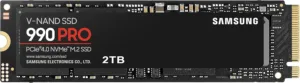
First and foremost, you need to ensure that the SSD you intend to purchase is compatible with your MacBook Air 2015 model. Not all SSDs are created equal, and picking the right one is crucial. Look for SSDs specifically designed for the MacBook Air 2015, as they will have the proper connector and form factor. You may also consider the storage capacity and the read/write speeds that suit your needs and budget.
Tools And Supplies Needed For The Upgrade
- P5 Pentalobe screwdriver: To remove the screws from the bottom of your MacBook Air.
- T5 Torx screwdriver: Used for disconnecting the battery and swapping the SSD.
- Spudger/prying tool: Helps with safely disconnecting cables without causing damage.
- Anti-static wrist strap: Optional but recommended to prevent static electricity from damaging your MacBook Air’s internal components.
- Clean workspace: Ensures a safe environment for the SSD upgrade.
Backing Up Your Macbook Air Data
Backup is a critical step before starting any hardware upgrade. Use Time Machine, a built-in backup feature on macOS, to back up your entire system to an external hard drive. Ensure the backup process completes successfully before proceeding, thereby preventing data loss should anything go awry during the upgrade.
Understanding The Macos Recovery Process
Once your SSD upgrade is complete, you may need to reinstall macOS. Familiarize yourself with the macOS Recovery process, which is initiated by holding down Command (⌘)-R on startup. This process grants you access to utilities for reinstalling macOS, restoring from a backup, or even repairing a disk using Disk Utility. Preparing a bootable installer for macOS on a USB drive is also a great alternative if your MacBook Air doesn’t boot into recovery mode.
Step-by-step Guide To Upgrading Your Macbook Air’s Ssd
Feeling the need for speed with your 2015 MacBook Air? Upgrading your SSD is the perfect way to boost performance and breathe new life into your Mac. Follow this step-by-step guide to swap out the old drive for a sleek, new SSD.
Shutting Down And Preparing The Macbook Air
Before diving into the upgrade process, it’s crucial to take the necessary precautions. Start by ensuring your MacBook Air is completely powered off and not just asleep. Disconnect any cables and accessories, and place your MacBook on a static-free surface to avoid any potential damage from electrostatic discharge. A professional repair kit will offer you the tools needed for a seamless operation.
Opening The Macbook Air’s Case
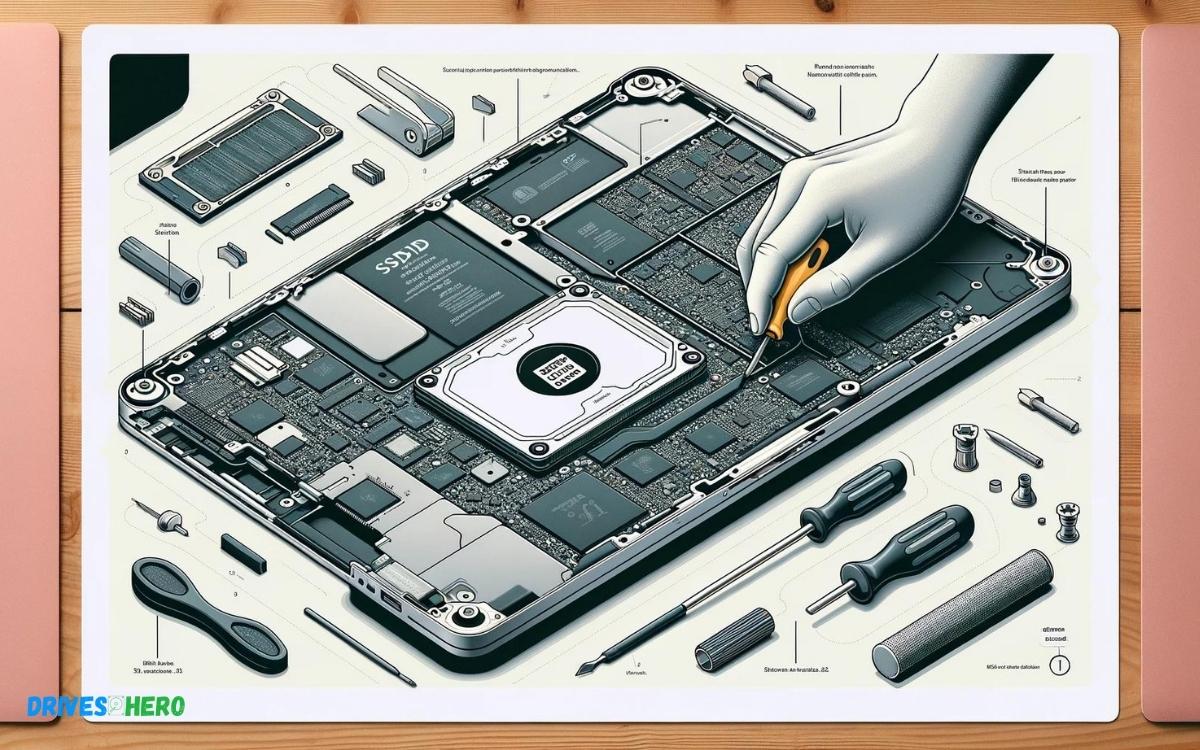
Flip your MacBook Air over to access the case’s rear panel. You’ll find ten screws holding it in place. Remove these with the appropriate Pentalobe screwdriver. Keep the screws organized as they are various sizes. Gently pry the case open, starting at the hinge edge and working your way around.
Removing The Original Ssd
Inside your MacBook Air, locate the SSD; it’s a small stick-shaped component secured by a single screw. After disconnecting the battery connector for safety, use your Torx screwdriver to remove the screw. Pull the original SSD out gently, at a slight angle.
- Disconnect the battery connector
- Remove the screw holding the SSD
- Slide out the original SSD
Installing The New Ssd
Grab your new SSD and align it with the now-vacant slot. It should sit at the same angle as the old one did when you removed it. Once in position, carefully press it down and replace the screw to secure it. Remember to reconnect the battery connector once the new SSD is in place.
| Step | Action |
|---|---|
| 1 | Align the new SSD |
| 2 | Press down and secure with screw |
| 3 | Reconnect the battery connector |
Reassembling The Macbook Air
With your new SSD securely installed, it’s time to close everything up. Place the back cover onto the MacBook Air, aligning it correctly. Replace all ten screws, starting with the longer ones in the back, using the Pentalobe screwdriver. Tighten them just enough to be secure without over-tightening.
- Align the back cover
- Replace the screws (long ones first)
- Tighten screws appropriately
Power up your MacBook Air, and you’re ready to enjoy the newfound snappiness!
Post-upgrade Steps
Completing a successful SSD upgrade on a MacBook Air 2015 can be immensely satisfying, but the process doesn’t end with physically installing the new SSD. It’s essential to perform the right steps to get your MacBook Air up and running with improved performance. Let’s walk through the post-upgrade steps that include booting from macOS Recovery, formatting the new SSD, installing or restoring macOS, and finally, testing and troubleshooting the fresh installation.
Booting From Macos Recovery
The first step after installing your new SSD is to boot up your MacBook Air into macOS Recovery. To do so:
- Turn on your MacBook Air and immediately press and hold the
Command(⌘) + Rkeys. - Release the keys when you see the Apple logo. This action will launch the macOS Utilities window and signifies that your MacBook has entered Recovery Mode.
Remember, Recovery Mode is integral for setting up the new SSD and reinstalling the operating system.
Formatting The New Ssd
Before installing macOS, it’s crucial to format the new SSD:
- Select ‘Disk Utility’ from the macOS Utilities menu and click ‘Continue’.
- In Disk Utility, choose your new SSD from the sidebar.
- Click ‘Erase’ and fill in the following details:
- Name: Provide a name for your drive, commonly “Macintosh HD”.
- Format: Choose ‘APFS’ (Apple File System) or ‘Mac OS Extended (Journaled)’, depending on your preference.
- Scheme: Select ‘GUID Partition Map’ which is suitable for bootable drives.
- Once the fields are complete, click ‘Erase’ to format the SSD.
After formatting, exit Disk Utility to return to the macOS Utilities window.
Installing Or Restoring Macos
With a formatted SSD, the next step is to install a fresh copy of macOS or restore from a Time Machine backup:
- To install macOS, select ‘Reinstall macOS’ from the macOS Utilities window and click ‘Continue’. Follow the prompts to complete the installation.
- To restore from a backup, connect your Time Machine backup drive and select ‘Restore From Time Machine Backup’ instead. Choose the most recent backup to restore your data and settings.
Complete these actions based on your chosen method and wait for the process to finish. This could take some time depending on your internet connection and backup size.
Testing And Troubleshooting
After macOS installation or restoration is complete, your MacBook will restart. Now is the time to test your system:
- Verify startup: Ensure that your MacBook boots correctly to the new SSD without errors.
- Check system information: Go to ‘About This Mac’ from the Apple menu to verify that your new SSD is recognized and showing the correct storage capacity.
- Run diagnostics: Reboot your MacBook while holding the ‘D’ key to start Apple Diagnostics and check for any hardware issues.
If any issues arise during this phase, you may need to revisit previous steps or refer to online resources for troubleshooting specific error codes or symptoms. With careful attention, your MacBook Air should now be ready to deliver impressive performance with its upgraded SSD.
Maintenance And Care For Your Upgraded Macbook Air
Upgrading the SSD in your MacBook Air can inject new life into your beloved machine, granting it better performance and more storage capability. However, the benefits of an upgrade extend only as far as the care and maintenance you provide. Ensuring your MacBook Air continues to run smoothly after an SSD upgrade involves regular checks and routines to protect your investment. Follow these essential tips to keep your upgraded MacBook Air in top condition.
Regularly Backing Up Your Data
The cornerstone of digital maintenance is the regular backup of your valuable data. Even with a new SSD, it’s critical to safeguard your files against unexpected failures or mishaps. For the MacBook Air, utilizing Time Machine for backup can provide a complete snapshot of your system at regular intervals.
- Set up Time Machine: Connect an external drive and select it as your backup disk in the Time Machine preferences.
- Schedule Backups: Regular backups—whether daily, weekly, or monthly—should match the frequency of significant data updates and changes.
- Verify Backups: Occasionally check your backup files to ensure they’re complete and able to be restored properly.
Monitoring Ssd Health And Performance
Like any other storage device, SSDs have a life span. Actively monitoring the SSD’s health can preempt potential issues. There are several tools available for the MacBook Air that can provide insights into the SSD’s performance and condition. For instance, utilities like Disk Utility and DriveDx can be used to conduct routine checks.
- Disk Utility: Located in the Utilities folder, it offers functions like ‘First Aid’ to verify and repair disks.
- DriveDx: This third-party app offers advanced diagnostics, including temperature monitoring and S.M.A.R.T. status.
Recommendations For Longevity
To maximize the longevity of your MacBook Air and its upgraded SSD consider the following practical guidelines:
| Action | Benefit |
|---|---|
| Avoid Extremes | Keep your MacBook Air away from extreme temperatures to prevent SSD wear. |
| Software Updates | Regular software updates can increase security and stability, improving overall SSD operations. |
| Maintain Battery Health | A well-maintained battery ensures proper power management for the SSD. |
Additionally, be mindful of the storage space. It’s advisable to keep at least 10-15% of the SSD’s capacity free to allow for wear leveling, which prolongs the life of the drive. Adequate ventilation is also paramount; ensure nothing blocks the MacBook Air’s air vents to avoid overheating.
Conclusion
Upgrading your MacBook Air’s SSD is a smart move for extended lifespan and better performance. By following the steps outlined, you’ve equipped yourself for a seamless upgrade process. Remember, selecting a compatible SSD and backing up your data ensures a worry-free experience.
Embrace this upgrade and enjoy your revitalized MacBook Air!

Harold Williams is a senior writer and technical editor at Drives Hero with 20+ years of experience in IT administration. He specializes in storage systems, SSD reviews, and performance testing, bringing real-world insight to every guide.