Find Your Compatible Dram And Ssd Upgrades
Accurate Answer
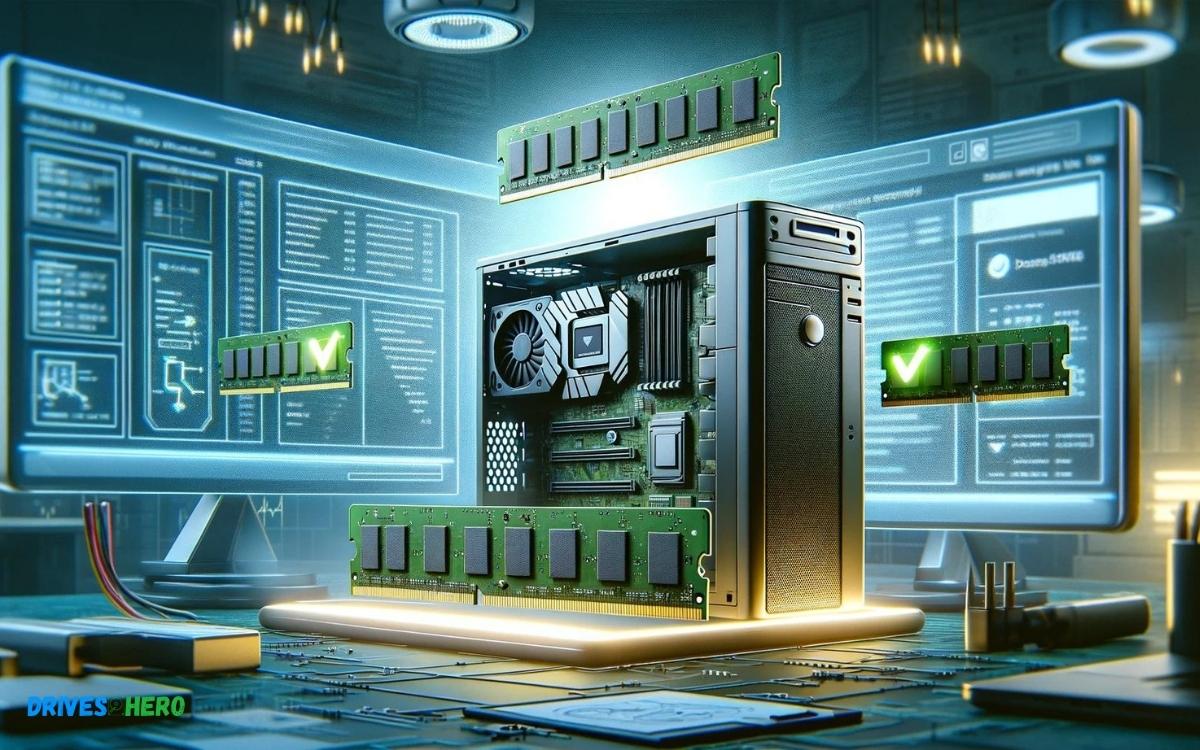
To find compatible DRAM and SSD upgrades for your computer, you need to know your system’s specifications. Use online tools like Crucial’s System Scanner or consult your computer’s manual to identify compatible memory and storage options. Choose upgrades from reputable manufacturers to ensure reliability and performance improvements.
Explanation
When looking to upgrade your computer with DRAM (Dynamic Random-Access Memory) or SSD (Solid State Drive), compatibility is key. It’s essential to match the upgrade to your system’s requirements for the best results. Here’s a step-by-step guide to finding compatible upgrades:
- Identify your system’s model or use a system scanner tool.
- Check the maximum memory and storage your system supports.
- Select the type (DDR3, DDR4, etc.) and size of DRAM compatible with your motherboard.
- Choose an SSD with the right form factor (2.5-inch, M.2, etc.) and interface (SATA, NVMe, etc.).
- Buy from trusted brands to ensure quality and warranty support.
For example, if you have a laptop that uses DDR4 RAM and has an M.2 slot for storage, you would look for DDR4 SODIMM modules and an M.2 SSD that meet your capacity requirements and fit within your budget.
Supporting Paragraph
Enhance your system’s performance and multitasking capabilities with compatible DRAM and SSD upgrades, tailored to fit your specific computer model and usage needs.
Key Takeaway
Introduction To Upgrading Your Computer
Revitalizing your computer with new hardware is like giving it a new lease on life. Upgrades can unleash your system’s true potential, making activities such as data processing, multitasking, and load times not only faster but also more efficient. Whether you’re an avid gamer craving seamless performance, a professional needing quick file access, or you just want to improve your computer’s overall responsiveness, understanding the basics of DRAM and SSDs is the first step towards a significant system improvement.
Understanding The Basics Of Dram And Ssd
The core components that determine your computer’s performance include DRAM (Dynamic Random-Access Memory) and SSD (Solid State Drive). DRAM serves as your system’s temporary memory, allowing the CPU to access data quickly. An SSD, on the other hand, is a type of long-term storage that dramatically improves data retrieval speeds compared to traditional hard disk drives (HDDs).
- DRAM: Volatile memory that temporarily stores data for rapid CPU access
- SSD: Non-volatile storage that speeds up boot times and data access
| Component | Function | Impact on Performance |
|---|---|---|
| DRAM | Quick data access for active tasks | Enhanced multitasking and responsiveness |
| SSD | Long-term data storage | Faster system boot and application load times |
Benefits Of Upgrading Your System’s Memory And Storage
Enhancing your system’s DRAM and replacing your old storage with an SSD can have a transformative effect on your computing experience.
- Improved System Speed: Launch programs and access files in a flash.
- Reduced Load Times: Less waiting means more doing, whether you’re gaming or working with large files.
- Better Multitasking: Switch between tasks seamlessly without slowdown.
- Extended Lifespan: Breathe new life into an aging system without a costly full hardware overhaul.
- Energy Efficiency: SSDs consume less power, contributing to energy savings.
Choosing the right DRAM and SSD for your system depends on various factors, such as your motherboard’s compatibility and your specific use-case requirements. It’s essential to research and ensure any new components are compatible with your current setup to fully enjoy the perks of an upgraded system.
Assessing Compatibility And Needs
When embarking on the journey to enhance your computer’s performance with DRAM and SSD upgrades, a methodical approach is key. Ensuring you have the correct specifications that align with your system’s capabilities will lead to an optimized performance without the setback of hardware incompatibility. Let’s delve into how you can determine the perfect match for your computer’s needs.
Determining Your Current System Specifications
Before contemplating any upgrade, you must first understand the current specifications of your system. This includes the make and model of your computer, the type and speed of your existing DRAM, and the storage parameters of your current SSD or HDD. Using the built-in system information tool for your operating system or third-party software can reveal this vital information.
How To Identify Compatible Dram And Ssd Upgrades
Compatibility is the cornerstone of any hardware upgrade. For DRAM, factors such as voltage, pin count, and timings are crucial. For SSDs, interface type (SATA or NVMe) and form factor (2.5-inch, M.2, or PCIe) need to be considered. Reliable sources for compatibility include the manufacturer’s website, trusted third-party vendors, or using an online compatibility checker tool.
Calculating Your Upgrade Requirements
Understanding your daily usage patterns and performance needs will dictate the extent of your upgrade. Whether you require faster load times or more multitasking capabilities, defining these needs will help gauge the amount of memory and storage required for your upgrades. Professional software or a meticulous evaluation of your usage can aid in making accurate estimates.
- For heavy multitasking or demanding applications, 16GB to 32GB of DRAM is typically recommended.
- If speed is a priority, looking at NVMe SSDs over traditional SATA drives will give you the edge.
- Content creators or those with extensive media libraries might consider SSDs with at least 1TB of storage.
Choosing The Right Dram And Ssd
Upgrading your computer’s memory and storage can significantly boost its performance, whether for gaming, professional tasks, or just a smoother overall experience. DRAM (Dynamic Random-Access Memory) and SSDs (Solid State Drives) are crucial components, but with a dizzying amount of options, choosing the compatible upgrades can be daunting. Below, we break down the essentials to make your decision process as straightforward as possible.
Understanding Different Types Of Dram And Their Uses
DRAM comes in various types, each with its specifications and uses. Here’s a quick guide to help you understand which type of DRAM fits your needs:
- DDR (Double Data Rate): Commonly used in computers, with newer generations like DDR4 offering faster speeds and improved efficiency.
- SODIMM (Small Outline DIMM): Ideal for laptops due to its smaller form factor, without compromising on performance.
- ECC (Error-Correcting Code): Used in servers and workstations, ECC memory can detect and correct common types of data corruption.
Ssd Form Factors And Interfaces Explained
When it comes to SSDs, form factor and interface are crucial. The form factor determines the physical size and shape of the SSD, while the interface specifies the connection between the SSD and the computer.
| Form Factor | Interface | Common Uses |
|---|---|---|
| 2.5-inch SATA | SATA III | Widely used in older laptops and desktops |
| M.2 | NVMe | High-performance PCs and ultrabooks |
| PCIe Add-In Card | PCIe/NVMe | Gaming and high-end desktops requiring top speeds |
Selecting the right form factor and interface maximizes compatibility and performance. Ensure your motherboard supports the size and interface of your chosen SSD.
Evaluating Performance And Reliability Of Memory And Storage Components
A component’s performance and reliability can make or break your computing experience. For DRAM, look for options with higher clock speeds and lower latencies. As for SSDs, consider these key indicators:
- Read/Write Speeds: SSDs should have high transfer speeds to improve load times significantly.
- IOPS (Input/Output Operations Per Second): The higher the IOPS, the faster the drive can read and write data, which is crucial for multitasking and complex applications.
- MTBF (Mean Time Between Failures): Reflects an SSD’s reliability and durability; a higher MTBF means a longer expected lifespan.
- Warranty and Support: Good warranty terms and customer support can save you from headaches in the long run.
Consider these aspects when choosing your DRAM and SSD to ensure they meet your performance requirements and deliver long-lasting reliability.
Upgrade Preparation And Process
Preparing your system for a DRAM and SSD upgrade is more than a mere hardware change—it’s a way to rejuvenate your computer’s performance. The precision in preparation and the exactness in execution are crucial for a successful upgrade. Let’s embark on this transformative journey by outlining the steps necessary to ensure a smooth upgrade and optimize your system once new hardware has been installed.
Backup Strategies Before Upgrading
Before you unscrew or unplug anything, it’s vital to safeguard your data. Crafting a robust backup plan can save you from potential data loss nightmares.
- Full system image backup: Create an exact replica of your current drive, capturing all your files and the operating system.
- Cloud storage: Utilize services like Google Drive or Dropbox to store critical files for easy access post-update.
- External drive: Duplicate essential files to an external HDD or SSD to ensure a local copy is always at hand.
Step-by-step Guide To Installing Dram And Ssd
- Ground yourself: Prevent static electricity damage by using an anti-static wristband or periodically touching a grounded metal object.
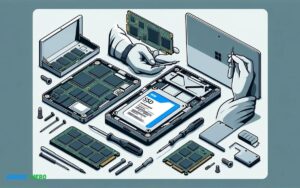
- Open your system: Consult your manual for the appropriate method to access the DRAM and SSD bays on your device.
- Insert DRAM: Align the notches on the DRAM stick with the slot and press down firmly until the side clips click.
- Install SSD: Secure the SSD in the appropriate bay, connect the SATA or PCIe interface, and reassemble your system.
- Power on and verify: Upon first boot, enter BIOS to confirm the system recognizes the new DRAM and SSD.
Post-installation: Setting Up And Optimizing Your New Hardware
Once the hardware is in place, it’s time to streamline your system’s capabilities to take full advantage of the upgrade.
- System BIOS Update:
- Ensure your BIOS is up-to-date to improve compatibility and performance.
- Configure Boot Order:
- Adjust the boot sequence in your BIOS settings if you’ve installed a new SSD as your primary drive.
- OS Installation:
- Complete a fresh installation of your operating system on your new SSD, followed by drivers and essential software.
- Performance Tweaks:
- Tweak your OS settings, enable TRIM for SSDs to extend lifespan, and adjust your power settings for optimal performance.
Troubleshooting And Support
Embarking on a journey to upgrade your device’s DRAM or SSD can be an exhilarating but sometimes challenging experience. Whether it’s issues with compatibility, installation, or performance, having the right troubleshooting knowledge is essential. From common mishaps to knowing when to call in the pros, this section dives into the nuts and bolts of upgrade troubleshooting and support, ensuring a smoother process for both novices and seasoned tech enthusiasts.
Common Issues And Solutions During Upgrades
Upgrading your components should be a straightforward process, but occasionally technical hitches can arise. Identifying challenges early and finding solutions is key to a successful upgrade. Here are common upgrade hurdles and how to tackle them:
- Incorrect form factor: Ensure the DRAM or SSD is the right size for your device by consulting the manufacturer’s guide.
- Compatibility problems: Check the motherboard specifications to confirm compatibility with the new components.
- Software and Firmware issues: Update your BIOS or firmware to the latest version before attempting installation.
- Static damage: Always handle components with care, using an anti-static wrist strap or mat.
- System not recognizing new hardware: This could be due to an improper connection. Re-seat the component and check all cables and connections.
Most issues tend to be minor and solvable with some investigation and patience. Always refer to the upgrade manual for specific troubleshooting steps.
When To Seek Professional Help For Your Upgrade
While DIY upgrades save costs and offer a learning experience, certain scenarios call for professional assistance. Seek help if:
- You experience repeated blue screens or BIOS errors after installation.
- Your system overheats or shuts down unexpectedly post-upgrade.
- You have tried all basic troubleshooting steps without success.
- Your device is still under warranty, risking voidance if the upgrade is done incorrectly.
Professional technicians have the tools and expertise to diagnose and fix complex issues without risking further damage to your system.
Resources And Communities For Diy Computer Upgrade Support
For those who relish the challenge of upgrading their own machines, a wealth of resources and community support exists:
| Resource | Description | Type |
|---|---|---|
| Online Forums | Platforms like Reddit, Tom’s Hardware, or Linus Tech Tips where you can ask questions and share experiences. | Community |
| Manufacturer Support | Official websites often have FAQs, manuals, and live support for troubleshooting. | Official |
| Video Tutorials | Video guides on YouTube for visual step-by-step installation processes. | Visual |
| Technical Blogs | Written guides and articles by experienced tech enthusiasts and professionals. | Written |
These resources, coupled with dedication and careful reading, can transform any upgrade endeavor into a successful one. Remember to search for your specific device model and upgrade components to find tailored advice.
Conclusion
Upgrading your computer’s DRAM and SSD can seem daunting, but it’s a surefire way to boost performance. With the right guidance and compatibility checks, the process is straightforward. Remember, the perfect upgrade awaits—a match that revitalizes your system’s speed and efficiency.
Take the leap and enjoy the seamless, enhanced functionality of your upgraded device. Embrace the swift, satisfying user experience of a tailored upgrade.

Harold Williams is a senior writer and technical editor at Drives Hero with 20+ years of experience in IT administration. He specializes in storage systems, SSD reviews, and performance testing, bringing real-world insight to every guide.