M.2 vs 2.5-inch SSDs: Form Factor Comparison Guide
Choosing an SSD should be simple, right? You want faster storage, so you buy one. But the moment you start shopping, you’re hit with choices that aren’t always obvious. M.2 or 2.5-inch? NVMe or SATA? Will it even fit in your laptop? These are the kinds of questions that trip people up, and picking the wrong form factor can mean returning a drive or, worse, buying something that doesn’t perform the way you expected.
The difference between M.2 and 2.5-inch SSDs goes beyond just physical size. It affects how fast your storage runs, how you install it, what your motherboard needs to support, and how much you’ll spend. Both form factors have their place, and neither is universally “better” for every situation.
This guide breaks down everything you need to know about M.2 and 2.5-inch SSDs so you can pick the right one for your specific build, budget, and performance needs.
Understanding the Basics: What Are These Form Factors?
2.5-Inch SSDs
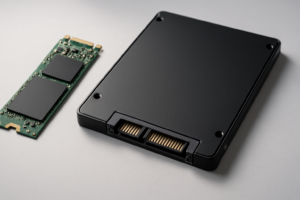
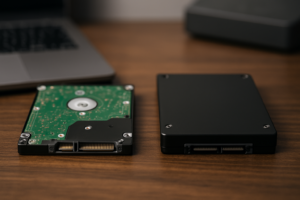
The 2.5-inch SSD is the older and more familiar form factor. It’s shaped like a small rectangular box, roughly the same dimensions as a traditional laptop hard drive. These drives connect to your system using a SATA cable and a separate power cable from your PSU. If you’ve ever swapped a hard drive in a laptop or desktop, you already know how these work.
The 2.5-inch form factor uses the SATA III interface exclusively, which caps out at about 550 MB/s for sequential reads. That’s dramatically faster than a spinning hard drive, but it’s the slowest option in the SSD world today.
M.2 SSDs
M.2 SSDs look like small sticks of gum. They plug directly into an M.2 slot on your motherboard, eliminating the need for cables entirely. Here’s where things get a little tricky, though: M.2 is just a physical form factor. An M.2 drive can use either the SATA protocol or the NVMe protocol, and the performance difference between those two is enormous.
An M.2 SATA drive tops out at the same 550 MB/s as a 2.5-inch SATA drive. An M.2 NVMe drive, on the other hand, can hit speeds of 3,500 MB/s on PCIe Gen 3 and over 7,000 MB/s on PCIe Gen 4. Gen 5 NVMe drives push past 10,000 MB/s, though they’re still a niche product for most consumers.
Performance Comparison
This is where the two form factors diverge most dramatically, assuming we’re comparing 2.5-inch SATA drives against M.2 NVMe drives (which is the most common real-world comparison).
Sequential Read and Write Speeds
A 2.5-inch SATA SSD like the Samsung 870 EVO delivers around 560 MB/s reads and 530 MB/s writes. That’s perfectly solid for everyday computing, and you’ll notice a massive improvement if you’re upgrading from a mechanical hard drive.
An M.2 NVMe drive like the Samsung 990 Pro delivers around 7,450 MB/s reads and 6,900 MB/s writes on PCIe Gen 4. That’s roughly 13 times faster for sequential operations. For large file transfers, video editing, and working with massive datasets, you’ll feel that difference every single day.
Random Read/Write (Real-World Feel)
Random 4K performance is what determines how “snappy” your system feels during everyday use: booting up, opening apps, multitasking. Both SATA and NVMe drives perform well here, and the gap narrows considerably compared to sequential benchmarks. You’ll notice the jump from a hard drive to any SSD far more than you’ll notice the jump from a SATA SSD to an NVMe SSD during basic desktop use.
Where NVMe really pulls ahead in random performance is during sustained mixed workloads. Think game loading with background downloads, compiling code while streaming, or running virtual machines. The higher queue depth handling of NVMe makes a tangible difference when your storage is juggling multiple tasks.
Gaming Performance
For game loading times, NVMe drives offer a modest improvement over SATA, typically shaving off a few seconds per load screen. Microsoft’s DirectStorage API is changing this picture, though. Newer games built with DirectStorage can stream assets directly from NVMe storage to the GPU, and this technology specifically requires NVMe to function. If you’re building a gaming PC for the next several years, NVMe is the smarter bet.
Compatibility and Installation
Installing a 2.5-Inch SSD
Installation requires a 2.5-inch drive bay or a 3.5-inch adapter bracket, a SATA data cable, and a SATA power connector from your power supply. Most desktop cases have dedicated 2.5-inch mounting points behind the motherboard tray or in drive cages. You’ll need to route two cables, which adds a bit of clutter but is perfectly manageable.
For laptops, many older models (pre-2018 or so) have a 2.5-inch drive bay that’s easy to access. You just remove a panel, swap the drive, and you’re done. Newer ultrabooks have largely ditched 2.5-inch bays in favor of M.2 slots, so check your laptop’s specifications before buying.
Installing an M.2 SSD
M.2 installation is simpler in many ways. You slot the drive into the M.2 connector on your motherboard at a slight angle, press it down flat, and secure it with a small screw. No cables. No brackets. The whole process takes about 30 seconds.
The complexity comes from making sure you buy the right type of M.2 drive. M.2 slots are keyed differently. An M-key slot supports NVMe drives (and sometimes SATA). A B-key slot supports SATA M.2 drives. A B+M key drive works in both. Your motherboard manual will tell you exactly what each slot supports. Don’t skip this step, because plugging an NVMe drive into a SATA-only M.2 slot means the drive simply won’t be detected.
You also need to check whether your M.2 slot supports PCIe Gen 3 or Gen 4 (or Gen 5 on the latest boards). A Gen 4 NVMe drive will work in a Gen 3 slot, but it’ll run at Gen 3 speeds. You won’t damage anything, but you also won’t get the full performance you paid for.
How Many Drives Can You Install?
Most modern motherboards have one to three M.2 slots and four to six SATA ports. This means 2.5-inch drives still have an advantage if you need a lot of storage devices. You could potentially run six SATA SSDs in a desktop system, while you’re limited to however many M.2 slots your board provides.
Keep in mind that some M.2 slots share bandwidth with certain SATA ports. On many motherboards, using the second or third M.2 slot will disable one or two SATA ports. Your motherboard manual will have a chart showing exactly which ports conflict with which slots.
Top Picks for Each Form Factor
Best 2.5-Inch SATA SSD
The Samsung 870 EVO remains the gold standard for 2.5-inch SATA drives. It offers excellent sustained write performance, a long endurance rating, and Samsung’s reliable Magician software for drive management. It’s available in capacities from 250GB up to 4TB, making it extremely versatile for any use case from boot drives to mass storage.

Samsung 870 EVO 1TB 2.5-Inch SATA SSD
The most reliable and well-rounded 2.5-inch SATA SSD, ideal for older systems, laptops, and anyone who needs dependable storage without fuss.
The Crucial MX500 is another excellent choice if you want a budget-friendly SATA option. It doesn’t quite match the 870 EVO’s sustained write performance, but for everyday use, the difference is negligible. Both drives carry five-year warranties.
Best M.2 NVMe SSD
For a PCIe Gen 4 NVMe drive, the Samsung 990 Pro is my top recommendation. It consistently tops benchmark charts, runs cooler than many competitors thanks to its nickel-coated controller, and Samsung’s firmware support is second to none. It’s the drive I’d put in any new build where performance matters.

Samsung 990 Pro 2TB M.2 NVMe SSD
Best-in-class PCIe Gen 4 NVMe drive with outstanding speeds, thermals, and long-term reliability for power users and gamers.
If you want something more affordable, the WD Black SN770 delivers excellent Gen 4 performance at a lower price point. It’s a DRAM-less design that uses the HMB (Host Memory Buffer) from your system RAM, which keeps costs down while maintaining strong real-world speed. For most users, the SN770 is the sweet spot of value and performance.
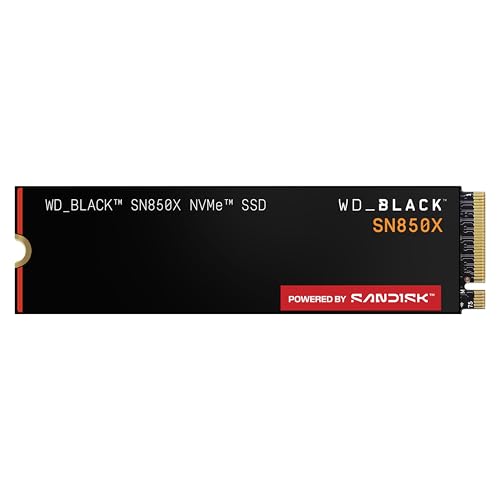
WD Black SN770 1TB M.2 NVMe SSD
Outstanding value Gen 4 NVMe drive that punches above its weight class, perfect for gamers and general-purpose builds.
Which Form Factor Should You Choose?
Pick a 2.5-Inch SATA SSD If:
- Your laptop or desktop doesn’t have an M.2 slot
- You’re upgrading an older system that only supports SATA
- You need bulk storage and have used up all your M.2 slots
- You’re on a tight budget and want the most gigabytes per dollar at higher capacities
- You’re building a NAS or server where SATA compatibility is preferred
Pick an M.2 NVMe SSD If:
- Your motherboard has an available M.2 slot that supports NVMe
- You want the fastest possible storage performance
- You’re building a new PC and want a clean, cable-free installation
- You do video editing, 3D rendering, large file transfers, or software development
- You’re building a gaming PC and want to be ready for DirectStorage
My Honest Recommendation
For any new desktop or laptop build in 2024 and beyond, go M.2 NVMe. The performance advantage is significant, installation is easier, and pricing has dropped to the point where NVMe drives are often comparable to SATA drives at the same capacity. There’s very little reason to choose SATA for a new system unless you’re dealing with hardware limitations.
For older systems, upgrades, and situations where you simply need more storage in a system that’s already using its M.2 slots, 2.5-inch SATA drives are still excellent. Upgrading from a hard drive to any SSD is the single biggest performance improvement you can make to an older computer, and a SATA SSD will feel blazing fast compared to a spinning disk.
A Note on M.2 SATA Drives
M.2 SATA SSDs are an odd middle ground. They use the M.2 form factor but run at SATA speeds (550 MB/s). They were popular for a few years in ultrabooks that had M.2 slots but lacked NVMe support. These days, almost every M.2 slot on a modern motherboard supports NVMe, so there’s rarely a reason to buy an M.2 SATA drive for a new build.
If you’re shopping for an older laptop that specifically requires an M.2 SATA drive (many 2015-2017 era ultrabooks fall into this category), just double-check the keying and protocol support. Buying an NVMe drive for an M.2 SATA-only slot is one of the most common compatibility mistakes I see.
Thermal Considerations
2.5-inch SATA SSDs generate very little heat and never need additional cooling. The metal enclosure itself acts as a sufficient heat spreader.
M.2 NVMe drives are a different story. High-performance NVMe controllers can get quite warm, especially during sustained writes. Many motherboards now include built-in M.2 heatsinks, and that’s usually enough for most workloads. If your motherboard doesn’t have one, aftermarket M.2 heatsinks are cheap and easy to install. Don’t skip the heatsink on a Gen 4 or Gen 5 drive, as thermal throttling can reduce performance significantly during extended transfers.
Frequently Asked Questions
Can I use an M.2 NVMe SSD and a 2.5-inch SATA SSD in the same computer?
Absolutely. This is actually one of the most popular storage configurations for desktop builds. You’d typically use an M.2 NVMe drive as your boot drive and primary application storage, then add one or more 2.5-inch SATA SSDs for games, media, and bulk file storage. Just check your motherboard manual for any SATA port conflicts when using M.2 slots, as some boards disable certain SATA ports when an M.2 drive is installed.
Will an M.2 NVMe SSD make my computer boot faster than a SATA SSD?
Boot times between SATA and NVMe SSDs are surprisingly close, usually within one to three seconds of each other. Modern operating systems load many small files during boot, and that workload doesn’t fully take advantage of NVMe’s sequential speed advantage. Where you’ll notice the NVMe difference more is in application loading, large file operations, and sustained workloads. Both will feel dramatically faster than booting from a hard drive.
How do I know if my motherboard supports M.2 NVMe?
Check your motherboard’s specifications page on the manufacturer’s website or look in the manual. You’re looking for an M.2 slot listed as supporting “PCIe” or “NVMe.” Many boards list their M.2 slots with details like “M.2 (M-Key, PCIe 4.0 x4 / SATA)” meaning it supports both NVMe and SATA M.2 drives. If the slot only says “SATA,” it won’t work with NVMe drives. You can also search your exact motherboard model on James Kennedy is a writer and product researcher at Drives Hero with a background in IT administration and consulting. He has hands-on experience with storage, networking, and system performance, and regularly improves and optimizes his home networking setup.