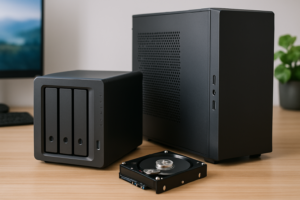
Network Attached Storage vs Cloud: 5-Year Cost Analysis
You’ve been paying for cloud storage for years, watching that monthly fee slowly creep up as your data grows. At some point, a nagging thought surfaces: would it be cheaper to just buy a NAS and store everything locally? Or maybe you’re on the other side, staring at the upfront cost of a NAS and wondering if the cloud’s monthly model actually saves you money over time.
The answer depends entirely on how much data you have, how fast it’s growing, and how long you plan to keep using the service. I’ve spent weeks building out the actual numbers for both approaches across a full five-year window, and the results surprised me in a few places. Small-scale users might find the cloud perfectly economical, while anyone dealing with multi-terabyte libraries will see a dramatically different picture.
This article breaks down every cost category you need to consider, from hardware and electricity to subscription fees and drive replacements, then provides clear break-even calculations so you can figure out exactly where you fall.
The True Cost Categories Most People Miss
When people compare NAS vs. cloud, they usually pit the NAS purchase price against monthly cloud fees. That’s only about half the picture. To get an honest comparison, you need to account for every dollar that leaves your wallet over five years.
NAS Total Cost of Ownership
- NAS enclosure (one-time purchase)
- Hard drives (initial purchase plus replacements)
- Electricity (24/7 operation for five years)
- UPS battery backup (recommended, one-time plus battery replacement)
- Network upgrades (if you need faster access speeds)
- Drive replacement reserve (budget for at least one drive failure over five years)
- Your time (setup, maintenance, updates)
Cloud Total Cost of Ownership
- Monthly or annual subscription fees
- Potential price increases over five years
- Bandwidth costs (if your ISP has data caps)
- Egress fees (some providers charge to download your own data)
- Migration costs (if you switch providers)
Cloud Storage: Five-Year Cost Breakdown
Let’s look at the most popular cloud storage options and what they’ll actually cost over 60 months. I’m using publicly available pricing as of early 2025.
Consumer Cloud Plans (5-Year Totals)
Google One: The 2TB plan runs competitively priced/month (competitively priced/year if paid annually). Over five years, that’s roughly competitively priced for 2TB. If you need more, Google Workspace plans start at different tiers but scale up quickly.
iCloud+: Apple’s 2TB plan competitively priced/month, totaling competitively priced over five years. The new 6TB and 12TB tiers competitively priced and competitively priced per month respectively, pushing five-year costs to competitively priced and competitively priced.
Dropbox Plus: 2TB competitively priced/month (annual billing), coming to approximately competitively priced over five years.
Backblaze B2 (per-TB pricing): competitively priced/TB/month for storage plus egress fees, 10TB over five years runs approximately competitively priced for storage alone, before download charges.
The Scaling Problem
Cloud storage costs scale linearly. If you double your data, you roughly double your costs. And most providers have increased prices at least once in the last three years. Google raised prices on legacy storage plans. Dropbox has restructured pricing multiple times. You should assume at least a 10-15% price increase somewhere in your five-year window.
For this analysis, I’ll apply a conservative 10% price increase at the 30-month mark to reflect historical trends.
NAS Storage: Five-Year Cost Breakdown
For the NAS side, I’ll model three common setups ranging from entry-level to prosumer.
Setup 1: Budget 2-Bay NAS (8TB Usable)
A Synology DS224+ is one of the most popular entry points for home NAS storage. Paired with two NAS-rated drives in a mirrored RAID 1 configuration, you get redundancy with roughly 8TB of usable space using two 8TB drives.
Synology DS224+ 2-Bay NAS DiskStation
The best entry-level NAS for most home users, with excellent software and low power consumption
Electricity cost: The DS224+ draws approximately 20 watts under typical load. Running 24/7 for a year at an average US electricity rate of competitively priced/kWh, that’s competitively priced/year, or competitively priced over five years.
Drive replacement reserve: Budget for one replacement drive over five years. NAS-rated 8TB drives from Seagate IronWolf or WD Red Plus are widely available on Amazon.
UPS: A basic UPS like the CyberPower CP425SLG adds a small one-time cost plus one battery replacement over five years.
Estimated five-year total: NAS enclosure + two initial drives + electricity (competitively priced) + one replacement drive + UPS. The hardware costs vary, so check current Amazon pricing, but the ongoing operational cost stays competitively priced-competitively priced for the full five years.
Setup 2: Mid-Range 4-Bay NAS (24TB Usable)
A Synology DS923+ or QNAP TS-464 with four 8TB drives in RAID 5 gives you roughly 24TB usable with one-drive fault tolerance. This is the sweet spot for photographers, videographers, and families with large media libraries.
Electricity: Four-bay units draw around 35-40 watts, costing approximately competitively priced/year, or competitively priced over five years.
Drive replacement: With four drives spinning for five years, budget for 1-2 replacements based on the typical 2-4% annual failure rate for consumer NAS drives.
Setup 3: Prosumer 4-Bay with Large Drives (48TB Usable)
Same 4-bay enclosure but loaded with 16TB drives in RAID 5 for 48TB usable. Power draw is similar since the enclosure is the same, though larger drives consume marginally more power.
For drives at this capacity, the Seagate IronWolf 8TB NAS Hard Drive offers excellent reliability per terabyte, though you’d want the 16TB variant for this build. Check current availability and pricing for higher-capacity models.
WD Red Plus 8TB NAS Hard Drive (WD80EFPX)
A top-tier NAS drive with CMR technology and a 3-year warranty, ideal for RAID arrays
The Break-Even Calculator
Here’s where the math gets interesting. I’ve calculated approximate break-even points where NAS ownership becomes cheaper than cloud storage for different data amounts.
Small Storage (2TB)
Cloud cost over 5 years: approximately competitively priced-competitively priced depending on provider. A 2-bay NAS with mirrored drives, electricity, and a UPS will typically exceed this amount. For just 2TB of storage, cloud is usually the more economical path, especially if you already pay for a service like Google One or iCloud for other reasons.
Break-even point: Cloud wins for most users under 4TB.
Medium Storage (8-12TB)
Cloud cost for 10TB over 5 years: competitively priced-competitively priced+ depending on provider. A 2-bay NAS with two large drives comfortably stores this amount for significantly less over the same period. The break-even typically occurs between months 14 and 24.
Break-even point: NAS wins by year 2 for most configurations.
Large Storage (24TB+)
Cloud cost for 24TB over 5 years: competitively priced-competitively priced+ depending on provider (many consumer plans don’t even offer this capacity). A 4-bay NAS handles this easily, and the savings become dramatic. You could potentially pay for two full NAS setups over five years and still come out ahead versus cloud pricing.
Break-even point: NAS wins within the first year.
Quick Reference: Break-Even Timeline
Under 4TB: Cloud is likely cheaper over 5 years.
4-8TB: NAS breaks even around months 18-24.
8-20TB: NAS breaks even around months 10-18.
20TB+: NAS breaks even within 6-12 months.
Hidden Costs That Shift the Equation
ISP Data Caps
If your ISP enforces data caps (Comcast’s 1.2TB cap is a common one), uploading large amounts of data to the cloud can push you into overage charges. Uploading an initial 10TB library could take weeks of careful bandwidth management. A NAS transfers data over your local network, bypassing your ISP entirely.
Upload and Download Speeds
With a NAS on a Gigabit Ethernet connection, you get roughly 110-115 MB/s transfer speeds. On a 2.5GbE connection, that jumps to 280+ MB/s. Most home internet connections offer 10-50 Mbps upload speeds (1.25-6.25 MB/s). Uploading a 50GB video project to the cloud could take hours, while a NAS handles it in minutes.
Cloud Egress Fees
Consumer plans from Google, Apple, and Dropbox generally don’t charge egress fees. But if you’re using business-tier or infrastructure storage (AWS S3, Google Cloud Storage, Backblaze B2), downloading your own data costs money. Backblaze B2 charges competitively priced/GB for downloads, meaning pulling down 1TB competitively priced. Over five years of regular access, this adds up.
The Value of Your Time
A NAS requires initial setup (a few hours), periodic updates (maybe 30 minutes per month), and occasional troubleshooting. Cloud storage requires essentially zero maintenance. If you value your time highly and your storage needs are modest, this factor tilts toward cloud.
Performance and Reliability Comparison
Speed
NAS wins decisively for local access. If you’re editing video, accessing large photo libraries, or running a Plex media server, a local NAS is 10-100x faster than cloud access depending on your internet speed. For simple file sync and backup, cloud performance is usually adequate.
Data Safety
Cloud providers maintain multiple copies of your data across geographically distributed data centers. Your data survives fires, floods, and theft. A NAS sitting in your house doesn’t offer that protection unless you add an offsite backup, which brings us to the hybrid approach.
Availability
Major cloud providers deliver 99.9%+ uptime. Your home NAS depends on your home internet (for remote access), your power supply, and your hardware health. Power outages, router reboots, and ISP issues all affect NAS availability when you’re away from home.
The Hybrid Approach: Best of Both Worlds
The most practical strategy for many people combines local NAS storage with a small cloud backup. Here’s how it works in practice.
Keep your primary data on a NAS for fast, unlimited local access. Then use a service like Synology’s Hyper Backup or a third-party tool to back up your most critical files to a low-cost cloud tier. Backblaze B2 or Wasabi are popular choices for this kind of archival backup because their per-TB storage rates are much lower than consumer cloud plans.
This approach gives you local speed, offsite disaster protection, and costs significantly less than storing everything in premium cloud storage.
Synology DS423+ 4-Bay NAS
Excellent 4-bay NAS with built-in cloud backup tools, perfect for the hybrid approach
My Recommendation by User Type
Casual users (under 2TB, mostly documents and photos): Stick with cloud storage. Google One or iCloud is simple, reliable, and cost-effective at this scale.
Power users (4-12TB, media libraries, photography): Buy a 2-bay NAS. You’ll break even within two years and have faster access to your files. Add a small cloud backup for your irreplaceable files.
Content creators and small businesses (12TB+): A 4-bay NAS is the clear winner financially. The cloud equivalent at this scale costs thousands more over five years, and the speed difference for daily work is substantial. Invest in a proper NAS, good drives, and a UPS.
Anyone with slow upload speeds: NAS, regardless of storage size. If your upload speed is under 10 Mbps, cloud storage becomes painfully slow for anything beyond light document syncing.
Frequently Asked Questions
How long do NAS hard drives typically last?
Most NAS-rated hard drives from reputable manufacturers (Seagate IronWolf, WD Red Plus, Toshiba N300) carry 3-year warranties and have an expected lifespan of 3-5 years under continuous use. Actual failure rates vary, but industry data from Backblaze’s annual drive reports suggests an annualized failure rate of 1-3% for quality NAS drives. In a 4-drive NAS over five years, budgeting for 1-2 replacements is reasonable. Using RAID gives you time to replace a failed drive without losing data.
Can I access my NAS remotely like cloud storage?
Yes, and the experience has improved dramatically. Synology’s QuickConnect and QNAP’s myQNAPcloud let you access your NAS from anywhere with an internet connection, no port forwarding required. The experience won’t be as fast as local access since you’re limited by your home internet upload speed, but for grabbing individual files, streaming media, or syncing folders, it works well. Apps for iOS, Android, Windows, and macOS make remote NAS access feel similar to using Dropbox or Google Drive.
What happens to my cloud data if the provider shuts down or changes terms?
This is a real risk that many people overlook. Google has shut down consumer products before (Google Reader, Google Play Music). While Google Drive and iCloud are unlikely

James Kennedy is a writer and product researcher at Drives Hero with a background in IT administration and consulting. He has hands-on experience with storage, networking, and system performance, and regularly improves and optimizes his home networking setup.