What to Look for in an M.2 SSD Enclosure
You’ve got a spare M.2 SSD sitting in a drawer, or maybe you want to turn a new one into a blazing-fast portable drive. Either way, you need an enclosure, and the options are overwhelming. Some look identical on the outside but deliver wildly different performance depending on what’s inside.
Picking the wrong enclosure can bottleneck your NVMe drive to USB 2.0 speeds, overheat during large transfers, or simply refuse to recognize your particular SSD. This guide breaks down the five things that actually matter when choosing an M.2 SSD enclosure, so you get the speed you’re paying for.
Protocol Support: NVMe, SATA, or Both
This is the single most important factor, and it’s where most buyers make mistakes. M.2 SSDs come in two protocols: NVMe and SATA. They use different electrical interfaces, and not every enclosure supports both. If you’re unfamiliar with the physical differences between these form factors, our M.2 vs 2.5-inch SSD comparison guide covers the basics well.
NVMe-only enclosures are the most common today and won’t work with M.2 SATA drives at all. SATA-only enclosures exist but are increasingly rare. Dual-protocol enclosures accept both NVMe and SATA M.2 drives, which makes them the most flexible option if you have multiple drives or aren’t sure what you’ll use in the future.
Before you buy anything, check what kind of SSD you have. Look at the drive’s spec sheet or the notch pattern on the connector (more on that below). Putting an NVMe drive into a SATA-only enclosure won’t damage anything, but it simply won’t work.
Interface Speed: The USB Generation Matters
Your enclosure connects to your computer over USB, and the USB version determines the maximum speed ceiling. Here’s a quick breakdown of what each generation actually delivers:
- USB 3.2 Gen 1 (5 Gbps): Roughly 500 MB/s max. Fine for SATA M.2 drives, but it will severely bottleneck any NVMe SSD.
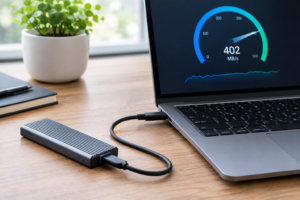
- USB 3.2 Gen 2 (10 Gbps): Around 1,000 MB/s max. A good match for budget NVMe drives and the sweet spot for most users.
- USB 3.2 Gen 2×2 (20 Gbps): Up to 2,000 MB/s. Great for faster NVMe drives, but your computer needs a 20 Gbps port to take advantage.
- Thunderbolt 3/4 or USB4 (40 Gbps): The fastest option. Overkill for most people, but essential if you’re editing 4K/8K video from the drive or moving massive datasets.
A common mistake is pairing a high-end Gen 4 NVMe SSD with a 10 Gbps enclosure and wondering why the drive only hits 1,000 MB/s instead of 7,000 MB/s. The enclosure is the bottleneck, not the drive. For most people, a 10 Gbps (USB 3.2 Gen 2) enclosure hits the right balance between speed and affordability. If you want to understand how NVMe and SATA SSDs compare in real-world scenarios, take a look at our SATA vs NVMe real-world gaming test for some concrete numbers.
The UGREEN M.2 NVMe SSD Enclosure (10 Gbps) is a popular pick in the USB 3.2 Gen 2 category, with a USB-C interface and tool-free installation that makes swapping drives easy.
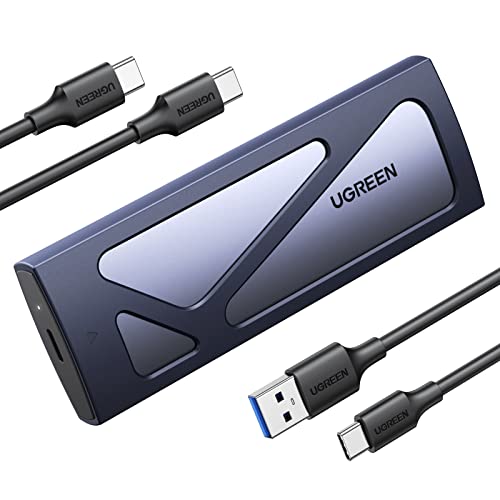
UGREEN M.2 NVMe SSD Enclosure 10Gbps
Reliable 10 Gbps enclosure with aluminum build and tool-free design, ideal for most NVMe drives.
M.2 Key Types and Physical Compatibility
M.2 SSDs use a keying system (notches on the connector edge) that determines physical compatibility. The two you’ll encounter are:
- M-key: Used by NVMe SSDs. Has a single notch on the left side of the connector.
- B+M key: Used by most M.2 SATA SSDs (and some lower-end NVMe drives). Has notches on both sides.
A B+M keyed drive will physically fit into an M-key slot, but it won’t work unless the enclosure’s controller supports SATA protocol. This is why dual-protocol enclosures are so handy. They accept both key types and auto-detect whether the drive is NVMe or SATA.
You’ll also want to check supported drive lengths. The standard M.2 2280 size (22mm wide, 80mm long) fits virtually every enclosure. But if you have a shorter 2242 or 2230 drive, make sure the enclosure has mounting positions for those sizes. Many enclosures include multiple screw holes or an adjustable standoff to accommodate 2230, 2242, 2260, and 2280 drives.
Thermal Design: Don’t Ignore Heat
NVMe SSDs get hot, especially during sustained transfers. In a tiny enclosure with no airflow, thermal throttling is a real concern. Your drive might start a large file copy at 900 MB/s and drop to 300 MB/s within minutes as temperatures climb past 70°C. If you’ve noticed your SSD performance degrading over time, heat may be a contributing factor, something we cover in depth in our article on why your SSD slows down over time.
Look for these thermal features when shopping:
- Aluminum housing: Acts as a passive heatsink. Much better than plastic enclosures for heat dissipation.
- Thermal pads: Small silicone pads that transfer heat from the SSD’s controller and NAND chips to the enclosure shell. Most decent enclosures include these, but check the product listing.
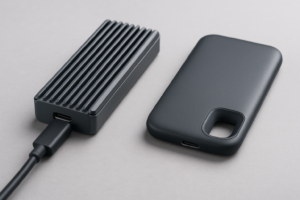
- Ventilation or fin design: Some enclosures add surface area through ridged or finned exteriors, which helps with passive cooling.
If you regularly transfer large files (video footage, disk images, backups), thermal performance should be high on your priority list. The Sabrent USB 3.2 Type-C NVMe Enclosure uses a solid aluminum body with integrated thermal pads and consistently performs well in sustained transfer tests.
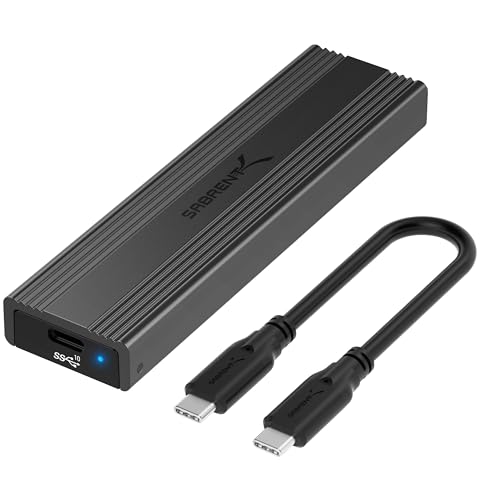
Sabrent USB 3.2 Gen 2 NVMe M.2 SSD Enclosure
Excellent thermal management with full aluminum construction and thermal pads, great for sustained large file transfers.
SATA M.2 drives produce significantly less heat, so thermal design matters less if you’re using a SATA-based SSD. But for NVMe, don’t cheap out on a plastic enclosure if you plan to push the drive hard.
Build Quality and Portability
Since many people buy M.2 enclosures to create portable drives, physical durability matters. If you’re going to toss this in a laptop bag or travel with it, you want something that can handle a few bumps. Our roundup of the best portable SSDs for travel covers some pre-built options, but a good enclosure with your own SSD can match or beat those in both speed and value.
A few practical things to look for:
- Tool-free vs. screw-based assembly: Tool-free enclosures use a slide-in mechanism that makes swapping drives quick. Screw-based designs are more secure but less convenient.
- Cable quality: A good enclosure ships with a USB-C to USB-C cable and often a USB-C to USB-A cable as well. Short, thick cables tend to be more reliable for high-speed transfers.
- Activity LED: A small indicator light confirms the drive is connected and shows transfer activity. Simple, but surprisingly useful for troubleshooting. If your external drive ever stops showing up entirely, our guide on fixing an external drive that isn’t detected can help.
For a dual-protocol option that handles both NVMe and SATA M.2 drives, the SSK Aluminum M.2 Dual Protocol Enclosure is worth considering. It auto-detects your drive type and supports 10 Gbps transfers.

SSK M.2 SSD Enclosure Dual Protocol NVMe SATA
Supports both NVMe and SATA M.2 drives with automatic detection, a versatile choice if you have mixed drives.
Frequently Asked Questions
Can I use any M.2 SSD in any M.2 enclosure?
No. You need to match the protocol. An NVMe-only enclosure won’t recognize a SATA M.2 drive, and vice versa. If you’re unsure which type of drive you have, check the manufacturer’s specifications or look at the key notch on the connector. A dual-protocol enclosure is the safest bet if you want maximum compatibility.
Will an M.2 enclosure make my SSD as fast as an internal drive?
Not quite. Even the fastest USB 3.2 Gen 2 enclosure caps out around 1,000 MB/s, while an internal NVMe Gen 4 SSD can hit 7,000+ MB/s. Thunderbolt and USB4 enclosures close the gap significantly, but there’s always some overhead from the USB bridge chip. For most tasks like file transfers, backups, and even running applications from an external drive, a 10 Gbps enclosure feels very fast.
Do M.2 SSD enclosures need external power?
No. M.2 SSD enclosures draw power directly from the USB port on your computer. This is one of the advantages of the M.2 form factor: the drives are small and power-

James Kennedy is a writer and product researcher at Drives Hero with a background in IT administration and consulting. He has hands-on experience with storage, networking, and system performance, and regularly improves and optimizes his home networking setup.