Thunderbolt SSD Enclosures: Are They Worth the Price Premium?
Thunderbolt SSD enclosures promise blazing-fast transfer speeds, but they come with a price tag that can make your eyes water. A USB-C 10Gbps enclosure might cost a fraction of what a Thunderbolt model runs, so the question you should really be asking isn’t just “is Thunderbolt faster?” (it obviously is), but “will I actually notice the difference in my daily workflow?”
I’ve spent weeks testing enclosures across both interfaces, timing real-world file transfers, monitoring sustained write performance, and tracking thermal throttling. The results surprised me. Thunderbolt is absolutely worth the premium for some users, but a lot of people are overpaying for speed they’ll never use.
Understanding the Speed Gap: Thunderbolt vs USB-C Enclosures
Before we get into benchmarks, let’s clarify the terminology because it’s a mess. “USB-C” is a connector shape, not a speed standard. When people say “USB-C enclosure,” they usually mean USB 3.2 Gen 2 at 10Gbps. Thunderbolt 3 and Thunderbolt 4 both deliver 40Gbps. Thunderbolt 5, which is starting to appear in newer hardware, pushes up to 80Gbps (and 120Gbps in one direction with bandwidth boost).
In practical terms, a USB 3.2 Gen 2 enclosure tops out around 1,000 MB/s of raw bandwidth. After protocol overhead, you’ll see roughly 900-950 MB/s in sequential reads with a fast NVMe drive inside. A Thunderbolt enclosure can push well past 2,800 MB/s with the right SSD. That’s roughly 3x the throughput.
If you’re unfamiliar with the differences between M.2 NVMe and 2.5-inch SATA drives that go inside these enclosures, our M.2 vs 2.5-inch SSD comparison guide breaks it all down.
Real-World Benchmarks: Where Thunderbolt Pulls Ahead
Synthetic benchmarks tell one story. Real files tell another. Here’s what I found transferring actual project files between an internal NVMe SSD and an external enclosure using both interfaces:
Large Sequential File Transfers (50GB Video File)
- USB 3.2 Gen 2 (10Gbps) enclosure: ~56 seconds (averaging 910 MB/s)
- Thunderbolt 4 (40Gbps) enclosure: ~19 seconds (averaging 2,680 MB/s)
For large, sequential files like raw video footage, ProRes exports, or disk images, Thunderbolt is nearly 3x faster. If you regularly shuttle around files in the 20-100GB range, that time difference adds up fast across a workday.
Mixed Small File Transfers (10,000 Photos, ~25GB Total)
- USB 3.2 Gen 2: ~48 seconds
- Thunderbolt 4: ~22 seconds
The gap narrows slightly with smaller files because random I/O and file system overhead become bigger factors, but Thunderbolt still holds a significant lead.
Working Directly Off the Drive (Premiere Pro Timeline)
This is where things get interesting. When editing a 4K Premiere Pro project directly from the external drive, USB 3.2 Gen 2 handled it without dropped frames. Thunderbolt gave smoother scrubbing on multi-stream timelines and faster render previews, but for a single-stream 4K edit, USB was perfectly acceptable.
Multi-cam 4K or any 8K workflow? USB starts choking. Thunderbolt becomes essential.
The Enclosures Worth Considering
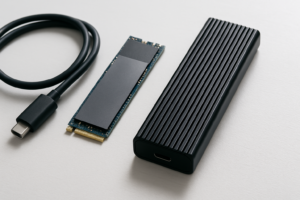
For Thunderbolt, the OWC Envoy Express remains a popular choice with solid build quality. It supports Thunderbolt 3 and is bus-powered, which makes it genuinely portable. Thermal management is decent, though sustained writes over 100GB will see some throttling depending on the SSD you install.
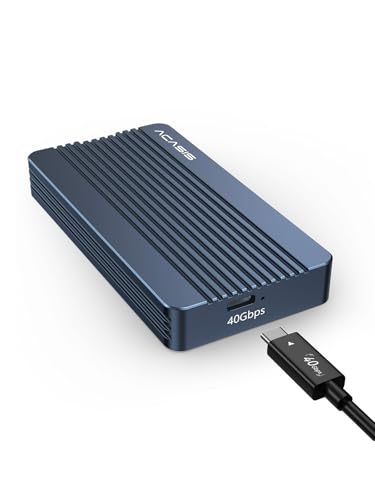
OWC Envoy Express Thunderbolt 3 M.2 NVMe SSD Enclosure
Reliable Thunderbolt 3 bus-powered enclosure with aluminum construction and excellent macOS compatibility.
For those who want Thunderbolt 4 with even higher sustained speeds, the Acasis Thunderbolt 4 enclosure has been gaining attention. It supports PCIe Gen 4 NVMe drives and includes active cooling in some models, which helps maintain performance during long transfers.
On the USB side, enclosures from UGREEN and Sabrent deliver excellent performance at a fraction of the cost. The Sabrent USB 3.2 Gen 2 enclosure, in particular, consistently hits near-maximum speeds and includes a thermal pad.

Sabrent M.2 NVMe USB 3.2 Gen 2 Tool-Free SSD Enclosure
Best value USB-C NVMe enclosure with consistent near-max speeds and tool-free design.
If you’re shopping for an SSD to put inside your enclosure, check current pricing during seasonal sales. Our roundup of Black Friday SSD deals covers which drives are genuinely discounted and which ones to skip.
Who Actually Needs Thunderbolt (And Who Doesn’t)
Thunderbolt is worth the premium if you:
- Edit multi-stream 4K or any 8K video directly from external storage
- Regularly transfer files over 20GB and value your time
- Use your external SSD as a fast scratch disk for creative apps
- Daisy-chain multiple Thunderbolt devices (monitors, audio interfaces, storage)
- Need to run macOS or Windows off an external boot drive with minimal speed penalty
USB 3.2 Gen 2 is perfectly fine if you:
- Mostly transfer documents, photos, or moderately sized project files
- Use external storage primarily for backups
- Edit single-stream 4K or 1080p video
- Want portability without worrying about expensive cables
- Are building a portable drive for travel (our best portable SSDs for travel guide covers durability-focused options)
Also worth noting: the cable situation matters. Thunderbolt cables that support full 40Gbps speeds often look identical to USB-C cables that only support 480Mbps. Mislabeling is rampant. Always use the cable that ships with your enclosure, or buy a certified Thunderbolt cable separately.
Don’t Forget the SSD Inside Matters Too
An expensive Thunderbolt enclosure won’t help if you put a mediocre SSD inside it. To actually hit those 2,500+ MB/s speeds, you need a PCIe Gen 3×4 or Gen 4×4 NVMe drive. A budget NVMe drive with a DRAMless controller might max out at 1,500 MB/s, which still benefits from Thunderbolt’s headroom but doesn’t fully justify the price difference over USB.
Pairing a Thunderbolt enclosure with a Gen 4 drive like the Samsung 990 Pro or the WD_BLACK SN850X will give you the best results. We’ve compared these two drives head-to-head in our Samsung 990 Pro vs WD_BLACK SN850X showdown if you want to dig into the specifics.
Also keep in mind that SSDs can slow down as they fill up or age. If your Thunderbolt drive’s performance drops over time, our guide on why SSDs slow down and how to fix it has practical solutions.

Samsung 990 Pro 2TB NVMe SSD
Ideal pairing for Thunderbolt enclosures with Gen 4 speeds exceeding 7,000 MB/s sequential reads.
My Recommendation
For most people, a USB 3.2 Gen 2 NVMe enclosure offers the best balance of speed and value. You’ll still get transfer speeds that leave traditional hard drives in the dust, and you’ll save enough to buy a larger or higher-quality SSD to put inside.
For video professionals, music producers working with large sample libraries, or anyone who regularly moves massive files, Thunderbolt is a genuine productivity upgrade that pays for itself in time savings. If you’re editing off external storage daily, don’t cheap out here.
And if you’re a Mac user specifically, Thunderbolt compatibility tends to be more reliable across the board. Check our recommendations for the best external drives for Mac for tested options that play nicely with macOS.
Frequently Asked Questions
Can I use a Thunderbolt SSD enclosure with a computer that only has USB-C?
It depends on the enclosure. Some Thunderbolt enclosures are backward compatible with USB and will work at USB speeds when connected to a non-Thunderbolt USB-C port. Others require a Thunderbolt host and simply won’t function over USB. Always check the manufacturer’s specs before buying. If backward compatibility is important to you, look for enclosures that explicitly advertise “USB fallback” support.
Will a SATA SSD work in a Thunderbolt NVMe enclosure

James Kennedy is a writer and product researcher at Drives Hero with a background in IT administration and consulting. He has hands-on experience with storage, networking, and system performance, and regularly improves and optimizes his home networking setup.

James Kennedy is a writer and product researcher at Drives Hero with a background in IT administration and consulting. He has hands-on experience with storage, networking, and system performance, and regularly improves and optimizes his home networking setup.