SSD DRAM Cache Explained: Why It Matters
You’ve probably noticed that some SSDs cost significantly more than others, even when the storage capacity is identical. A 1TB drive from one brand might be twice the price of a 1TB drive from another. The specs look similar on paper, and both promise fast speeds. What gives?
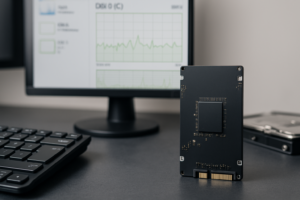
In many cases, the answer comes down to a tiny but mighty chip sitting on the SSD’s circuit board: the DRAM cache. This small piece of memory plays an outsized role in how your SSD performs, how consistently it handles your workloads, and how long it lasts. Yet most product listings barely mention it, and many buyers have no idea it exists.
Understanding DRAM cache will help you make smarter purchasing decisions, whether you’re building a gaming PC, upgrading an aging laptop, or speccing out a workstation. Let’s break down what it does, why it matters, and when you can safely skip it.
What Is DRAM Cache on an SSD?
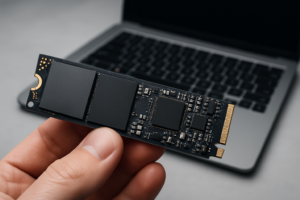
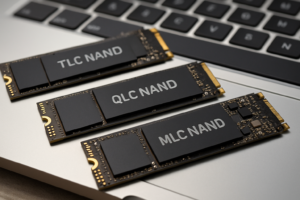
Every SSD stores your files on NAND flash memory chips. But to find those files quickly, the drive maintains a map of where everything is stored. This map is called the Flash Translation Layer (FTL), and it’s essentially a giant lookup table that tells the controller, “The file you’re looking for lives at this specific location on the NAND.”
On SSDs with DRAM cache, this entire FTL table is stored on a dedicated chip of fast volatile memory (the same type of memory used in your computer’s RAM sticks, though much smaller). This means the controller can look up file locations almost instantly.
Think of it like a library. The NAND flash chips are the bookshelves holding all the books. The FTL is the card catalog that tells you which shelf and row each book is on. A DRAM-equipped SSD keeps that card catalog right on the librarian’s desk, within arm’s reach. A DRAMless SSD? It keeps the catalog somewhere on the bookshelves themselves, mixed in with all the books. The librarian has to go searching for the catalog before even beginning to search for your book.
How DRAM Cache Affects Performance
Sequential Reads and Writes
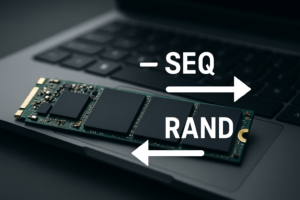
For large, continuous file transfers (like copying a movie or installing a game), DRAM cache makes a relatively modest difference. Both DRAM and DRAMless NVMe drives can saturate their interface bandwidth during sustained sequential operations. You’ll see similar headline numbers on the spec sheet for both types.
Random Reads and Writes (Where It Really Counts)
Random I/O is where the difference becomes dramatic. Every time your operating system boots, every time you open an application, every time a game loads a new level, your SSD is handling thousands of small, scattered read and write operations per second. Each of those operations requires the controller to consult the FTL table.
With DRAM, lookups happen at DRAM speed (nanoseconds). Without DRAM, the controller has to fetch mapping data from the NAND itself, which is orders of magnitude slower. In practice, this means a DRAMless SSD can show 30-50% lower random read performance compared to a DRAM-equipped drive using the same controller and NAND.
For example, the Samsung 990 Pro (with DRAM) delivers around 1,200K random read IOPS at QD1 in real-world testing. A budget DRAMless drive like the Kingston NV2 typically lands around 400-600K IOPS in similar conditions. You feel that gap every time you boot Windows or launch Photoshop.
Sustained Write Performance
DRAM also acts as a write buffer. When you’re transferring large amounts of data, the drive can acknowledge writes to the DRAM cache quickly and then flush them to NAND in the background. DRAMless drives rely on a portion of the NAND itself as a pseudo-SLC cache, which works fine for small bursts but can slow to a crawl once that cache fills up.
On a DRAMless 1TB SSD, you might see write speeds plummet from 3,000 MB/s to as low as 200-400 MB/s once the SLC cache is exhausted. DRAM-equipped drives handle this transition far more gracefully, maintaining higher sustained write speeds for longer periods.
DRAM Cache and SSD Longevity
This is an often overlooked benefit. Every time the controller needs to access the FTL table from NAND (as it must on a DRAMless drive), it creates additional read/write cycles on the flash memory. NAND has a finite number of write cycles before cells begin to degrade.
With DRAM holding the FTL, those constant metadata lookups happen on the DRAM chip instead, sparing the NAND from unnecessary wear. Over the lifetime of the drive, this can add up to a meaningful reduction in write amplification, potentially extending the practical lifespan of the SSD.
For most consumer use cases, even DRAMless drives will outlast their warranty period. But if you’re running a drive in a NAS, a server, or any write-heavy environment, the endurance advantage of DRAM becomes significant.
HMB: The Middle Ground
Some DRAMless SSDs use a technology called Host Memory Buffer (HMB). Instead of having onboard DRAM, the SSD borrows a small chunk of your system’s RAM (typically 64MB) to store the FTL mapping table. This is a clever workaround that delivers much of the benefit of onboard DRAM at a lower manufacturing cost.
HMB-equipped drives like the Western Digital WD Blue SN580 and the Kingston KC3000 perform remarkably well for most consumer tasks. They’re not quite as fast as true DRAM drives in sustained workloads, but for everyday computing, gaming, and content consumption, you’d be hard-pressed to notice the difference.
There’s one catch with HMB, though: it only works with NVMe drives, not SATA SSDs. And it requires a functioning system with available RAM. If you’re using the SSD as an external drive via a USB enclosure, HMB won’t be available, and performance will drop to DRAMless levels.
When a DRAMless SSD Is Perfectly Fine
Not every use case demands DRAM. Here are situations where a DRAMless (or HMB) drive makes good sense:
- Secondary storage drives: If you’re adding a second SSD purely for game storage, media files, or documents, a DRAMless NVMe drive is more than adequate. The games stored there will still load quickly.
- Budget builds: When you’re building a system under a tight budget, a DRAMless NVMe with HMB support (like the WD Blue SN580) gives you excellent everyday performance without breaking the bank.
- Light workloads: Web browsing, office work, streaming, and casual gaming won’t stress an SSD enough for the DRAM difference to matter in any perceptible way.
- Laptops with limited slots: Some laptops only have one M.2 slot. If your budget is tight, a good DRAMless drive like the Silicon Power UD90 still massively outperforms any hard drive and most SATA SSDs.
When You Should Insist on DRAM
There are scenarios where skipping DRAM is a false economy:
- Boot/OS drives on workstations: If you’re running demanding creative software, virtual machines, databases, or compiling code, the random I/O performance of a DRAM drive pays for itself in time saved.
- Video editing and production: Scrubbing through timelines, rendering previews, and handling large project files all generate massive random I/O. A drive like the Samsung 990 Pro or the WD Black SN850X will keep things snappy.
- NAS and server applications: Write endurance and sustained performance matter here. DRAM-equipped drives handle caching duties far more effectively.
- Professional use where time equals money: The seconds you save on every file operation, application launch, and system boot accumulate over weeks and months. That accumulated time savings can easily justify the price difference.
My Top Recommendations
Best DRAM SSD for Most People
The Samsung 990 Pro (1TB or 2TB) is my top pick for a primary OS and applications drive. It delivers exceptional random I/O performance, has excellent sustained write speeds, and Samsung’s firmware maturity is second to none. The 990 Pro also comes with a generous endurance rating of 600 TBW for the 1TB model. Check current pricing on Amazon.
Best Value DRAM SSD
The WD Black SN850X is a close competitor to the 990 Pro and often available at a slightly lower price point. It trades blows with Samsung’s offering across most benchmarks and is an excellent choice if you find it on sale. Check current pricing on Amazon.
Best DRAMless SSD (with HMB)
The WD Blue SN580 is my favorite budget-friendly option. It uses HMB effectively, delivers strong everyday performance, and is available in capacities up to 2TB. For secondary storage or budget builds, it’s hard to beat. Check current pricing on Amazon.
Best SATA SSD with DRAM
If you’re stuck with a SATA-only system (older laptops, for example), the Samsung 870 EVO remains the gold standard. It has onboard DRAM, excellent sustained performance for a SATA drive, and proven long-term reliability. Check current pricing on Amazon.
How to Check If an SSD Has DRAM
Manufacturers don’t always make this easy to find. Here are a few reliable methods:
- Check the spec sheet for a “DRAM” or “Cache” line item. Samsung and WD usually list this clearly. Look for entries like “1GB LPDDR4 DRAM.”
- Search for teardown reviews. Sites like TechPowerUp, Tom’s Hardware, and AnandTech often photograph the PCB and identify every chip on the board.
- Use community resources. The NewMaxx SSD spreadsheet (frequently referenced on Reddit’s r/NewMaxx) categorizes hundreds of SSDs by their cache type, controller, and NAND configuration.
- Look at the price as a rough indicator. Within the same generation and capacity, DRAM drives tend to cost noticeably more. If a 1TB NVMe drive seems unusually cheap, it’s almost certainly DRAMless.
Common Misconceptions
“More DRAM means faster SSD.” Not exactly. DRAM capacity on SSDs scales with drive capacity (typically 1GB of DRAM per 1TB of NAND). Having extra DRAM beyond what’s needed for the FTL table doesn’t add speed. A 1TB drive with 1GB of DRAM is properly equipped; a 1TB drive with 2GB of DRAM isn’t meaningfully faster.
“DRAMless SSDs are junk.” This was more true five years ago. Modern DRAMless NVMe drives with HMB support are genuinely good. The performance gap has narrowed considerably, especially for consumer workloads. Don’t dismiss a drive just because it lacks DRAM.
“DRAM makes my SSD faster than my RAM.” The DRAM cache on an SSD operates at a fraction of the speed of your system memory. Its purpose is to speed up internal SSD operations, not to compete with your main RAM. Your system RAM is still orders of magnitude faster for active data.
Frequently Asked Questions
Does DRAM cache make a difference for gaming?
For game load times specifically, the difference between a DRAM and DRAMless NVMe SSD is usually small (a few seconds at most). Where DRAM helps more is with general system responsiveness, boot times, and multitasking. If the SSD is your boot drive running your OS and games simultaneously, DRAM contributes to a smoother overall experience. For a dedicated game storage drive, a DRAMless NVMe with HMB is perfectly adequate.
Can I add DRAM to a DRAMless SSD?
No. The DRAM chip is soldered onto the SSD’s circuit board during manufacturing and is managed by the drive’s firmware and controller. There’s no way to add or upgrade it after purchase. If you need DRAM cache, you’ll need to buy a drive that includes it from the factory.
Does DRAM cache affect data safety during power loss?
This is an important consideration. Data sitting in the DRAM cache hasn’t been written to NAND yet, so a sudden power loss could theoretically cause data loss. Enterprise SSDs include power-loss protection capacitors to flush the DRAM contents to NAND during an outage. Most consumer SSDs do not have this protection. For critical workstation use, pairing your SSD with a UPS (uninterruptible power supply) is a smart precaution.
Is there a noticeable speed difference between DRAM and HMB in everyday use?
For typical consumer tasks like booting Windows, browsing the web, working in Office applications, and loading games, most people won’t notice a meaningful difference between a well-implemented HMB drive and a DRAM-equipped one. The gap shows up primarily in sustained write workloads, heavy multitasking, and professional applications that generate intense random I/O. If those scenarios don’t describe your daily computing life, HMB will serve you well.

James Kennedy is a writer and product researcher at Drives Hero with a background in IT administration and consulting. He has hands-on experience with storage, networking, and system performance, and regularly improves and optimizes his home networking setup.