SSD Not Detected In BIOS: Troubleshooting Guide
You just installed a brand new SSD, powered on your system, entered BIOS, and… nothing. The drive doesn’t show up. Your stomach drops a little because you’re not sure if you just wasted your money on a dead drive or if something else is going on.
Before you start filing an RMA or panicking, take a breath. In the vast majority of cases, an SSD not being detected in BIOS is caused by something fixable: a wrong slot, a conflicting setting, a loose connection, or a BIOS configuration that needs tweaking. Truly dead-on-arrival drives exist, but they’re the exception, not the rule.
This guide walks through every common reason your SSD might be invisible to your BIOS, covering both NVMe M.2 drives and 2.5-inch SATA SSDs. We’ll go from the simplest fixes to the more obscure ones, so you can work through them systematically instead of guessing.
Step 1: Check the Physical Connection
This sounds obvious, but it’s the most common cause. And even experienced builders skip this step because they’re confident they seated the drive correctly.
For M.2 NVMe and M.2 SATA Drives
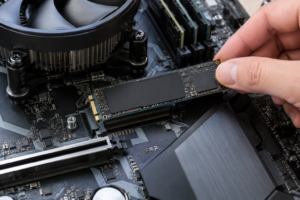
M.2 drives slide into a slot at an angle and then screw down flat against the motherboard. If the drive isn’t fully inserted into the connector, or if the retention screw is missing and the drive is sitting at an angle, the motherboard won’t detect it. Pull the drive out, inspect the gold contact pins for any damage, and reseat it firmly. You should feel a slight click or resistance when it’s properly seated.
Also double-check that you’re using the right screw and standoff for your drive’s length. Most consumer M.2 SSDs are 2280 (22mm wide, 80mm long), but some are 2242 or 2230. If the standoff is in the wrong position, the drive can flex or fail to make proper contact with the connector.
For 2.5-Inch SATA SSDs
SATA drives need two cables: a SATA data cable connecting the drive to the motherboard, and a SATA power cable coming from your power supply. Check both. SATA data cables are notorious for working themselves loose, especially the L-shaped connectors. Try a different SATA data cable entirely, since cables do go bad. Also try a different SATA power connector from your PSU, as individual connectors on a modular cable can occasionally fail.
Step 2: Verify You’re Using the Right M.2 Slot
This is where things get tricky, and it’s one of the most frequent causes of “invisible” M.2 drives. Not all M.2 slots are created equal, and using the wrong one for your drive type will result in no detection.
NVMe vs. SATA M.2 Drives
M.2 is just a form factor. The drive inside can use either the NVMe protocol (which communicates over PCIe lanes) or the SATA protocol (the same interface as a traditional 2.5-inch SSD, just in a smaller package). These two types of drives have different keying on their connectors, and not every M.2 slot on your motherboard supports both.
An M.2 slot labeled as “M key” typically supports NVMe drives. A slot labeled “B+M key” may support SATA M.2 drives, NVMe drives, or both. You need to consult your motherboard manual to see what each specific M.2 slot supports. For example, on many ASUS and MSI boards, the primary M.2 slot (closest to the CPU) supports only NVMe, while a secondary slot might support both NVMe and SATA.
Plugging a SATA M.2 drive like the Samsung 870 EVO Plus M.2 into an NVMe-only slot will result in zero detection. The drive isn’t broken. It’s just speaking a language that slot doesn’t understand.
Shared Bandwidth and Lane Conflicts
Many motherboards share PCIe lanes or SATA channels between M.2 slots and other connectors. A very common example: using the second M.2 slot on a B550 or B660 motherboard may disable SATA ports 5 and 6. If you have another drive connected to one of those SATA ports, one or both drives might disappear.
Your motherboard manual will have a chart showing these conflicts, usually in a section labeled something like “M.2 and SATA configuration” or “storage device installation.” Read it carefully. This chart is the single most useful page in your entire motherboard manual when troubleshooting storage detection issues.
Step 3: Check BIOS Settings
Sometimes the hardware is fine, but your BIOS is configured in a way that prevents the drive from showing up.
AHCI vs. RAID vs. IDE Mode
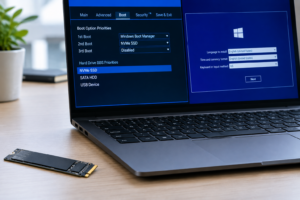
In your BIOS, look for a setting called “SATA Mode” or “SATA Configuration.” It usually offers options like AHCI, RAID, and sometimes IDE (Legacy). For most users with a single SSD or a simple multi-drive setup, AHCI is what you want. IDE mode is ancient and can cause detection issues with modern SSDs. RAID mode is only necessary if you’re actually configuring a RAID array.
Changing from RAID to AHCI (or vice versa) after Windows is already installed can cause boot issues, so be aware of that. But if you’re troubleshooting detection of a new, blank drive, switching to AHCI is a safe thing to try.
CSM and Secure Boot
Compatibility Support Module (CSM) is a BIOS feature that enables legacy boot support. Some NVMe drives won’t appear in the boot device list if CSM is enabled, because NVMe drives require UEFI boot. Try disabling CSM and ensuring your boot mode is set to UEFI only. This is especially relevant on older motherboards (Z170, Z270 era) that default to CSM-enabled configurations.
Enable the M.2 Slot in BIOS
Some motherboards, particularly from ASUS and Gigabyte, have BIOS options to individually enable or disable M.2 slots. Check under “Advanced” or “Onboard Devices Configuration” for an option related to your M.2 slots. If the slot is set to “Disabled” or “Auto” (and auto isn’t working), manually set it to “Enabled.”
Step 4: Update Your BIOS
BIOS updates frequently add support for newer NVMe drives, fix detection bugs, and improve storage compatibility. If you’re running a BIOS version from when the motherboard first launched, there could be known issues that have since been patched.
Visit your motherboard manufacturer’s support page, download the latest BIOS, and flash it. Most modern boards let you do this from a USB drive through a built-in BIOS flashback feature. You don’t even need a working boot drive to do it on boards with a BIOS flashback button on the rear I/O panel.
This is particularly important if you’ve bought a newer-generation NVMe drive like a PCIe Gen 5 SSD (such as the Crucial T700 or Samsung 990 EVO Plus) and are installing it in a board that may not have originally shipped with Gen 5 support in its BIOS.
Step 5: Test the Drive in Another System or Slot
If you’ve gone through the steps above and the drive still isn’t showing up, it’s time to isolate whether the problem is the drive or the motherboard slot.
- Try the SSD in a different M.2 slot on the same motherboard (if available).
- Try the SSD in a completely different computer. This is the fastest way to confirm whether the drive itself is dead.
- Try a known-working SSD in the same slot. If a different drive works in the slot, your original SSD is likely defective.
- Use an external M.2 enclosure. A USB-to-NVMe enclosure (something like the UGREEN M.2 NVMe enclosure) lets you plug the drive in via USB. If it shows up externally but not in the M.2 slot, you’ve confirmed the issue is with the slot or BIOS, not the drive.
Step 6: Check for Firmware Issues
SSD firmware bugs can cause detection problems, though this is relatively rare with drives from major manufacturers. Samsung, Western Digital, Crucial, and SK hynix all provide free firmware update tools. Samsung Magician, WD Dashboard, Crucial Storage Executive, and SK hynix Drive Manager can all check for and apply firmware updates.
The catch is that you usually need the drive to be detected by an operating system to run these tools. If the drive isn’t showing up in BIOS at all, you won’t be able to update firmware through these utilities. In that case, try connecting the drive externally via USB, updating the firmware through the manufacturer’s tool, and then reinstalling it internally.
There have been some notable firmware-related detection issues over the years. The Intel 600p series had early firmware that caused disappearing acts after sleep states. Certain early batches of the Crucial P2 had compatibility issues with specific AMD motherboards. A quick search for your exact drive model plus “not detected” can reveal whether there’s a known issue with a specific firmware version.
Step 7: Consider a Dead or Defective Drive
After exhausting every other option, you may be dealing with a dead drive. DOA (dead on arrival) SSDs exist, and while quality control is generally excellent, no manufacturer has a 0% failure rate.
Signs that point toward a dead drive include:
- The drive doesn’t appear in any slot, any system, or any external enclosure.
- The drive gets extremely hot immediately upon power-on with no activity.
- The drive was previously working and suddenly vanished without any hardware or BIOS changes.
- Other drives work perfectly fine in the same slot.
If you’ve confirmed the drive is dead, contact the retailer first for an exchange (usually faster than an RMA with the manufacturer). If the return window has closed, file an RMA with the drive manufacturer directly. Most SSDs carry 3- to 5-year warranties.
Special Case: SSD Shows in BIOS but Not in Windows
This is a different problem from what we’ve been discussing, but it comes up constantly in the same troubleshooting conversations. If your SSD appears in BIOS but doesn’t show up in Windows File Explorer, it almost certainly just needs to be initialized and formatted.
Open Disk Management in Windows (right-click the Start button and select “Disk Management”). You should see the drive listed as “Unallocated.” Right-click it, initialize it as GPT (not MBR, unless you have a very specific reason), create a new simple volume, assign a drive letter, and format it as NTFS. It’ll appear in File Explorer immediately after.
Quick Reference Troubleshooting Checklist
- Reseat the drive (remove and reinsert it).
- Try a different SATA cable and power connector (for 2.5-inch drives).
- Verify the M.2 slot supports your drive type (NVMe vs. SATA).
- Check for SATA port conflicts with M.2 slots in your motherboard manual.
- Set SATA mode to AHCI in BIOS.
- Disable CSM and set boot mode to UEFI.
- Manually enable the M.2 slot in BIOS if the option exists.
- Update your motherboard BIOS to the latest version.
- Test the drive in another system or external enclosure.
- Check for SSD firmware updates.
- Contact the retailer or manufacturer for RMA if the drive is confirmed dead.
Frequently Asked Questions
Why does my M.2 SSD show up in BIOS but not as a bootable device?
This usually happens when CSM (Compatibility Support Module) is enabled in BIOS. NVMe drives require UEFI boot, so CSM needs to be disabled. Also confirm that Secure Boot is configured correctly and that you installed Windows in UEFI mode. If Windows was originally installed in Legacy/CSM mode to a different drive, the boot manager won’t recognize an NVMe drive as bootable until you do a fresh UEFI installation.
Can a faulty motherboard M.2 slot cause detection issues?
Yes, but it’s uncommon. M.2 slots can be damaged by improper installation (forcing a drive in at the wrong angle, bending pins, or overtightening the retention screw). If one M.2 slot doesn’t detect any drive but another slot on the same board works fine, the slot itself may be physically damaged. Inspect it under good lighting for bent or broken pins inside the connector.
My SSD was working yesterday and disappeared from BIOS today. What happened?
A drive that was previously detected and then vanishes is more concerning than a new drive that never appeared. This can indicate a failing drive, a loose connection that vibration worsened over time, a power supply issue delivering inconsistent voltage, or (in rare cases) a firmware bug. Start by reseating the drive and its cables. If it reappears but keeps disappearing, back up your data immediately and prepare for a potential drive failure. Run the manufacturer’s diagnostic tool to check drive health.
Do I need to install NVMe drivers before BIOS will detect my SSD?
No. BIOS detection is independent of operating system drivers. Your BIOS communicates with the drive at a hardware level and doesn’t need any drivers to see it. NVMe drivers only matter once you’re inside an operating system like Windows. If the drive doesn’t show up in BIOS, installing or updating drivers won’t help. Focus on the hardware and BIOS settings instead.

James Kennedy is a writer and product researcher at Drives Hero with a background in IT administration and consulting. He has hands-on experience with storage, networking, and system performance, and regularly improves and optimizes his home networking setup.